- Capabilities
- Getting started
- Architecture center
- Platform updates
Split transform
The Split transform is used to partition input data into two distinct outputs based on a specified condition. This transform evaluates each row of the input data against the defined condition and directs the rows to one of the two outputs accordingly.
Supported pipeline types
The Split transform is only supported in standard batch (Spark backed) and faster pipelines (DataFusion backed). The Split option will not appear in streaming pipelines.
For the current list of supported execution modes, see the Split on condition entry in the function reference.
Add the transform to your pipeline
Select a single table node in your graph, then use either of the following entry points:
- Select Split in the actions that appear beside the selected node.
- Select the Split table option in the transform actions toolbar.
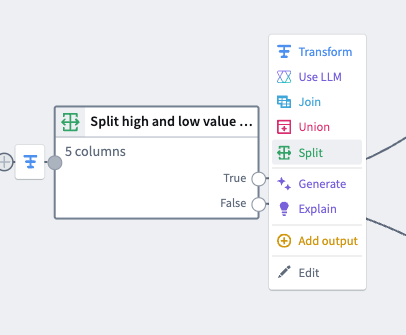
If the Split option does not appear, confirm that you are working in a standard batch or faster pipeline and that you have selected exactly one table node. The option is hidden when it is unavailable, so it does not appear in streaming pipelines or when the selected node is not tabular, such as a media set or file-based input.
Condition
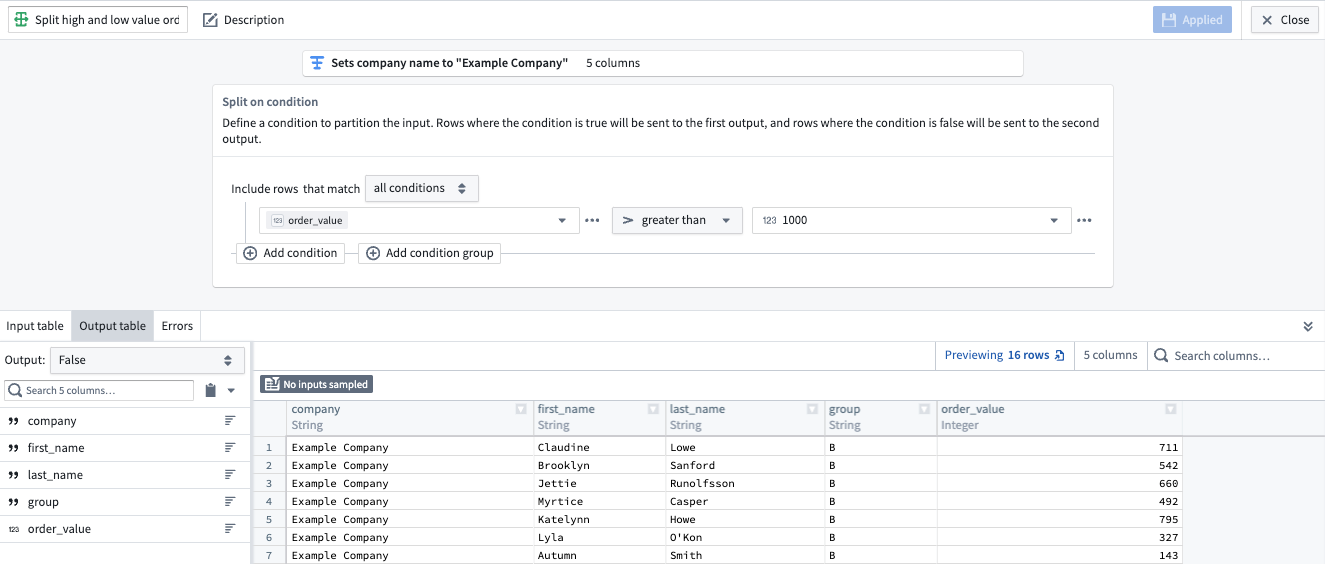
The Split transform allows you to define a condition that determines how the input data is divided. This condition is a logical expression that evaluates to either True or False.
Outputs
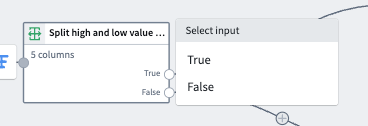
The True output will contain rows for which the condition evaluates to true. These rows are directed to the first output.
The False output will contain rows for which the condition evaluates to false. These rows are directed to the second output.
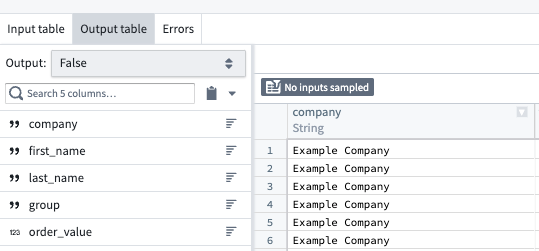
To preview the outputs, you can use the dropdown in the top left of the bottom panel. Select True to see the True output or False to see the False output.
To use the outputs in downstream transforms, select the transform, and then select either the True or False output to use as your next input.
Example
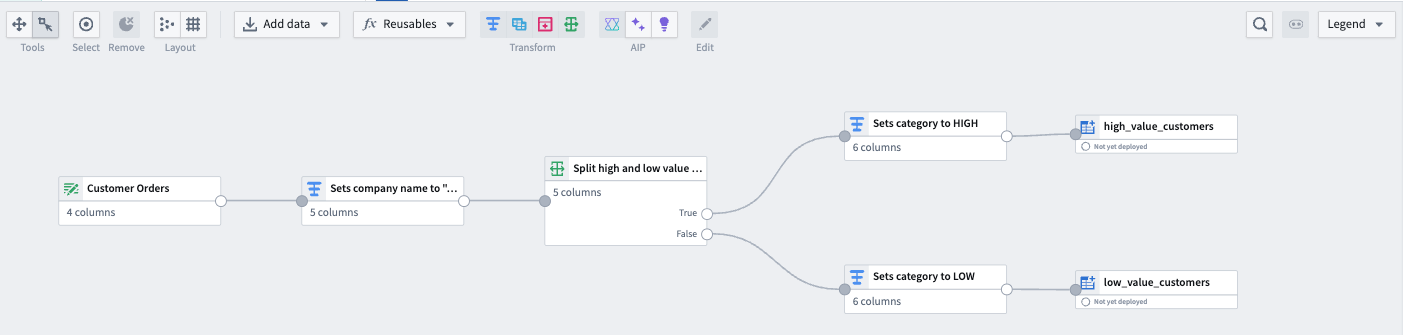
Consider a dataset of customer orders. You want to separate orders into two categories: high-value and low-value orders, based on a threshold value.
In this case, the Condition will be order_value > 1000.
The True output will contain orders where order_value exceeds 1000, and the
False output will contain orders where order_value does not exceed 1000.