- Capabilities
- Getting started
- Architecture center
- Platform updates
Microsoft Excel
The Microsoft Excel connector is a Palantir-provided driver for Microsoft Excel.
To create a new Microsoft Excel source, follow the standard setup flow for Palantir-provided drivers, then use the sections below for Microsoft Excel-specific configuration and networking. For the complete property reference, see the official Microsoft Excel driver documentation ↗.
The Microsoft Excel connector is in the beta phase of development and may not be available on your enrollment. Functionality may change during active development.
Supported capabilities
| Capability | Status |
|---|---|
| Exploration | 🟡 Beta |
| Batch syncs | 🟡 Beta |
| Incremental | 🟡 Beta |
| OAuth 2.0 authentication | 🟡 Beta |
| Table exports | 🟡 Beta |
Introduction
The Microsoft Excel connector reads workbooks from file storage and exposes their worksheets and cell ranges as relational tables.
To read stored formula values without updating the workbook, set Recalculate ↗ to FALSE, particularly when other processes also write to the workbook. By default, the connector recalculates formulas affected by changed cells when it reads and writes the results back to the worksheet.
For scheduled reads, use a batch sync to write these tables to a dataset. See Writing data to update a workbook.
For a one-time upload of an Excel file from your computer, drag it into Foundry.
Supported storage systems include Amazon S3, Azure Blob Storage, OneDrive, SharePoint, and SFTP servers. See the ConnectionType reference ↗ for the complete list.
Choose an Excel connector
Palantir provides three Excel connectors, suited to different storage locations and access methods.
| Connector | Use when |
|---|---|
| Microsoft Excel (this page) | You need to read worksheets and cell ranges as relational tables from a workbook stored in a supported file storage system. |
| Microsoft Excel Online | You need to access a workbook in OneDrive for Business or SharePoint Online through Microsoft Graph, using Microsoft Entra ID authentication. |
| Microsoft SharePoint Excel | You need to access a workbook on an on-premises SharePoint Server 2010 or 2013 deployment. For SharePoint Online, use Microsoft Excel Online. |
Use the Microsoft Excel connector when your workbooks have a consistent tabular structure and you need worksheets or cell ranges exposed directly as source tables.
For greater flexibility over worksheet selection, cell ranges, data types, and workbook-specific parsing, ingest the workbook as a file with its storage connector. Storage connectors include Amazon S3, Microsoft OneDrive, Microsoft SharePoint, and Google Drive. Then parse it in a transform using the Excel parser for Transforms, the parseExcel function in Pipeline Builder, or a library such as pandas.read_excel or openpyxl.
Authentication
To authenticate to the storage system that holds your workbook, set ConnectionType to the appropriate storage system. Review the CData ConnectionType ↗ and AuthScheme ↗ documentation for the supported authentication methods and required properties.
For example, to access a workbook in OneDrive using delegated Microsoft Entra ID authentication, set ConnectionType to OneDrive, AuthScheme to AzureAD, and InitiateOAuth to REFRESH. Provide your application's OAuthClientId and OAuthClientSecret, then follow the OAuth 2.0 authentication guidance.
Reading data
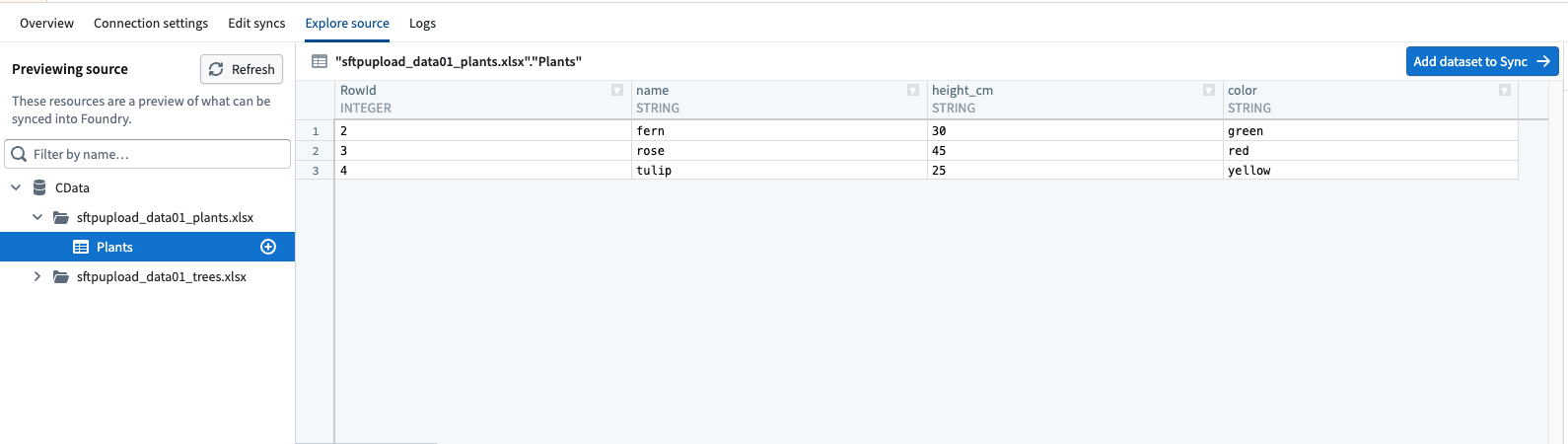
To read Excel data into Foundry, select a worksheet table in the source explorer and set up a batch sync.
Each worksheet is a table under the CData catalog, with the workbook as its schema. To discover multiple workbooks, set URI to a folder rather than a single file. The connector discovers the workbooks in that folder.
Excel columns can contain values of different types, so columns containing numbers may be read as text. To use those values as numbers, convert the column types in a transform after the sync.
Configuration
The properties below are mandatory or recommended.
| Property | Required? | Description | Default |
|---|---|---|---|
ConnectionType ↗ | Mandatory | Specifies the file storage service, server, or file access protocol through which your Microsoft Excel files are stored and retrieved. | Azure Blob Storage |
SSLMode ↗ | Mandatory | The authentication mechanism to be used when connecting to the FTP or FTPS server. | IMPLICIT |
URI ↗ | Mandatory | The Uniform Resource Identifier (URI) for the Excel resource location. | — |
AuthScheme ↗ | Recommended | The type of authentication to use when connecting to remote services. | AzureAD |
InitiateOAuth ↗ | Recommended | Specifies the process for obtaining or refreshing the OAuth access token, which maintains user access while an authenticated, authorized user is working. | REFRESH |
OAuthClientId ↗ | Recommended | Specifies the client Id that was assigned when the custom OAuth application was created. (Also known as the consumer key.) This ID registers the custom application with the OAuth authorization server. | — |
OAuthClientSecret ↗ | Recommended | Specifies the client secret that was assigned when the custom OAuth application was created. (Also known as the consumer secret). This secret registers the custom application with the OAuth authorization server. | — |
Networking
To allow the source to connect to your storage system, add a network egress policy for its storage and authentication endpoints. The required endpoints depend on the selected ConnectionType, AuthScheme, storage account, and region.
If the storage system is not directly reachable from Foundry, configure an agent proxy egress policy and ensure the agent host can reach the required endpoints.
OAuth 2.0 authentication
This connector supports OAuth 2.0 authentication. Follow the OAuth 2.0 guidance for Palantir-provided drivers to configure and authorize the connection.
Table exports
This connector supports table exports. Learn how to set up a table export.
Writing data
To write workbook data at the file level, use the connector for the storage system that holds the workbook. To write relational rows through the Microsoft Excel connector, use table exports.
Import the storage source into an external transform or an external function. Download the workbook, modify it in memory with a library such as openpyxl ↗, and upload the updated file to the same location. See Use S3 sources in code for an example of uploading a file to Amazon S3.
Before uploading an updated workbook, configure the storage source:
- To allow exports, open Connection settings > Export configuration, turn on Enable exports to this source, and select the markings permitted for export. See export controls.
- For uploads from a function, turn on Enable exports to this source without markings validations.
- To write the updated file, use credentials with write access to its location. For Microsoft Graph, delegated access can use
Files.ReadWrite↗. Application access requires an appropriate application permission, such asFiles.ReadWrite.All, with administrator consent.
Use Microsoft Excel workbooks in code
Use the connector for the workbook's storage system to download its bytes. The examples below show how to read and update those bytes with openpyxl ↗. Add openpyxl to your Python repository's dependencies.
The storage connector owns authentication, network egress, and the download and upload calls. For example, see Use S3 sources in code. Pass the downloaded bytes to these helpers, then upload the bytes returned by the update helper to the same file location.
Read worksheet rows
This helper uses the first row as column names and returns the non-empty rows that follow it. With data_only=True, formula cells contain their last stored values instead of formula text.
Copied!1 2 3 4 5 6 7 8 9 10 11 12 13 14 15 16 17 18 19 20 21 22 23 24 25 26 27 28 29 30 31 32 33from io import BytesIO from typing import Any from openpyxl import load_workbook def read_worksheet_rows( workbook_bytes: bytes, worksheet_name: str, ) -> list[dict[str, Any]]: workbook = load_workbook( BytesIO(workbook_bytes), read_only=True, data_only=True, ) try: worksheet = workbook[worksheet_name] rows = worksheet.iter_rows(values_only=True) raw_headers = next(rows, None) if raw_headers is None: return [] headers = [ str(header) if header is not None else f"column_{index + 1}" for index, header in enumerate(raw_headers) ] return [ dict(zip(headers, row)) for row in rows if any(value is not None for value in row) ] finally: workbook.close()
Update a workbook cell
This helper changes one cell and returns the updated workbook bytes.
Test the complete download, update, and upload workflow on a copy. Uploading the returned bytes replaces the remote workbook, and openpyxl may not preserve workbook features that it does not support. Use an .xlsx copy rather than a macro-enabled .xlsm workbook.
Copied!1 2 3 4 5 6 7 8 9 10 11 12 13 14 15 16 17 18 19 20from io import BytesIO from typing import Any from openpyxl import load_workbook def update_workbook_cell( workbook_bytes: bytes, worksheet_name: str, cell_reference: str, value: Any, ) -> bytes: workbook = load_workbook(BytesIO(workbook_bytes)) try: workbook[worksheet_name][cell_reference] = value output = BytesIO() workbook.save(output) return output.getvalue() finally: workbook.close()
Limitations
.xlsmworkbooks are read-only. The driver supports read operations only ↗ against macro-enabled workbooks. Round-trip a copy saved as.xlsxinstead.- The legacy
.xlsformat is not supported. Only the Office Open XML formats that Microsoft Excel 2007 and later produce can be read. - To check that your editing library preserves the workbook's contents, test the download, edit, and upload workflow on a copy first. For example,
openpyxldoes not preserve all workbook features ↗, including some shapes.