- Capabilities
- Getting started
- Architecture center
- Platform updates
Union data
Another way to transform and structure your data in Pipeline Builder is to apply a union. A union combines two datasets to include all rows from each dataset. In Pipeline Builder, a union retains all rows, including duplicates.
Select datasets
To union two datasets together, select the first dataset node in your workspace and select Union.
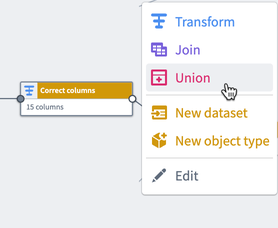
The first selected dataset is the Left side dataset. Select another dataset node to be the Right side dataset. Select Start to navigate to the union output preview page.
Union multiple datasets
To union more than two datasets in a single transform, you can use one of the following methods:
- Union board: Drag multiple input datasets into the union board, which accepts an unlimited number of inputs.
- Multi-select: Drag to select all the datasets you want to union, then select the Union button.
Both methods allow you to combine many datasets at once without creating multiple sequential union operations.
Preview a union
In the preview pane, select Create union, then view the output dataset preview.
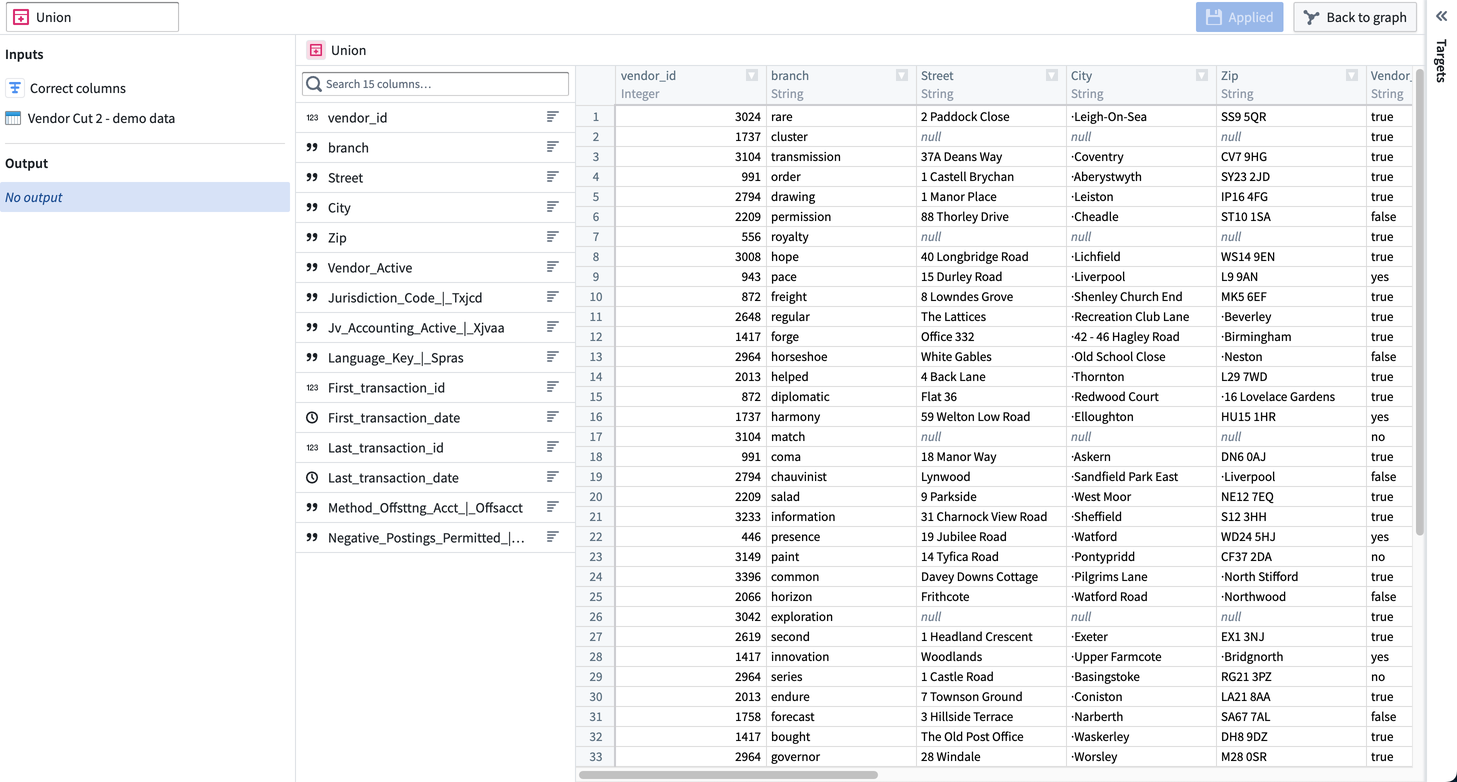
A union requires that all inputs have the same schema. If input schemas do not all match, the union will display an error message with a list of missing columns.
To resolve, remove the references to the missing columns or review your input.
Apply a union
Once you finish creating your union, select Apply to add the union to your workflow. You will see the union node connected to the two unioned datasets in your graph. We named our new union Union, and it is a direct output of the original Correct columns and Vendor Cut 2 - demo data datasets.
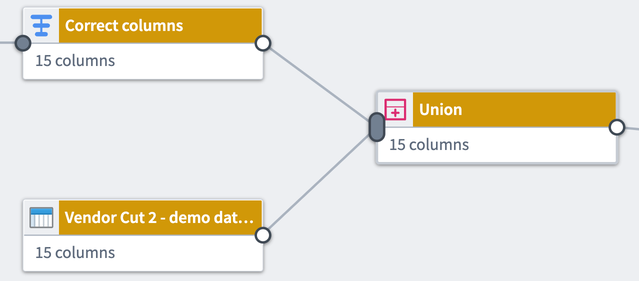
You can rename or edit the union by selecting the union node and selecting Edit.
Drag the white or gray circles on nodes to change connections and remove links on the graph. Select the gray oval on a union node to remove multiple connections.
Remember, a union keeps all rows from both the right and left datasets, including duplicate rows. To remove duplicate rows, add a Drop duplicates transform to your union output.