- Capabilities
- Getting started
- Architecture center
- Platform updates
Parameterization [Beta]
Schedule parameterization is in the beta phase of development and may not be available on your enrollment. The feature is currently only available for Python transforms, and functionality may change during active development.
Parameterization allows transform logic to run with different parameter values.
Define parameters in Python transforms
To use parameterization, you must first define the parameters in your transform logic and verify that your repository meets the following version requirements:
transformsVersionmust be10.96.0or later.transformsLangPythonPluginVersionmust be1.1137.0or later.
If it does not, follow the repository upgrade guide to ensure your repository meets the version requirements above.
Each parameter has a name, type, and default value.
- Parameter name: Declared by the Python variable name.
- Parameter type: One of StringParam, IntegerParam, FloatParam, or BooleanParam.
- Parameter default value: The value used when the parameter is not specified, meaning the transform was not built through a parameterized schedule.
The following example Python transform has two parameters named town_name and risk_factor with default values of "Seattle" and 5.
Copied!1 2 3 4 5 6 7 8 9 10 11@transform.using( processed_towns=Output('/path/to/output_towns'), towns=Input('/path/to/input_towns'), town_name=StringParam("Seattle"), risk_factor=IntegerParam(5), ) def compute(processed_towns, towns, town_name, risk_factor): ... selected_town_name = town_name.value selected_risk_factor = risk_factor.value ...
Enable parameterization in the schedule editor
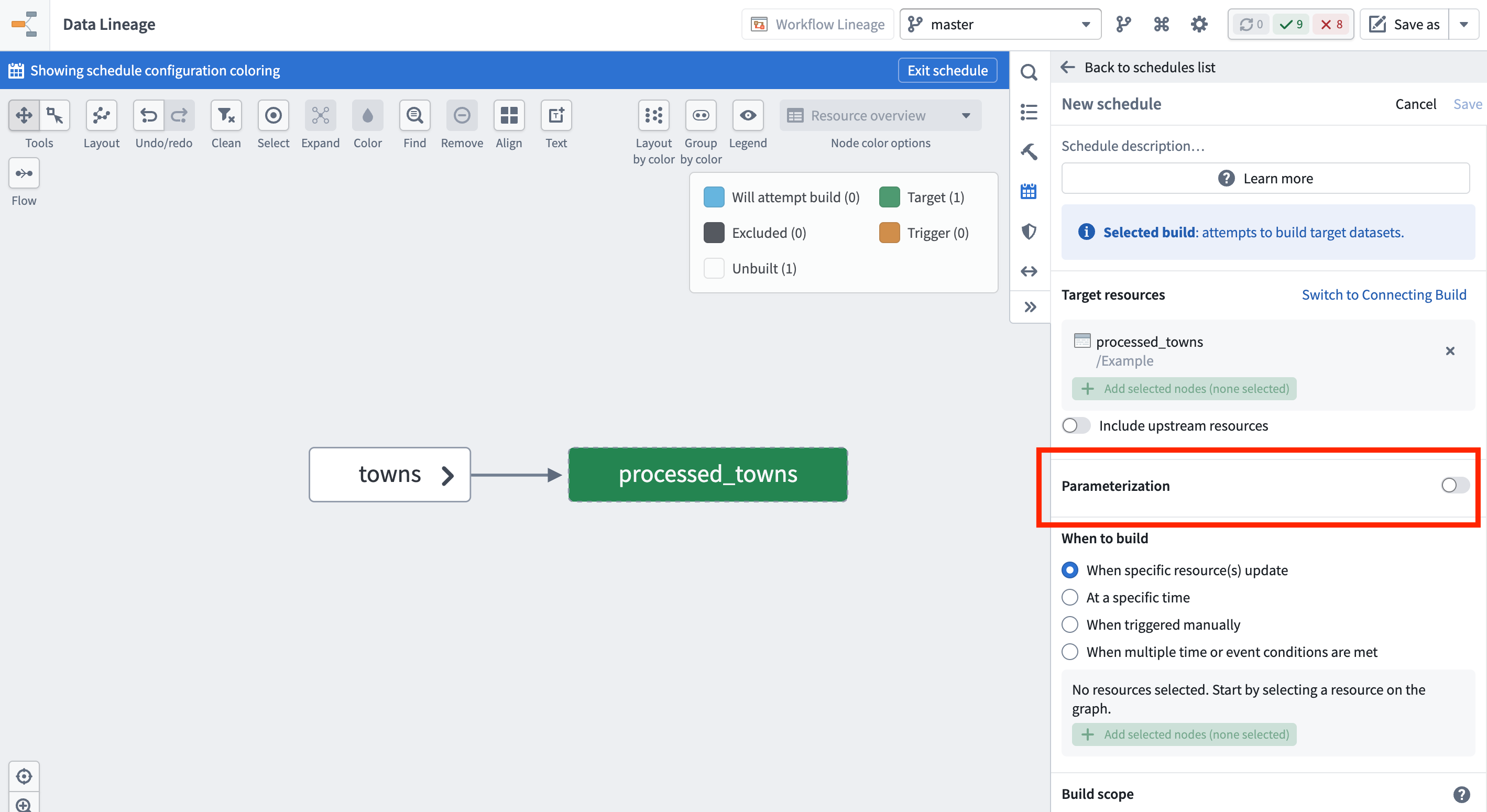
Once you have your transform logic in place, create a new schedule in Data Lineage, and enable the Parameterization option. The parameters defined on your target datasets' transforms will be available here.
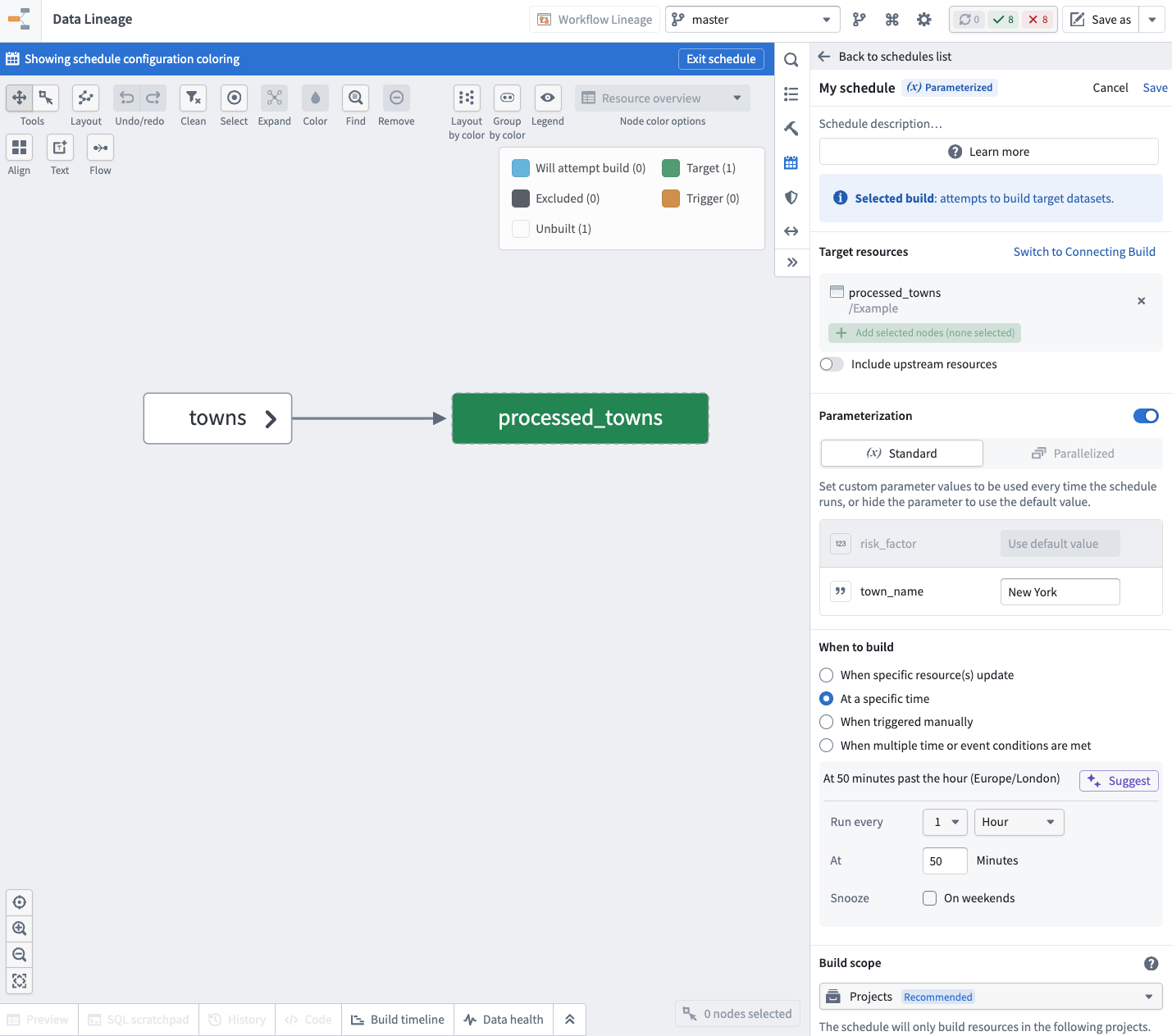
Standard mode
In standard mode, you provide the parameter values on the schedule, and these values are passed to your transforms when the schedule runs.
To use the default value defined on the transform for a parameter, hide that parameter in the schedule.
The following example shows the risk_factor parameter hidden, and the town_name set to "New York" for this schedule.
Example use case: Periodic snapshot jobs for an incremental transform
Suppose you have an incremental pipeline where you need to run hourly incremental builds, but also run a daily non-incremental build that performs data compaction. You can achieve this using a parameterized schedule by following the steps below:
- Create a transform with a boolean parameter that indicates the runtime type for the job.
Copied!1 2 3 4 5 6 7 8 9 10 11 12 13@incremental() @transform.using( processed_towns=Output('/path/to/output_towns'), towns=Input('/path/to/input_towns'), is_compaction_job=BooleanParam(False), ) def compute(processed_towns, towns, is_compaction_job): towns_df = towns.polars() if is_compaction_job.value: processed_towns.set_mode("replace") processed_towns.write_table(towns_df)
- Create two schedules that build the transform:
- An hourly schedule for your incremental builds. You can skip the parameterization and rely on the default value.
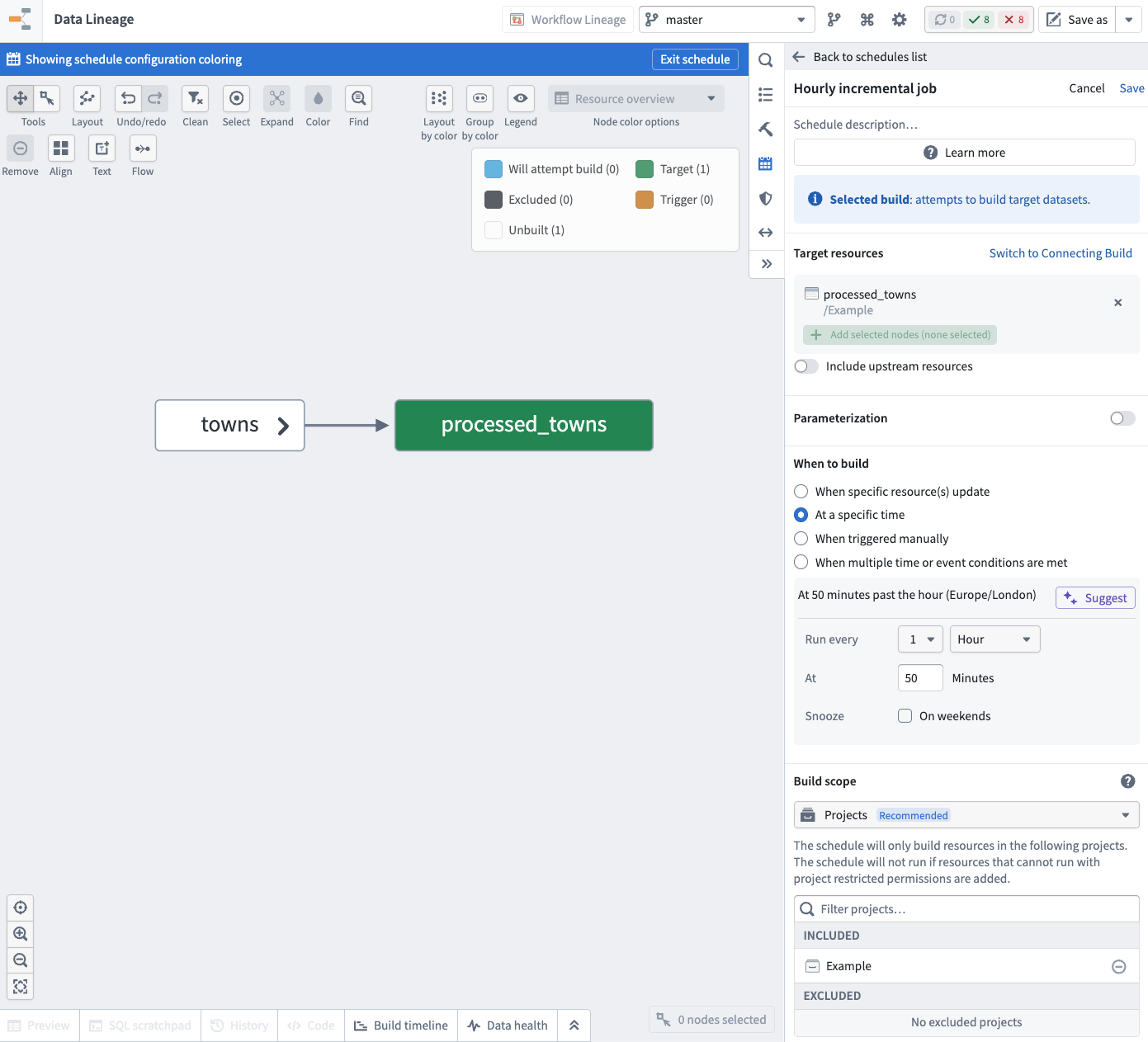
- A daily schedule for your non-incremental archive builds. Enable the parameterization and set the boolean parameter
is_compaction_jobtotrue.
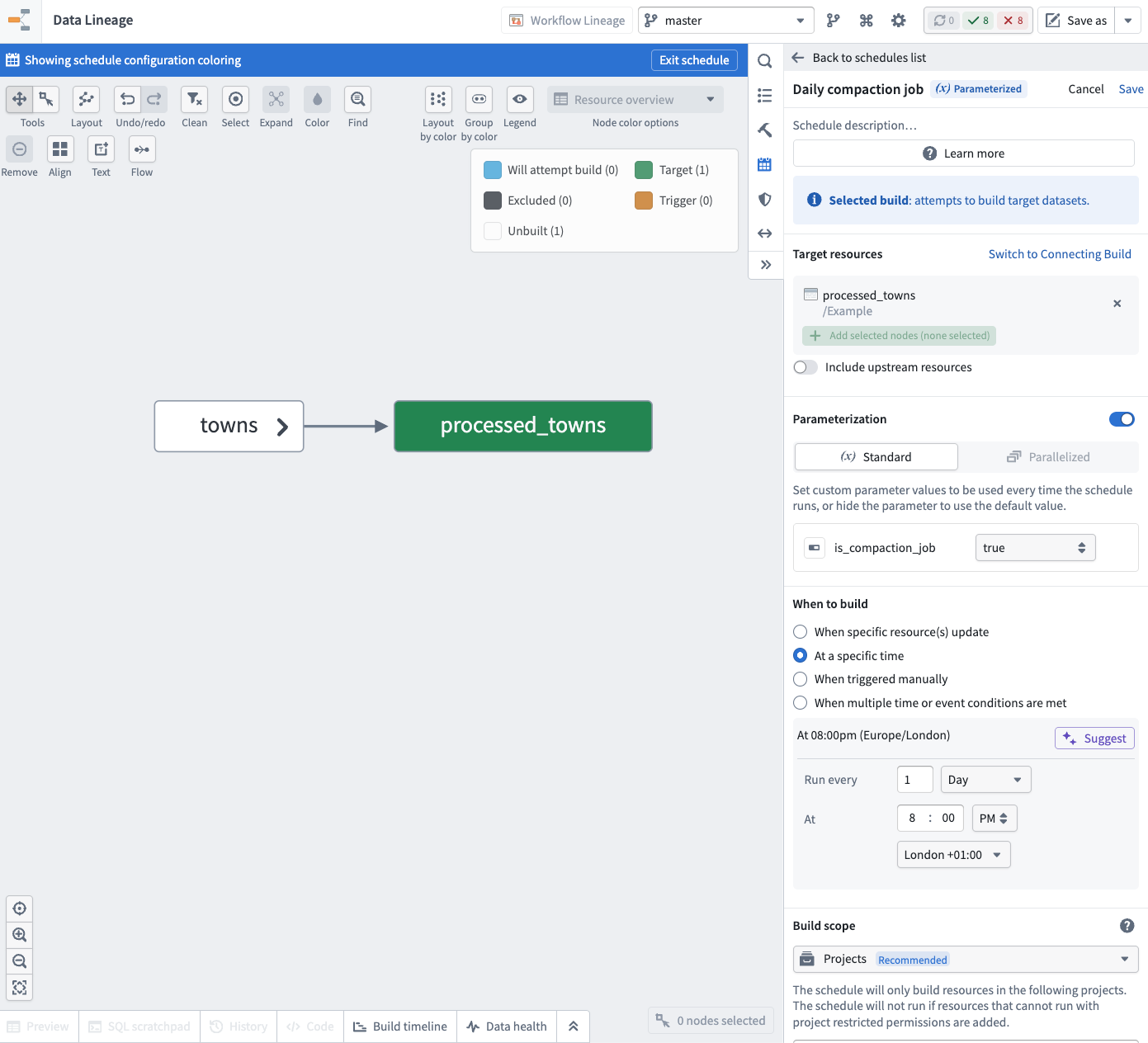
These schedules allow you to run hourly incremental builds and daily non-incremental builds while keeping the same transform logic deployed.
Parallelized mode (advanced)
Parallelized mode allows you to create a schedule that can run independent parallel builds with different parameter values and aggregate their results.
Run setups
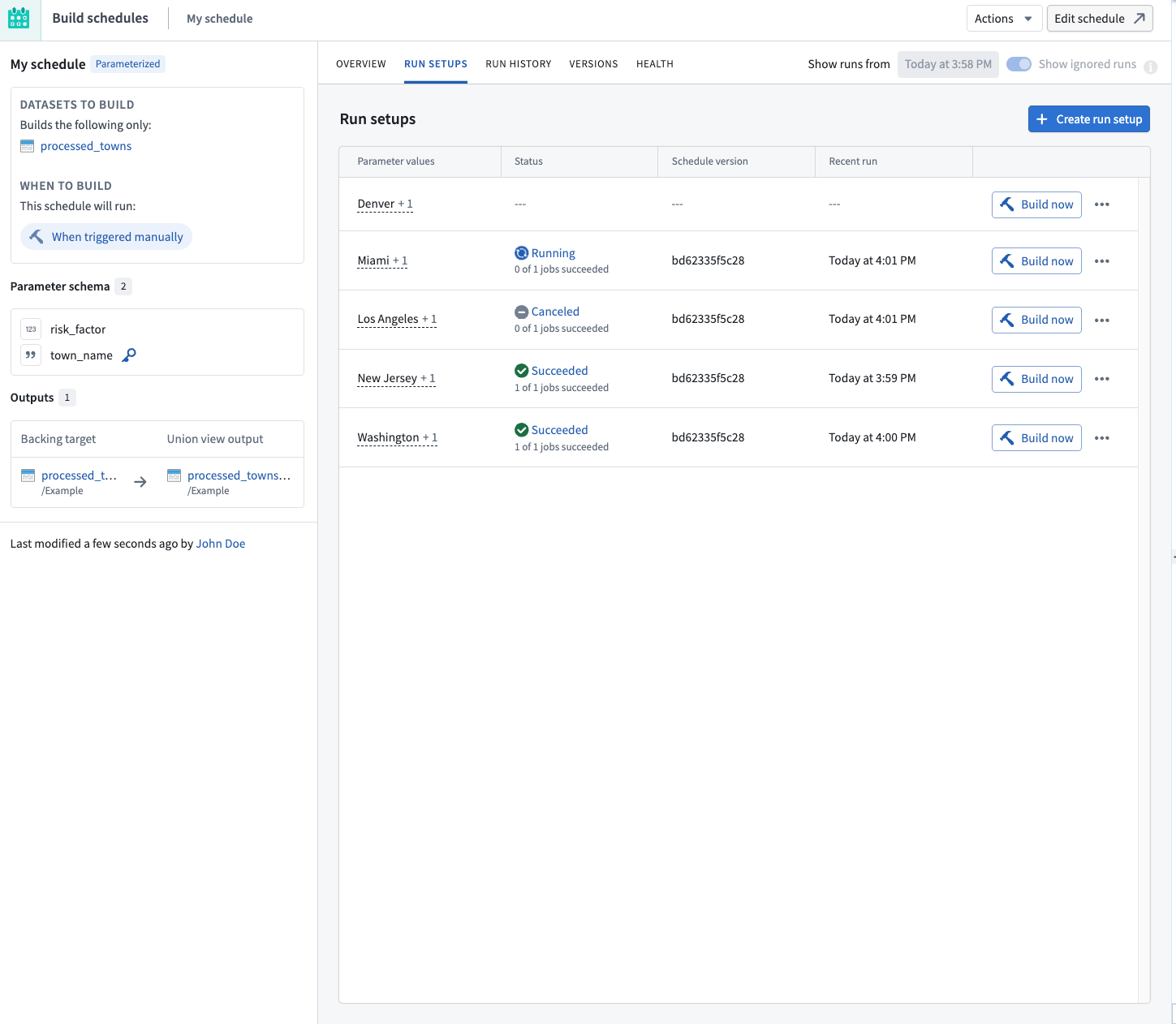
In parallelized mode, parameter values are not directly provided on the schedule. Instead, they are defined by run setups of the schedule.
A run setup is a set of parameter values, including a unique value for the special run setup key parameter. When you create a parallelized schedule, you designate one of the parameters as the run setup key, which is used to identify that run setup.
You can build run setups independently in parallel without waiting for other run setups to finish building. Foundry stores the output data of each successful build in the configured union view outputs.
To manage the run setups of a schedule, select Metrics & History on an existing parallelized schedule, and navigate to the Run setups tab.
Create a run setup
To create a new run setup:
- Choose Create run setup.
- Fill in the parameter values for the run setup and provide a unique value for the run setup key parameter.
- Choose Save to create the run setup.
Build a run setup
To build an existing run setup:
- Locate the run setup in the Run setups list.
- Choose Build now on the corresponding row.
If the build succeeds, the rows will be available in the configured union view outputs.
Edit a run setup
To change the parameter values of an existing run setup:
- Locate the run setup in the Run setups list.
- Choose the (•••) menu icon on the corresponding row and choose Edit.
- Update the parameter values as needed and choose Save.
The next time the run setup is built, it uses the updated parameter values. The old rows from the previous builds will remain in the configured union view outputs until the deployment is rebuilt.
Delete a run setup and its output data
To remove a run setup along with the rows it contributed to the union view outputs:
- Locate the run setup in the Run setups list.
- Choose the (•••) menu icon on the corresponding row and choose Delete.
- Confirm the deletion.
When a run setup is deleted, its corresponding rows are removed from the configured union view outputs.
Union view outputs
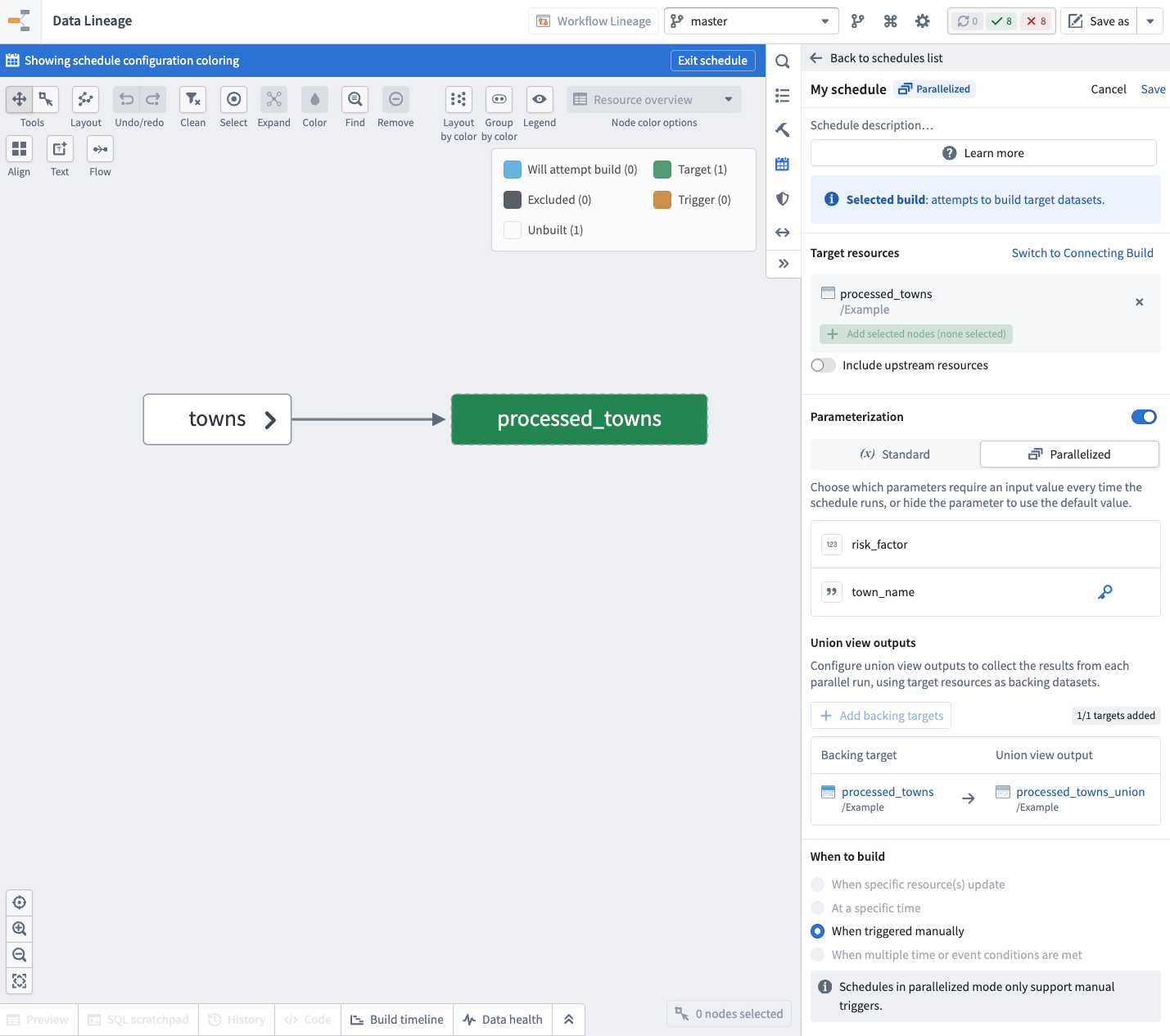
When the build of a parallel run setup succeeds, the contents of the output datasets will not be updated on the main schedule branch. Instead, the contents of the rows are collected inside an output union view that you configure on the schedule.
You can configure the union outputs while creating or editing the schedule. For each target dataset in the schedule, you can select a union view that will be used to store the resulting rows.
Use action types for parallelized schedules
Parallelized schedules are most useful when the run setups are built by an action type. Learn more about creating an action type that runs a schedule.
When you run a parallelized schedule through an action, Foundry automatically creates a new run setup with the parameter values provided by the action and invokes a build right away.
If there is already an existing run setup with the same value for the run setup key, then the parameter values are updated for this run setup before the build is invoked.
Limitations
The following limitations apply to all parameterized schedules:
- A schedule can have at most 50 parameters.
- Parameter types and names defined in a schedule cannot be edited after the schedule has been created. You must create a new schedule to use new parameters.
The following additional limitations apply to parallelized mode schedules:
- A schedule can have at most 1,000 run setups at a time.
- Collecting the results of parallel runs in an output union view is only supported for tabular Foundry datasets.
- Schedules in parallelized mode do not support defining automated triggers; they can only be run manually using run setups or executing actions.