- Capabilities
- Getting started
- Architecture center
- Platform updates
Propose a change
Once you create a branch to collaborate within a workflow, you can make edits and propose a change to the Main branch.
To propose a change, click Save to save your edits, then select Propose in the top toolbar.

In the Proposal view, name your proposal and include any relevant details to explain your proposal to approvers. In the example below, we are proposing a change to add a Rename column transform to clean raw data from the Facility dataset.
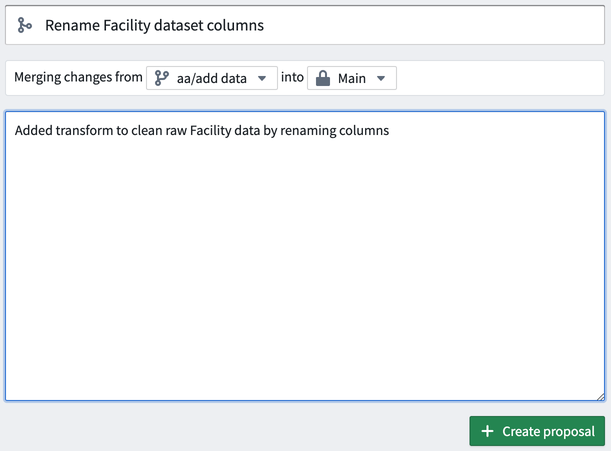
Select Create proposal to initiate a request to the Main branch approvers.
Resolve changes
To minimize merge conflicts, you can merge the target branch into your current branch before completing the final merge. To do this, select Resolve changes next to your branch.
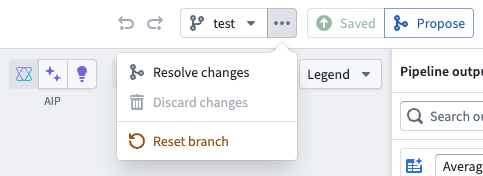
This will open a window where you can select the desired branch to merge into your pipeline. Once you have chosen a branch, select Apply changes.
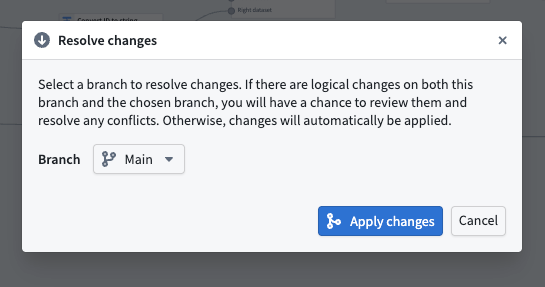
The Resolve changes action does not work for protected branches. Since Resolve changes directly saves changes to the pipeline, and protected branches do not allow direct modifications, you must use the proposal flow to merge changes into a protected branch.
Fast-forward for long-lived branches
When working with multiple long-lived branches — such as staging and deployment branches — using standard merge proposals can cause recurring merge conflicts. This occurs because Pipeline Builder implements merges as squash merge commits, which breaks the shared commit history between branches.
To avoid this issue, use Resolve changes to fast-forward your target branch to match the source branch:
- Open the branch context menu next to your branch name.
- Select Resolve changes and choose the source branch.
- Select Apply changes to perform a fast-forward merge.
This advances the target branch to match the source branch without creating a squash merge commit, maintaining a linear commit history and avoiding recurring conflict states.
Reset branch
You can also reset your branch to match another branch. To do this, select Reset branch from the dropdown menu to the left of your branch name. Then, choose the branch you want to reset to and confirm by selecting Reset branch.
If both branches have the same version, the Reset branch button will be disabled.
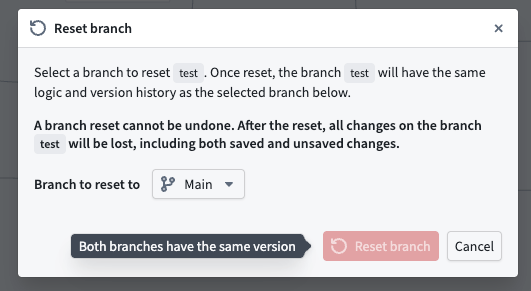
Branch resets cannot be undone. After resetting, all changes on your original branch will be lost, including saved and unsaved changes.
After resetting, your current branch will have the same logic and version history as the selected branch.