- Capabilities
- Getting started
- Architecture center
- Platform updates
Build settings
This page describes build settings in Pipeline Builder that can be used to adjust the performance of your batch and streaming pipelines.
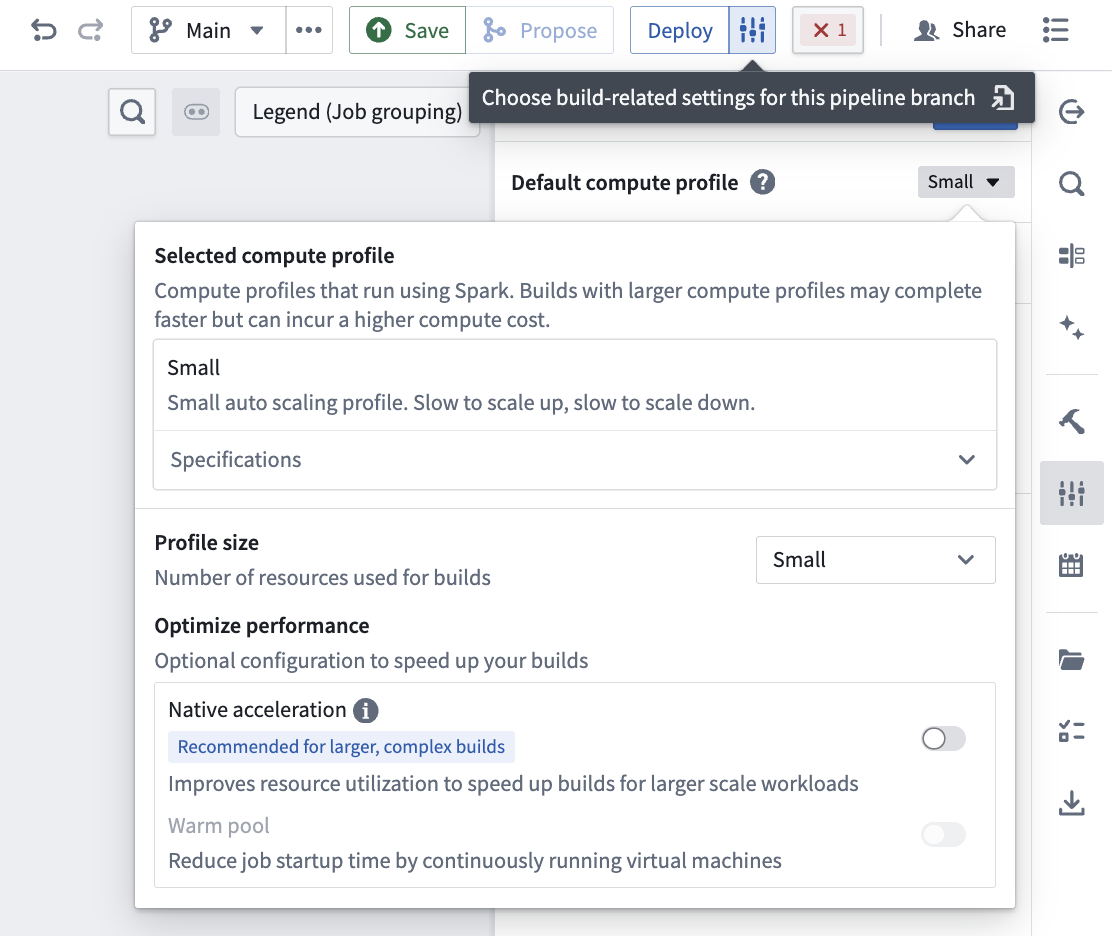
You can edit the Build settings of your pipeline by selecting the settings icon next to Deploy in the top right of your screen.
Batch pipeline
Batch compute profiles
The following batch compute profiles are available to select in Build settings. You can also view these specifications in the Specifications dropdown menu under the selected compute profile.
Compute profile permissions
Compute profile access for standard batch Spark-backed pipelines is configured at the project level. Profiles fall into two tiers:
- Auto-imported profiles (Extra Small, Small, and Medium): Imported automatically to the project and available without additional setup.
- Non-auto-imported profiles (Large and Extra Large): Must be imported to the project before use. Importing requires both a Compass project editor or owner role and a Resource Management administrator role.
If you select a Large or Extra Large profile that has not been imported to your project, Pipeline Builder displays an error at deploy time. Select Import compute profiles to import the missing profile if you have the required permissions. If you lack the required permissions, Large and Extra Large profiles appear disabled in the selection dropdown.
Existing pipelines using Large or Extra Large profiles continue to run with no action required.
You can manage compute profile imports across your enrollment from the Pipeline Builder section of Control Panel. To learn more, see Configure compute profile permissions.
Compute profile permissions apply only to standard batch Spark-backed pipelines. Streaming pipelines and Faster batch pipelines are not affected by these permission requirements.
Standard profiles
| Profile | Driver cores | Driver memory | Dynamic minimum executors | Dynamic maximum executors | Executor cores | Executor memory | Total maximum cores |
|---|---|---|---|---|---|---|---|
| Extra Small | 1 | 4GB | N/A | N/A | N/A | N/A | 1 |
| Small | 1 | 2GB | 1 | 2 | 1 | 3GB | 3 |
| Medium | 1 | 6GB | 2 | 16 | 2 | 6GB | 33 |
| Large | 1 | 13GB | 2 | 32 | 2 | 6GB | 65 |
| Extra Large | 1 | 27GB | 2 | 128 | 2 | 6GB | 257 |
Warm pool profiles
Warm pool profiles use continuously running virtual machines and can run concurrent jobs to reduce job startup latency and resource consumption.
| Profile | Driver cores | Driver memory | Dynamic minimum executors | Dynamic maximum executors | Executor cores | Executor memory | Total maximum cores |
|---|---|---|---|---|---|---|---|
| Warm Pool Extra Small | 3 | 13GB | N/A | N/A | N/A | N/A | 3 |
| Warm Pool Small | 3 | 7GB | 1 | 6 | 1 | 3GB | 9 |
The actual resources used to build pipelines with warm pool profiles may be significantly less than what appears in the specifications panel. Warm pool profiles use shared modules where multiple jobs run concurrently on the same virtual machine, with each job consuming only a share of the total available resources.
Native acceleration profiles
Native acceleration profiles allocate off-heap memory for native compute to speed up builds for large scale workloads.
| Profile | Driver cores | Driver memory | Dynamic minimum executors | Dynamic maximum executors | Executor cores | Executor memory | Executor off-heap memory | Total maximum cores |
|---|---|---|---|---|---|---|---|---|
| Natively Accelerated Small | 1 | 2GB | 1 | 2 | 1 | 600MB | 2400MB | 3 |
| Natively Accelerated Medium | 1 | 6GB | 2 | 16 | 2 | 1200MB | 4800MB | 33 |
| Natively Accelerated Large | 1 | 13GB | 2 | 32 | 2 | 1200MB | 4800MB | 65 |
| Natively Accelerated Extra Large | 1 | 27GB | 2 | 128 | 2 | 1200MB | 4800MB | 257 |
Faster compute profiles
Faster compute profiles are only available in Faster batch pipelines.
| Profile size | Cores | Memory |
|---|---|---|
| Small | 1 | 7.5GB |
| Medium | 2 | 15GB |
| Large | 4 | 30GB |
| Extra Large | 8 | 60GB |
| Extra Extra Large | 16 | 120GB |
You can also view these specifications in the Specifications dropdown menu under the selected compute profile.
Managed profiles
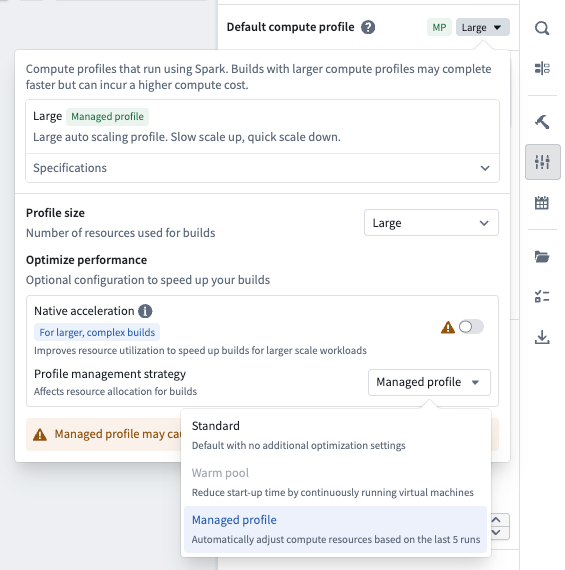
With any of the standard compute profiles, you also have the option to make it a "managed profile". Managed profiles are designed to help optimize your resource usage by automatically scaling down your compute resources if your job consistently uses less than the allocated capacity.
When the managed profile option is enabled, the platform analyzes the resource usage of your last five builds for a given deployment. If your pipeline build is consistently using less compute resources, the compute resources for future builds will automatically be scaled down. Your compute resources will never be increased beyond the original allocation that was selected. Adjustments are not limited to the preset profile selected; the managed profile strategy assigns a custom compute level based on your actual usage patterns.
Enable managed profiles
To enable managed profiles, open the compute profile dialog in your build settings and select Managed profile under Profile management strategy.
Warm pool
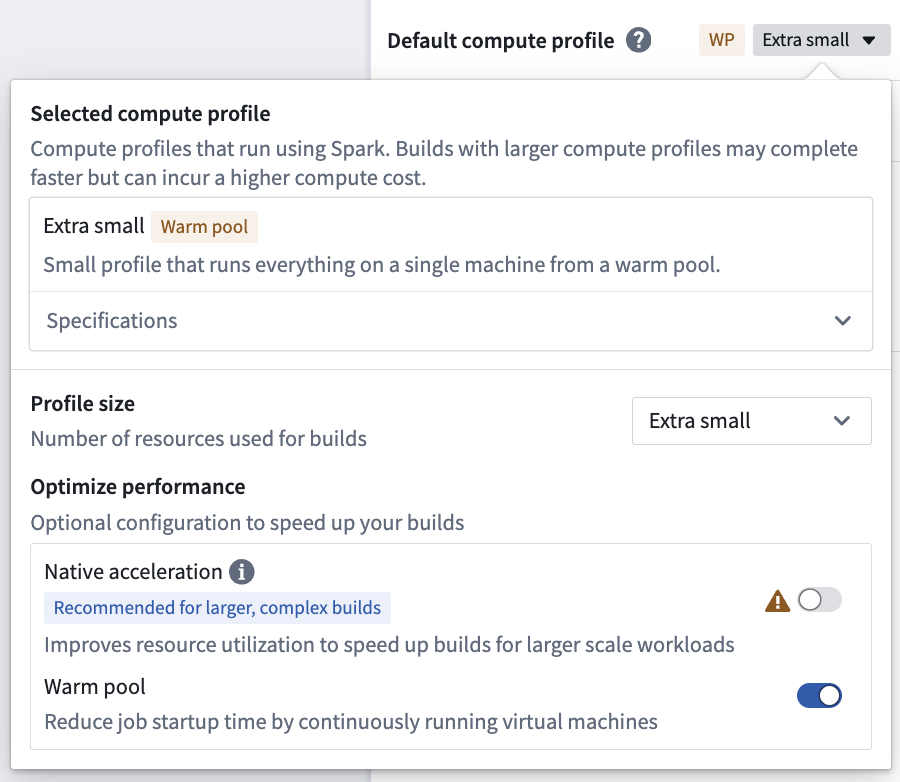
Warm pool compute profiles use an auto-scaling pool of continuously running virtual machines to minimize job startup latency. A maximum of three jobs will run concurrently on a single virtual machine, each of which will consume a share of the total resources available on the virtual machine.
By leveraging warm pool, jobs can begin processing immediately, speeding up overall build times. It is recommended for smaller scale builds, for example, a job that would take up to 30 minutes on an extra small profile.
Warm pool limitations
Warm pool profiles have the following limitations:
- Profile support: Warm pools are supported for the Extra Small and Small Spark profiles. Medium and larger profiles do not support warm pools.
- UDF support: Pipelines that use user-defined functions (UDFs) cannot run on warm pool profiles.
- Build logs: Build logs may appear incomplete or reduced when using warm pool profiles. If you need full logs to debug job failures, disable the warm pool setting on your compute profile and rerun the job to obtain complete logging output.
Enable warm pool
To enable warm pool, toggle on Warm pool in the compute profile dialog.
Native acceleration
You can improve performance by enabling native acceleration of batch pipelines in Pipeline Builder with Velox ↗.
Read more about native acceleration in Foundry.
Enable native acceleration
You can edit the build settings of your pipeline by selecting the settings icon next to Deploy. The settings for native acceleration contain preconfigured profiles for small, medium, and large compute sizes. These align with the default small, medium, and large sizes based on the total memory footprint (there is no local mode). These preconfigured profiles are recommended if you are trying to run a pipeline with native acceleration for the first time.
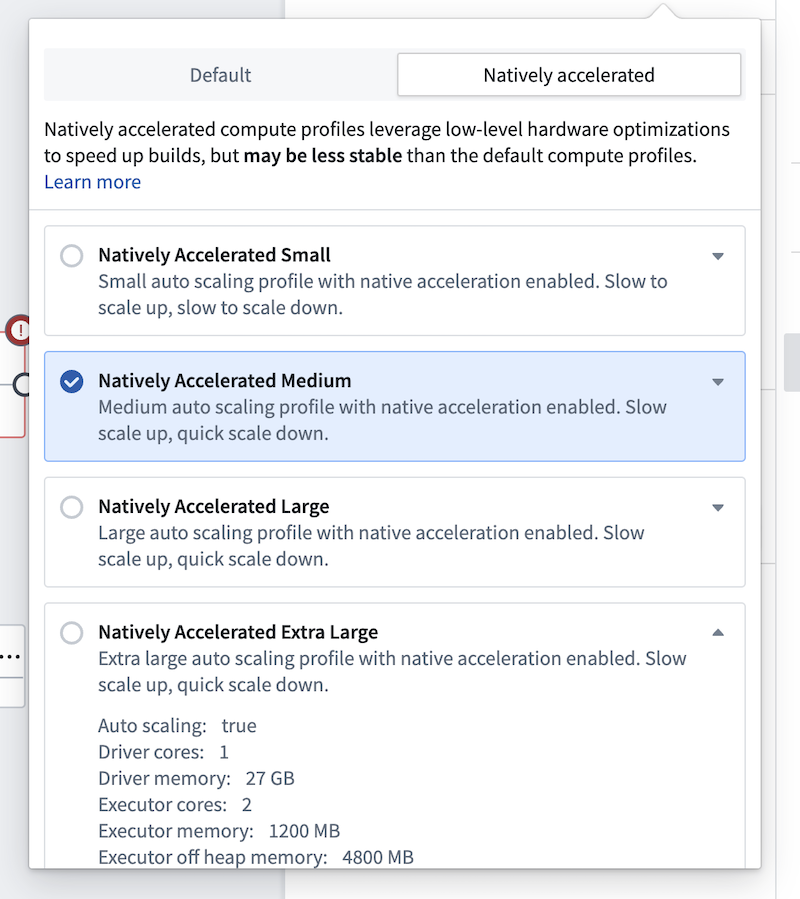
There is also a natively accelerated profile with advanced configuration, allowing you to fully specify the on-heap and off-heap memory ratios, as well as all other resource and compute affecting configurations for the build.
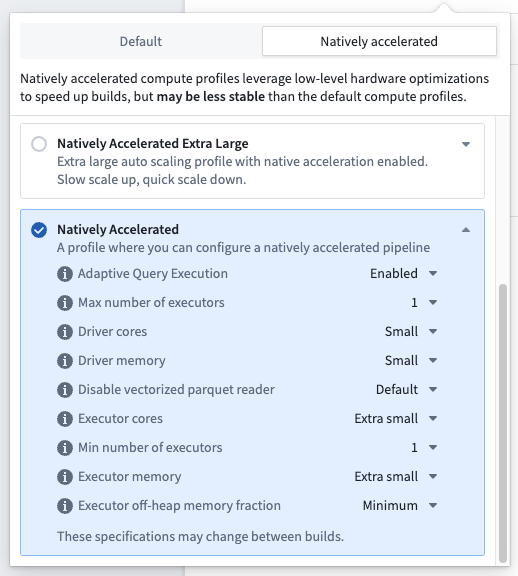
Most of the time, selecting a preconfigured native acceleration profile should be enough to speed up your pipelines. If you encounter OOMs or performance regressions that do not occur in the non-natively accelerated build, the memory configuration is likely suboptimal. Often, adopting the advanced profile and reducing the percentage of memory allocated to off-heap can resolve the issue. If problems persist, it is likely that the pipeline is not well-suited for native acceleration and you should continue using the default run profiles.
Memory configuration considerations for native acceleration
Running Spark with native acceleration in Foundry requires a slightly different configuration from normal batch pipelines. Spark supports performing some operations with off-heap memory ↗. Off-heap memory is memory that is not managed by the JVM, cutting out GC overhead and leading to better performance.
By default, we do not enable off-heap memory in Foundry, as doing so can introduce additional maintenance costs for pipelines. Enabling off-heap memory is necessary for native acceleration since DataFrames modified by Velox must be off-heap to be accessible by the native process.
Foundry still requires sufficient on-heap memory for everything except Velox data transformations (for instance, orchestration, scheduling, and build management code still run in the JVM), but ideally most work will now be performed off-heap. Configuring a pipeline to use native acceleration introduces additional maintenance costs in balancing on-heap and off-heap memory. Pipeline Builder will offer managed profiles to assist with this, but custom configuration may still be necessary.
Some workloads are not well-suited for native acceleration. In particular, pipelines that use LLM or embedding transforms — such as text chunking and embedding generation — cannot offload these operations to native off-heap execution. When native acceleration is enabled for such pipelines, the reduced on-heap memory can cause executor out-of-memory errors during shuffle stages, even on larger compute profiles. For these workloads, use a standard (non-native) compute profile instead.
Streaming pipeline
Streaming compute profiles
The following compute profiles are available to select in Build settings:
| Profile | Job Manager memory | Parallelism | Task Manager memory |
|---|---|---|---|
| Extra Extra Small | 1GB | 1 | 1GB |
| Extra Small | 1GB | 1 | 1GB |
| Small | 1GB | 2 | 4GB |
| Medium | 1GB | 3 | 6GB |
| Large | 2GB | 4 | 8GB |
| XLarge | 2GB | 8 | 12GB |
Max duration
You can set a maximum duration for streaming pipeline jobs. This setting allows you to specify a maximum runtime between one minute and seven days. When the maximum duration is reached, the streaming job automatically stops.
To configure the maximum duration:
- Select the settings icon next to Deploy in the top right of your screen.
- Under the streaming pipeline settings, locate Set max job duration.
- Specify the desired duration between one minute and seven days.
For non-main branches, Set max job duration is enabled by default with a one-day duration limit.
Stream behavior
For Flink pipelines, you can configure the data consistency guarantee using the Stream behavior section in the Build settings panel. This setting determines how the pipeline handles message delivery semantics.
Use the dedicated picker to select a consistency guarantee such as At Least Once. The configured consistency guarantee is displayed in a preview row in the deploy panel. If no consistency guarantee has been configured, the deploy panel displays a warning.
External pipeline
External pipelines push down compute to external engines such as Databricks and Snowflake. The compute profile configuration for external pipelines differs from batch and streaming pipelines.
For information on configuring compute profiles for external pipelines, including options for Databricks and Snowflake, see External pipelines in Pipeline Builder.