- Capabilities
- Getting started
- Architecture center
- Platform updates
Create a peer connection
You can create and delete peer connections from Peer Manager.
Prerequisites
You must complete the steps below before you create a peer connection:
-
Use the network ingress and network egress extensions in Control Panel to configure ingress and egress policies for the enrollments you will peer between.
To establish a peer connection that exports data from your enrollment, your local enrollment must permit egress to the remote enrollment. Additionally, the remote enrollment must permit ingress from your local enrollment. The opposite is true if you are establishing a peer connection that imports data into your local enrollment from a remote enrollment. Your local enrollment must permit ingress from the remote enrollment, and the remote enrollment must permit egress to your local enrollment.
-
Establish a connection between your enrollment and the remote enrollment directly from Peer Manager. If a network connection is available between the two enrollments, establish a Multipass exchanger (MPX) connection. If no network connection is available, establish a data relay connection over your enrollment's existing cross-domain solution.
-
Ensure that you are a manager of the local space you wish to create a connection for.
-
Set a platform title for your enrollment so remote peers can identify your enrollment.
Initiate the peer connection
To initiate a peer connection:
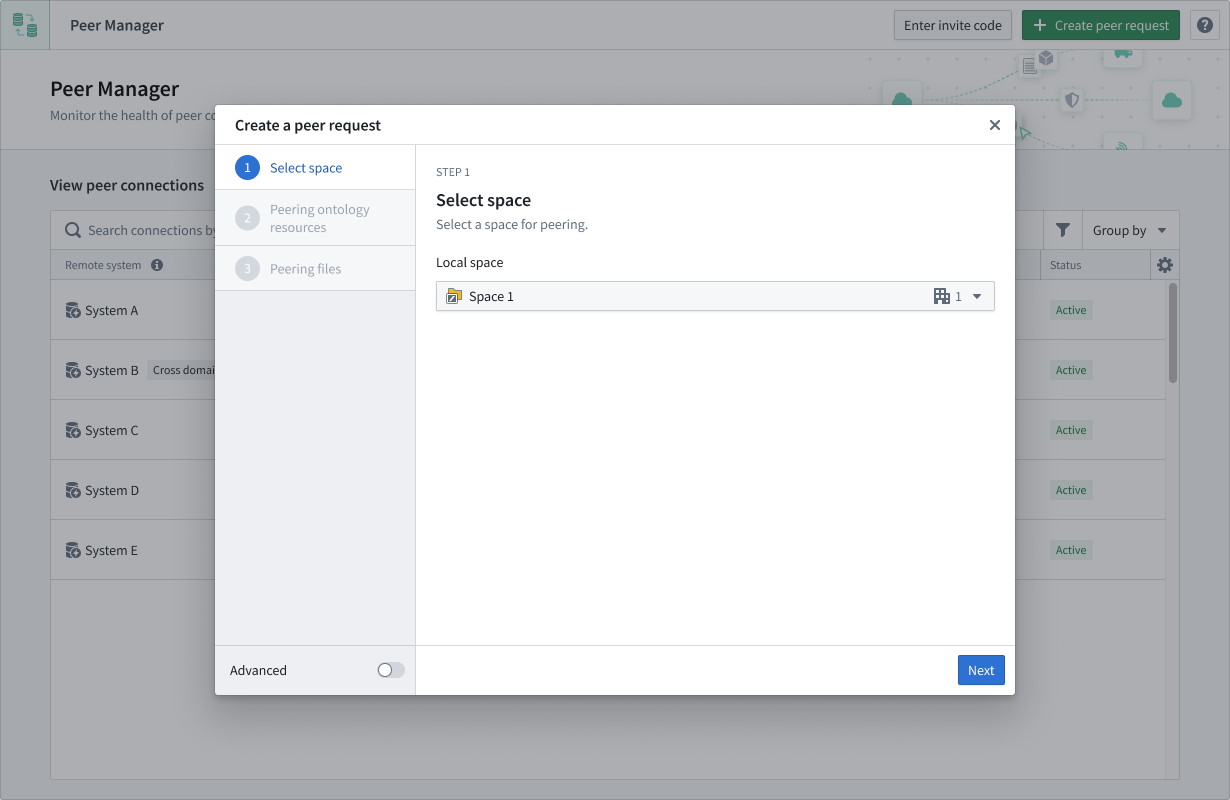
- Select Create a peer request from the top right of Peer Manager to launch the Create a peering request dialog.
- Identify your enrollment's space in the Select a space to peer dropdown menu.
- Choose the data types to export, import, or both.
- Select Copy invite code.
- Share the invite code with an administrator on the peer enrollment, who will import the peer connection.
Import the peer connection
To import a peer connection after you receive an invite code:
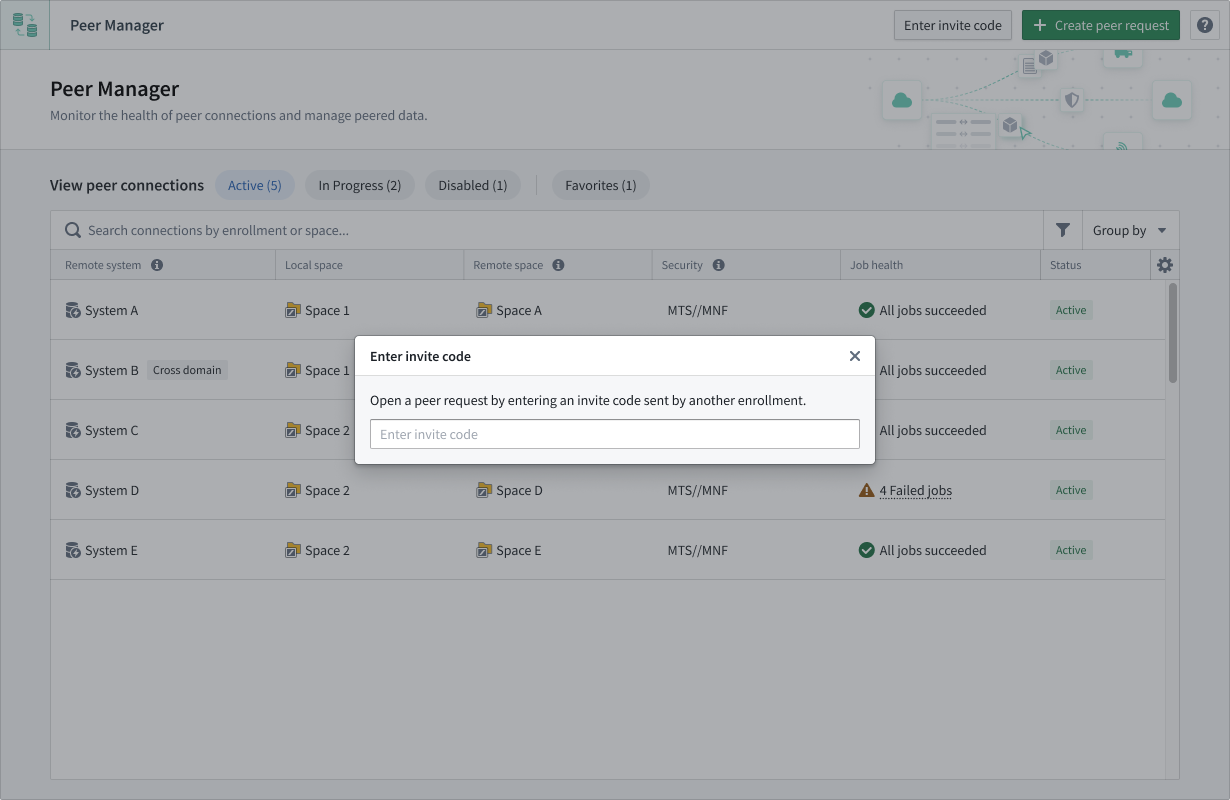
- Select Enter invite code to launch the Importing peer request popup window.
- Paste the invite code in the empty text box to render the Connection details panel of the popup window.
-
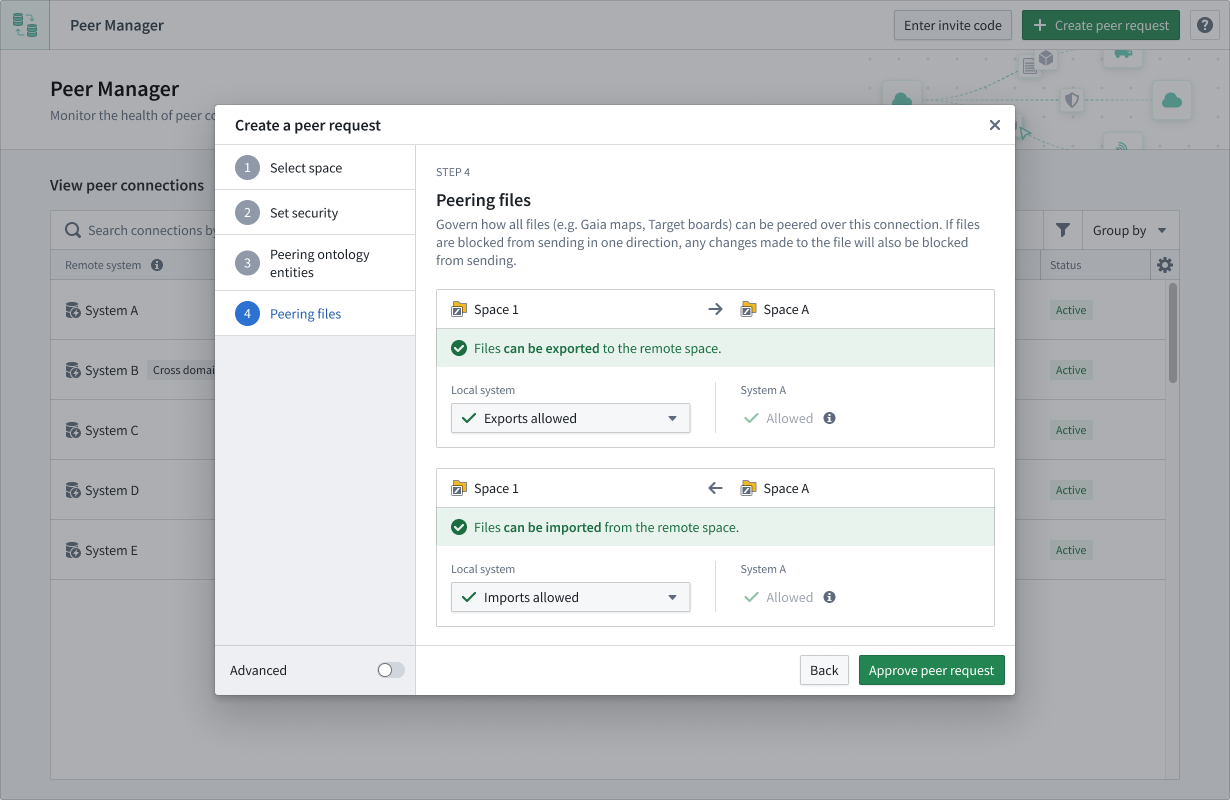
Identify the space on your enrollment to which you will accept peered objects or Artifacts from the Select a space to peer dropdown menu.
-
Select Set security to optionally set the security of the connection.
-
Select Approve request.
Activate the peer connection
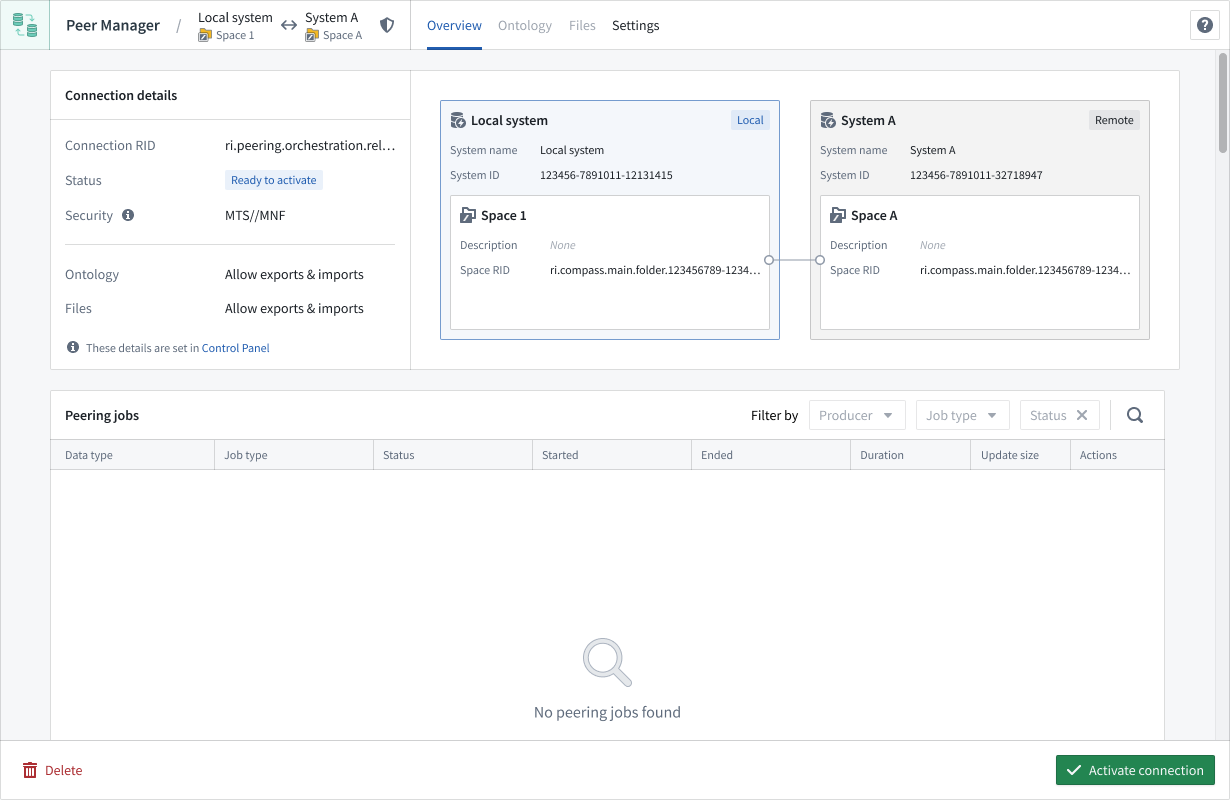
After a peer request is accepted, the originator of the request must Activate the connection in the lower right corner of its right-hand panel.