- Capabilities
- Getting started
- Architecture center
- Platform updates
Spreadsheet Display widget
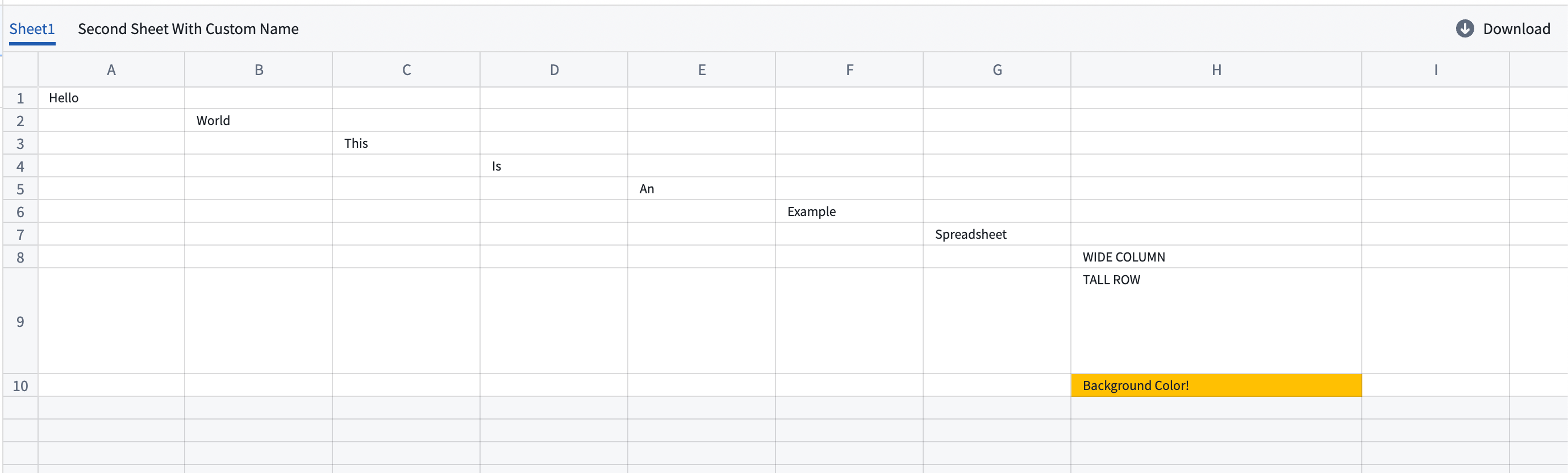
The Spreadsheet Display widget displays spreadsheet files from a media reference property on an object. Users can view, search, and annotate spreadsheet content in a Workshop module.
For an end-to-end workflow, see display and annotate spreadsheets.
Configuration options
Spreadsheet display: Configure the object type and media reference and enable optional annotations.

- Object set with a single object: An object set containing a single object with a media reference property.
- Spreadsheet media reference property: A media reference property that contains a spreadsheet media reference.
- Spreadsheet annotations: Configure optional annotations.
- Enable annotations: Enable annotations on the spreadsheet.
Annotation layers: Configure one or more annotation layers. Each layer contains Spreadsheet annotation inputs and an optional Existing annotation interaction.

- Annotation layer name: A custom name for the annotation layer.
- Object set: An object set containing annotation data.
- Sheet name property: A property containing the name of the sheet of the annotation.
- Cell range property: A property containing the cell range of the annotation. The property can be either a
stringor astruct:- A
stringin the JSON format following{"startRow": 0, "startCol": 0, "endRow": 0, "endCol": 0}. - A
structwith the fieldsstartRow (integer),endRow (integer),startCol (integer), andendCol (integer). - The range uses zero-indexing; cell A1 equals
(0,0), and a range from cell A1 to B2 equals{"startRow": 0, "startCol": 0, "endRow": 1, "endCol": 1}.
- A
Existing annotation interaction: An optional configuration to track selected annotations.
- Selected annotation: The existing annotation to track.
- Select only one annotation at a time. When the selection changes, the preview seeks to the selected annotation.
- If the annotation cell range falls outside the sheet boundaries, the preview jumps to the sheet but not to the cell range.
- If the sheet name does not exist in the preview, no action occurs.
Configure interactions: Configure one or more actions to surface in the widget.
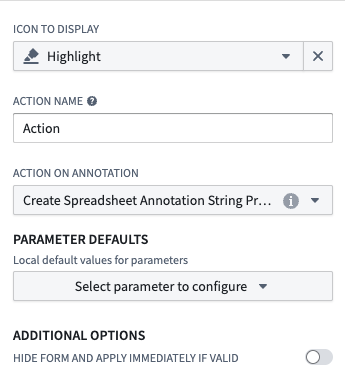
- Icon to display: A custom icon for the action.
- Action name: A custom name for the action.
- Action on annotation: The action to execute on the annotation.
- Parameter defaults:
- Sheet name: The current sheet name as a string.
- Selected cell range: The selected cell ranges as a JSON string. A single range is a JSON object, while multiple ranges are a JSON array.
- Additional options:
- Hide form and apply immediately if valid: Apply the action immediately instead of showing a form if the configured action has all required information.
Advanced: Configure string variables that receive the current spreadsheet selection.
- Selected range: The selected cell ranges as a JSON string. A single range is a JSON object, while multiple ranges are a JSON array.
- Selected sheet: The current sheet name.