- Capabilities
- Getting started
- Architecture center
- Platform updates
Getting started
This page walks you through creating your first application with Pilot. By the end of this guide, you will have a working application with generated ontology entities, frontend code, and seed data running in a live preview.
Open Pilot
To open Pilot, select Pilot from the application menu in the Foundry navigation sidebar. If you do not see Pilot in the application menu, confirm that your enrollment has Pilot enabled and that you have access to a project where you can create repositories. Ontology write permissions are needed only for the definitions you create or modify.
The Pilot welcome screen displays a prompt input, a Save location selector, and a list of recent applications.
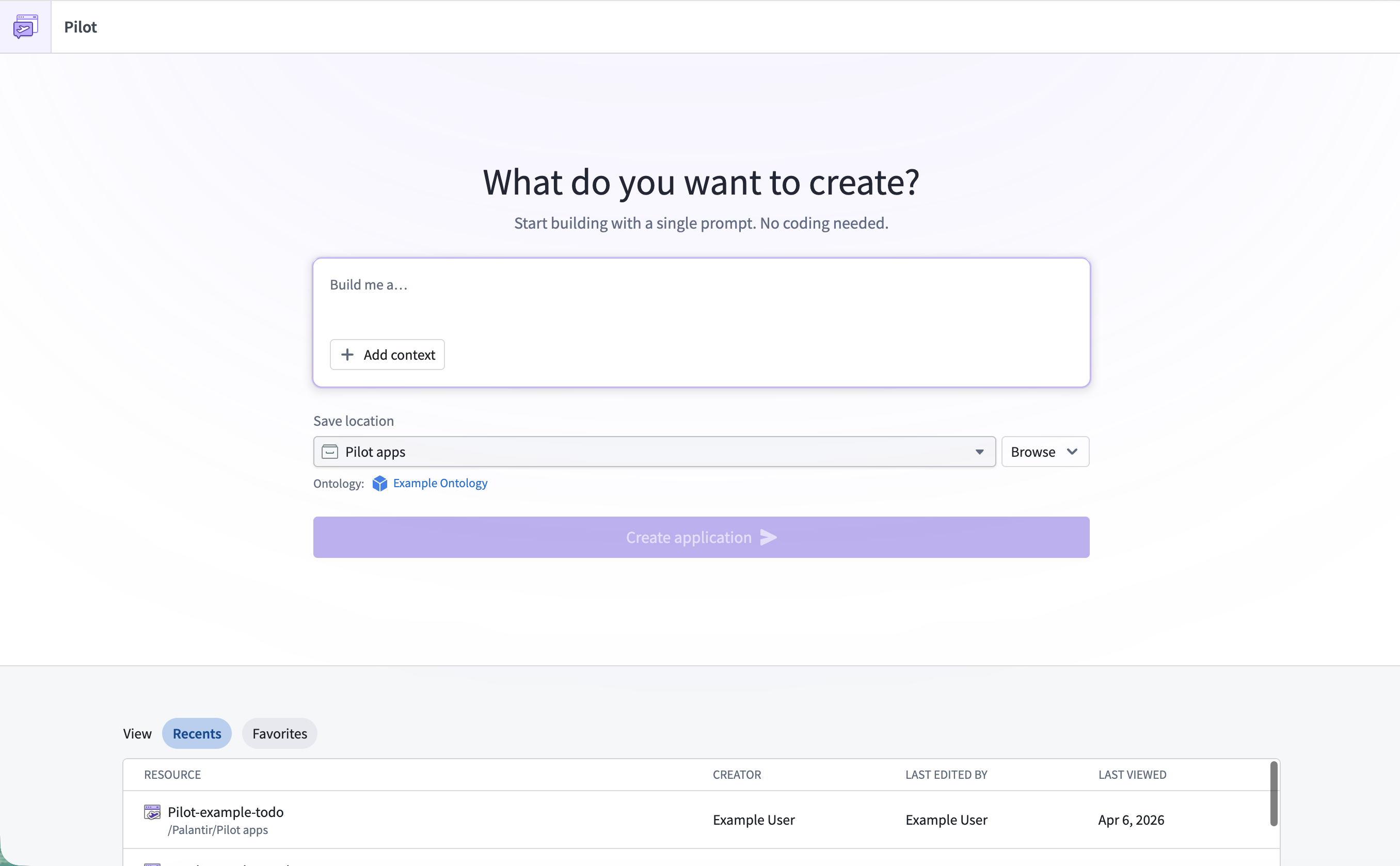
To build a custom widget instead of an application, select Custom widget set on the welcome screen. The build workflow is the same; see Build a custom widget.
Create your first application
- In the prompt input, describe the application you want to build. For example:
Build a task management application for tracking team projects with priorities and deadlines. - (Optional) Select Add context to attach additional context, such as existing object types, action types, or reference documents. For more details, see Provide context and attachments.
- Confirm the Save location and review Ontology. Select the Ontology when a selector is available; otherwise, the save location determines it.
- Choose a Theme. Use Blueprint components for a Foundry-style interface, or Custom components for a custom visual style.
- Select Modify Ontology permissions to control whether Pilot can modify existing entities or create new ones before building. Enable creation of object and action types if you want Pilot to propose new entities. Review Control what Pilot can modify for more details.
- Select Create application.
Pilot creates an isolated container for application code and local ontology definitions. Actions in a production-data preview can change real objects before release; see Work with data.
Wait for your container
After you select Create application, Pilot provisions a container for your application. This process may take a few moments. You can monitor progress using the status indicator in the top-right corner of the workspace. For more details on status monitoring, see The Pilot workspace.
Explore the workspace
Once the container is ready, the Pilot workspace will open. The workspace has two main areas:
- Chat panel (left): A chat interface where you can interact with Pilot to refine your application. The chat panel includes the prompt input, message history, and context attachments.
- Application view (center): Tabs for viewing different aspects of your application:
- Preview: A live preview of your generated application.
- Ontology: An interactive graph showing the object types, action types, and relationships created by Pilot.
- Code: The complete application source code in an embedded editor.
- Changes: Code differences and proposals.
Open the three-dot menu beside the tabs and select Pilot diagnostics to access container logs for debugging.
For a detailed walkthrough of each workspace area, see The Pilot workspace.
Refine with follow-up prompts
After Pilot finishes the initial build, you can continue iterating by typing follow-up prompts in the chat panel. For example:
- Add new features:
Add a dashboard that shows project completion statistics - Change the design:
Use a dark color scheme with blue accents - Modify the ontology:
Add a priority field to the task object type with values High, Medium, and Low
Pilot processes your request and updates the relevant parts of the application. Changes appear in the live preview as soon as the agent finishes.
Next steps
- Build an application: Understand the full build lifecycle, including ontology generation and seed data.
- The Pilot workspace: Learn about each workspace area in detail.
- Deploy an application: Promote your application to production.
- Build a to-do application or widget: Follow a complete example with new or existing Ontology entities.