- Capabilities
- Getting started
- Architecture center
- Platform updates
Time condition
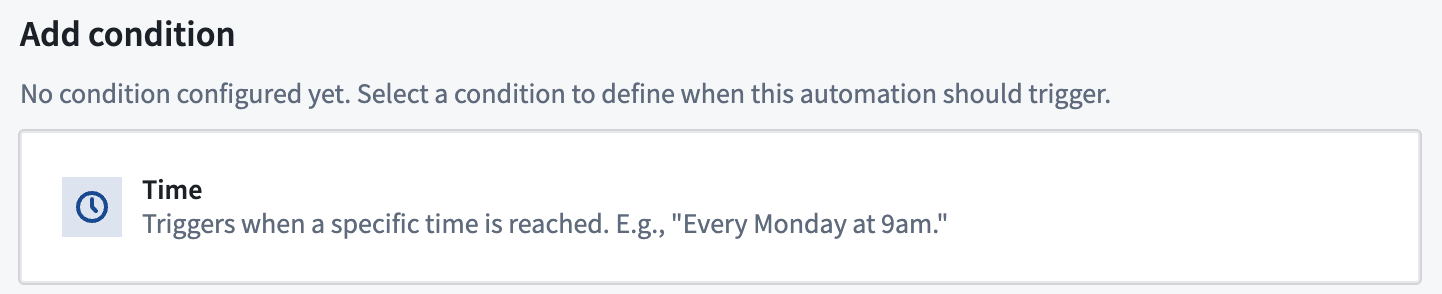
To trigger your automation effects at a specific time or on a schedule, you can use a time condition. Select it by choosing the time condition card.
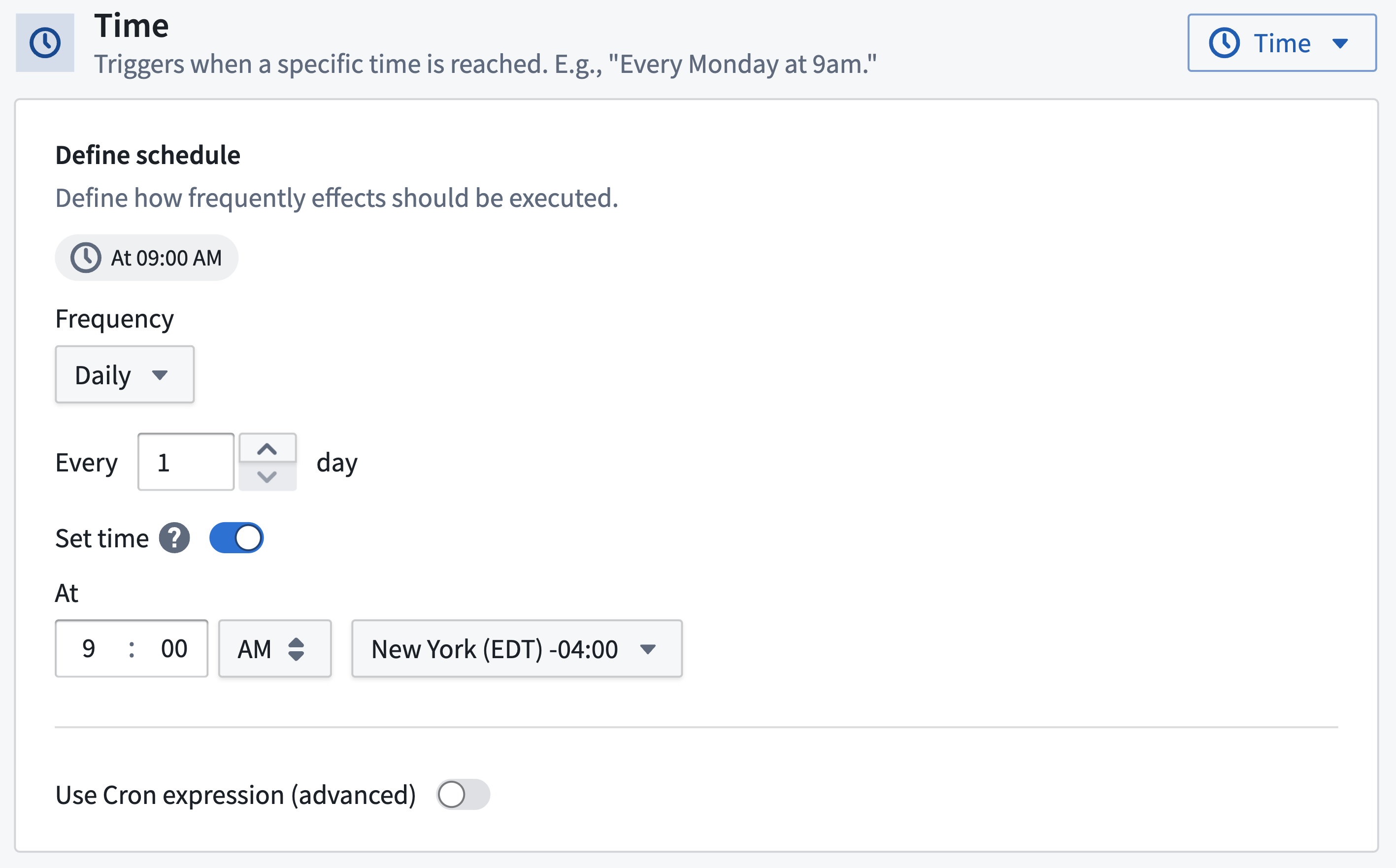
By default, a daily frequency will be selected.
Configuration
There are two ways to configure the time condition: in the user interface or as a cron expression.
User interface
This is the default option and will be sufficient for most use cases. The interface provides options to set up hourly, daily, weekly, and monthly schedules.
Cron expression
If the default time condition configuration options are not flexible enough for your use case, you can define a custom cron expression.
Requirements for cron expressions:
- Exactly five fields (space separated): minutes, hours, day of month, month, day of week
- The seconds and years fields are not supported
- A minimum frequency of once per minute, or once every 5 minutes if the condition logic references a function
- Supported special characters are
*,-,/,,,L, and#- The
Wcharacter is not supported
- The
A natural language preview of your schedule will appear after entering the expression.
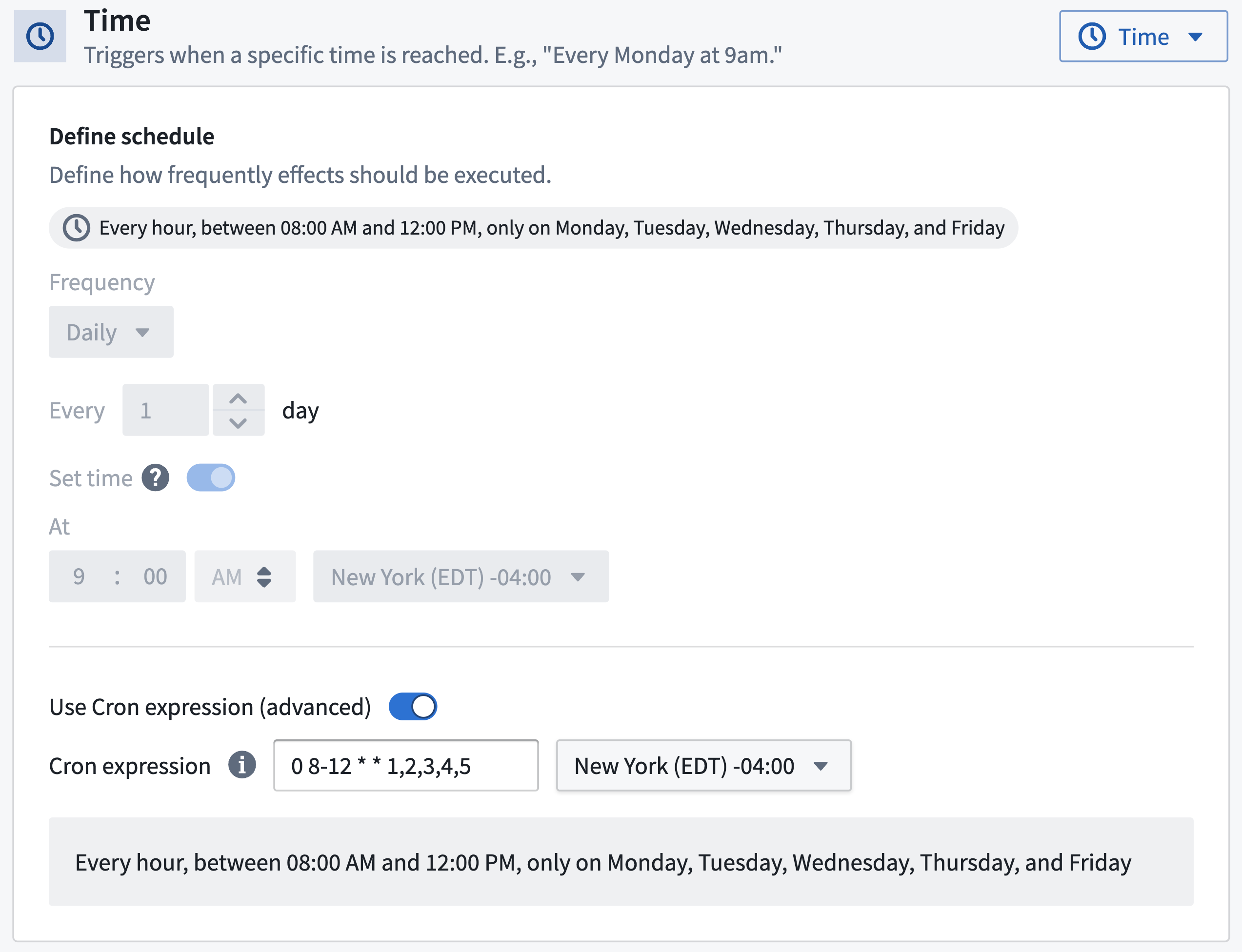
For reference, a list of example cron expressions is shown below:
| Cron string | Meaning |
|---|---|
0 * * * * | Every hour on the hour |
0 0 1 1 * | At midnight on the first day of every year |
15 8,20 * * * | At 08:15 AM and 08:15 PM |
15 8,14 * * 1-5 | At 08:15 AM and 02:15 PM, Monday through Friday |
0 9 L * * | At 09:00 AM, on the last day of each month |
0 9 1 3,7,10,12 * | At 09:00 AM, on the first day of the month, in March, July, October, and December |
0 9 * * 1#1 | At 09:00 AM, on the first Monday of the month |
0 9 * * 5L | At 09:00 AM, on the last Friday of the month |
Multiple cron schedules
You can add multiple cron expressions to a single time condition to define more complex scheduling patterns. When using advanced cron mode, select the option to add additional cron expressions.
Requirements for multiple cron schedules:
- Each cron expression must be non-overlapping with the others
- All expressions must individually meet the cron expression requirements listed above
For example, use 0 9 1,15 * * to execute at 9:00 AM on the first and fifteenth of every month. Add 0 10 * * 5 to execute at 10:00 AM every Friday. Using different times prevents the schedules from overlapping when the first or fifteenth falls on a Friday.
Execution behavior
The next evaluation of a time condition is scheduled only after the previous evaluation completes and its effects are enqueued. This means evaluations cannot overlap with each other, although effects from one evaluation can still be running when the next evaluation starts.
If evaluations take longer to run than the schedule interval, the next evaluation starts later than it otherwise would, rather than starting concurrently with the evaluation still in progress.