- Capabilities
- Getting started
- Architecture center
- Platform updates
Build an application
This page guides you through the build lifecycle of a Pilot application, from ontology generation through seed data. For creating a new application, see Getting started. For deploying to production, see Deploy an application. If you are building a custom widget instead of an application, see Build a custom widget.
Ontology generation
After you describe your application, Pilot analyzes your prompt and creates the data model for your application using the ontology architect agent. Pilot can reuse existing entities or propose the following resources based on your prompt and Ontology permissions:
- Object types that represent the core entities in your application. For example, a task management application might include
Task,Project, andTeam Memberobject types with relevant properties. - Action types for your workflow. For example,
Create Task,Update Task Status,Assign Task, andDelete Task. - Link types that define relationships between object types. For example, a link between
TaskandProjectto indicate which project a task belongs to.
Pilot searches for relevant existing ontology entities before creating new ones. To ensure it selects the intended entities, attach them with the object type and action type pickers. Review the selected entities in the Ontology tab. See Provide context and attachments for details.
The ontology architect documents design decisions in the chat panel, explaining the rationale for each entity. You can view the generated ontology graph by switching to the Ontology tab. For more details on the ontology graph, see the ontology tab documentation.
To refine the ontology, type instructions in the chat panel. For example, you might ask Pilot to add a new property, change a property type, or create a new relationship between object types.
Design specification
When you select Custom components as the theme, Pilot can create a detailed design specification for your application from your requirements. The design specification can include the following:
- A color palette and semantic status colors
- Typography, including font family, sizes, and line heights
- A layout for the main application views
- Form design and interaction patterns such as hover states, animations, and validation feedback
You can ask Pilot for a summary of the design specification in the chat panel. The design specification guides the front-end generation that follows. The Blueprint components theme uses Blueprint components and styling without generating a separate design specification.
Frontend generation
The app builder agent implements the front end using the ontology. This agent performs the following tasks:
- Reads ontology definitions and OSDK documentation
- Builds a React application that uses OSDK hooks for real-time data loading and mutations
- Generates components for creating, updating, filtering, and deleting records
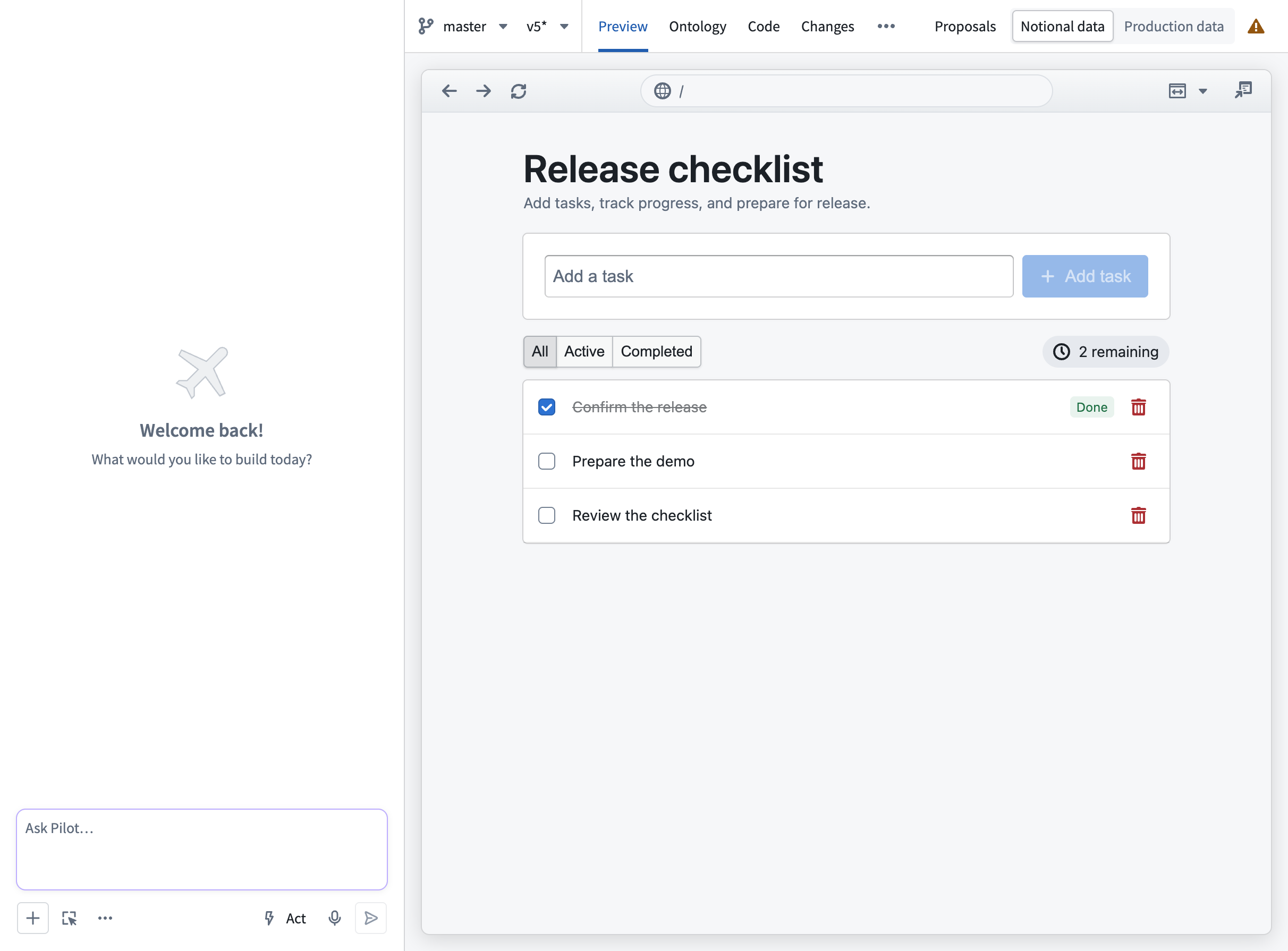
When the agent finishes, the Preview tab displays a live preview of your application running in the container. You can interact with the preview to test functionality, and the device selector lets you preview the application at different screen sizes.
Seed data
Pilot generates seed data in the container for local preview. This helps Pilot build the interface without hard-coding production values into your application code. You can view generated records in the Ontology tab by selecting an object type node and opening the data preview panel. See the ontology tab documentation for details.
To validate your application against real ontology data, select Production data in the editor where available, or switch to the Deploy view. On a deployment branch, ontology schema changes are scoped to that branch and do not affect Main until you merge. On Main, any actions performed in the application are live ontology edits. Preview data sources and the separate, gated production-data analysis workflow are described in Work with data. For deployment details, see Deploy an application.
Iterate on your application
After the initial build, you can refine your application through follow-up prompts.
- Add features: Describe new functionality, and Pilot updates the ontology, design, and code as needed.
- Fix issues: If the preview shows unexpected behavior, describe the problem and Pilot investigates and applies a fix.
- Change the design: Request color, layout, or typography changes.
- Upload reference material: Attach documents, images, or wireframes to guide Pilot. See Provide context and attachments.
- Edit code directly: The code tab provides an embedded editor where you can make changes to the application source code directly.
- Switch models or modes: Use a different AI model, or switch between act and plan modes depending on the task. See Models and agent modes for more information.
If you encounter build errors in the Preview tab, you can select Fix with Pilot to prompt Pilot to diagnose and resolve the issue automatically.
On protected code branches, implement changes on a new branch and merge them through a proposal. See Branches, changes, and proposals.