- Capabilities
- Getting started
- Architecture center
- Platform updates
Manage security
Workflow Lineage includes tools to help you understand and manage the security policies and submission criteria in your workflow.
View permissions with color coding
The color legend in Workflow Lineage shows both Ontology permissions and Resource permissions.
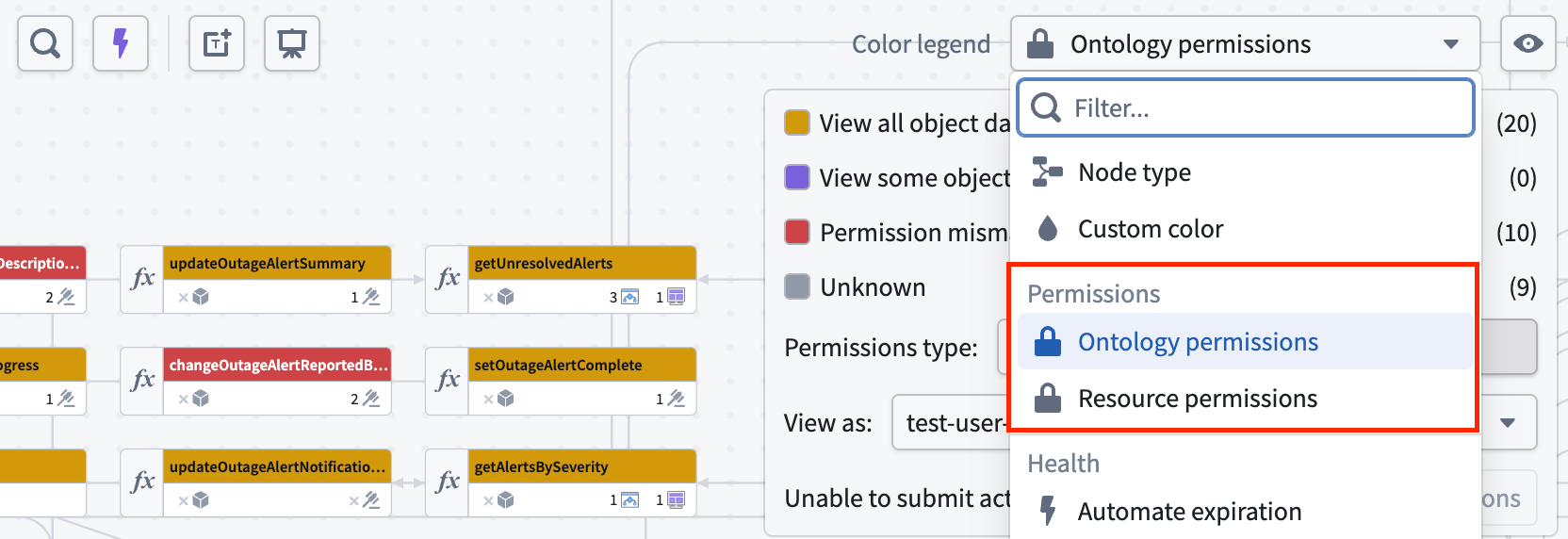
There are two types of Ontology permissions:
- Definition: Whether the specified user can view or edit entity definitions.
- Data and execution: Whether the specified user can view object data or execute actions.
Resource permissions show a breakdown for that particular user: whether they are an owner, viewer, editor, discoverer, or have no access to the resource itself.
To check the access permissions of a specific user, enter their username into the View as dropdown menu for a preview.
Remove nodes that failed to load
When nodes fail to load, select Remove failed nodes in the toolbar to remove them from the graph.
Debug why a user cannot submit an action
If you want to understand why someone cannot submit an action, use Debug permissions within the Ontology permissions color mode.
- Select Debug permissions to open the left side panel. Alternatively, select your action first, then open the Selection details side panel to reach the same view.
- Under Check action submission, select the user in question.
- Review the breakdown of what is required to submit the selected action.
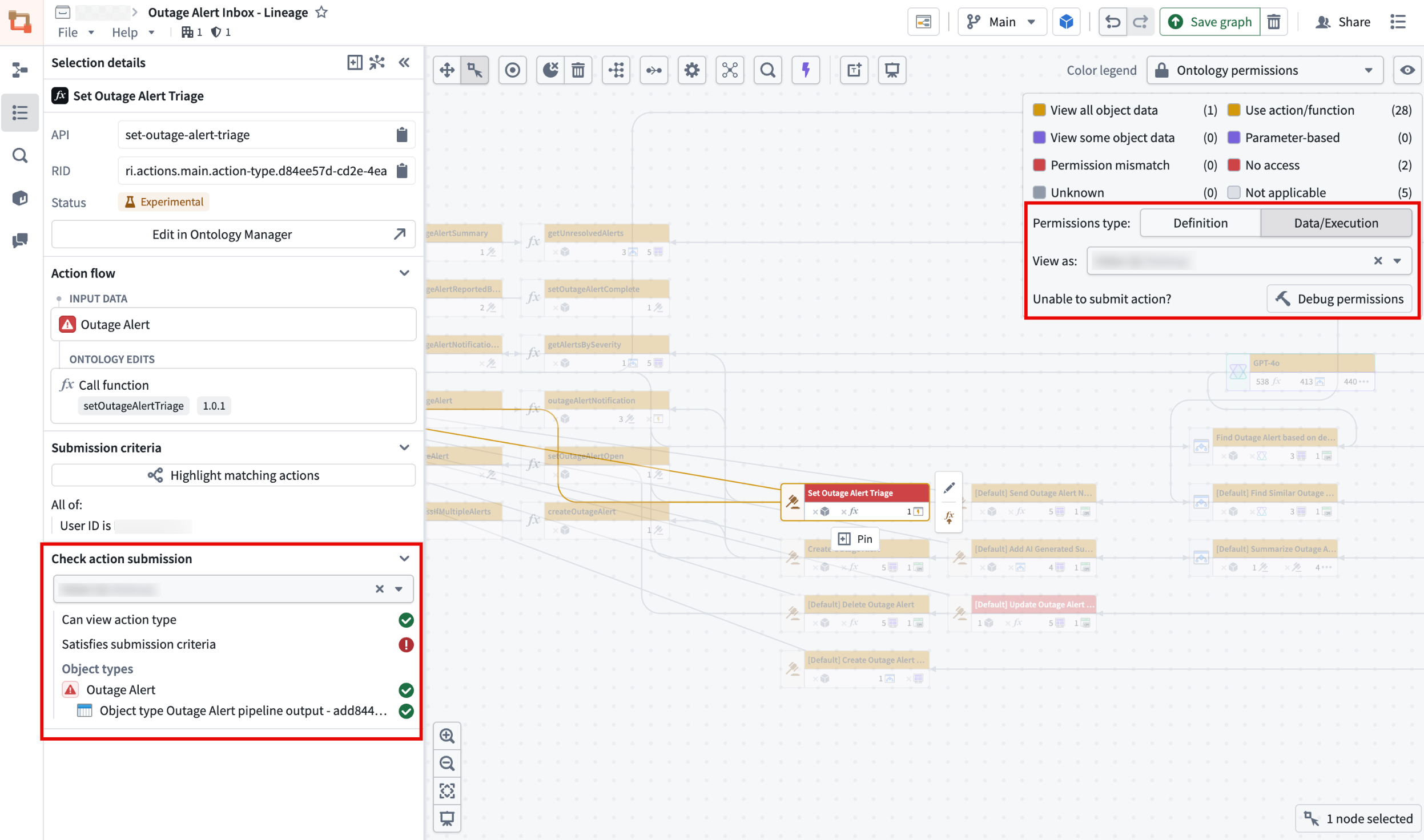
In the example above, the user can view the action type but does not satisfy the submission criteria.
Highlight matching submission criteria
You can view the submission criteria for a selected action, and highlight all other actions on the graph that match those criteria.
To do this:
- Select an action on your graph.
- Open the Selection details side panel.
- Select Highlight matching actions underneath Submission criteria.
- View which actions match. When you are finished, select Exit highlight mode.
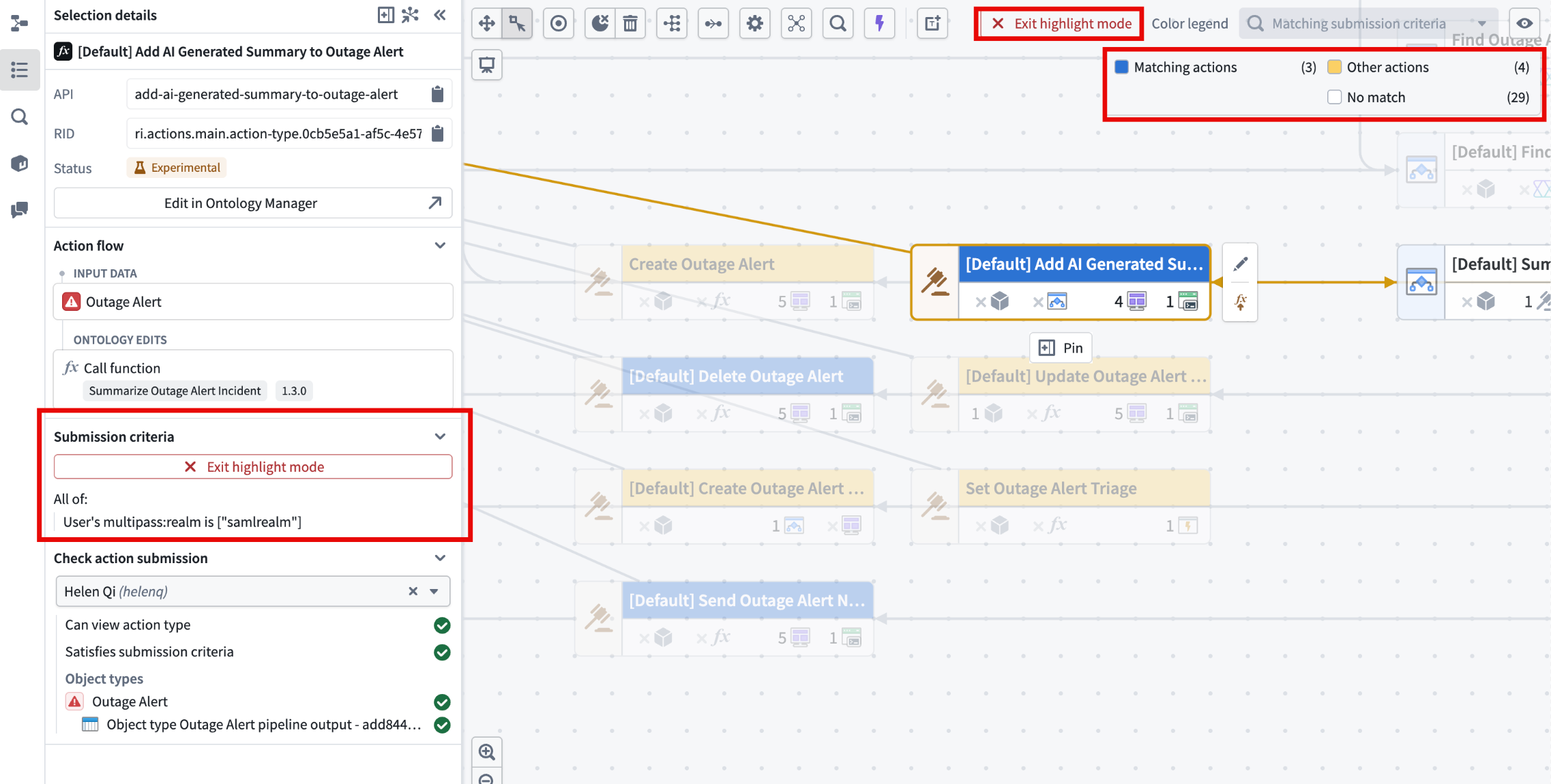
Bulk update action submission criteria
After seeing the highlighted matching submission criteria, you can also bulk update action submission criteria to match the submission criteria of a source action. From the Workflow Lineage graph, select the actions you wish to update. Then, navigate to Update submission criteria from the bottom panel.

On the left side of the panel, select the source action with submission criteria that you want applied to the other actions. The submission criteria of the source action can be viewed under the selected source action.
When completed, select the blue Update x actions button where x is the number of actions that will be updated. You can choose how to apply the changes:
- Create a new branch: Start a new branch to isolate your changes before merging to production.
- Upgrade directly on Main: Apply changes immediately to the main branch without creating a branch or proposal.
- Apply to an existing branch: If you have a branch selected in the top bar, apply the changes to that branch.
Bulk update ontology roles on resources
You can also bulk edit ontology role permissions on objects and actions by following the steps below:
- Navigate to a resource and right-click on it, then select Edit permissions from the context menu.
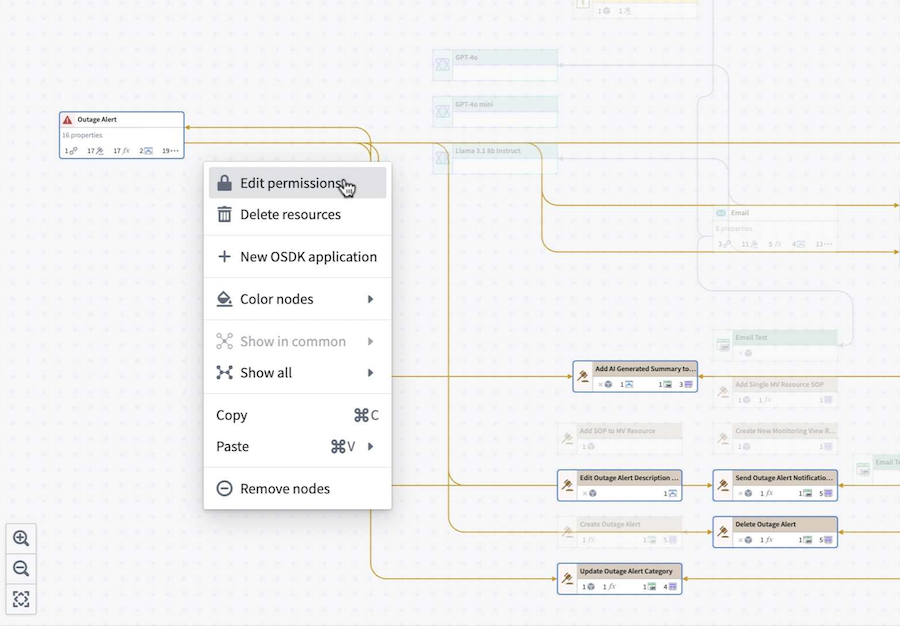
This will bring you to the Edit ontology resource permissions window, displaying the selected resources.
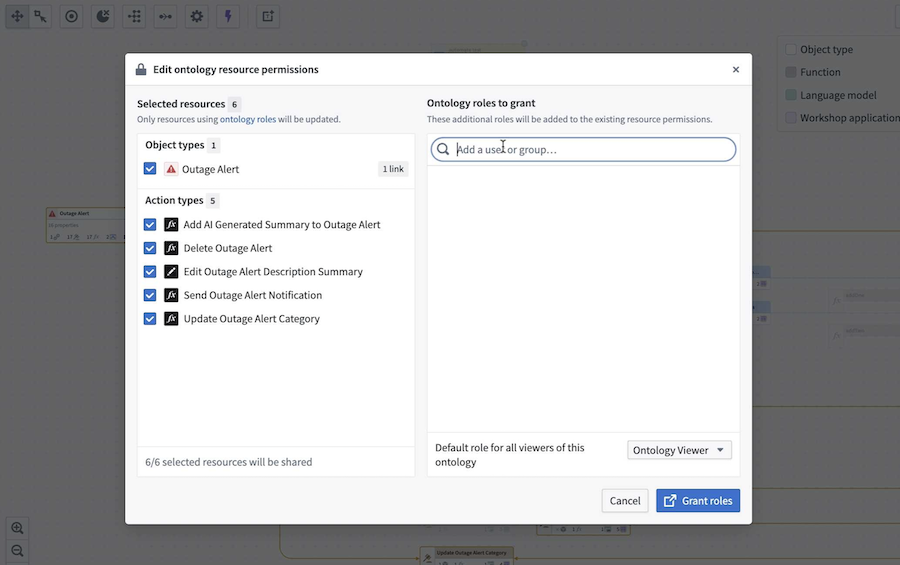
- In the Ontology roles to grant section, search for the group that you want to add. After selecting the role, you should see it displayed next to the selected group.
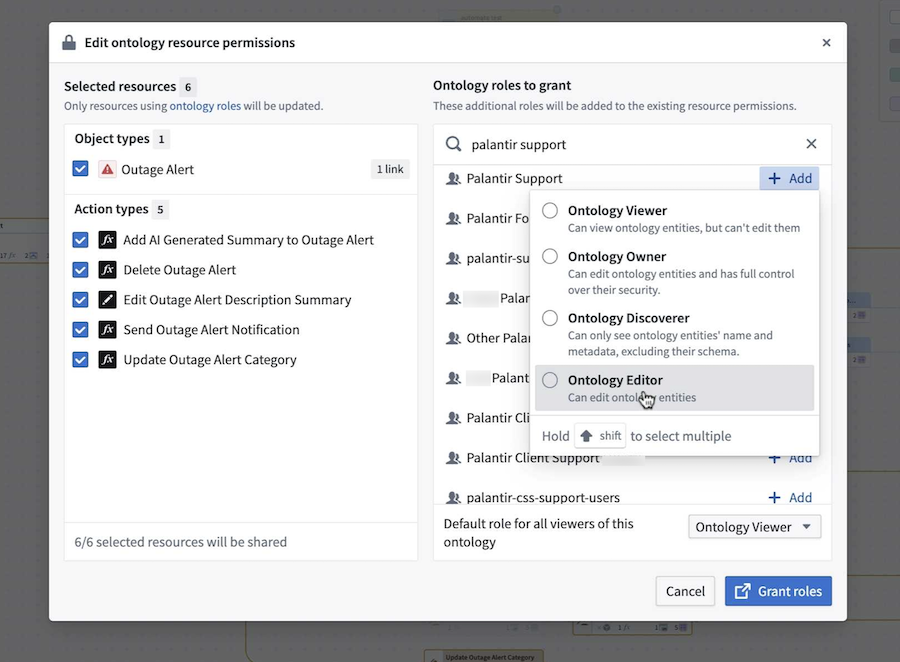
-
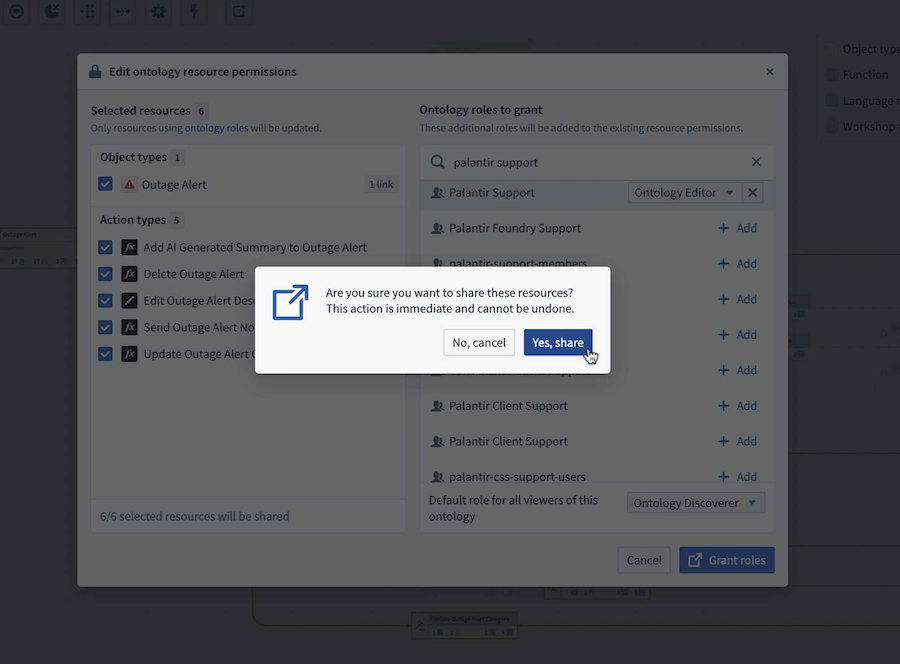
Confirm the action by selecting Grant roles in the bottom right. A dialog will appear with the prompt,
Are you sure you want to share these resources?. -
Select Yes, share to proceed. This action is immediate and cannot be undone.
View matching object security policies
You can view an object's security policies, as well as see all other objects that match or partially match those policies.
- Select an object on your graph.
- Open the Selection details side panel and go to the Security policy section.
- To view the granular policy, hover over Granular policy.
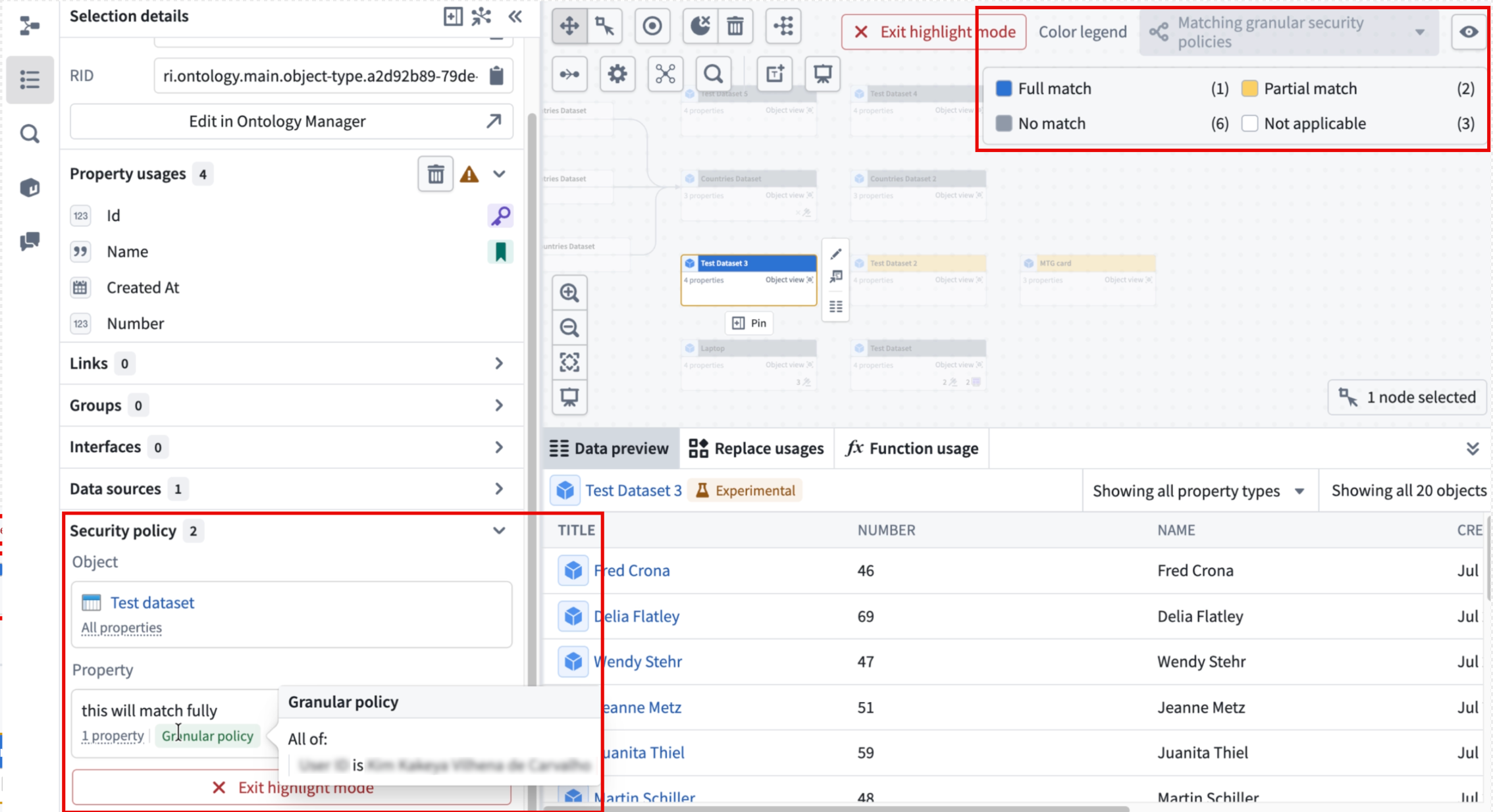
To see which objects on your graph fully or partially match your selected object's security policy go to the Security policy section in the Selection details side panel.
- Select Highlight matching actions underneath Security policy.
- View which actions match. When you are finished, select Exit highlight mode.