- Capabilities
- Getting started
- Architecture center
- Platform updates
Variables
Variables are used by module builders to configure how data moves through a Workshop module. A list of available variable types can be found below.
To access existing variables in a Workshop module or define new variables, open the Variables menu found in the left sidebar.
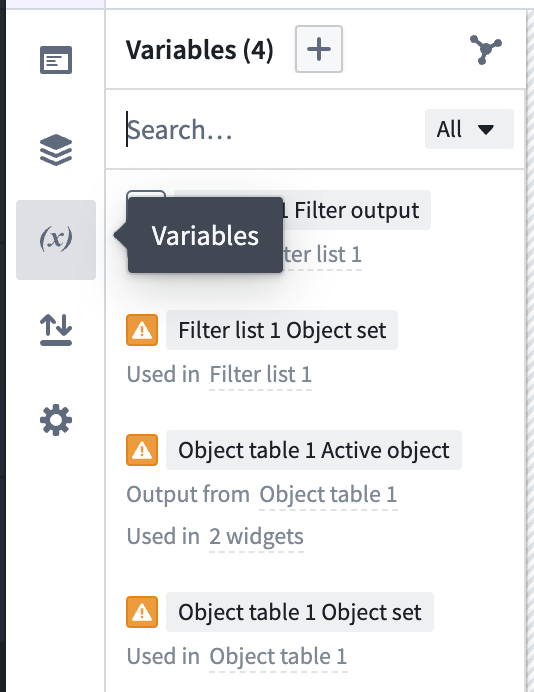
The Variables panel (shown above) displays a list with the current variables that exist within a module, a plus + option to add a new variable, an input to search variables by their name or unique ID, an option to open the variable lineage graph, and a filter to display variables based on their definition type or what settings are enabled. The variable list includes partitions to help you quickly find relevant variables: when a widget is selected, a partition displays variables used by that widget; when no widget is selected, a partition displays variables used in the active page.
Selecting a variable from the list on the left allows you to view and modify the configuration of that variable in a window that opens to the right of the variables list. The following configuration options are available:
-
Variable name: Select the variable name or pencil icon to edit the name. Use descriptive names to document your module and find variables later. Names must be unique within a module. If a name conflicts with an existing variable, Workshop appends a numeric suffix. Matching is case-insensitive, so
MyVarandmyvarare duplicates. If you clear a name, Workshop restores its previous value. The Variables panel does not support folders, so to group variables alphabetically, prefix names with a contextual identifier such as$page_or$tab_, followed by the page or tab name. For example, use$page_Dashboard_filterStateor$tab_Overview_selectedObject. -
Variable definition type: Next to the variable name is a dropdown menu that provides options for how a given variable is defined and populated with data. Available choices will vary based on the selected variable type and can include options such as the following:
- Static: For manually set variable values
- Function: For function-backed, dynamically computed variables
- Object set aggregation: For variables derived from an aggregation of an object set
- Object property: For variables tied to a selected property value of a single object
- Note: Complex non-performant object properties are not supported as variables in Workshop.
- Object set definition: Specifically for object set variables defined by selected object types, filters, and linked objects traversals
- Variable transformation: For defining a variable value as a series of common operations, possibly referencing other variables; review the variable transformations documentation for more information.
- SQL query: For variables computed by running an Ontology SQL query against object sets and other variables in the module; review the SQL query variables documentation for more information.
-
Delete variable (trash icon): Variables that are unused in a module (by widgets or downstream variables) can be deleted.
-
New variable from current (object set variables only): Next to the duplicate variable button, the New variable from current button allows you to create a new object set variable that automatically takes the current object set as its input. This is useful when you want to build upon an existing object set's configuration while maintaining a reference to the source variable.
-
Variable definition configuration: The main part of the screen where the specifics of a variable are configured. The options provided here will change based on the selected variable type and variable definition type and will feature on-screen instructions.
-
Variable settings: The variable settings panel allows configuration of an external ID and which of the below features should be enabled for a given variable.
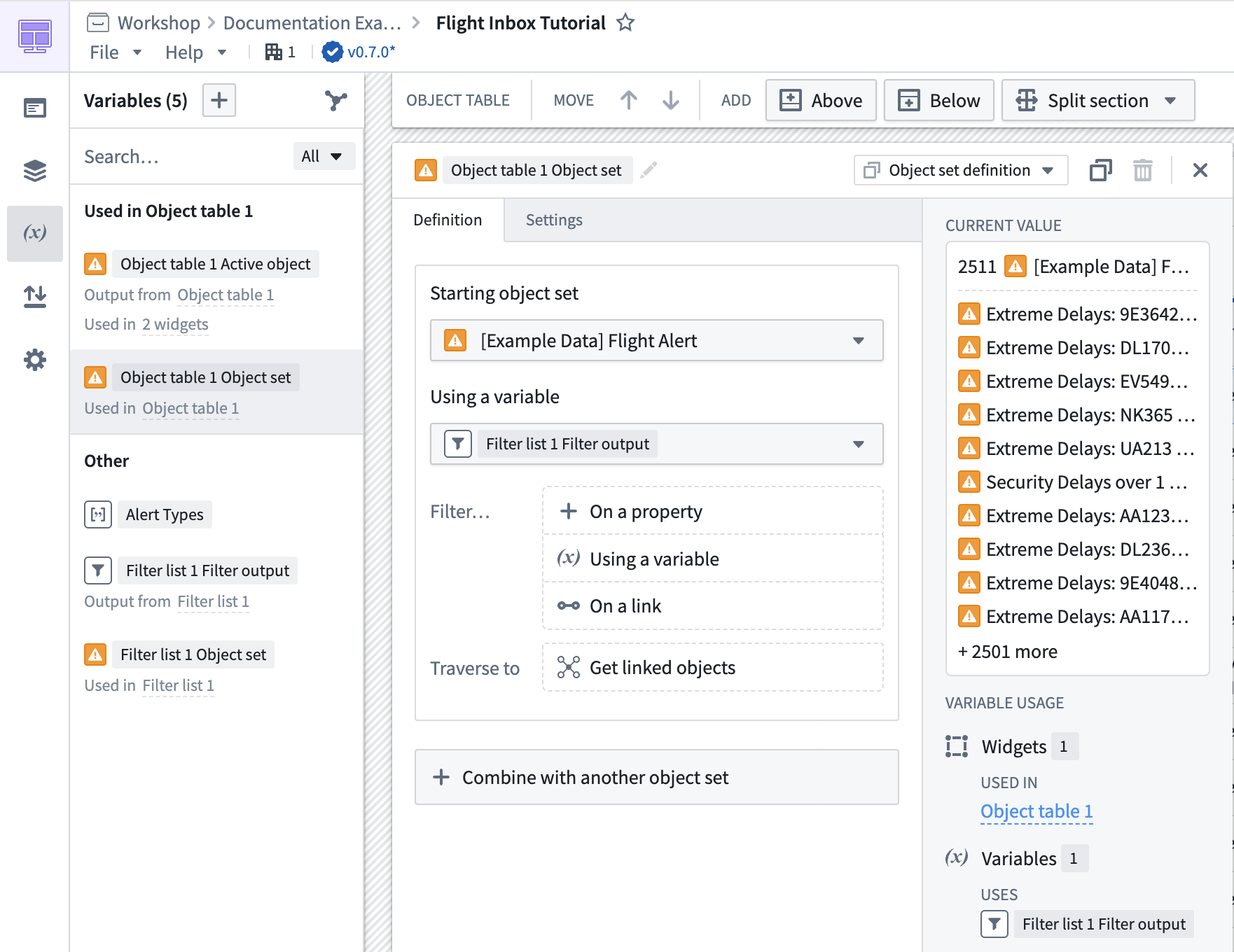
The screenshot below shows an example configuration for an Object Set variable:
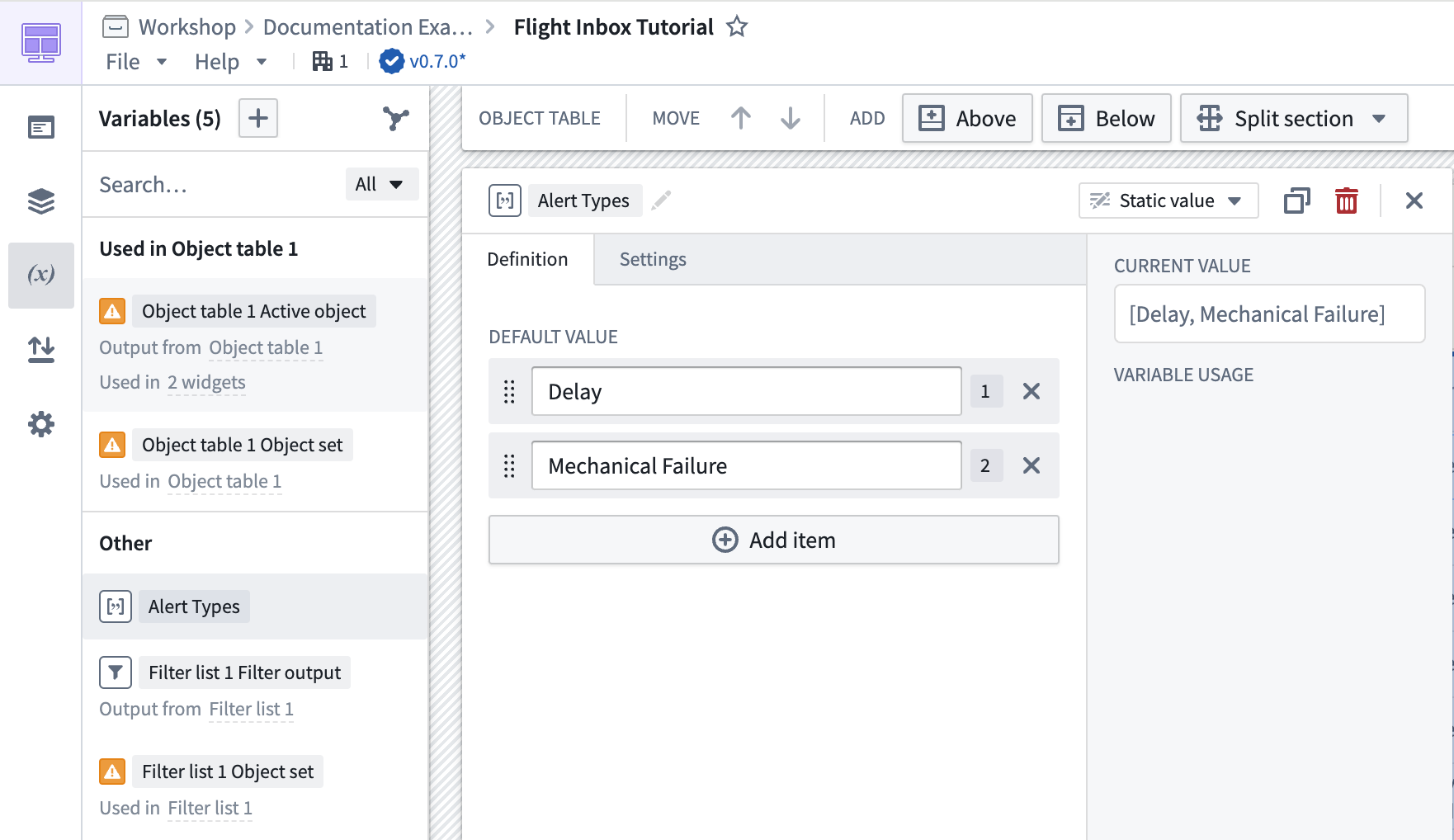
The screenshot below shows an example configuration for a string array variable:
Lazy variable loading
In view and edit mode, Workshop can defer variable computation until the value is needed by a visible widget, layout, or another required variable. This also applies to variables in embedded modules. For example, computation for a variable used only in a hidden tab can wait until that tab is shown. Some uses, such as controlling layout visibility, can still cause computation while a section is hidden. See loading and data refresh for more information.
Variable loading indicator
Workshop displays a loading indicator while it evaluates a variable.
Variable types
Workshop supports the following variable types:
- Array: Accepts an array of Boolean, date, numeric, geopoint, geoshape, string, timestamp, or struct values.
- Boolean: Accepts values of
trueorfalse. Initialized from either a static value or the output of a function, aggregation, or object property. - Date: Accepts a date. Initialized from either a static value or the output of a function, aggregation, or object property.
- GeoPoint: Accepts a geopoint. Initialized from an object property.
- GeoShape: Accepts a geoshape. Initialized from an object property or the output of a function.
- Numeric: Accepts a numerical value, including both integers and floats. Initialized from either a static value or the output of a function, aggregation, or object property.
- Object set: Stores a set of one or more objects. Initialize it from an object type, an ontology interface, or another object set variable. You can then filter it by property values or Filter variables, or pivot to linked objects through a Search Around. You can also pivot to other object types through shared property types or object-backed link types.
- Object set filter: Stores a set of property type / property value pairs used to filter object set variables. Initialized from an object type and then a set of property type / property value filter pairs. See object set filter variables for more information.
- String: Accepts text. Initialized from either a static value or the output of a function, aggregation, or object property.
- Struct: Stores a composite type that maps string fieldIDs to values. Currently, nested structs are not supported but any other Workshop variable type for a struct field's value is accepted. Initialized from the output of a function. See Struct variables for more information.
- Timestamp: Accepts a timestamp. Initialized from either a static value or the output of a function, aggregation, or object property.
- Time series set: Stores a time series property of a single object, optionally allowing the application of time series transforms to it. See Time series properties in Workshop for more information.
Recompute variable value
For supported variable definitions, Recompute variable value controls whether Workshop recalculates a value automatically, only when triggered by an event, or on module load and when triggered by an event. See variable recompute behavior for the available options, supported definitions, and limitations.
Variable lineage graph
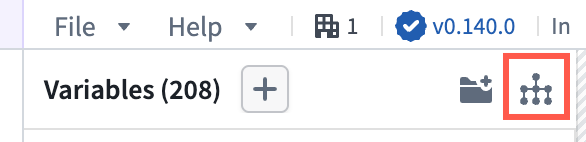
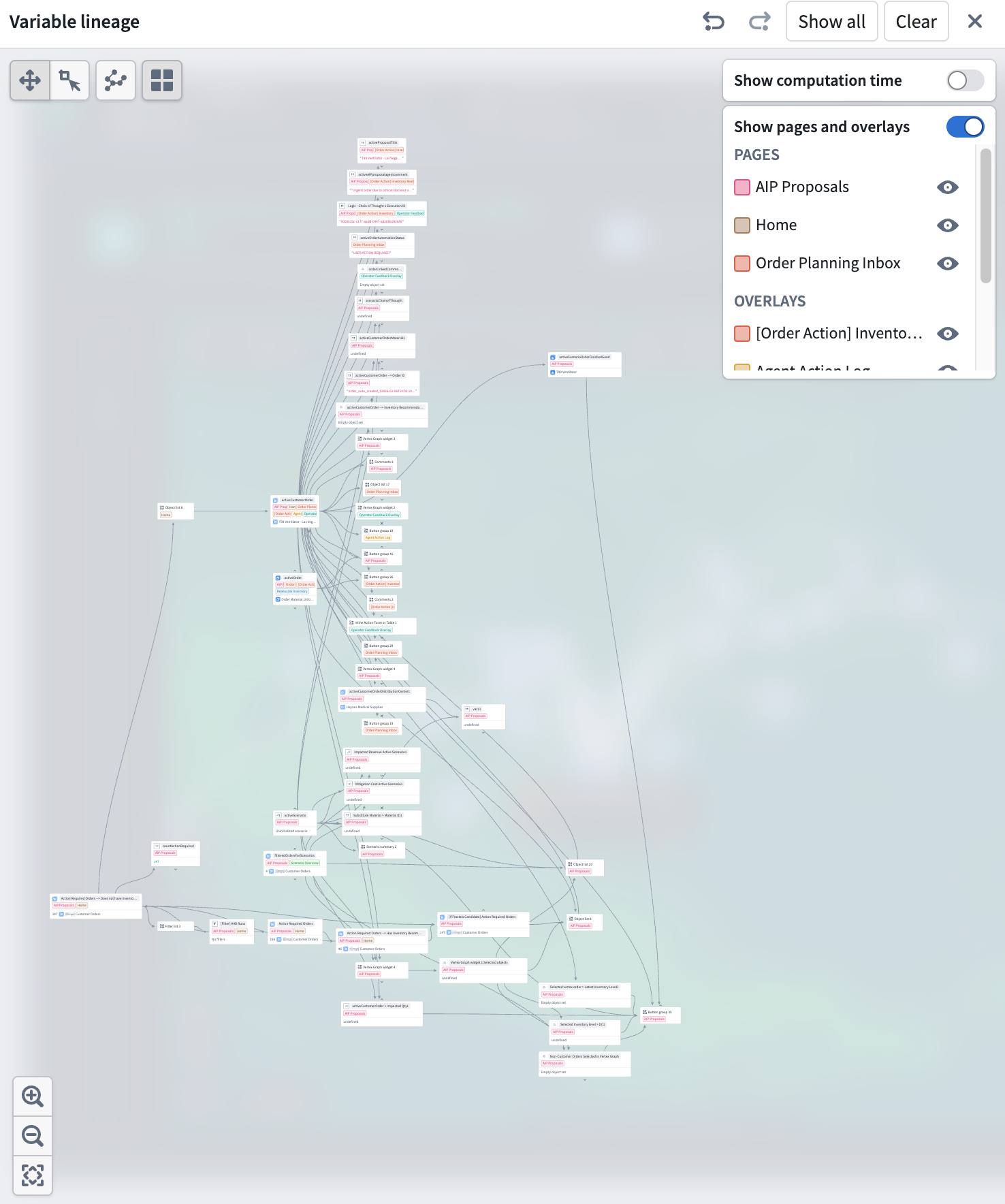
Use the Variable lineage graph option found in the header of the Variables panel, to visualize how variables and widgets in your module depend on one another. Use it to debug recompute behavior, trace which widgets read or write a variable, and better understand complex relationships between application elements.
Expanding the graph
Each node on the graph represents a variable or widget. Nodes with dependencies have chevron arrows on their top and bottom edges. Select an arrow to expand a node's parents (upstream dependencies) or children (downstream consumers) and trace a chain of relationships through the module. Use the Show all action in the graph header to expand to the full application graph or Clear to remove all nodes.
Undo and redo options in the graph header step backward and forward through expand, collapse, and selection actions, mirroring the module's own undo/redo controls.
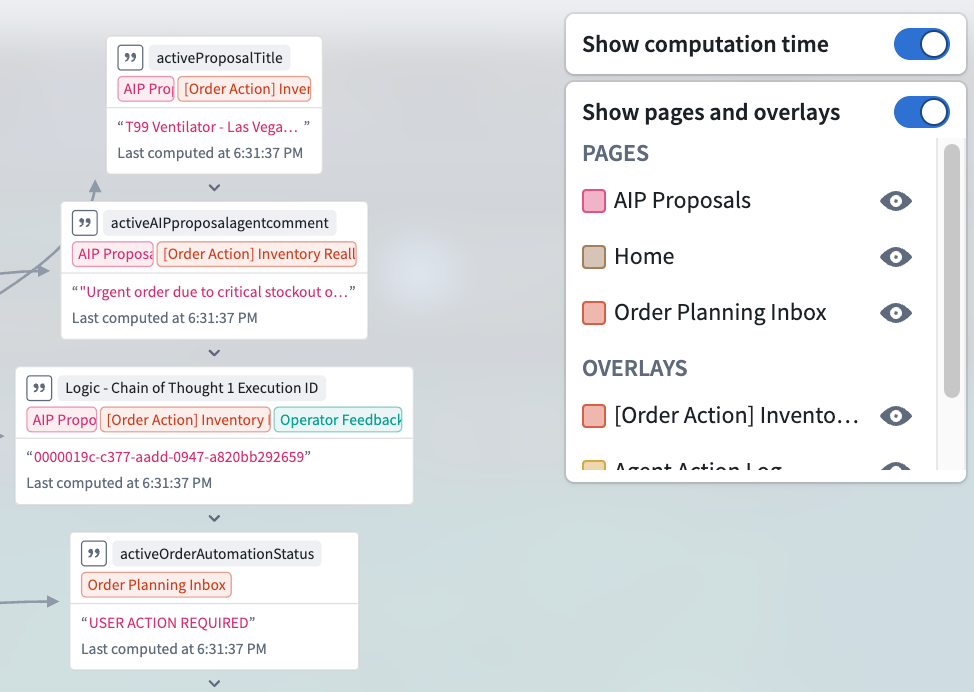
Each node can display the pages and overlays where a variable is used and the time at which a variable was computed.
Pages and overlays
Nodes are tagged with the pages and overlays where they are referenced. Toggle Show pages and overlays in the header to display a legend that lists each page and overlay in use. The legend only lists pages and overlays that appear on visible graph nodes, so the list stays scoped to what you can see in the graph.
Computation time
Toggle Show computation time in the header to display per-variable timing information. Computation time refers to when the value of the variable was last computed in the application (as it appears to the user), not when the underlying data was last updated outside of the application. Variables that take longer to recompute may be candidates for restructuring: for example, splitting a complex function-backed variable into smaller pieces or changing the recompute behavior on upstream variables to avoid unnecessary work.