- Capabilities
- Getting started
- Architecture center
- Platform updates
Import an existing project from outside Foundry
You can import an application built outside Foundry by uploading a ZIP file of its source code. Pilot reads the code, plans the migration with you, and rebuilds the project as a Pilot application that uses React, Vite, and the Ontology SDK (OSDK). Projects built with other frameworks, such as Django or Electron, are converted to use these technologies. Pilot keeps the original pages, flows, and visual design, and moves the data model to the Ontology.
After the migration, you can refine and deploy the application like any other Pilot application.
Prepare the ZIP file
Create a ZIP file of your project folder, up to 10 MB. Include the source code, assets, and any database schemas or data files you want Pilot to model. Leave out node_modules, .git, virtual environments, and build output.
Do not include production data or secrets in the ZIP file.
Import the project
To import a project from the Pilot welcome screen:
-
If a Type option appears, select OSDK application.
-
Enter a migration prompt, such as the following example:
Copied!1 2 3 4 5 6 7 8 9 10 11 12 13 14 15 16 17 18The attached ZIP file contains an app. Migrate this app to this Pilot app. Keep the same pages, flows, and visual design. Do not run the original app. 1. Extract the ZIP file into /tmp and examine it. For data files, read only the schema and some rows. 2. Ask me these questions: - Is the data real or sample data? - Which pages do you build first? - What replaces each integration that Pilot cannot run? 3. Write a plan. Include the pages, a feature table, and the object types. In the feature table, give each feature one status: migrates, uses a Foundry equivalent, or not supported. End the plan with a "- [ ]" checklist. 4. When I approve the plan, save it to docs/migration-plan.md. 5. Copy the files that you need into the app. The extracted folder is temporary. 6. When you complete a checklist item, mark it as done. Rules: - Foundry controls sign-in. Remove the auth code. - Do not copy secrets. - Use Foundry user IDs for users. - Change the data model to fit the Ontology. Use existing object types when possible. - Keep the assets, colors, and fonts of the original app. -
Select Add context, choose Add files, and select the ZIP file. You can also drop the file onto the prompt input.
-
Under Theme, choose Custom components to keep the original design, or Blueprint components to give the application a Foundry-style interface.
-
Check the Ontology permissions below the Ontology field. To let Pilot create new types for your data, select Modify Ontology permissions, turn on Allow Pilot to create new object types and Allow Pilot to create new action types, then select Save.
-
Select Create application.
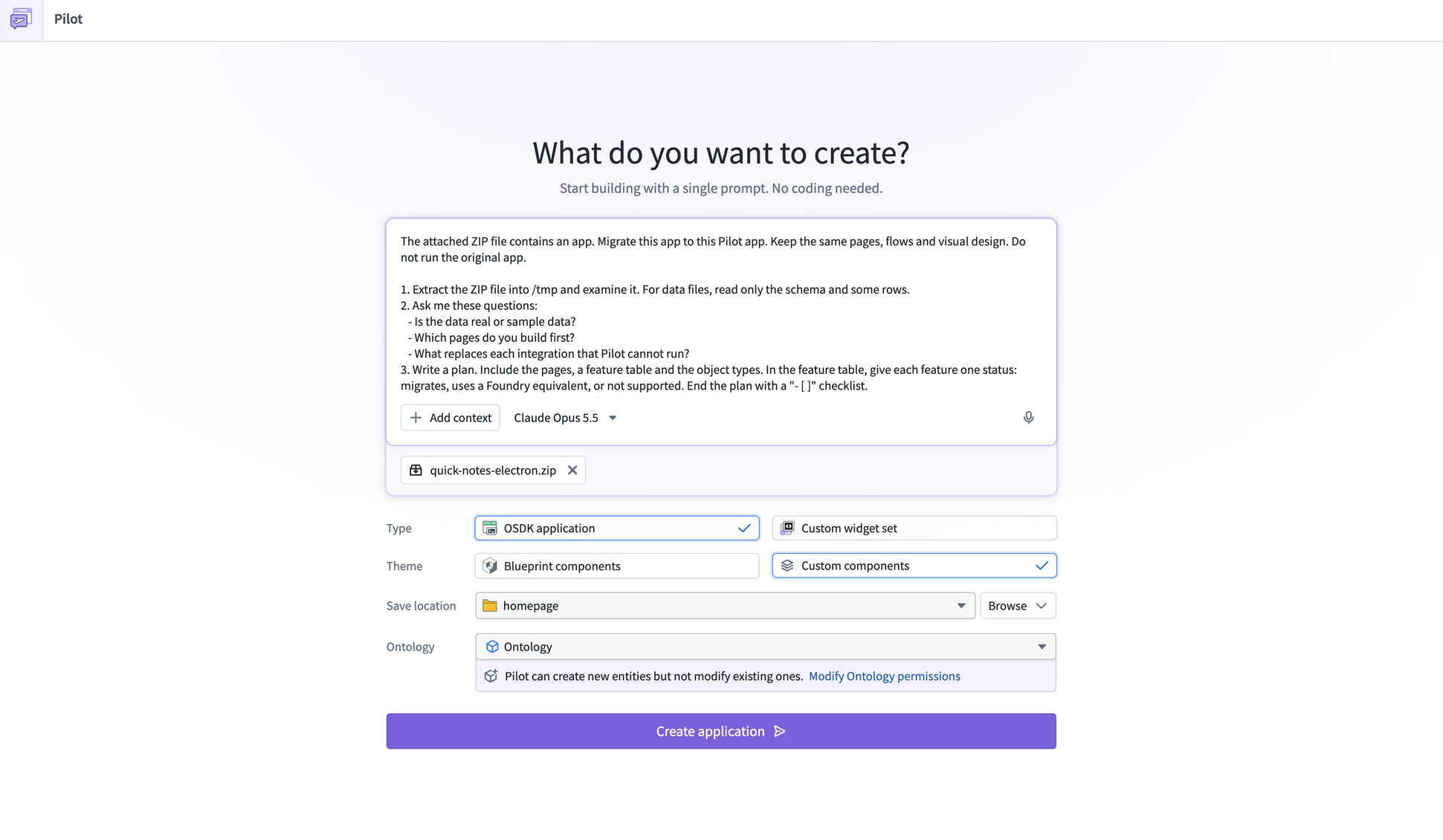
Add your own requirements to the rules, such as Do not migrate the admin pages. To keep the original source code as a reference, add a rule such as Copy the extracted folder into reference/ in the repository. Attach screenshots of the original application's main pages to help Pilot match the design.
Review the plan
Pilot runs the first prompt in Act mode, so it can extract the ZIP file into a temporary folder. It does not run the original project. It asks you questions and writes a migration plan listing the pages, features, and object types. Features that need server-side code or secrets, such as payments, email, or scheduled jobs, are marked as using a Foundry equivalent or not supported.
Answer the questions and ask for changes in the chat panel. When you approve the plan, Pilot saves it to docs/migration-plan.md and works through its checklist. The Preview tab updates as Pilot builds each page.
The uploaded ZIP file does not persist across sessions. If the migration stops, enter Continue the migration in docs/migration-plan.md.
Move your data to the Ontology
Pilot reads the schema and a few rows of the original data, such as database schemas, ORM models, and JSON, CSV, or SQLite files. It then changes the data model to fit the Ontology instead of copying each table as is:
| Original project | Ontology |
|---|---|
| Tables, models, and sets of records | Object types |
| Columns and fields | Properties |
| Foreign keys and nested records | Link types |
| Operations that create, edit, or delete data | Action types |
Pilot reuses existing object types when possible, and creates new types only if Ontology permissions allow it. To make sure Pilot uses specific types, select Add context on the welcome screen and choose Add object types or Add action types.
For the preview, Pilot tries to replicate the original data as closely as possible in seed data. If the data is real, Pilot can generate seed data with the same structure instead. Seed data is not deployed. To use your data in production, bring it into Foundry separately, for example with Pipeline Builder.