- Capabilities
- Getting started
- Architecture center
- Platform updates
Use Palantir-provided models to create a semantic search workflow
To use Palantir-provided language models, AIP must first be enabled on your enrollment. You also must have permissions to use AIP developer capabilities. Using a custom model? Review Using custom models to create a semantic search workflow instead.
This page illustrates the process of building a notional end-to-end semantic search workflow using a Palantir-provided embedding model.
Instructions
To begin, you need to generate embeddings and store them in an object type with a vector type. Then, you can set up a semantic search workflow in Workshop, build an AIP Chatbot Workshop widget solution, or create a custom semantic search function for use in Workshop and AIP Logic.
Prerequisite:
Options:
- Create a simple semantic search workflow within Workshop using a KNN object set (no-code)
- Enable an AIP Chatbot to semantic search for objects (no-code)
- Create a function to semantically search across objects for use in Workshop and/or AIP Logic
Generate embeddings and create object type
We will use Pipeline Builder to embed text in the dataset as vectors with the Text to Embeddings expression. The expression takes a string and converts it to a vector using one of the Palantir-provided models; in our case, this is the text-embedding-ada-002 embedding model.

These embeddings can then be added to the Ontology as a vector property.
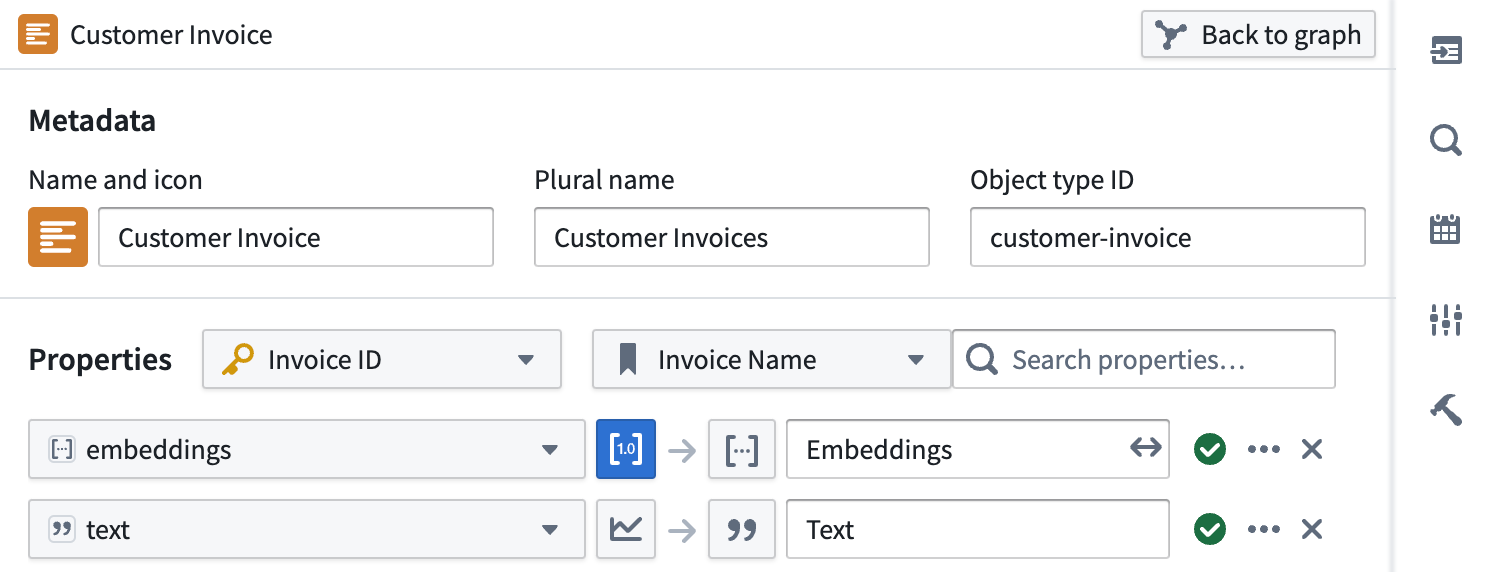
If you would like more control around the generation of embeddings using Palantir-provided models, see Language models within Python transforms.
Create a simple semantic search workflow within Workshop using a KNN object set (no-code)
The KNN object set cannot be sorted by relevance. If you need ordered results, use the function approach with TypeScript v1 or TypeScript v2. Both versions support relevance ordering.
Configuring a KNN object set (TSv1) within Workshop is an easy no-code way to build a semantic search workflow.
- Create an object set variable and select the object type that contains an embedding property.
- Select the filter
+ On a propertyoption, then from the list of properties in the menu, select your embedding property. - Once selected, the K-nearest-neighbors configuration should appear. If this configuration does not appear, verify that the property you selected is an embedding property.
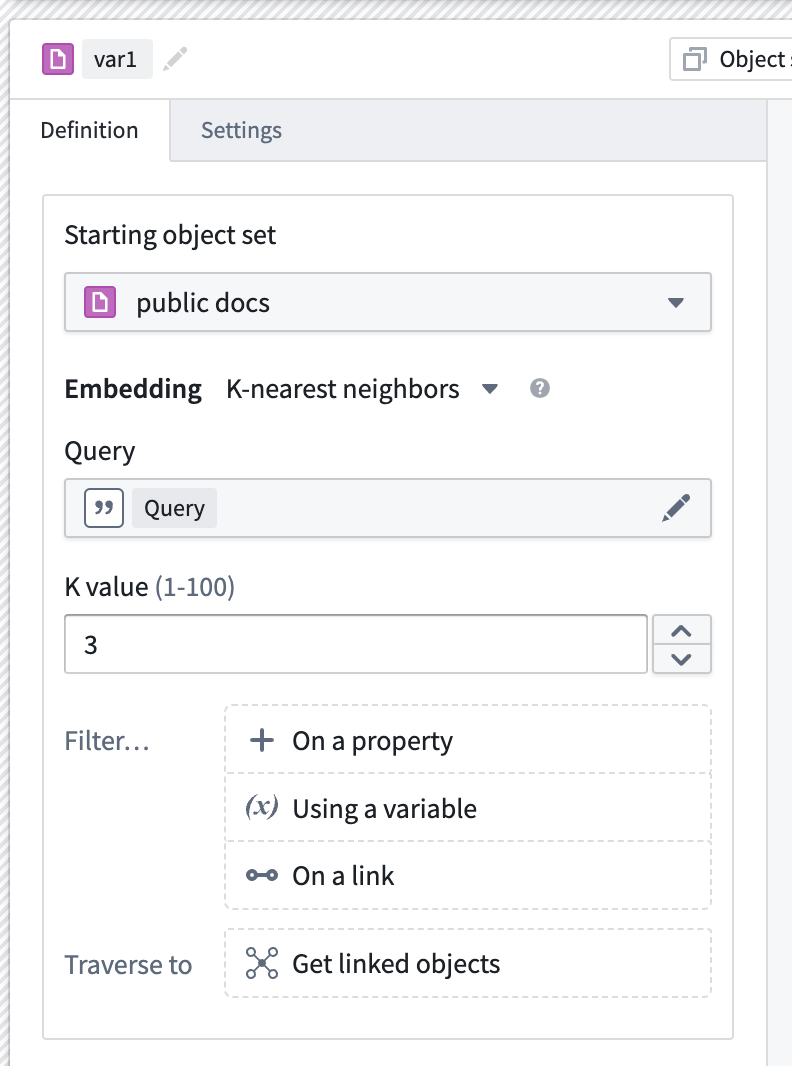
Within this panel, you can configure:
- K-value: A number between 1-100 for how many objects to return in the semantic search.
- Query: The string variable to use as a query when performing the semantic search.
- Next, create a text input widget and add its output variable to the KNN query option seen above.
- Lastly, add an object table widget and configure its input variable to be the newly created KNN object set.
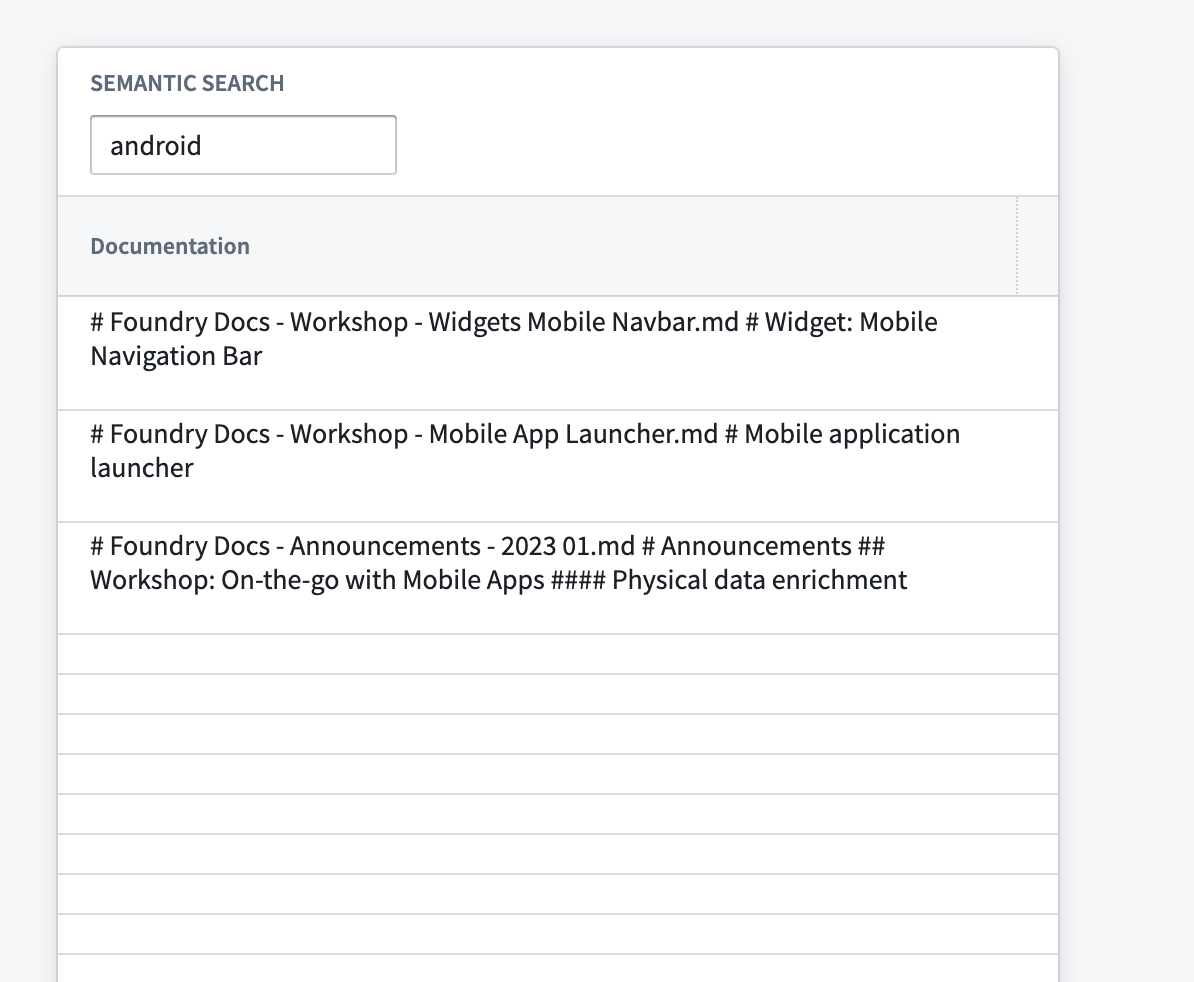
For more customized semantic search logic, see the section on functions.
Use AIP Chatbot (no-code)
AIP Chatbots (formerly AIP Agents) created in AIP Chatbot Studio are good for beginning semantic searches across your objects because they do not require any code. Learn more about incorporating semantic search with more control over the functionality.
Follow the instructions on the getting started guide to create an AIP Chatbot and either add Ontology context or an Ontology semantic search tool. This initial setup will enable you to ask the AIP Chatbot to semantically search the objects.
Create a function to semantically search across objects for use in Workshop and/or AIP Logic
Create a functions repository and a function to query your object type. The goal is to take user input and run a KNN search over the object type. In TypeScript v1, first generate a vector with the same Palantir-provided model used earlier. To learn how to import Palantir-provided models into a TypeScript v1 function, review Language models in TypeScript v1 functions. TypeScript v2 and Python accept the query as text, as described below.
Before proceeding, ensure that the entry "enableVectorProperties": true is present in the functions.json file in your Functions code repository. If this entry is not present, add it to functions.json and commit the change to proceed. Contact your Palantir representative if you need further assistance.
The functions.json configuration file is a TypeScript v1 repository artifact. No equivalent vector property setting is documented for TypeScript v2 or Python repositories, so do not assume this entry carries over to them. Contact your Palantir representative if a KNN search fails in a TypeScript v2 or Python repository.
Example semantic search function
The code examples in this section are available in TypeScript v1, TypeScript v2, and Python functions; select the tab that matches your function version. TypeScript v1 defines each function as a method on an exported class, applies the @Function() decorator from @foundry/functions-api to that method, and queries the Ontology through Objects.search(). TypeScript v2 defines functions with export default, imports types from @osdk/functions, and queries the Ontology through an Ontology SDK client passed as a parameter. Python uses the @function decorator and constructs an Ontology SDK client in the function body. For a full comparison, review the TypeScript v1 versus TypeScript v2 comparison.
The three versions differ in where the query embedding is produced and in where the function must be defined:
- TypeScript v1 embeds the query itself with a Palantir-provided embedding model, then passes the resulting vector to
nearestNeighbors. The function is a method on an exported class, conventionally defined infunctions-typescript/src/index.ts. - TypeScript v2 passes the user's text directly to
nearestNeighbors, which accepts either a query vector or query text. No separate embedding call is required, so the two-step workflow collapses into one. The function must be the default export of a file in thetypescript-functions/src/functionsdirectory, and the file name must match the function name; review Write a function for the full requirements. - Python also accepts the query as text through
nearest_neighbors. The method is a beta feature, so the function is declared with@function(beta=True).
Generating an embedding as a separate step, as the TypeScript v1 example does with TextEmbeddingAda_002.createEmbeddings, has no documented TypeScript v2 equivalent. This workflow does not need one, because the query text is embedded during the KNN search. To call a Palantir-provided model directly from a TypeScript v2 or Python function for other purposes, review Language models in TypeScript v2 and Python functions.
The neighbor count limit differs between the TypeScript versions. TypeScript v1 restricts the k value to the range 0 < K <= 100, while the TypeScript v2 numNeighbors argument accepts values from 1 to 500.
TypeScript v1 sorts matches with a separate .orderByRelevance() call before taking the top k results. TypeScript v2 requests relevance ordering by passing $orderBy: "relevance" to fetchPage(). Python has no documented equivalent; instead, the neighbor count passed to the search bounds the results. Objects returned by the Python nearest_neighbors method also carry a _score field.
The TypeScript v2 and Python examples below accept the same query text and neighbor count as the TypeScript v1 example and return the nearest objects. The TypeScript v2 function additionally receives an Ontology SDK client as its first parameter.
In each code snippet below, replace every instance of ObjectApiName with your unique object type. The identifier may sometimes appear as objectApiName with the first letter in lowercase.
Copied!1 2 3 4 5 6 7 8 9 10 11 12 13 14 15 16 17 18 19 20 21 22import { Function, Integer } from "@foundry/functions-api"; import { Objects, ObjectApiName } from "@foundry/ontology-api"; import { TextEmbeddingAda_002 } from "@foundry/models-api/language-models" export class MyFunctions { @Function() public async findRelevantObjects( query: string, kValue: Integer, ): Promise<ObjectApiName[]> { if (query.length < 1) { return [] } const embedding = await TextEmbeddingAda_002.createEmbeddings({inputs: [query]}).then(r => r.embeddings[0]); return Objects.search() .objectApiName() .nearestNeighbors(obj => obj.embeddings.near(embedding, {kValue: kValue})) .orderByRelevance() .take(kValue); } }
Copied!1 2 3 4 5 6 7 8 9 10 11 12 13 14 15 16 17 18 19 20import { Client, Osdk } from "@osdk/client"; import { Integer } from "@osdk/functions"; import { ObjectApiName } from "@ontology/sdk"; export default async function findRelevantObjects( client: Client, query: string, kValue: Integer, ): Promise<Osdk.Instance<ObjectApiName>[]> { if (query.length < 1) { return []; } // nearestNeighbors embeds the query text, so no separate embedding call is needed. const page = await client(ObjectApiName) .nearestNeighbors(query, kValue, "embeddings") .fetchPage({ $pageSize: kValue, $orderBy: "relevance" }); return page.data; }
Copied!1 2 3 4 5 6 7 8 9 10 11 12 13 14 15 16 17 18 19from functions.api import function, Integer from ontology_sdk import FoundryClient from ontology_sdk.ontology.objects import ObjectApiName @function(beta=True) def find_relevant_objects(query: str, k_value: Integer) -> list[ObjectApiName]: if len(query) < 1: return [] client = FoundryClient() # nearest_neighbors embeds the query text, so no separate embedding call is needed. return list( client.ontology.objects.ObjectApiName.nearest_neighbors( query=query, num_neighbors=k_value, vector_property=ObjectApiName.object_type.embeddings, ) )
At this point, we have a function that can run semantic search to query objects with natural language. Remember to publish the function so the function can be used anywhere within Foundry.
Use semantic search functions in Workshop
- Start by creating a Workshop application.
- Add a text input widget, which will be used as an input to the published KNN document fetch function.
- Add an object list widget with an input object set generated from the function and the selected inputs as shown below:
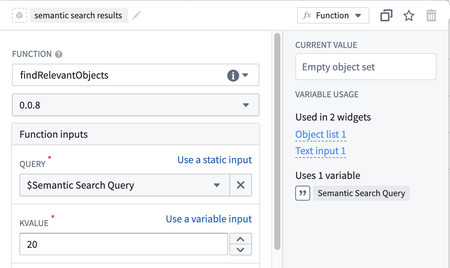
- Set the neighbor count (
kValuein TypeScript,k_valuein Python) to however many results you want returned, subject to the limits described above. TypeScript v1 is additionally subject to the specified limits.
Use semantic search functions in AIP Logic
Add the published function as a tool within AIP Logic. Instruct the language model to use the tool with a prompt similar to this:
Use the findRelevantObjects tool with a
kValueof 5 to find the most related objects. Remember to add quotes around query when using the tool.