- Capabilities
- Getting started
- Architecture center
- Platform updates
Custom aliases
Custom aliases are named references that store string values such as configuration parameters, feature flags, or environment-specific settings. By using custom aliases instead of hard-coding values, you can decouple your function logic from specific configurations and make your functions portable across environments. To reference language models by name in your functions, see Model aliases.
Define a custom alias
To define a custom alias, open a TypeScript v2 or Python code repository and follow the steps below:
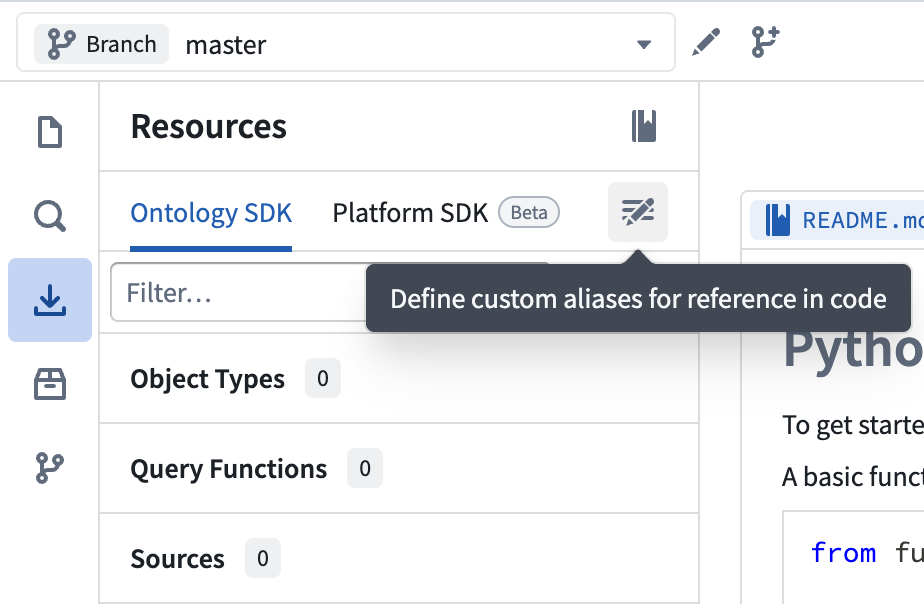
- Open the Resource imports side panel and select the Platform SDK tab. You will see a section for custom aliases.
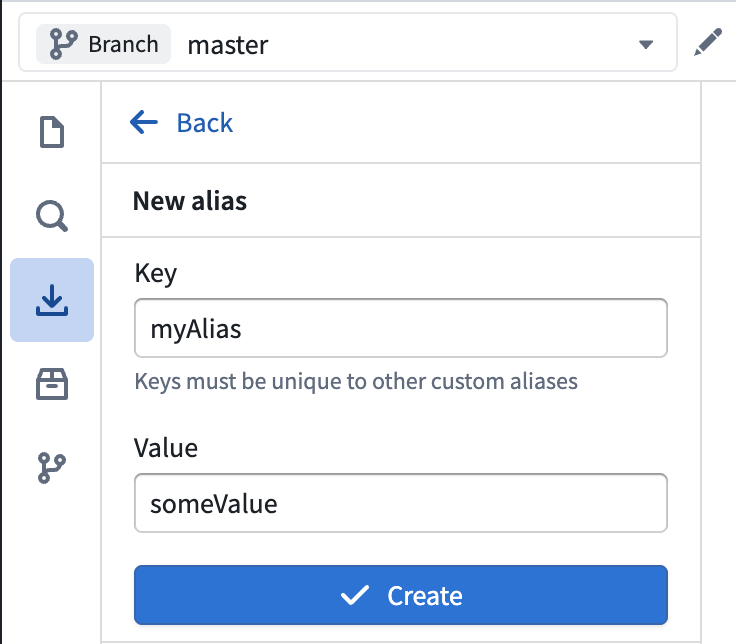
- Select New alias to open the alias creation dialog. Provide a Key for the alias name and a Value to associate with it, then select Create. Alias keys must be unique within the repository.
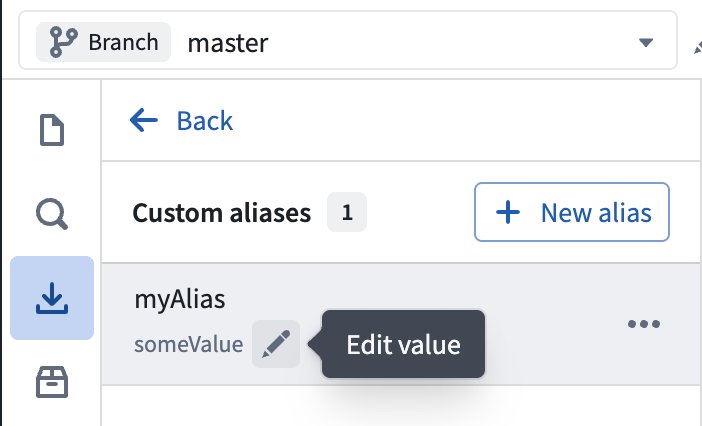
- The custom alias will appear in the Custom aliases section.
Edit a custom alias
To edit an existing custom alias, navigate to the Custom aliases section in the Platform SDK tab. Select the pen icon next to the alias to edit its value inline. You can also click on the 3 dots to edit the alias key or delete the alias altogether.
Use a custom alias in code
To use a custom alias in your function, import the alias utility and reference the alias by its key:
Copied!1 2 3 4 5import { Aliases } from "@osdk/functions"; export default function getCustomValue(): string { return Aliases.custom("myAlias"); }
Copied!1 2 3 4 5 6from functions.aliases import custom from functions.api import function @function def get_custom_value() -> str: return custom("myAlias")
Use custom aliases with Marketplace
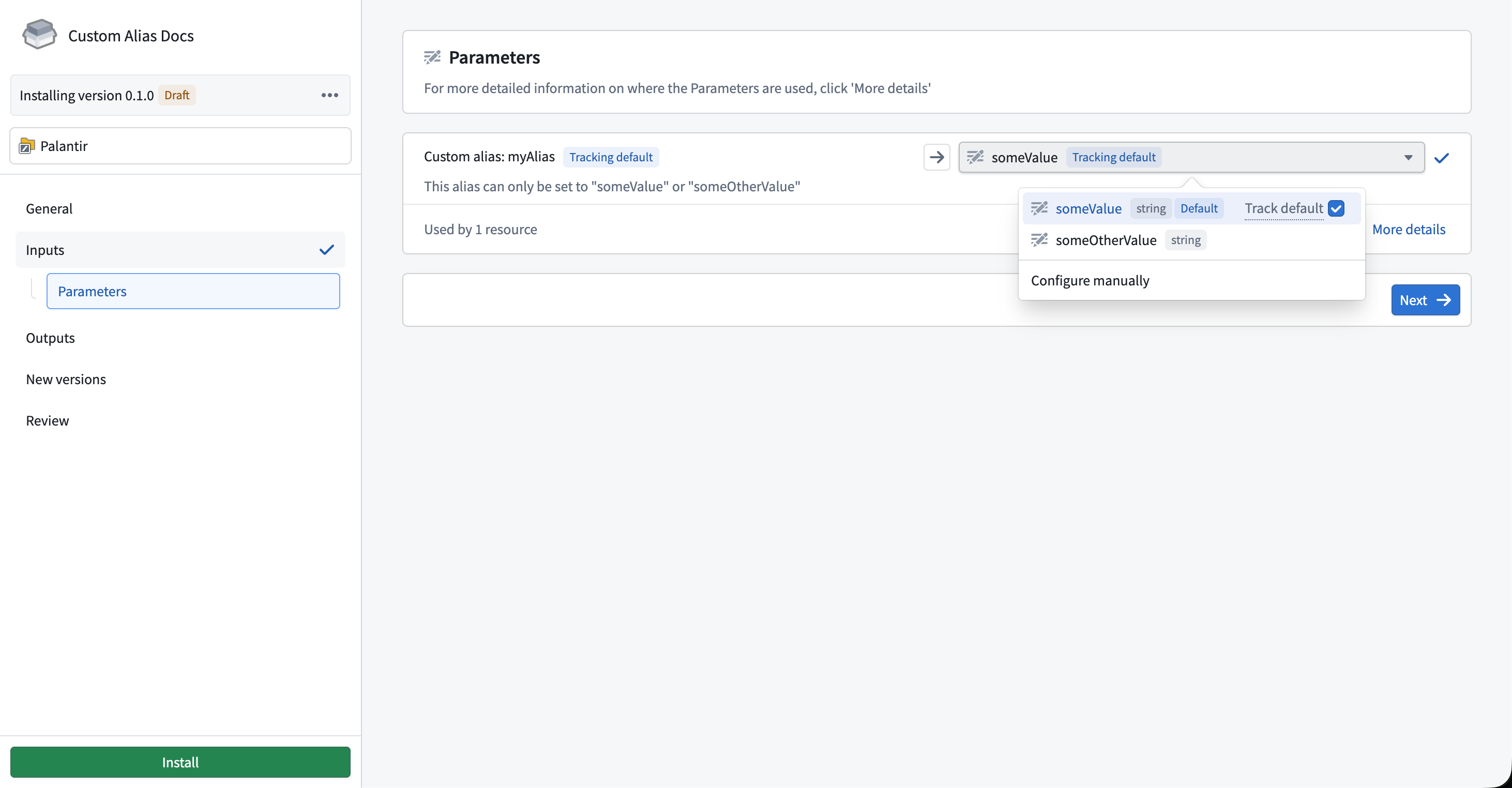
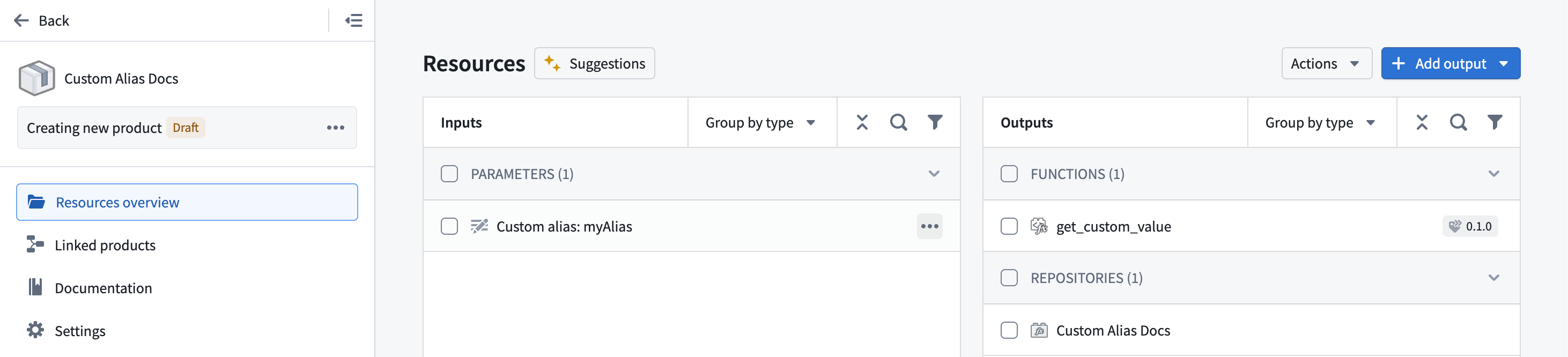
When you add a function that uses custom aliases to a Marketplace product, the aliases automatically appear as configurable parameters under Inputs. Installers can set the alias values appropriate for their environment without modifying the function source code.
Set a description
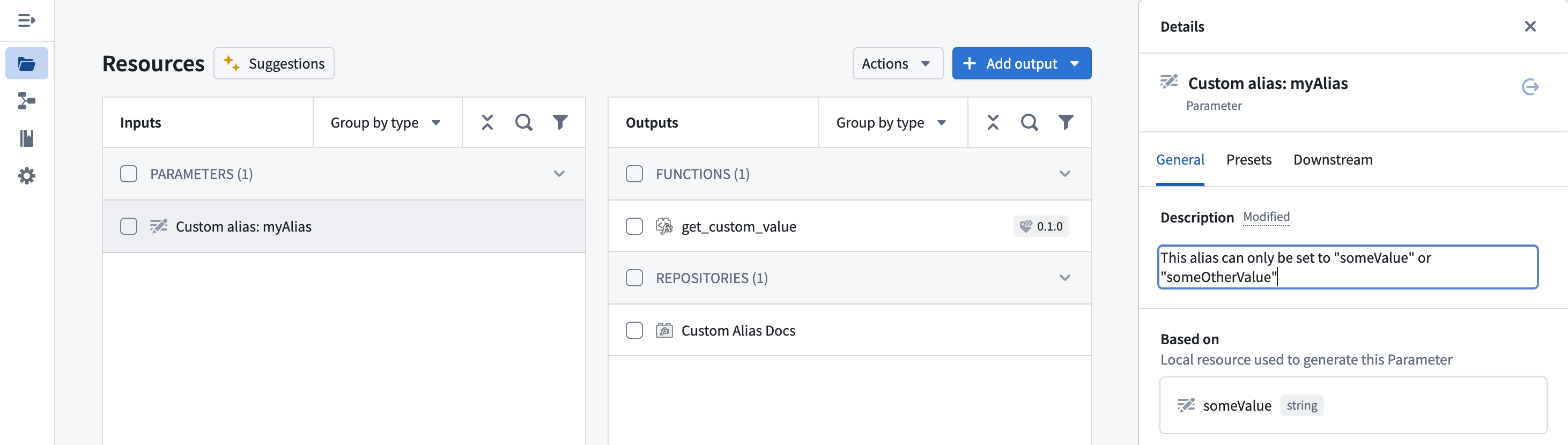
To help installers understand how to configure the alias, you can add a description to the alias parameter. Select the alias under Inputs to open the Details panel, then enter a description on the General tab.
Add presets
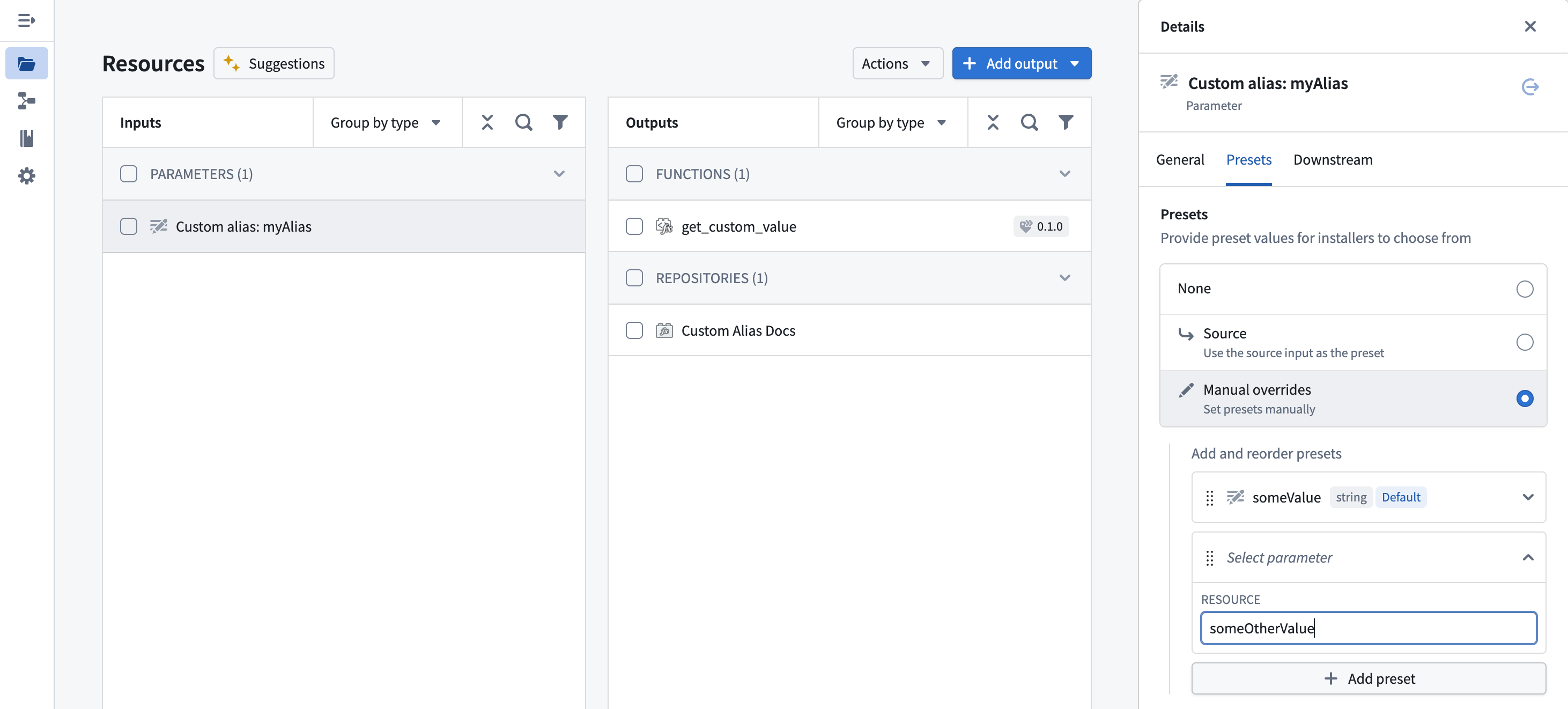
You can define preset values for the alias that installers can choose from during installation. In the Details panel, select the Presets tab and choose Manual overrides to define a set of allowed values.
Installation experience
During installation, the installer will see the alias description and can choose from the preset values or configure the alias manually. After installation, the function resolves the alias to the value configured by the installer.