- Capabilities
- Getting started
- Architecture center
- Platform updates
Author and run a rule
The following steps will guide you through the process of authoring and running a rule in a Workshop application.
-
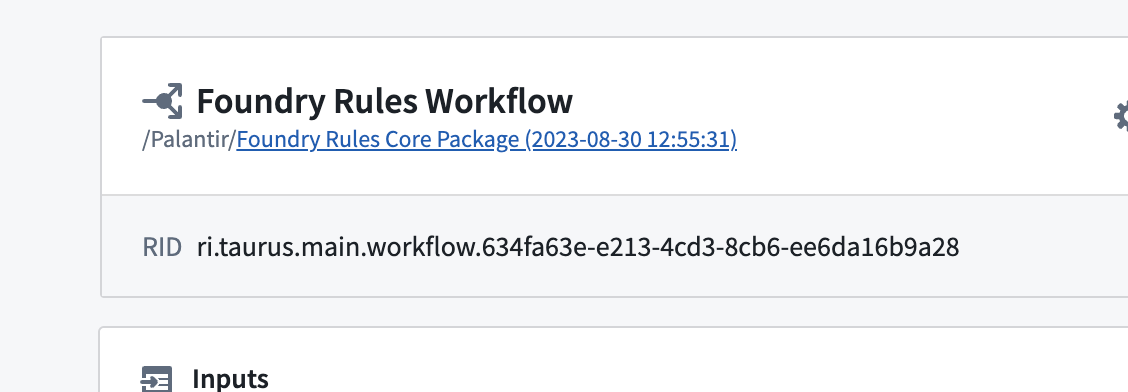
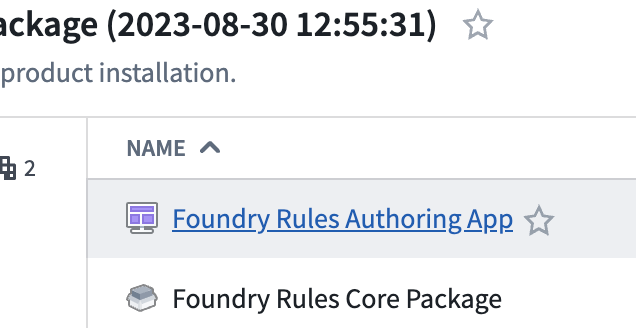
Find the Workshop Rule application: From the workflow configuration screen, select the folder and choose the Workshop application.
-
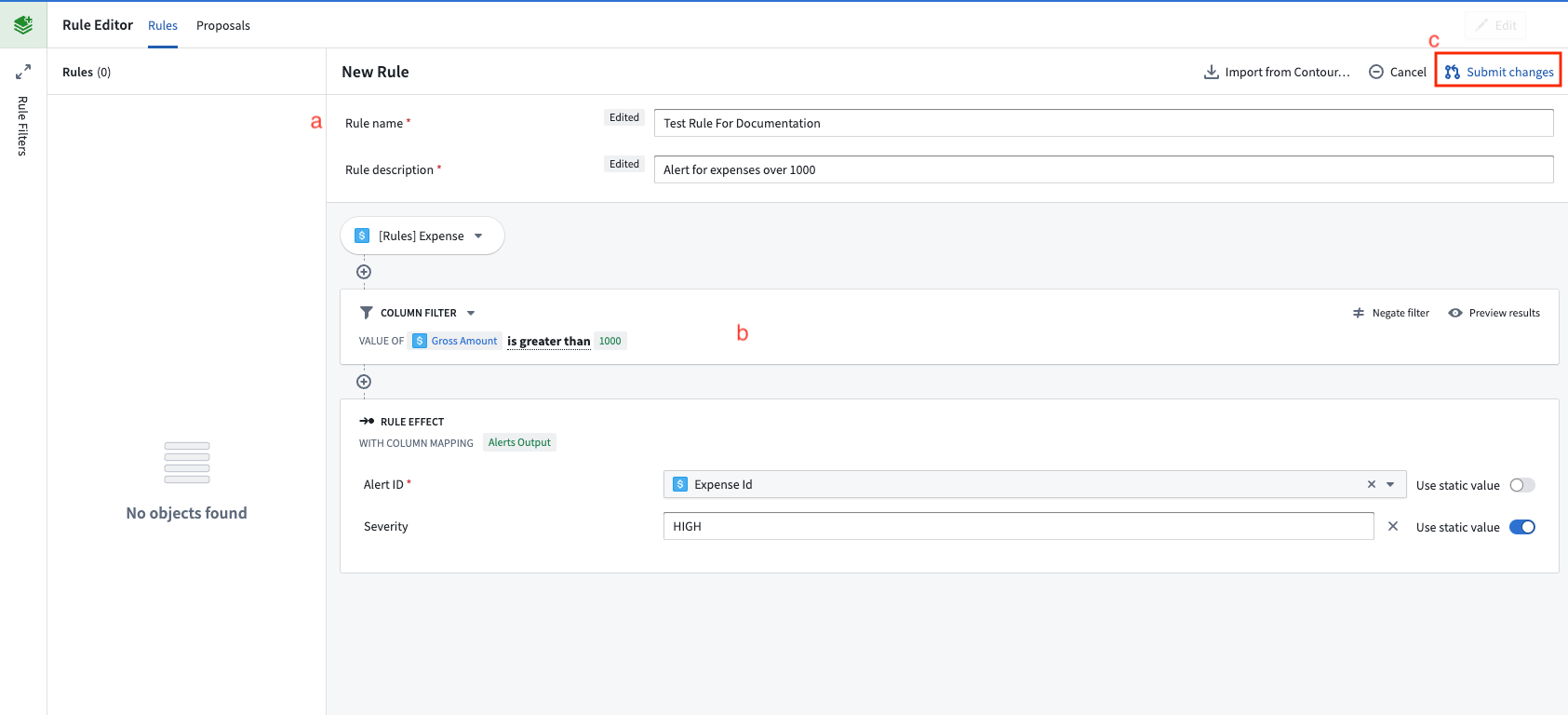
Author a rule: Within the Workshop application created in the previous step, click the Create New button to begin creating a rule.
- (a) Fill out the form at the top of the rule with a name, description, and other information.
- (b) Author logic that you want the rule to execute. For example, this could be a simple filter.
- (c) Click Submit changes to create a proposal for this new rule.
-
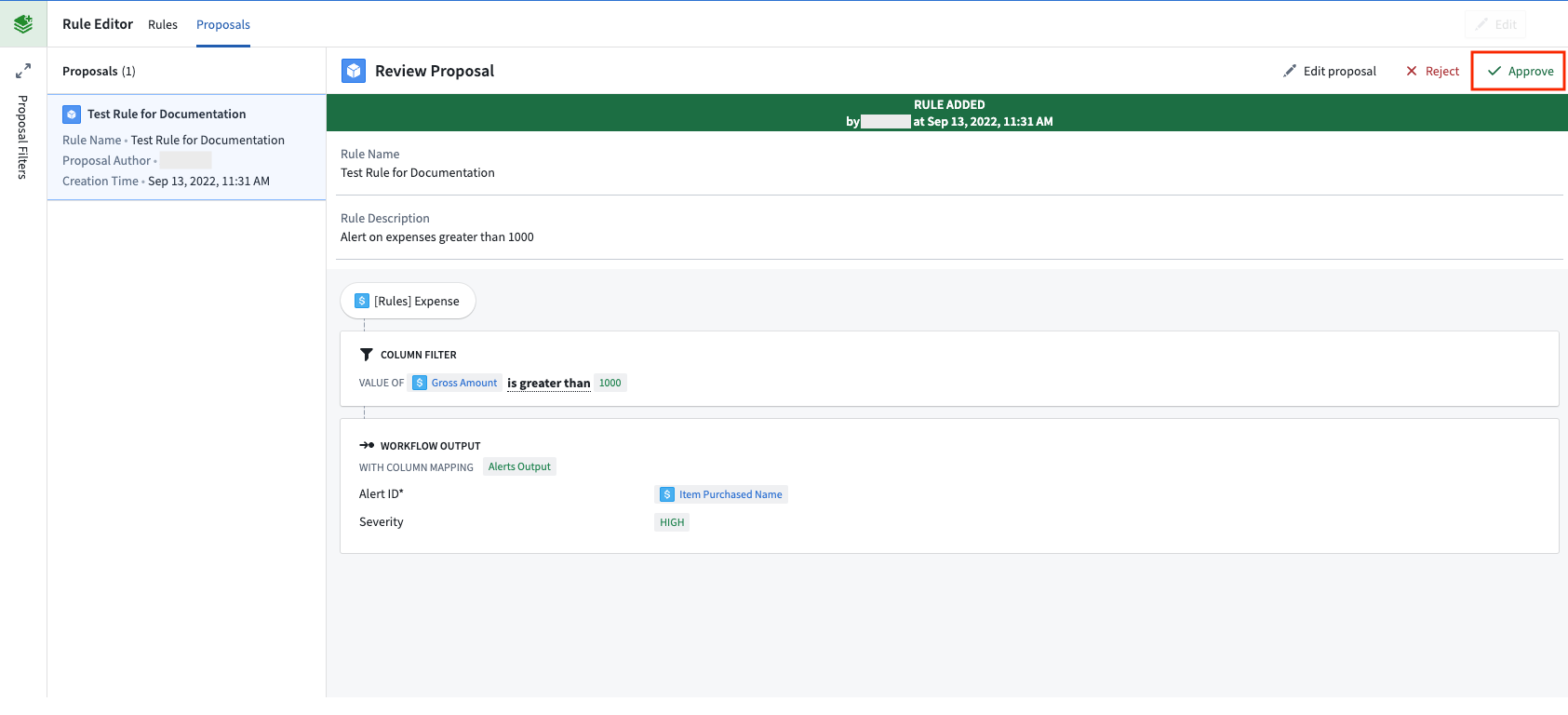
Approve the proposal: Within the Proposals tab of the Workshop application, select the newly created proposal on the left side.
- Select Approve to activate it as a rule.
- Select Approve to activate it as a rule.
-
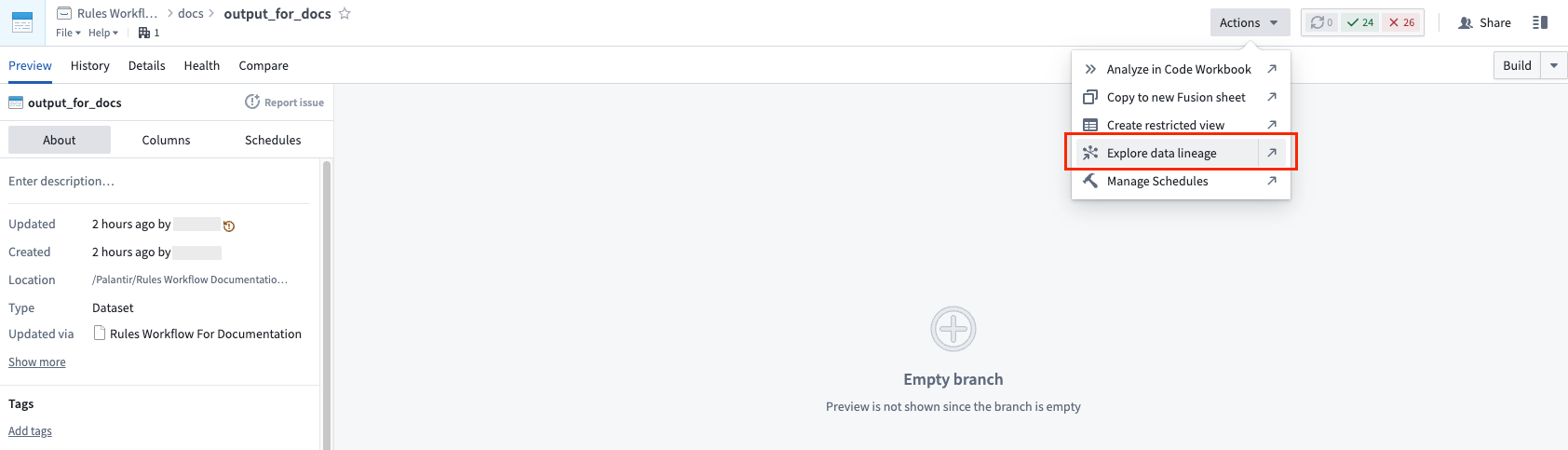
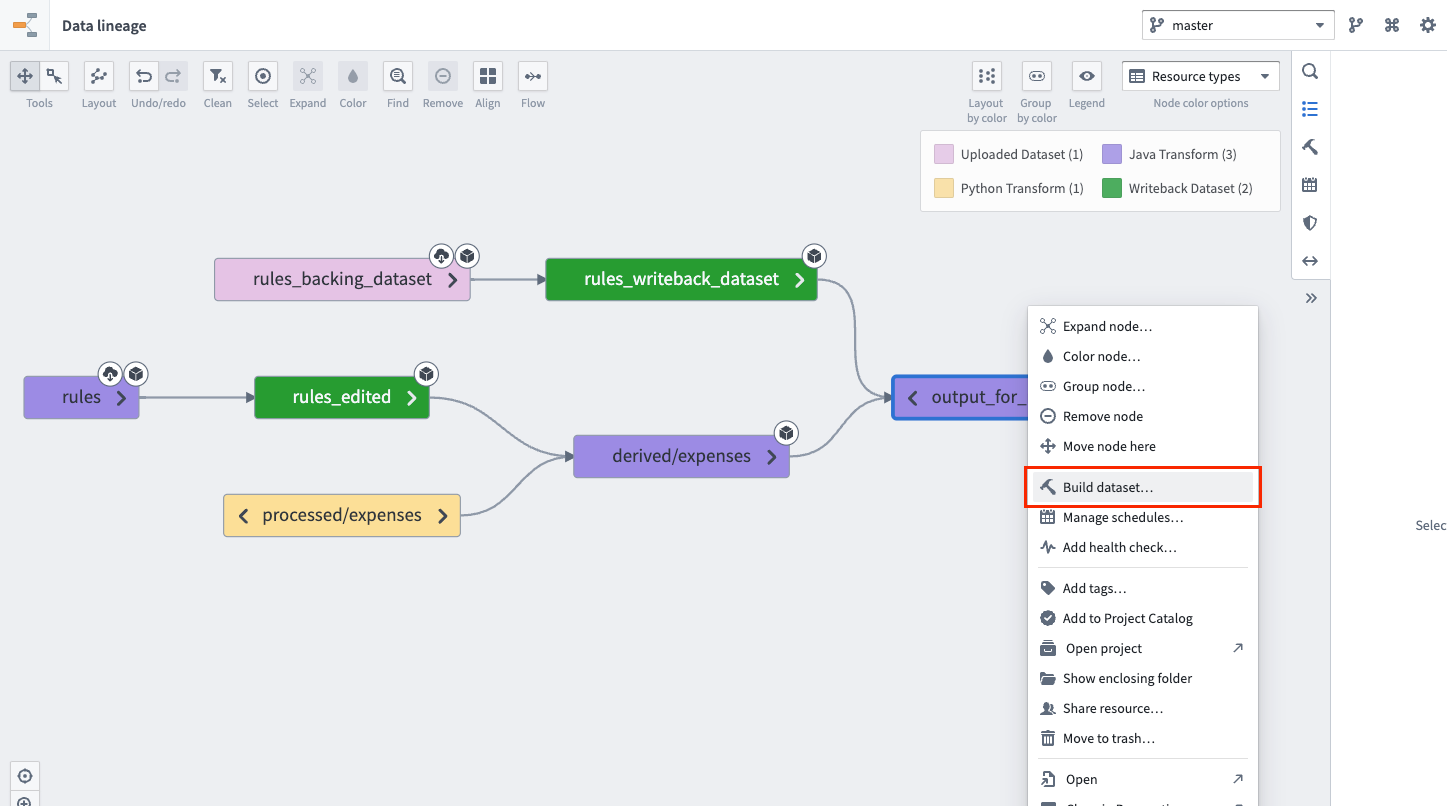
Build the rule writeback and rules output datasets: Navigate to the output dataset that was created while configuring the workflow. The rule writeback dataset is the writeback dataset or materialization of the rule object type and holds the rules that the transforms pipeline applies to your workflow inputs.
-
Choose Actions, then Explore data lineage to view the input datasets.
-
Select both the rules writeback dataset (d) and the output dataset (e).
-
Right-click with both datasets selected and choose Build.
-
Once the build has completed, the output dataset will contain the results of your new rule. In the future, these two datasets can be placed on a schedule to keep the outputs up to date.
-