- Capabilities
- Getting started
- Architecture center
- Platform updates
Widget configuration
Widget modes
The Scheduling Calendar widget has two modes: read-only and dynamic. By default, the widget begins in read-only mode, which is designed for viewing and analyzing data without making any changes. Switching to dynamic mode enables you to add, edit, or delete schedule objects directly in the widget.
Input data (pucks)
-
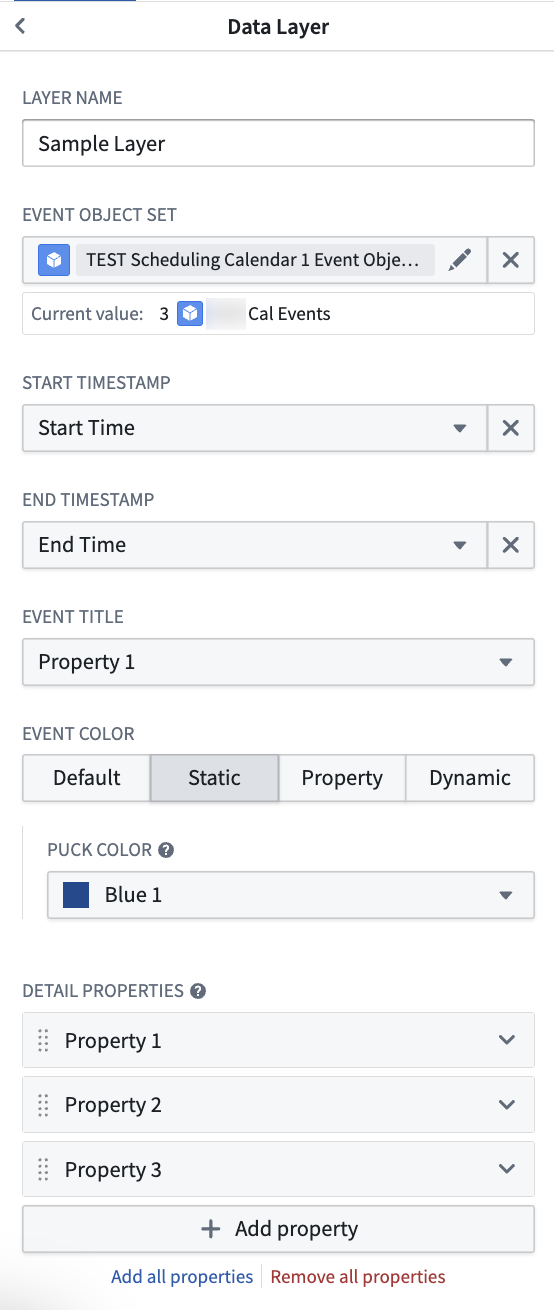
Schedule Name: The name of the layer to help differentiate between different layers during configuration. This value is not displayed in the widget itself.
-
Schedule Object Set: This is the input variable to the Scheduling Calendar widget and determines what data will be displayed. The object type selected for this object set must have properties that represent a start time and an end time.
-
Start Time: Select a date or timestamp property to use as the start time of the events.
-
End Time: Select a date or timestamp property to use as the end time of the events.
-
Title: Select a property to use as the displayed label value for the object pucks in the widget.
-
Color: Select the color(s) to use when displaying events in the chart.
- Static: Select a single color for all pucks.
- Segment-by: Select a property and the widget will automatically color-code pucks based on the values of the selected property.
- Dynamic: Configure conditional formatting rules to apply to pucks in the chart.
-
Pop-over Properties: This section determines the properties that will be displayed on the popover card when a user’s cursor hovers over a puck on the calendar.
-
Save Handler Action (Dynamic mode): Select an action that will be used for drag-and-drop interactions. This action should be a Modify action that edits the schedule object's start and end time properties.
- The action must have parameters for modifying the start time and end time of the schedule object.
- The parameter IDs in your action must exactly match the property IDs you selected for start and end time. For example:
- If your start time property is
start_time, the action parameter ID must also bestart_time. - If your end time property is
end_time, the action parameter ID must also beend_time.
- If your start time property is
- All parameters should be marked as optional.
-
Enable Drag to Create (Dynamic mode): Select an action to let end users create new schedule objects by dragging across empty space on the calendar. See Drag to create for setup and usage details.
Display configuration
-
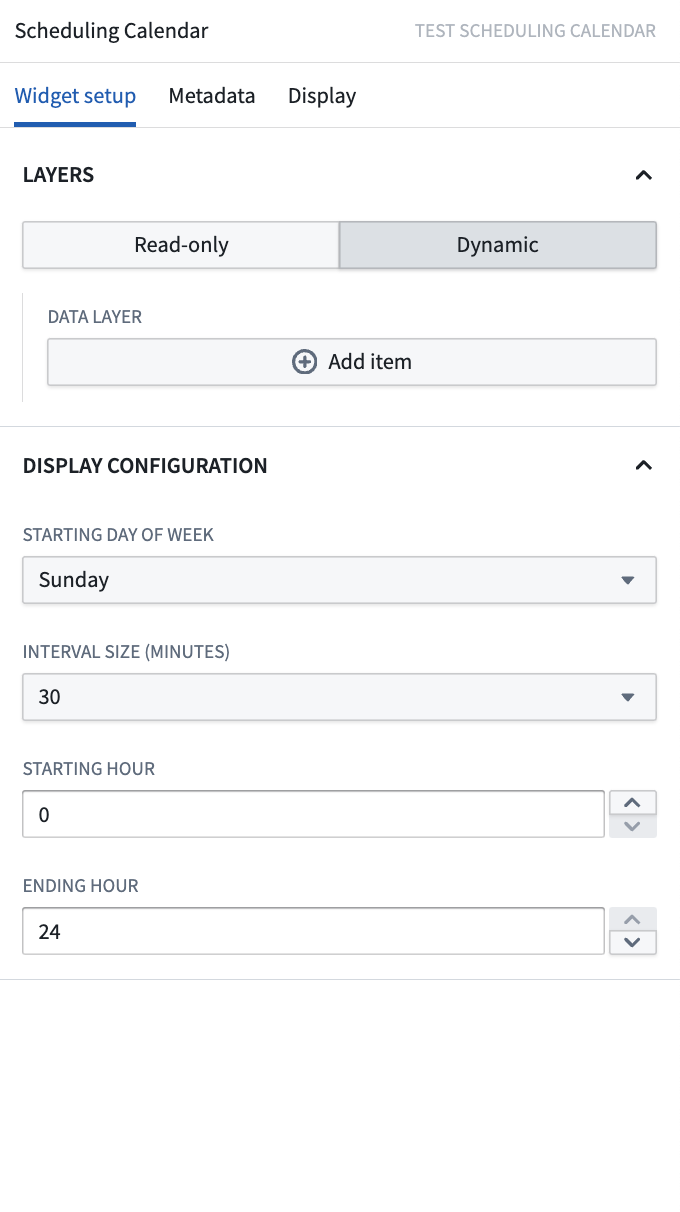
Starting Day of Week: This selection determines which day will serve as the beginning of the week when your chart is in either week or month view.
-
Interval Size (Dynamic only): By default, users can assign objects to any time on the Scheduling Calendar widget, down to the specific minute. Snap behavior allows builders to set defined intervals of when objects can be assigned. Once a puck is dropped to a new placement in the chart, the puck will snap to the beginning of the closest interval.
-
Starting Hour: This selection determines when the chart will begin in day or week view.
-
Ending Hour: This selection determines when the chart will end in day or week view.
Drag to create
The Calendar widget lets end users create new schedule objects by holding a modifier key and dragging across the calendar.
Set up drag-to-create behavior
-
In Ontology Manager, make a
Create Actionfor the object type displayed in your calendar layer. This action needs the following parameters:- The
Start Timeproperty of the object - The
End Timeproperty of the object - Optionally, any additional properties you want users to fill out when an object is created.
The start and end time parameters can be typed as either timestamp or date, to match the corresponding properties on your object type.
- The
-
In Workshop, navigate to Input Data (Pucks) > [your calendar layer] > Interactions > Enable Drag to Create.
-
Select the
Create Actionyou configured. -
Choose Select parameter to configure, then bind the start and end time parameters under Local Default Value:
- For the start time parameter, select SELECTED START TIMESTAMP (or SELECTED START DATE if the parameter is date-typed) so that, on drag to create, the widget passes in the time you dragged from.
- For the end time parameter, select SELECTED END TIMESTAMP (or SELECTED END DATE) so that, on drag to create, the widget passes in the time you dragged to.
Use
To create a new object, hold the modifier key for your operating system and drag across empty space in the calendar:
- macOS: hold
Cmd(⌘) and drag. - Windows: hold the
Windowskey and drag.
When you release the drag, the widget displays the new proposed object immediately based on the start and end times of your drag. By default, a form will pop up on every create for maximum configurability. Selecting the Hide form and apply immediately if valid configuration will hide this form. New objects are only created in the Ontology upon saving changes.
Common configuration issues
Error: "The action parameter ids must align with the ids of the selected properties"
This error occurs when the save handler action's parameter IDs do not exactly match the property IDs used in the widget configuration.
Cause: The widget requires an exact match between:
- The property IDs of your start and end time properties
- The parameter IDs in your save handler action
Solution:
- Check your property IDs in Ontology Manager:
- Navigate to your schedule object type.
- Note the exact property IDs (for example,
start_time,end_time).
- Check your action parameter IDs:
- Open your save handler action in Ontology Manager.
- In the action's parameter configuration, verify that parameter IDs exactly match your property IDs.
- Parameter names can differ, but the parameter IDs must be identical to property IDs.
- If needed, edit the action parameter IDs to match your property IDs.