- Capabilities
- Getting started
- Architecture center
- Platform updates
Saved Search Around V2
Saved Search Around V2 may not be enabled on your enrollment. Where it is enabled, it replaces the V1 Search Around panel. If you cannot add an Any Object Type step in your Search Around panel, your enrollment uses Saved Search Around V1.
Running basic Search Arounds from objects on your graph is a quick way to explore your Ontology and add related objects to the graph. To create a multi-step, filtered graph that crosses different object types, use the Search Around panel. It provides a point-and-click interface to build out logic as you generate a new graph. You can then save the Search Arounds you build as resources and reuse them across other Vertex graphs and templates. Compared with Saved Search Around V1, you can:
- Start from objects of multiple types, and match multiple object types in each step.
- Use an Any Object Type step as a wildcard that matches all object types.
- Traverse multiple link types in each step, and choose the direction of each link.
- Filter on the properties of object-backed link types.
- Repeat a step or a group of steps, and add alternate paths that skip steps.
- Package Saved Search Arounds in Marketplace products.
How Saved Search Arounds work
A Saved Search Around runs in two phases: path planning, then path execution. The planning phase turns the definition you build into a list of concrete query paths. The execution phase runs those paths against your Ontology and adds the results to the graph.
Path planning
A query path is one concrete route through your Ontology, constrained by the steps defined in your Search Around. After you finish building your Search Around, you can view the set of query paths it produces.
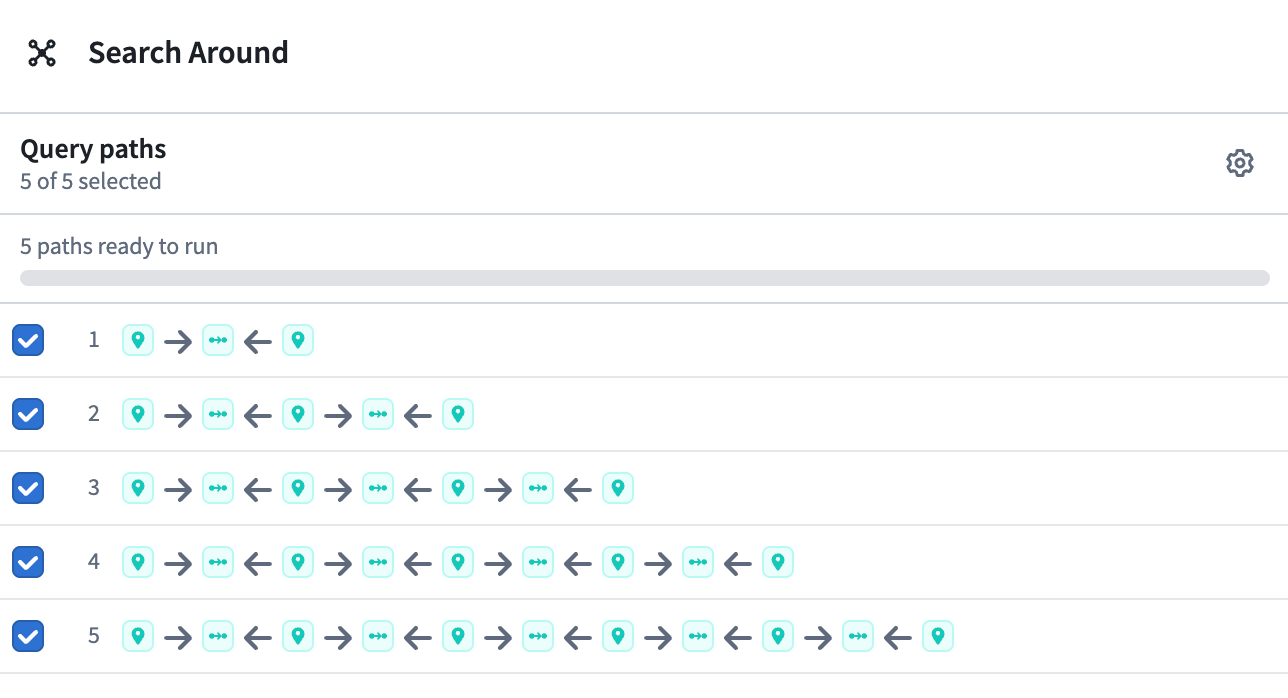
Planning can fail or return a warning before anything runs. For example, this happens when a Search Around exceeds the maximum query depth or number of query paths. For more information, refer to Limits.

Path execution
After a plan is generated, you can run each query path in the plan. Each query path runs in three stages:
- Search forward: Starting from the origin, follow connections one step at a time and record every explored connection.
- Prune backward: Working back from the last step, remove explored objects that do not lead to a valid result.
- Connect links: Return only the links along surviving paths. These links are added to the graph.
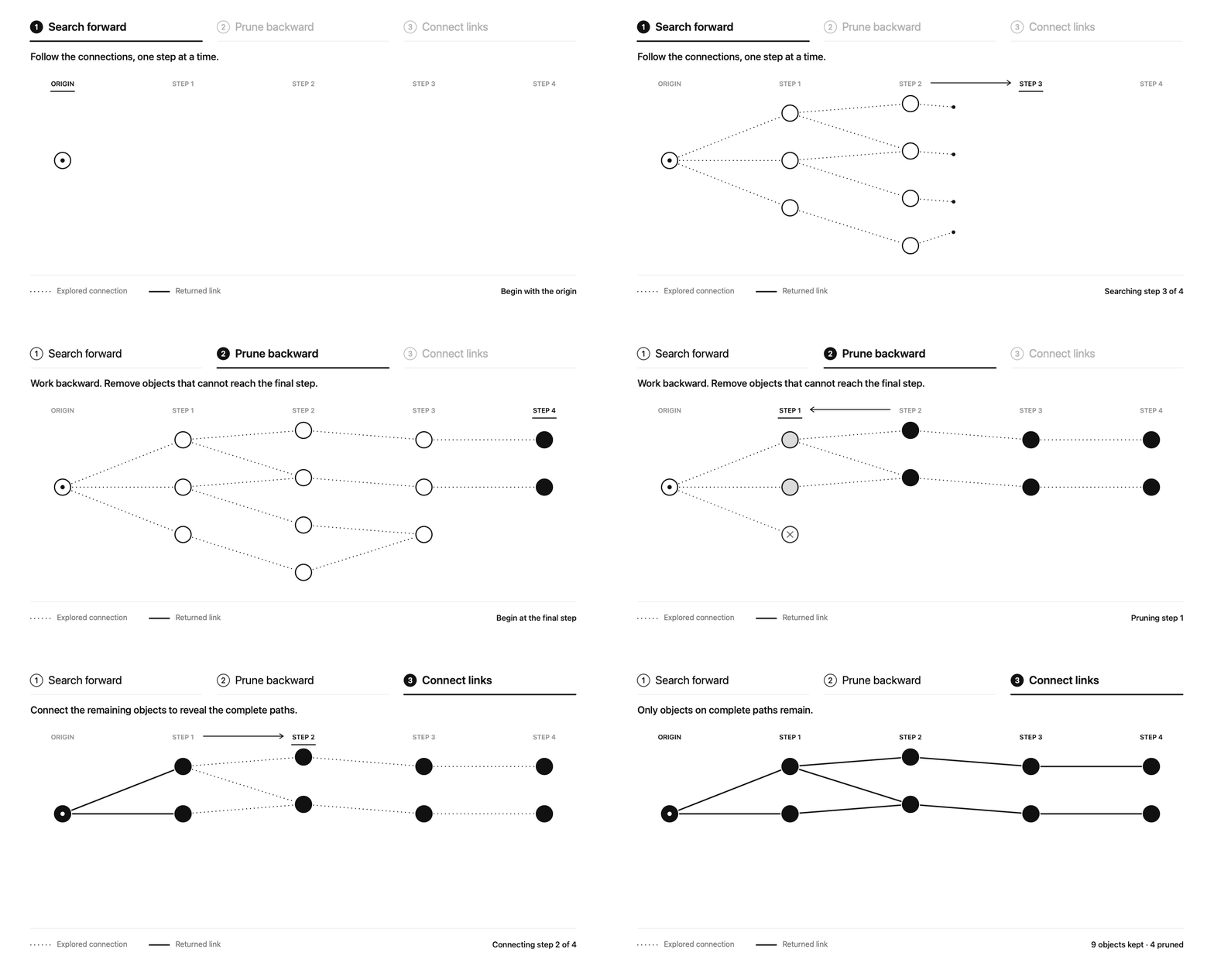
The results from each query path are added to the graph as soon as that path finishes executing. Pruning is why a filter on a later step can narrow the results of earlier steps.
Build a Search Around
To open the Search Around panel, select Open next to a relation in the Search Around dropdown menu. You can also select the Search Around tab on the right side of the workspace. To start a Search Around, select a set of objects on your graph, then choose a link to create a Search Around from your selection.
| Select Open on a relation | Select the Search Around tab in the workspace |
|---|---|
 |  |
Define starting and ending objects
Every query path in a Search Around runs from an object in the start block to an object in the end block.
Start block: The start block contains your starting objects, which are the objects currently selected on your graph. To change the starting objects, change your selection. The start block updates automatically and shows each selected object type with a count of objects. You can start from objects of more than one type.
End block: The end block is the last step in your Search Around, marked with End and a flag icon. When you add a step below it, the new step becomes the end block. You can configure the end block like any other step, with object types, link types, filters, and intersection objects.

When you know both ends of your question, such as a departure airport and an arrival airport, define the start and end blocks first, then add the steps between them. The connecting flights example follows this approach, using intersection objects on the end block to finish at a single airport.
Add steps
After you define your starting objects, you can describe the rest of your Search Around by adding steps. You can constrain each step by object type, by link type, or by both.
For each step, select Object Types to specify exactly which object types appear in your results. To build paths through all connected objects in your Ontology, select Any Object Type instead.
| Add a step or section | A Runway step followed by an Any Object Type step |
|---|---|
 |  |
You can also select specific link types and link directions, either instead of or together with object types, to further constrain your results.

Filter results
If you select specific object types in a step, you can filter the returned objects by applying property filters. To do this, select the filter icon next to an object type, then select the property you want to filter on. You can specify different filters for each object type in a step. Filters on one object type do not constrain the results for other object types.

Similarly, you can filter on object-backed link types. If a step uses a link type that is backed by an object in your Ontology, you can filter on the properties of that backing object.

Restrict results to specific objects
You can also restrict an object type step to a predefined set of objects by selecting Add intersection objects. This is useful for questions such as "find paths from A that pass through B." In the following image, a Runway step is restricted to five named runways. The connecting flights example uses intersection objects to end the search at a single airport.

Repeat and skip steps
By default, a Search Around is linear: its query paths are built from the top step to the bottom. You can also repeat a set of steps, or have some query paths skip ahead to the end step or to another intermediate step. To support these use cases, Saved Search Around V2 provides several ways to define alternate paths through your steps.
Step loops: A step loop repeats a single step up to a specified number of times. For a step loop to produce results, the step must either be an Any Object Type step or use an object type that has a link to itself. The following example looks for objects of any type within four hops of the starting objects.

Section loops: To repeat a group of steps, create a section. You can then specify a number of repetitions for the section, in the same way as for a step loop. The following example shows a section that includes both Airport and Flight objects. Sections let you look for repeating patterns, such as airport to flight to airport to flight. For a section loop to produce results, a link must exist between the object type in the last step of the section and the object type in the first step.

Skip loops: A skip loop creates query paths that skip over later steps. To draw one, select the block you want to skip from, then draw an arrow to the step you want to skip to. In the following example, a skip loop runs from the start block to the end block. It adds a query path that goes directly from the starting airport to Denver International, alongside the path through the Any Object Type step.

Example: Find connecting flights
Suppose you want to find a set of connecting flights that meets the following criteria:
- The set must start with a departure from San Francisco International Airport (SFO) (starting objects).
- The set must end with an arrival at John F. Kennedy International Airport (JFK) (intersection objects on the last step).
- Every flight leg must be 150 minutes or less (object type filter).
- Every flight leg must depart between January 1 and January 10, 2023 (object type filter).
- The route must not double back to SFO (object type filter).
- Every flight in the resulting paths must be a forward flight (Forward link direction on each flight step).
You can define this with the following Search Around:

The section repeats up to five times, so this definition plans into five query paths, from one flight up to five flights. In the following run, execution was paused after the first three paths completed. Hover over a query path to see each of its steps, links, filters, and intersection objects:

The results include every route from San Francisco International to John F. Kennedy International that meets the criteria. In the following graph, flights are grouped into nodes and arranged with the hierarchy layout. Results added directly from a Search Around are not grouped or arranged this way.

Additional capabilities
Parameters
Parameters make a Search Around reusable by letting you change values in its filters without editing its steps. To view or create parameters, select View parameters in the top right corner of the Search Around panel. To create a parameter, select Add parameter and choose a type: String, Number, Boolean, Date, or Timestamp.

After you add a parameter, you can give it a value, or select the edit button to change its name, description, default value, and whether it is required. The default value is used whenever the Search Around is loaded.

You can use a parameter in any filter field of a matching type. To do this, select a filter, open the Parameters tab, then choose a parameter from the dropdown menu. When you change the value of a parameter, every filter that uses it updates to the new value.

When a Search Around has parameters, you can supply their values at runtime, either in a graph or as part of a Vertex template. For example, when a graph is embedded in Workshop, a Workshop variable can supply a parameter value.
Save and load
To reuse a Search Around in other graphs or in graph templates, save it as a resource. Select the dropdown menu on the tab for the Search Around, then select Save. In the Save search around dialog, enter a File name and choose a Location.
In the same dialog, you can specify a set of starting object types. Your saved Search Around appears in the Search Around menu for objects of those types, across all Vertex graphs.

To open a saved Search Around, select the + icon in the Search Around panel header, then select Load Search Around and choose the Search Around from the resource picker. The Search Around uses the objects currently selected on your graph as its starting objects. To start a new, empty Search Around instead, select Create Search Around.

Marketplace
You can add Saved Search Arounds to Marketplace products, so other users can install and reuse them. Search Arounds must be saved in V2 and cannot use intersection objects. For more information, refer to supported features and packaging limitations.
Search Arounds saved in an earlier version
If Saved Search Around V2 is enabled on your enrollment, you can still open and use any Search Arounds that were created in V1. The first time you open one, a warning asks you to verify that the migrated Search Around is correct before you save it again. Your Vertex graphs and templates continue to run the V1 version of a Search Around until you explicitly save it in V2.
If a property or parameter used by a V1 filter cannot be loaded, the migration warning identifies the filters that are dropped when you save. Resolve those inputs or recreate the filters before you save. Dropping a filter can return more results than the original Search Around.
V1 Search Arounds are compatible with V2, with one exception:
V1 automatically swapped the minimum and maximum of a range filter if they were entered in the wrong order. V2 does not, so a range filter with reversed values returns no results. Check range filters before you save a V1 Search Around in V2.

Limits
To protect the service and prevent expensive queries, Saved Search Arounds are subject to the following limits. The listed values are defaults, and your enrollment may be configured with different values.
Most limits do not cause a Search Around to fail. Instead, the Search Around returns partial results along with a warning that describes which limit was reached. If you see a limit warning, add filters or intersection objects, reduce the number of loop repetitions, or exclude long query paths before running.
Path planning limits
Path planning uses only your Ontology's object types and link types. These limits depend on the shape of your Search Around, not on how many objects it finds.
| Limit | Default | What happens when the limit is reached |
|---|---|---|
| Steps in a Search Around | 100 | Planning fails. |
| Loops in a Search Around | 100 | Planning fails. |
| Search depth | 50 hops | Planning stops expanding the search and returns the query paths found so far. |
| Object types explored across all steps | 10,000 | Planning stops expanding the search and returns the query paths found so far. |
| Query paths per starting object type | 500 | Planning returns the shortest 500 query paths. |
A loop set to repeat an unlimited number of times is bounded by the search depth and query path limits.
Path execution limits
These limits apply to each step of each query path as it runs.
| Limit | Default | What happens when the limit is reached |
|---|---|---|
| Objects returned by a step | 50,000 | The step's results are truncated. |
| Objects whose links are loaded in a step | 50,000 | Links are not loaded for objects beyond the limit. |
| Links loaded in a step | 1,000,000 | The step's links are truncated. |
Query paths run one at a time. When a Search Around has several query paths, the total number of objects added to your graph can exceed the per-step limits.