- Capabilities
- Getting started
- Architecture center
- Platform updates
Enable additional iframe attributes
Certain browser permissions, such as camera and microphone access, always require application users to grant permission to Foundry through a browser prompt. Enabling the iframe attributes allows the application to request access, but the user must still grant permission explicitly. Refer to the Permissions Policy documentation ↗ for more information.
The custom widgets runtime uses an <iframe> ↗ element with restrictive attributes that disallow certain browser features, such as popups and camera access, by default. However, widget developers can enable a subset of attribute values for a custom widget. The application builder must then manually grant permission to the requested attribute values for them to take effect. Often, the widget developer and application builder are the same person.
Available iframe attributes
Widget developers can request enablement of the following iframe attributes:
allow ↗ attribute values:
cameramicrophoneautoplay
sandbox ↗ attribute values:
allow-downloadsallow-formsallow-popups
Declare requested iframe attributes
Widget developers can declare requested iframe attributes in the permissions field of their custom widget configuration:
Copied!1 2 3 4 5 6 7 8 9export default defineConfig({ id: "widgetId", name: "A custom widget", description: "A widget description", type: "workshop", parameters: {}, events: {}, permissions: ["camera", "allow-popups"], });
Allow requested iframe attributes in a host application
Opting in to certain iframe attributes may require the application builder to acknowledge a checkpoint.
In Workshop, application builders can grant permission to requested iframe attributes when configuring a custom widget. The Permissions section, found after the Parameters and Events sections, displays these settings.
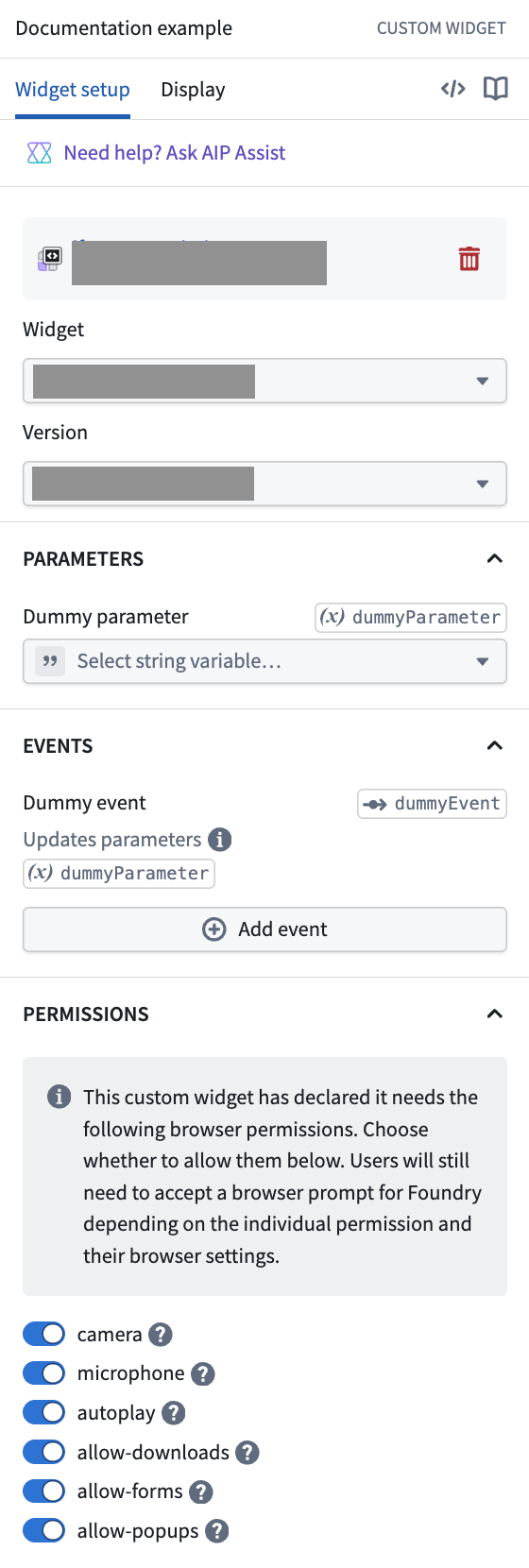
During development, the widget developer can temporarily permit the requested iframe attributes for testing; they can then use the custom widgets playground environment or VS Code workspace without needing to explicitly grant permission.
Examples
Camera and microphone
The following example requires the camera and microphone iframe allow attribute values to be enabled.
The navigator.mediaDevices.getUserMedia ↗ method may be used to prompt the user for permission to use a media input (the camera and microphone in this example) and returns a MediaStream ↗ object if successful.
Copied!1 2 3 4const mediaStream = await navigator.mediaDevices.getUserMedia({ video: true, audio: true, });
Additionally, the Permissions API ↗ may be used to query the current status of browser permissions. The returned values may be "granted", "prompt" or "denied" based on the iframe attributes and user browser prompt status.
Copied!1 2navigator.permissions.query({ name: "camera" }); navigator.permissions.query({ name: "microphone" });
The widget developer should ensure that cases where attribute access is not available are gracefully handled.
Autoplay
The following example requires the autoplay iframe allow attribute value to be enabled.
The autoplay ↗ attribute may be used on an <audio> or <video> element to autoplay media.
Copied!1<video src={myVideoSrc} autoplay controls />
Downloads
The following examples require the allow-downloads iframe sandbox attribute value to be enabled.
Dynamically create a CSV (blob)
A Blob ↗ can be constructed with the contents of a CSV and downloaded in the browser:
Copied!1 2 3 4 5 6 7 8 9 10 11<button onClick={() => { const csv = "a,b,c\n1,2,3"; const blob = new Blob([csv], { type: "text/csv" }); const url = URL.createObjectURL(blob); triggerDownload(url, "data.csv"); URL.revokeObjectURL(url); }} > Download CSV </button>
The triggerDownload helper function temporarily creates an <a> element to trigger the download:
Copied!1 2 3 4 5 6 7 8function triggerDownload(url: string, filename: string) { const a = document.createElement("a"); a.download = filename; a.href = url; document.body.appendChild(a); a.click(); a.remove(); }
Download static assets included in widget
Two methods are described below for downloading static assets included in a custom widget. Review the Vite Static Asset Handling ↗ documentation for more information.
Direct href
In custom widget dev mode, the dev server provides assets from a different origin (for example, localhost) than the custom widget runtime. This behavior may cause the browser to open a new tab rather than trigger a download. However, when using the custom widget in production, the assets will correctly trigger a download.
When using the Vite method to import a static asset as a URL ↗, the asset URL may be used directly in an <a> element href attribute together with the download attribute:
Copied!1 2 3 4 5import imgUrl from "./img.png"; <a href={imgUrl} download="img.png" target="_blank" rel="noreferrer"> Download </a>;
When using the Vite public directory ↗, the assets in the public directory should be referenced using the root absolute path; for example, public/img.png should be referenced as /img.png in code:
Copied!1 2 3<a href="/img.png" download="img.png" target="_blank" rel="noreferrer"> Download </a>
Alternative fetch blob method
An alternative method uses fetch, possibly performs additional processing, then downloads as a Blob ↗, similar to the method for dynamically creating a CSV (blob). An example of additional processing could be to replace values inside the fetched static asset with user provided input.
When using the Vite method to import a static asset as a URL ↗ we recommend also enforcing no inlining ↗ to avoid content security policy (CSP) issues with data: URIs:
Copied!1 2 3 4 5 6 7 8 9 10 11 12 13 14import imgUrl from "./img.png?no-inline"; <button onClick={async () => { const response = await fetch(imgUrl); const blob = await response.blob(); // optional: perform additional processing const objectUrl = window.URL.createObjectURL(blob); triggerDownload(objectUrl, filename); window.URL.revokeObjectURL(objectUrl); }} > Download </button>;
When using the Vite public directory ↗, the assets in the public directory should be referenced using the root absolute path; for example, public/img.png should be referenced as /img.png in code:
Copied!1 2 3 4 5 6 7 8 9 10 11 12<button onClick={async () => { const response = await fetch("/img.png"); const blob = await response.blob(); // optional: perform additional processing const objectUrl = window.URL.createObjectURL(blob); triggerDownload(objectUrl, filename); window.URL.revokeObjectURL(objectUrl); }} > Download </button>
The triggerDownload helper function temporarily creates an <a> element to trigger the download:
Copied!1 2 3 4 5 6 7 8function triggerDownload(url: string, filename: string) { const a = document.createElement("a"); a.download = filename; a.href = url; document.body.appendChild(a); a.click(); a.remove(); }
Open links
When developing in Workshop, we recommend creating a Workshop event to open links; this method avoids the need to request additional iframe attributes.
The following example requires the allow-popups iframe sandbox attribute value to be enabled:
An <a> element can be used with the href and related attributes to open a link in a new tab:
Copied!1 2 3<a href="https://palantir.com/docs" target="_blank" rel="noreferrer"> Link </a>