- Capabilities
- Getting started
- Architecture center
- Platform updates
Third-party application ownership
Automations can be owned by third-party applications instead of individual users. This ties execution history and permissions to an organizational service account, enabling centralized management and ensuring continuity regardless of team changes.
You can assign ownership to third-party applications when you create an automation, or you can transfer ownership for an existing automation.
Understanding third-party application ownership
Third-party applications in Foundry are OAuth2-based integrations that enable external applications or services to securely interact with Foundry resources. Refer to the third-party application overview for more information. For automation ownership, third-party apps provide a service user that can own automations independently from individual users, with several benefits:
- Team continuity: Automations continue running when team members leave or are out of office.
- Centralized permissions: Manage automation permissions independently from individual team members.
- Persistent history: Execution history remains accessible for debugging and auditing.
- Simplified access control: Share execution history across teams using project-scoped automations, and centralize permission management by using the same third-party application client for multiple automations.
Permissions for automations owned by third-party applications
The following apply when an automation is owned by a third-party application:
- Condition evaluation uses the service user's permissions.
- Action and Logic effects execute as the service user.
- Notification effects continue to use each recipient's individual permissions.
- Execution history is visible to team members based on their permissions. See history visibility settings for more information.
This ensures that automation behavior remains consistent and predictable, with clearly defined permissions tied to the service account rather than individual users.
Set up a third-party application
Before transferring automation ownership, create and configure an OAuth2 client by registering an application in Control Panel or Developer Console. See Registering third-party applications for complete guidance.
Prerequisites
To create a third-party application for automation ownership, you must have the following:
- The third-party application administrator role in your organization
- The
Manage OAuth 2.0 clientspermission
Create a new third-party application and obtain credentials
To register a new third-party application, select the following settings when registering an application:
- Client type: Confidential client
- Client credentials grant: Enabled
- Application scope: Unscoped
- You can adjust this after creating the application in the Application scope section of the OAuth & scopes page.
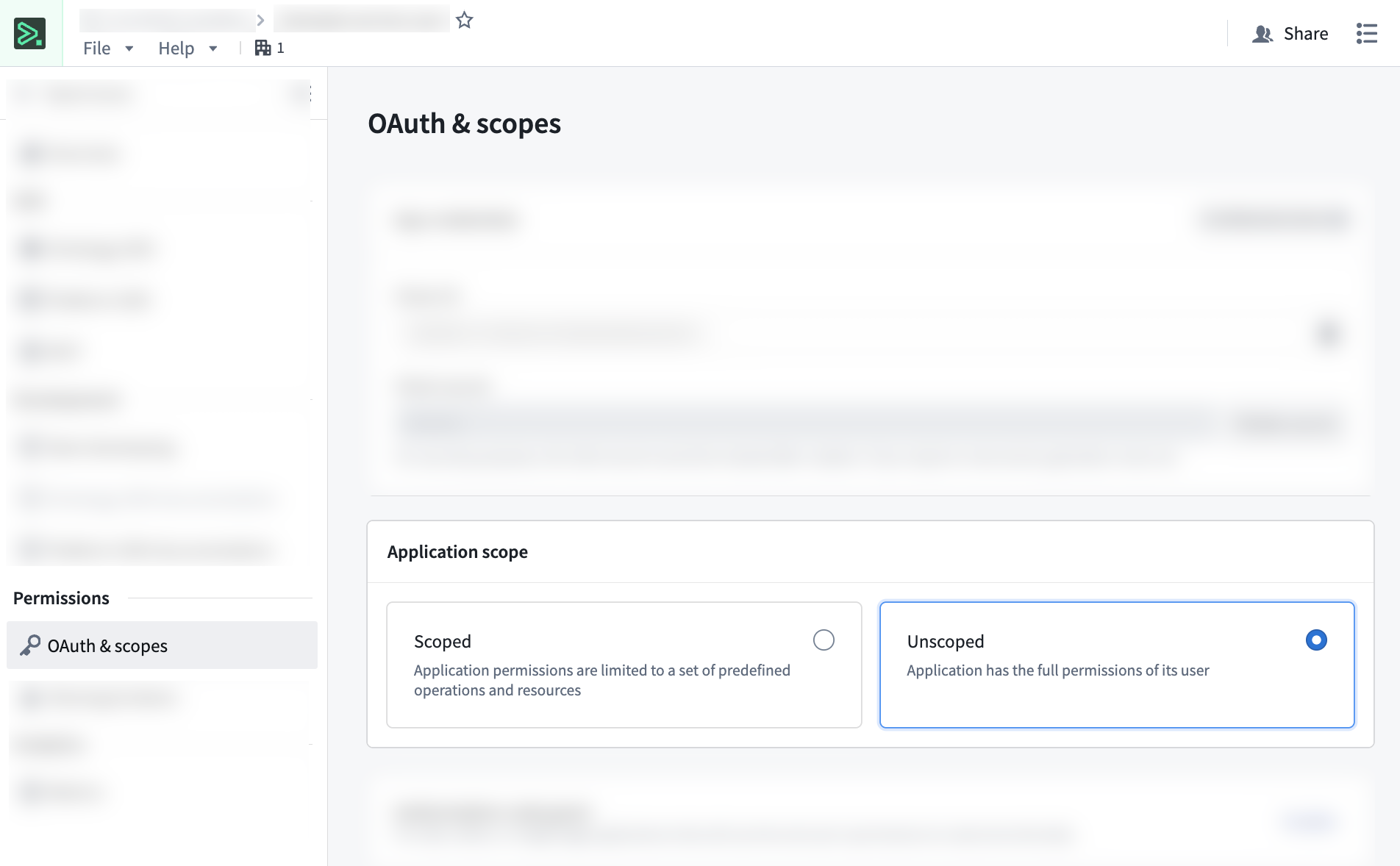
This creates a service user that can own automations. During registration, save the client ID and client secret immediately. The secret is shown only once.
Store the client secret securely. If lost, you will need to rotate it. Note that rotating a secret will not break existing automations owned by that third-party application.
For complete step-by-step instructions on registering applications and obtaining credentials, see Registering third-party applications and the Developer Console overview.
Manage ownership
Once you have registered a third-party application and configured its permissions, you can set up new automations with third-party application ownership, or transfer ownership of existing automations to the application's service user.
Before attempting to assign third-party application ownership, ensure that you have the following:
- The third-party application's client ID.
- The client secret for the application.
- Verification that the service user has appropriate permissions for the automation's actions and is unscoped. You can adjust the scope after creating the application in the Application scope section of the OAuth & scopes page.
If you do not have a client ID and client secret, see Creating a new application and obtaining credentials.
Subsequent edits to an automation owned by a third-party application will require the credentials (client ID and client secret) before saving.
Add third-party application ownership when creating a new automation
Take the following steps to assign ownership to a service account when creating a new automation:
- Configure your automation and select Create automation.
- In the Save as... dialog, scroll to the bottom to the Provide client credentials section.
- Select Third-party app.
- Enter your client ID and client secret.
- Select Save.
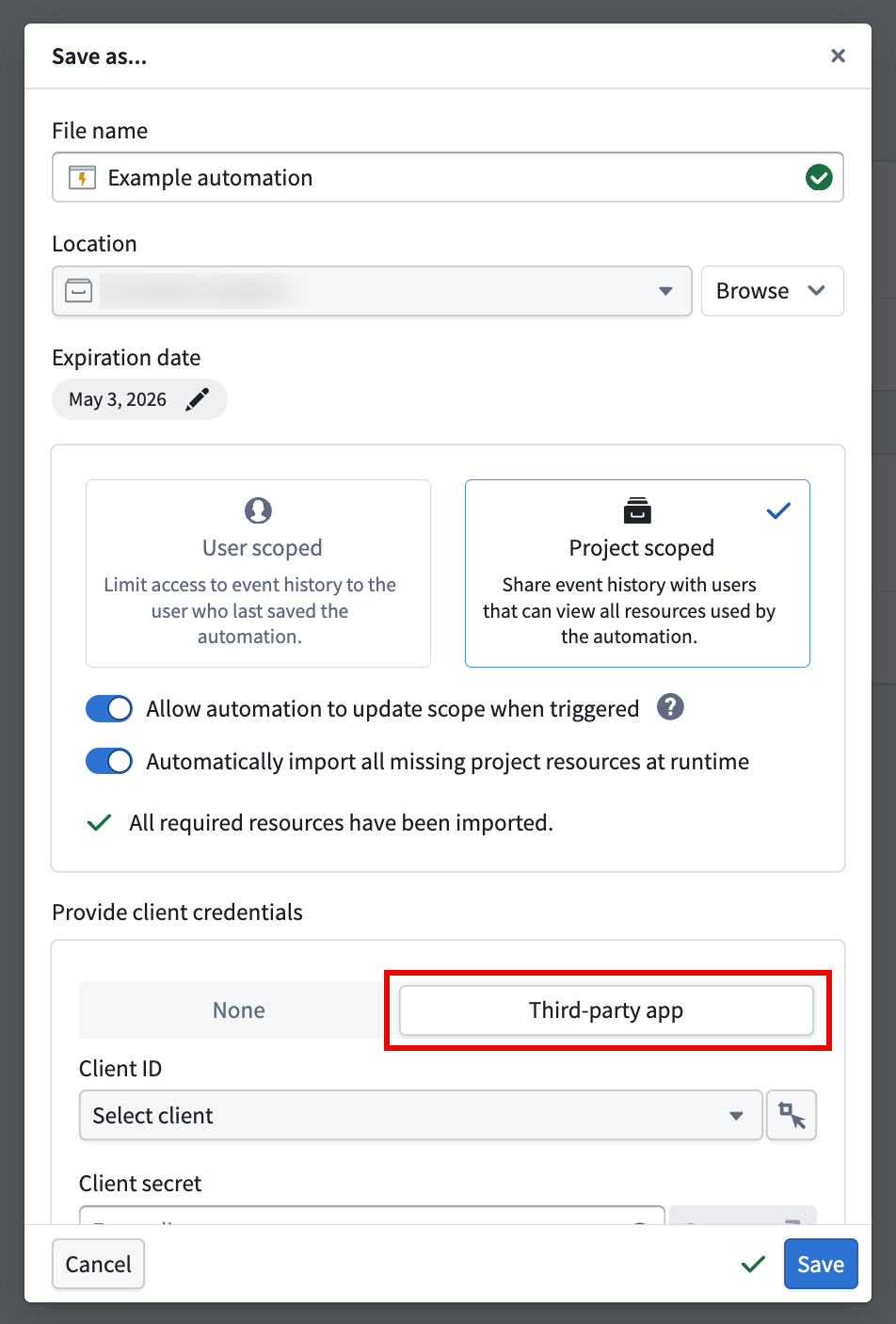
You can confirm automation ownership in the Automation details section on the Automation overview page.
Transfer ownership to a service user
Take the following steps to transfer ownership to an existing automation:
- In Automate, select the automation to open the Automation overview page.
- In the Actions dropdown, select Manage ownership.
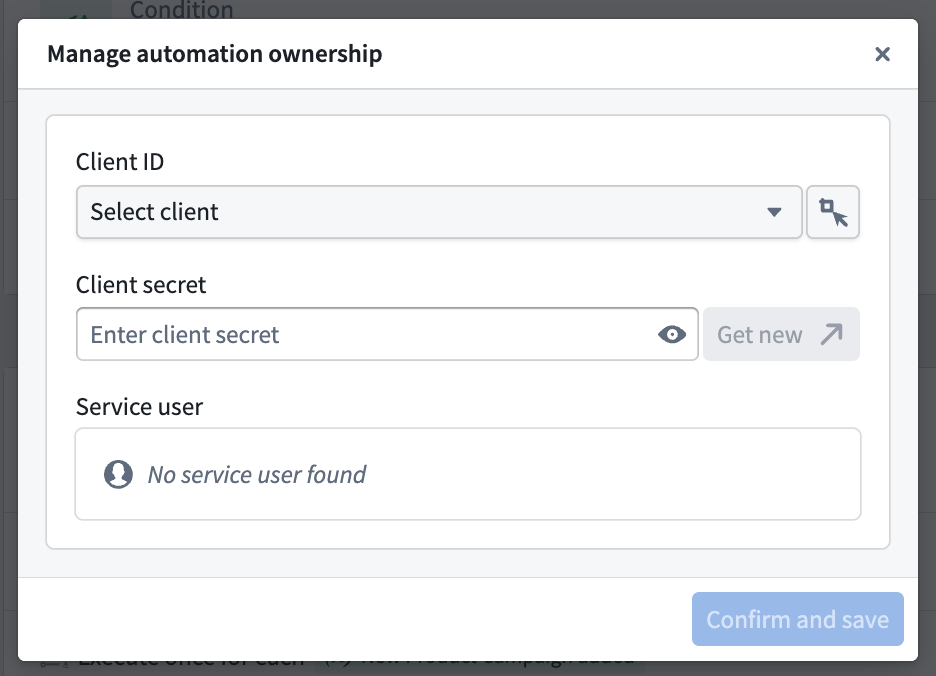
- Enter your client ID and client secret, then select Confirm and save.
After transferring ownership, the third-party application will appear as the automation owner in the Automation details section. The automation will continue running without interruption using the service user's permissions. Previous execution history will remain intact and accessible to authorized users.
Transfer ownership from a service user
Follow the steps below to transfer ownership from a third-party application back to an individual user:
- In Automate, select the automation to open the Automation overview page.
- In the Actions dropdown, select Manage ownership.
- In the Manage automation ownership dialog, select Confirm and save to transfer ownership back to yourself.
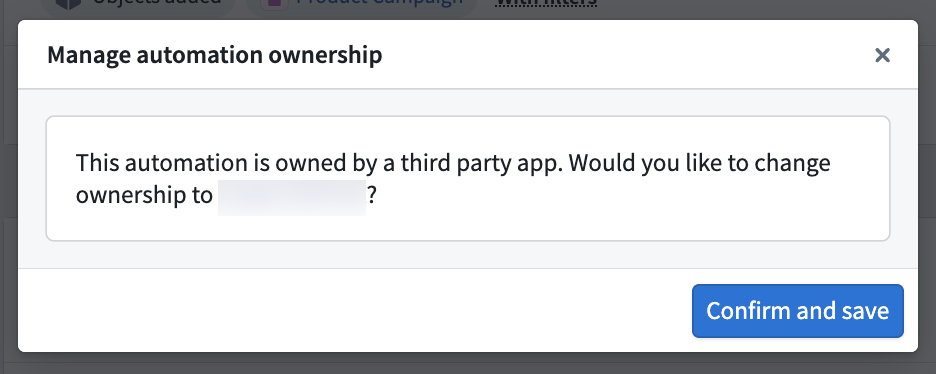
Ensure that your user account has all the permissions previously granted to the service user. Otherwise, the automation may fail to execute certain actions.