- Capabilities
- Getting started
- Architecture center
- Platform updates
Branching object views
Overview
Object Views integrates with Global Branching to enable safe, isolated development of object view configurations. This documentation covers how to work with object views on branches, including adding and modifying resources, cross-application compatibility, merge requirements, rebasing, and known limitations.
For general information on Global Branching concepts and workflows, refer to the Global Branching documentation.
Adding, removing, and modifying resources
To add an object view to a branch, save an object view version while on a branch in the Object View editor.
Object views support two types of branch-compatible resources:
- OV-managed modules: Capture Workshop content changes made to an object view on a branch. A separate OV-managed module is created for each full object view tab, the object instance panel, and the object set panel. All branch-aware features available in Workshop applications are also available inside object views.
- Full object view tabs: Capture structural changes to object view tabs, including additions, deletions, renames, profile changes, and visibility condition modifications.
The example below shows different resources on a branch for the Museum object type. From top to bottom: the full object view tabs resource, the Museum object type itself, the Museum History tab of the full object view, and the panel object view.
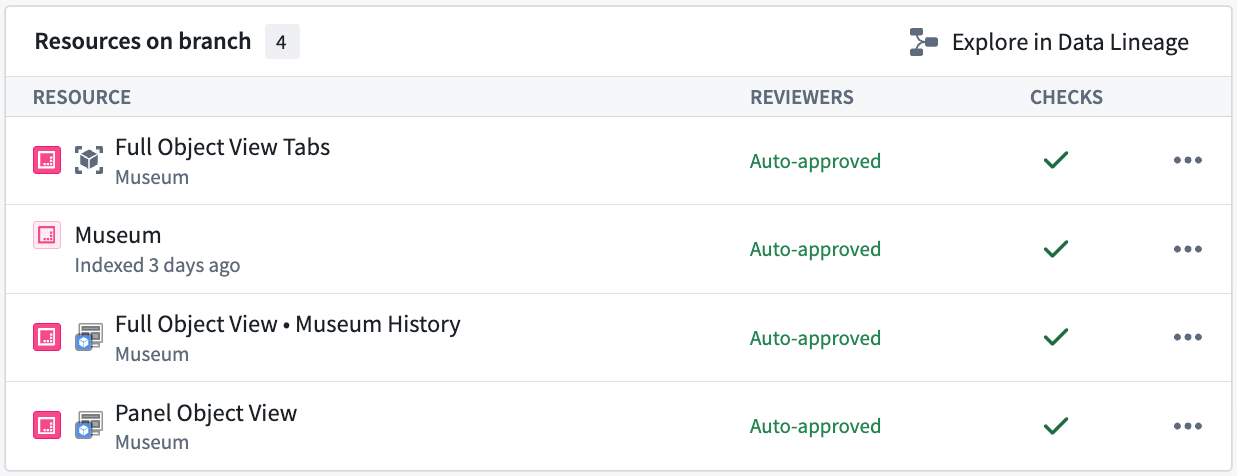
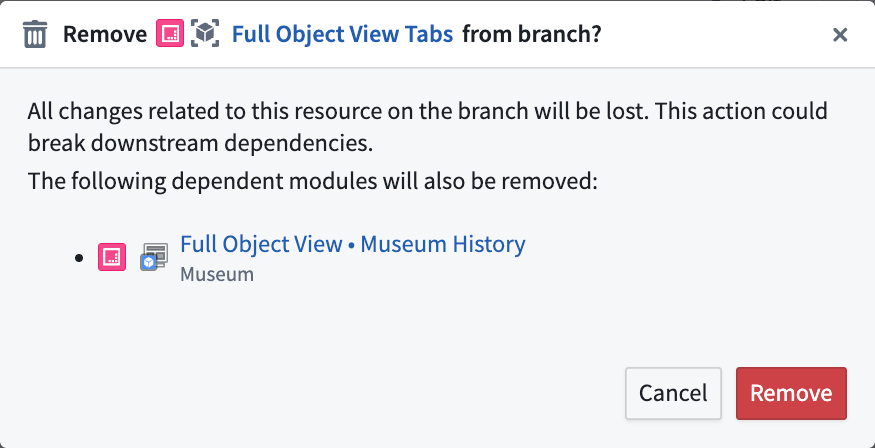
You can remove any object view resource from a branch individually using the branch taskbar. Removing a full object view tabs resource automatically removes all of its associated tabs from the branch.
Cross-application compatibility
Object views can be edited for the latest state of the ontology on a branch, including object types and action types created on a branch. The Object View widget can also be used to embed a branched object view inside a standalone Workshop application. An object view can be previewed on a branch within the Object views tab in Ontology Manager.
Merge requirements
Deployability checks
Before deploying an object view to main from a branch, the following deployability checks must succeed:
-
User has publish permissions: Permissions to edit the object view is required. This is the same permission check that is done when publishing a new object view version on
main. -
Object view must be rebased with main: Before merging, rebase each object view resource on the branch with the latest changes on
main. -
No Legacy fields modified: Verifies that no features unsupported by the new Object View editor have been modified on the branch. This check should always pass. If it fails, contact Palantir Support.
Rebasing and conflict resolution
Each object view resource on a branch must be rebased with main before being deployed. Object view module resources can be rebased using Workshop rebasing. Tab configuration changes on a full object view tabs resource must be rebased separately from tab content changes. When rebasing is required for full object view, a notification message will appear below the object view section in the Object View editor.
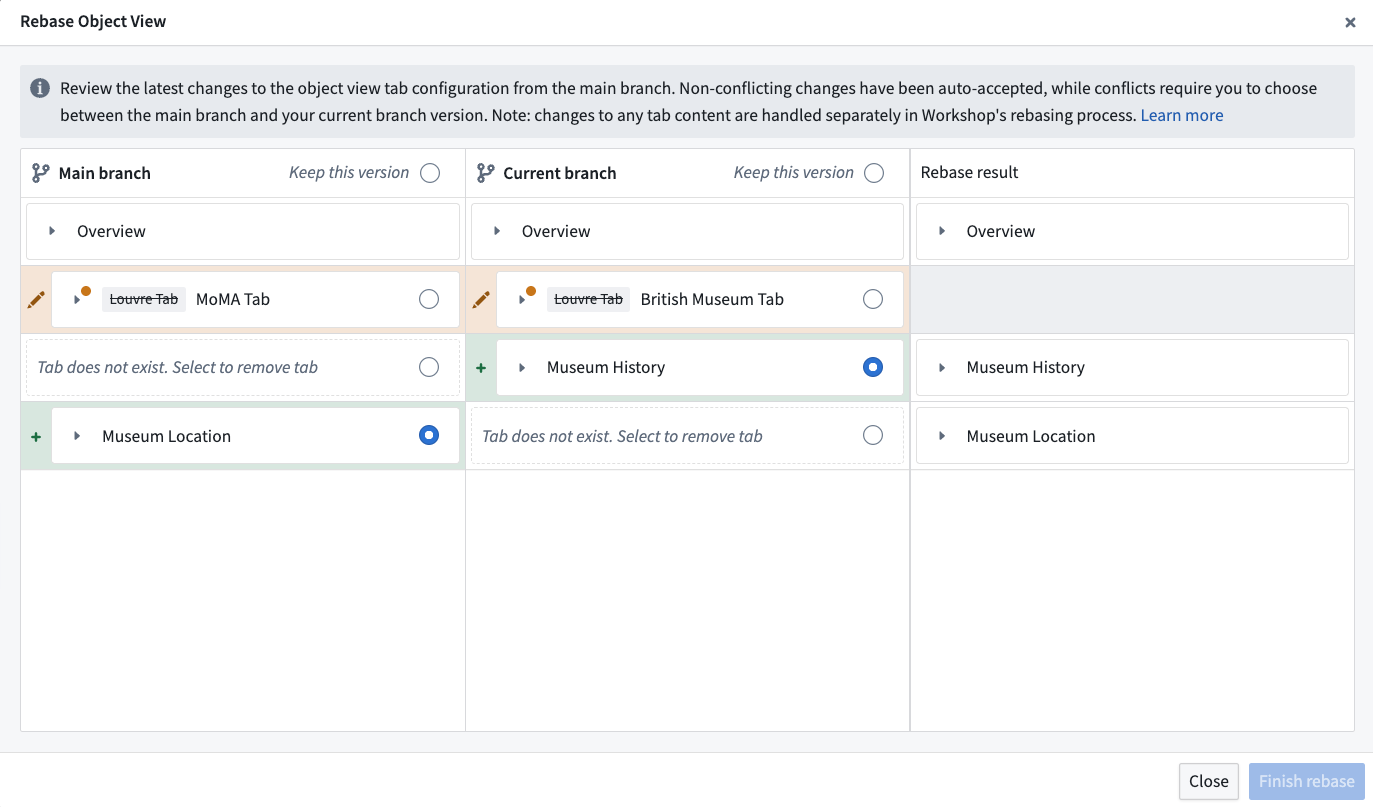
The object view rebase dialog displays three columns:
- The main branch state
- Your branch state
- The proposed rebase result
Non-conflicting changes between main and your branch are automatically accepted and included in the result. If there is a conflict, you must choose whether to keep the version from main or from your branch for each affected tab. The result column shows a preview of the final state after rebasing. You can modify any auto-accepted changes before completing the rebase.
Below is an example of the object view rebase dialog. The example demonstrates two non-conflicting changes that have been auto-accepted. A conflict was detected between the two edits of the Louvre tab.
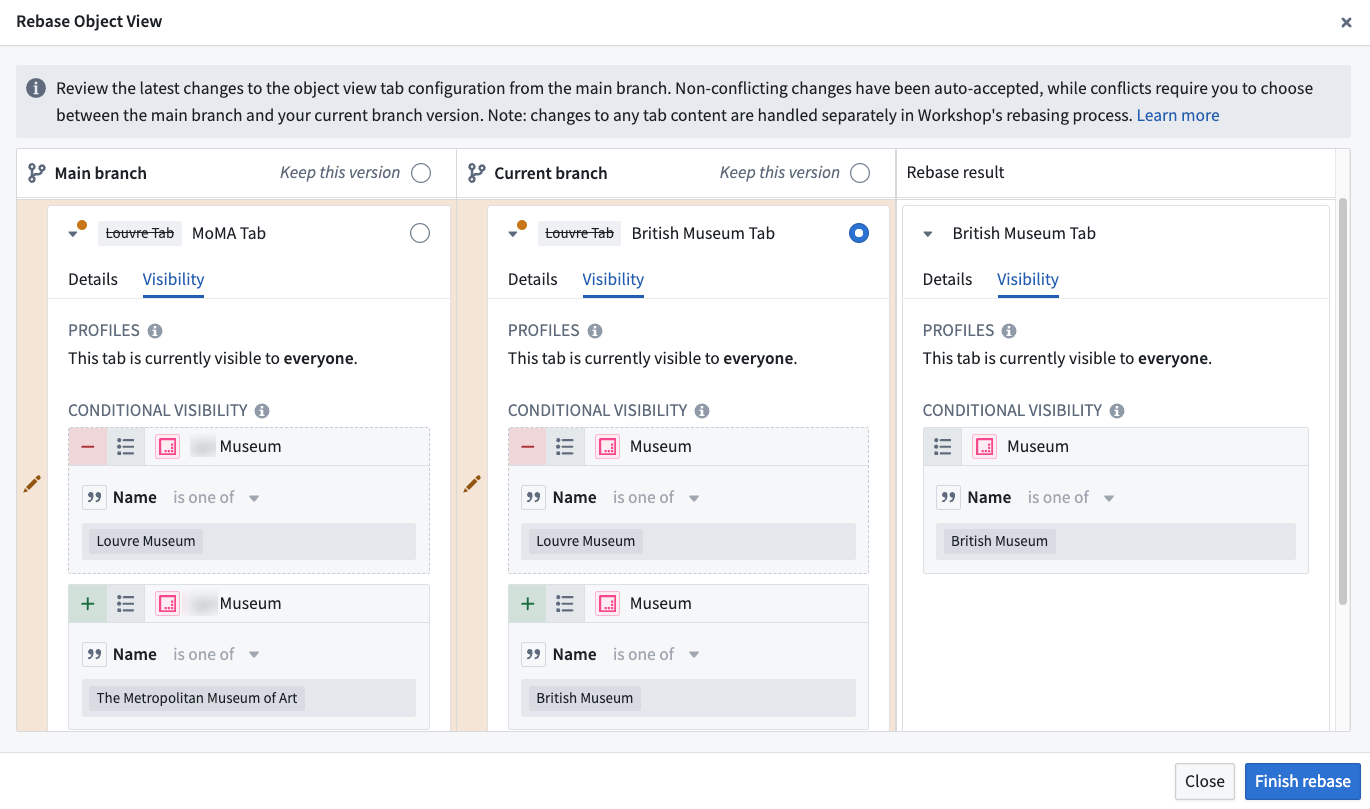
To resolve the conflict, choose either the branch or main version. This enables a successful rebase. You can expand the conflicting row to view visibility details.
Known limitations
Object views do not currently support approvals on branches. All object view changes on a branch are automatically approved. Support for an approval system is in development.
Legacy object view tabs cannot be edited on a branch.