- Capabilities
- Getting started
- Architecture center
- Platform updates
Announcements
REMINDER: Sign up for the Foundry Newsletter to receive a summary of new products, features, and improvements across the platform directly to your inbox. For more information on how to subscribe, see the Foundry Newsletter and Product Feedback channels announcement.
Share your thoughts about these announcements in our Developer Community Forum ↗.
Claude Opus 5.5 now available in AIP
Date published: 2026-09-29
Anthropic’s Claude Opus 5.5 is now available in AIP for eligible commercial enrollments and US government enrollments at IL2 and IL4.
Model overview
Claude Opus 5.5 is designed for long-running coding, agentic workflows, and knowledge work. For more information, review Anthropic’s model documentation ↗ and model announcement ↗.
Availability
Claude Opus 5.5 is available for eligible commercial enrollments that enable Claude through:
- Anthropic direct
- Google Vertex AI
- AWS Bedrock
- Microsoft Azure
The model is also available on IL2 and IL4 US government enrollments with Claude through Google Vertex AI enabled.
Getting started
To use this model:
- Confirm that your enrollment administrator has enabled the relevant model family.
- Review token costs and pricing.
- See the complete list of models available in AIP.
Your feedback matters
We want to hear about your experiences using language models in the Palantir platform and welcome your feedback. Share your thoughts with Palantir Support channels or on our Developer Community ↗ using the language-model-service tag ↗.
Kimi K3 now available in AIP through AWS Bedrock
Date published: 2026-09-29
Moonshot AI’s Kimi K3 is now available in AIP through AWS Bedrock for US georestricted and non-georestricted commercial enrollments. For more information, review the Kimi K3 model documentation ↗.
Getting started
To use this model:
- Confirm that your enrollment administrator has enabled the Moonshot AI | Bedrock model family.
- Review token costs and pricing.
- See the complete list of models available in AIP.
Your feedback matters
We want to hear about your experiences using language models in the Palantir platform and welcome your feedback. Share your thoughts with Palantir Support channels or on our Developer Community ↗using the language-model-service tag ↗.
Build interfaces with OSDK React components
Date published: 2026-09-29
The @osdk/react-components package, available now in beta as an npm package, provides pre-built, Ontology-aware React components for common application patterns, including tables, filters, action forms, and document and media viewers. Built on @osdk/react, these components handle data loading, caching, and state management automatically, and you can combine them with your own React components and lower-level OSDK hooks when you need custom behavior.
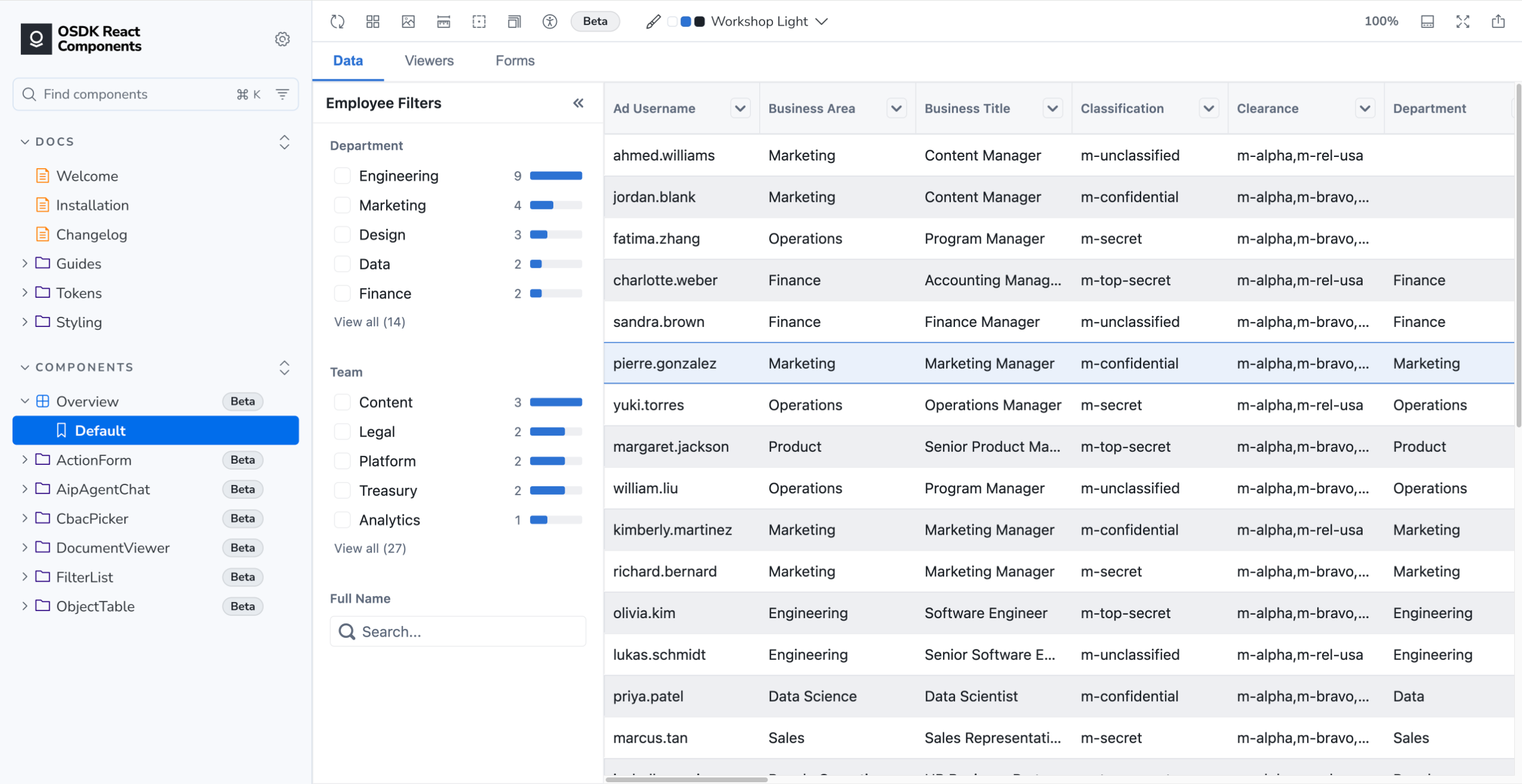
The OSDK React Components Storybook, with interactive examples of components available in @osdk/react-components.
Build common workflows with pre-built components
The library includes components for common Foundry application workflows:
- Render Ontology objects in a sortable and paginated table with
ObjectTable. - Build filters backed by object set aggregations with
FilterList. - Generate forms that apply Ontology actions with
ActionForm. - View PDFs, documents, spreadsheets, email, images, video, and other media with the available viewer components.
For example, you can render an OSDK object type in a table:
import { ObjectTable } from "@osdk/react-components/object-table";
import { Employee } from "@your-osdk-package";

function EmployeeDirectory() {
  return <ObjectTable objectType={Employee} />;
}
Customize components for your application
Components support theming through CSS custom properties and CSS layers, so you can adapt them to your application's design system. Exported base components, building blocks, and hooks let you build custom layouts or swap out individual parts while keeping the underlying functionality.
@osdk/react-components is under active development. Not all components are available in every release, and APIs may change. Use the latest beta version for the most up-to-date features and fixes.
Install the package and follow the OSDK React components setup guide ↗ for provider configuration and CSS setup. Explore the OSDK React components Storybook ↗ for interactive examples and API documentation.
Share your feedback
We want to hear about your experience using REACT components in OSDK. Share your thoughts with Palantir Support channels or on our Developer Community ↗ using the osdk-react ↗ tag.
Build and publish functions in VS Code workspaces
Date published: 2026-09-29
VS Code workspaces now supports the full functions development lifecycle, from authoring through publishing.
When creating a new VS Code workspace, choose to use a TypeScript Functions, TypeScript Functions V2, or Python Functions template, or select Edit in VS Code from the top right corner in an existing Code Repositories environment. In a VS Code workspace, you have access to a dedicated development container, faster OSDK generation, a fully functional terminal (including Codex ↗ support), and immediate visibility into AI FDE's changes as it edits your repository.
The dedicated container behind VS Code workspaces gives you full terminal capabilities, so you can run CLI commands as you would on your personal machine. It also reduces latency in language server diagnostics and functions live preview startup.
Navigating the functions experience in VS Code, you will find familiar panels embedded into the IDE, including the Resources, Function preview, and Libraries panels. File and keyword search run natively in VS Code, and the source control panel offers familiar Git-based workflows.
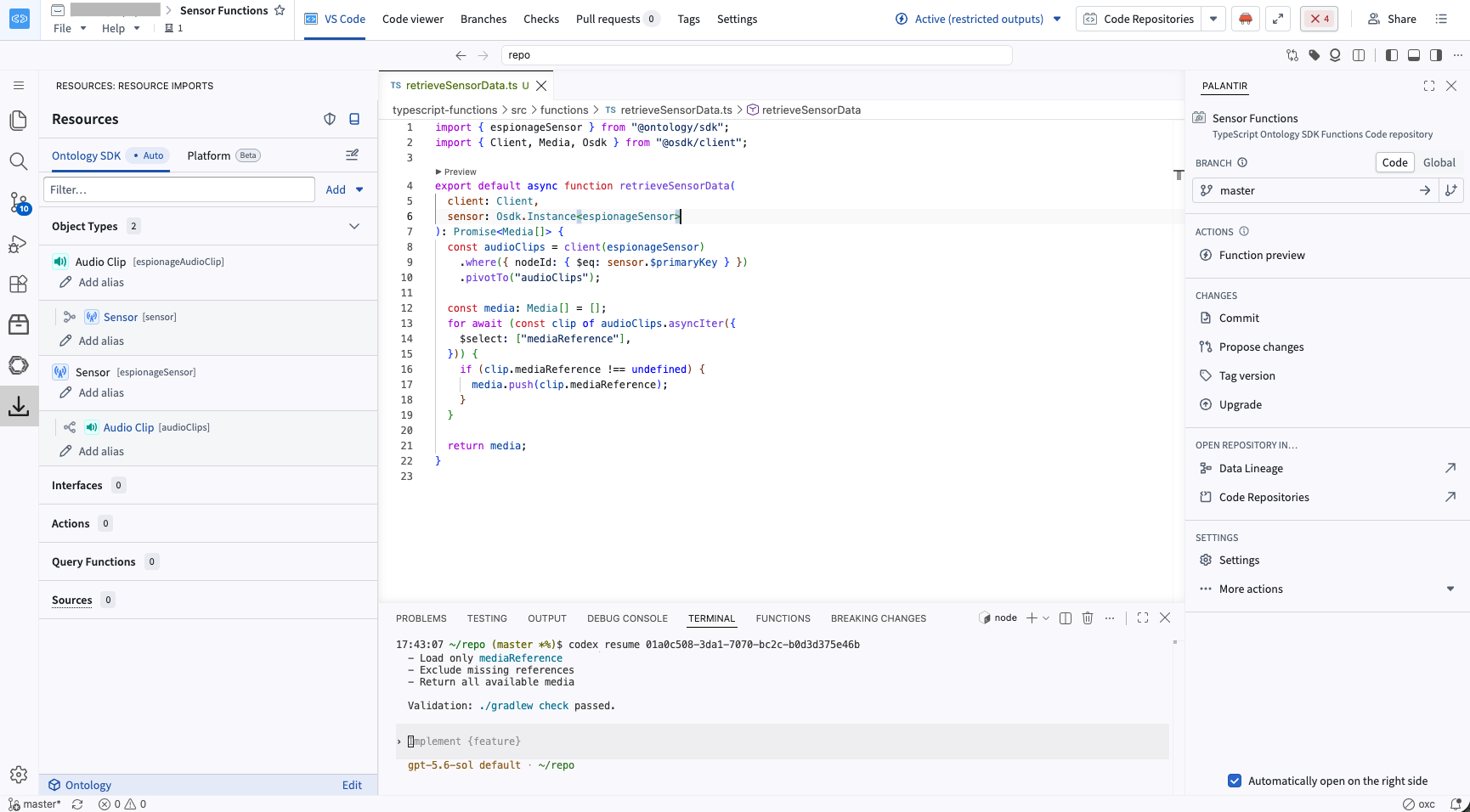
A VS Code workspace functions editor with an integrated terminal running Codex.
Share your feedback
We want to hear about your experiences working with functions in the platform. Share your thoughts with Palantir Support channels or our Developer Community ↗ using the functions ↗ tag.
Introducing Vulcan, a CAD review application for the Ontology
Date published: 2026-09-29
Vulcan is a 3D visualization application that renders engineering geometry directly from Ontology data. Mesh models (GLB, GLTF, STL, OBJ, PLY, and 3MF), 2D engineering drawings (DXF), and point clouds (LAS and LAZ) can be loaded without conversion, and a single scene can contain all the models needed for a workflow. Vulcan is generally available across all enrollments starting the week of September 28.
Annotations, measurements, and section planes created in Vulcan are written to the Ontology as objects when saved. A flagged defect can be used to trigger an alert, a critical dimension can be tracked in a dashboard over time, and a saved cross-section can be retrieved or shared with another team. Vulcan runs as a standalone application and can also be embedded in Workshop as a widget, where camera position, part selection, and measurement results can be connected bidirectionally to Workshop variables.
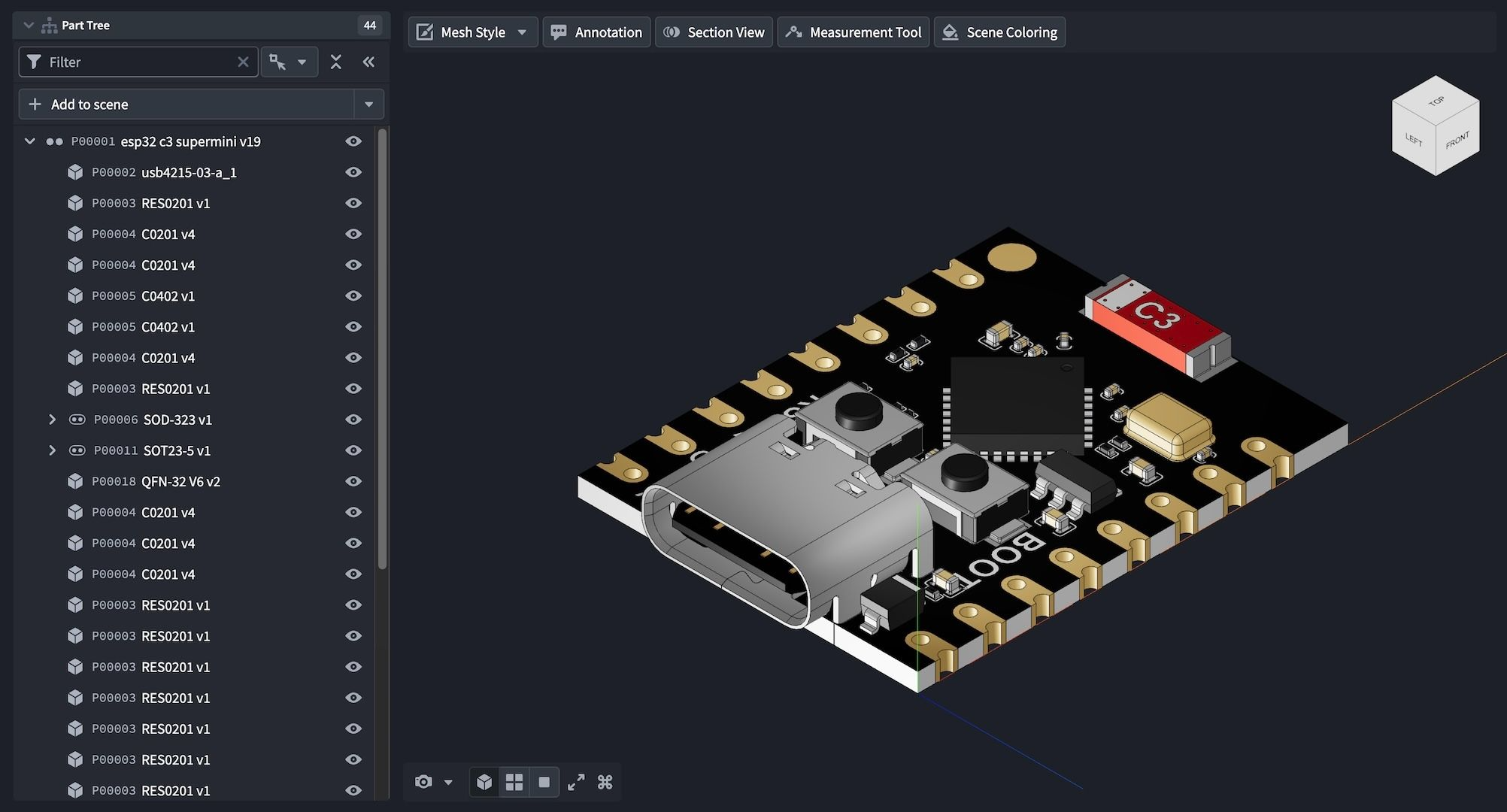
The part tree lists every part instance in the assembly, with each instance corresponding to an object in the Ontology. Source: Printables, released under CC0 (public domain).
Vulcan has Ontology-backed tools to support cross-team workflows:
- Measure distances on models
- Create annotations
- Slice models with section planes
- Apply colors to parts with Ontology actions
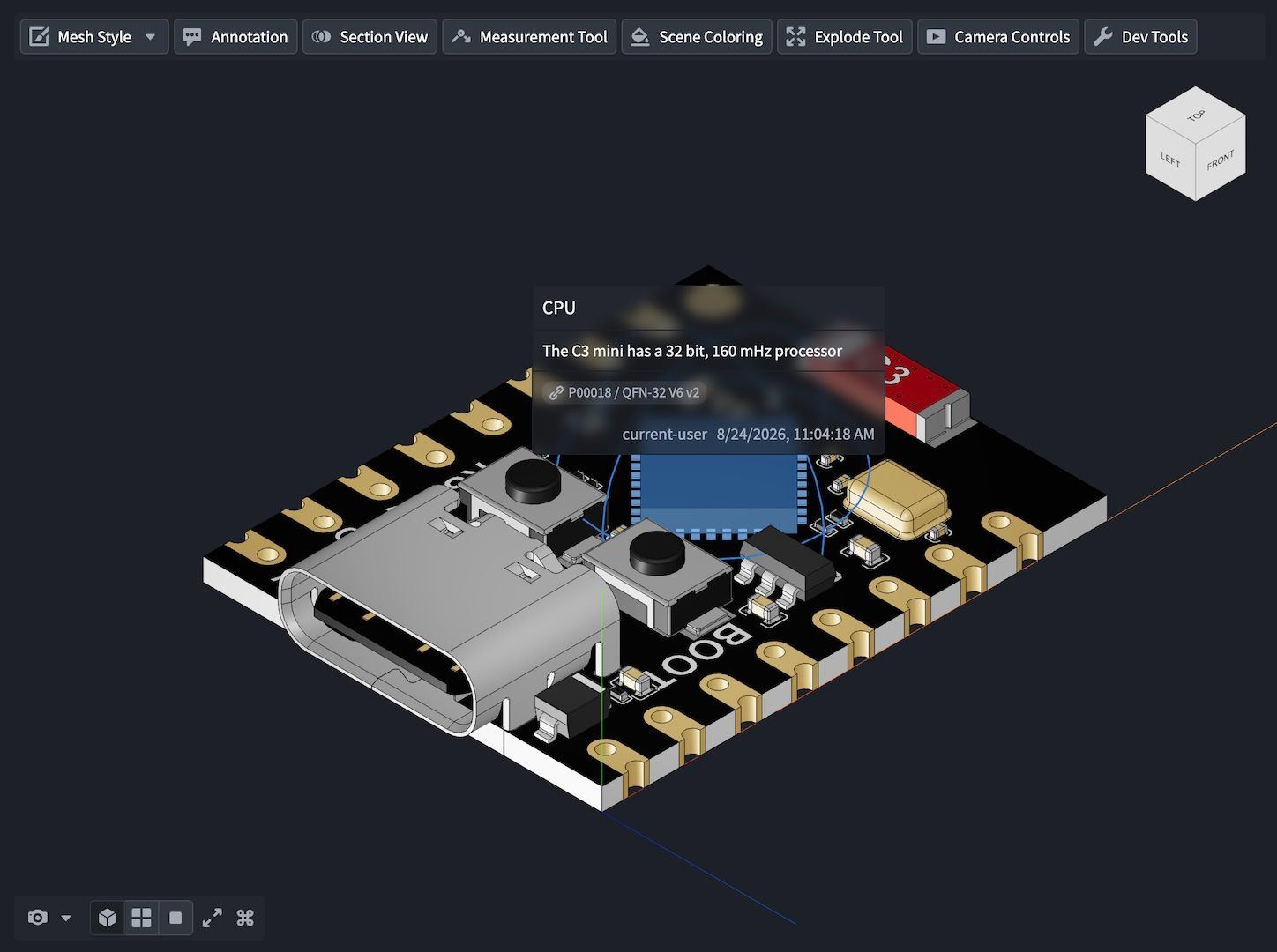
Annotations and measurements on a CAD model in Vulcan. Source: Printables, released under CC0 (public domain).
See how Vulcan can support your production workflows:
- Markup models to provide instructions for assembly or repair procedures
- Share annotations and measurements across design-review teams
- Color models according to inventory levels or failure rates
- Visualize the results of automated design-verification runs in the Palantir platform
- Use components and models imported into Vulcan for further analysis across the Foundry application suite
To get started, load a CAD object into the viewport and select Add to scene. To learn more about the tools, the Workshop widget, and the Ontology object types and actions that Vulcan reads and writes, review the Vulcan documentation.
Your feedback matters
We want to hear about your experiences using Vulcan in the Palantir platform and welcome your feedback. Share your thoughts with Palantir Support channels or on our Developer Community ↗ using the vulcan tag ↗.
Global log search across resources in Workflow Lineage is now GA
Date published: 2026-09-29
Beginning the week of September 28, global log search in Workflow Lineage will be generally available on all cloud enrollments. Global log search lets you find logs from any node in your workflow, even when another resource triggered the execution. This means that you can search across multiple resources in a single query instead of searching each one separately.
How to access global log search
Open a graph in Workflow Lineage and select Search logs. Leave all nodes unselected to search across every supported resource in the graph, or select nodes to narrow the scope.
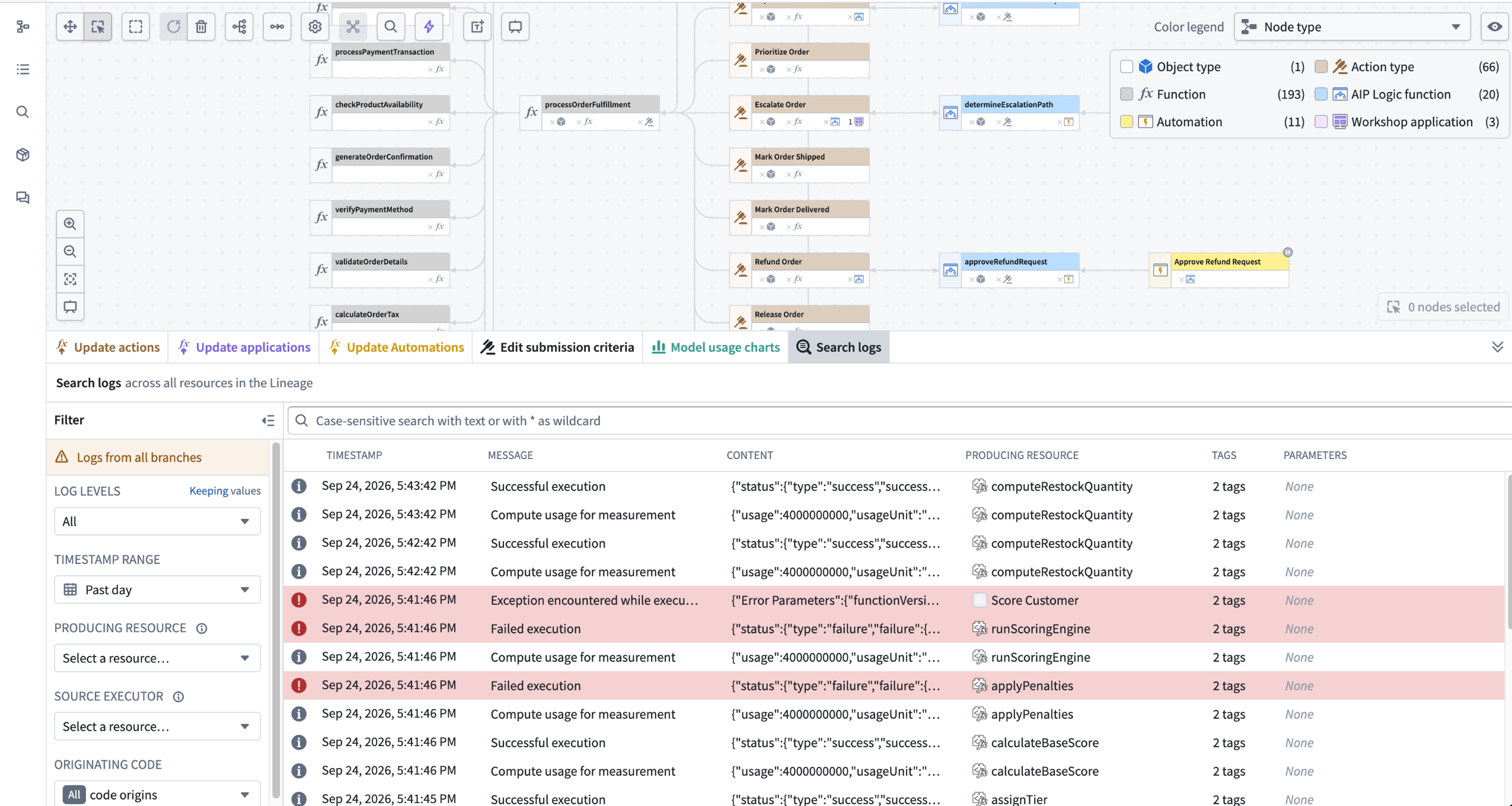
Global log search across all supported resources in a Workflow Lineage graph.
When you select multiple resources, choose how to resolve the search scope:
- Across selected resources: Include logs relevant to any selected resource. This option combines the search scopes for the selected resources and is selected by default.
- Within selected call chain: Include only logs from call chains contained within the selected resources. Use this option to investigate how the selected resources interacted in the same call chain.
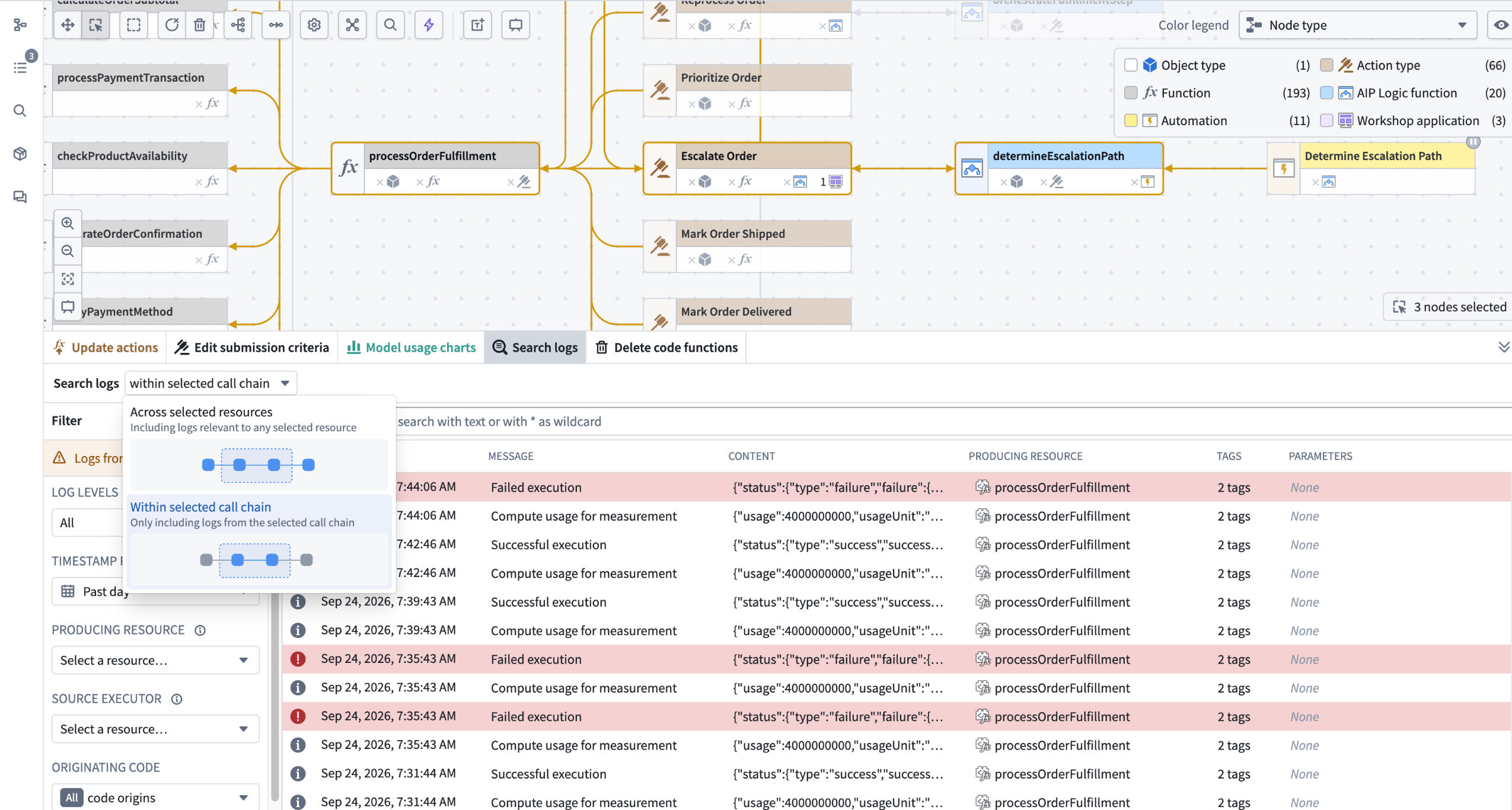
Global log search scope menu showing Across selected resources and Within selected call chain_._
Existing log access, marking, role, and retention requirements continue to apply. Non-cloud enrollments continue to use single-source-executor search.
Learn more about log search in Workflow Lineage.
Tell us what you think
As we continue to develop Workflow Lineage, we want to hear about your experiences and welcome your feedback. Share your thoughts with Palantir Support channels or our Developer Community ↗ using the workflow-lineage ↗ tag.
Grok 4.7 from xAI now available in AIP
Date published: 2026-09-24
Grok 4.7 is now available in AIP on US georestricted and non-georestricted commercial enrollments with xAI enabled.
Model overview
Grok 4.7 ↗ is a reasoning model designed for coding, agentic tasks, and knowledge work.
Getting started
To use this model:
- Confirm that your enrollment administrator has enabled the relevant model family.
- Review token costs and pricing.
- See the complete list of models available in AIP.
Your feedback matters
We want to hear about your experiences using language models in the Palantir platform and welcome your feedback. Share your thoughts with Palantir Support channels or on our Developer Community ↗ using the language-model-service tag ↗.
GPT-6 Sol and GPT-6 Luna now available in AIP
Date published: 2026-09-24
GPT-6 Sol and GPT-6 Luna are now available in AIP through Azure OpenAI and Direct OpenAI for eligible commercial enrollments.
Model overviews
GPT-6 Sol ↗ is designed for complex coding and agentic workflows.
GPT-6 Luna ↗ is designed for efficient, focused, high-volume tasks.
Getting started
To use these models:
- Confirm that your enrollment administrator has enabled the relevant model family.
- Review token costs and pricing.
- See the complete list of models available in AIP.
Your feedback matters
We want to hear about your experiences using language models in the Palantir platform and welcome your feedback. Share your thoughts with Palantir Support channels or on our Developer Community ↗ using the language-model-service tag ↗.
GPT-6 Astra now available in AIP
Date published: 2026-09-24
GPT-6 Astra is now available in AIP through Azure OpenAI and Direct OpenAI for eligible commercial enrollments.
Model overview
GPT-6 Astra is OpenAI's most capable model designed for complex reasoning, software development, research, and document creation. For more information, review OpenAI's model documentation ↗.
Getting started
To use this model:
- Confirm that your enrollment administrator has enabled the relevant model family.
- Review token costs and pricing.
- See the complete list of models available in AIP.
Your feedback matters
We want to hear about your experiences using language models in the Palantir platform and welcome your feedback. Share your thoughts with Palantir Support channels or on our Developer Community ↗ using the language-model-service tag ↗.
DeepSeek V4.1 Flash now available in AIP through Fireworks
Date published: 2026-09-24
DeepSeek V4.1 Flash is now available in AIP through Fireworks on non-georestricted commercial enrollments.
Model overview
DeepSeek V4.1 Flash ↗ is a multimodal model designed for efficient agentic workflows, with native support for text and image input.
Getting started
To use this model:
- Confirm that your enrollment administrator has enabled the relevant model family.
- Review token costs and pricing.
- See the complete list of models available in AIP.
Your feedback matters
We want to hear about your experiences using language models in the Palantir platform and welcome your feedback. Share your thoughts with Palantir Support channels or on our Developer Community ↗ using the language-model-service tag ↗.
Foundry transforms now run on Apache Spark 4.0.1
Date published: 2026-09-22
The version of Apache Spark used in Foundry transforms is being upgraded from 3.5.5 to 4.0.1 for all enrollments. This upgrade brings many bug fixes, performance improvements, and new features that can be viewed on the release page for Apache Spark ↗. No action is required to enable this upgrade. Transforms runtime versions are managed automatically in the background through adjudication. For more detail, review the documentation on Transforms versions.
Spark 4 introduces breaking changes which are detailed in the Apache Spark migration guide ↗. Foundry mitigates these changes in the transforms API layer, and Palantir has tested the upgrade to preserve existing workflow behavior. Workflows that use custom dependencies may still require updates to ensure those dependencies are compatible with Spark 4.
With an upgrade, the performance of existing pipelines may be affected and new bugs may occur. For high-risk jobs, use a temporary pin to control the new Spark version rollout until you have confirmed the upgrade to be issue-free for your workflows.
Explore Ontology data in Carbon with Insight analysis
Date published: 2026-09-21
Carbon now supports Insight analysis, letting you investigate data alongside your workspace's applications and resources. Carbon also offers modern object search, with a redesigned homepage search bar and search results page. Workspace owners choose when to turn on each experience via two independent workspace settings.
When enabled, Insight analyses replace Object Explorer-style explorations for object types, object sets, and saved explorations. Build an analysis step by step: start with an object type, filter to the objects you want to investigate, and follow relationships to explore connected data.
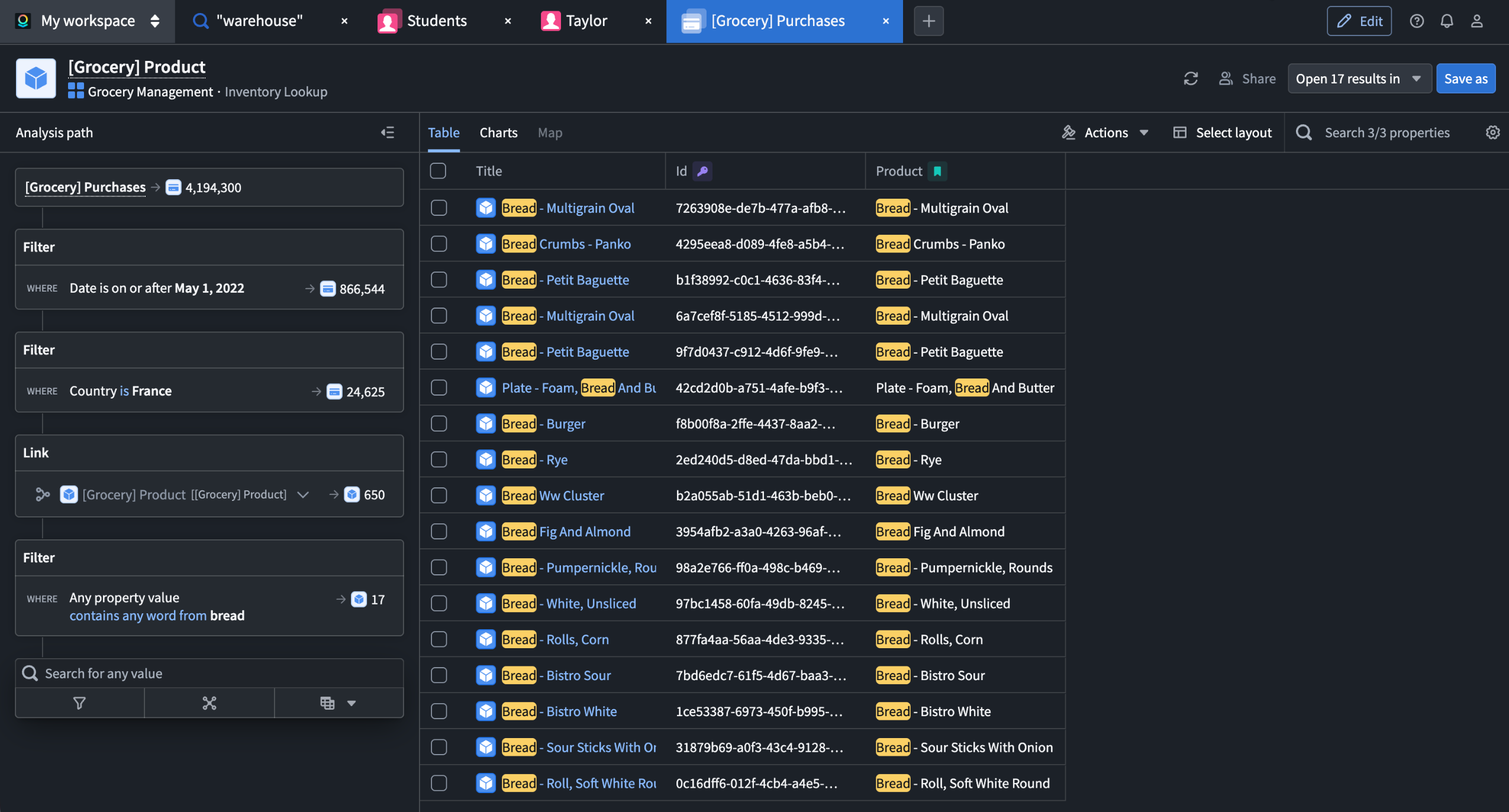
An Insight exploration open alongside other tabs in a Carbon workspace.
Modern object search
The modern object search experience starts with a redesigned homepage search bar, where users can search within your workspace’s configured search scope.
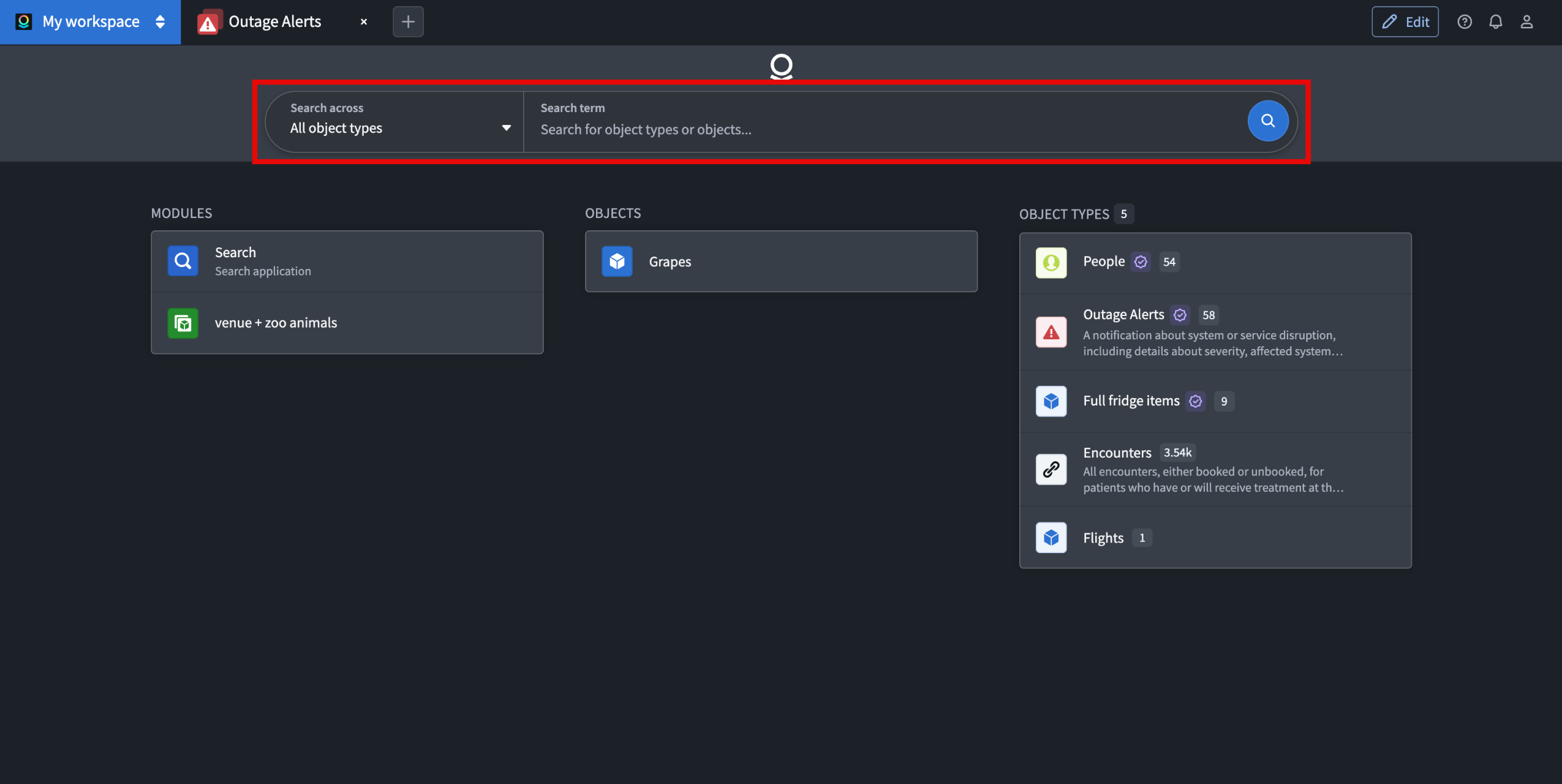
The redesigned object search bar on the Carbon homepage.
Searches open on the new search results page. The search bar and results page are enabled together, so the experience stays consistent from query to results.
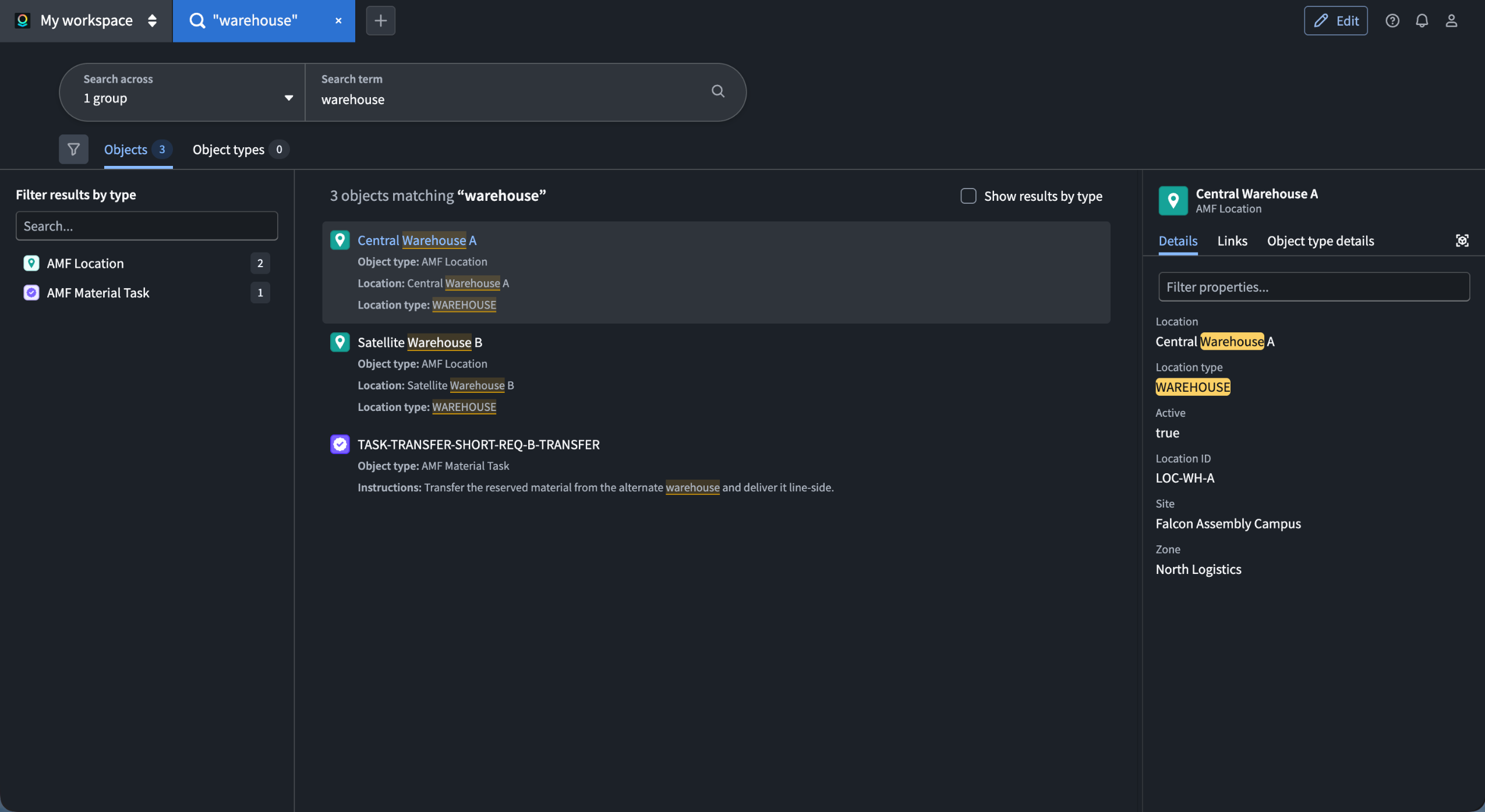
Object search results displayed in the modern search experience within Carbon.
To turn on these features, workspace owners can open the Carbon workspace configuration editor and navigate to General → Object search and exploration:
- Use Insight for object exploration: Replaces Object Explorer-style explorations with Insight analyses.
- Use the new object search experience: Enables both the redesigned homepage search bar and the new search results page.
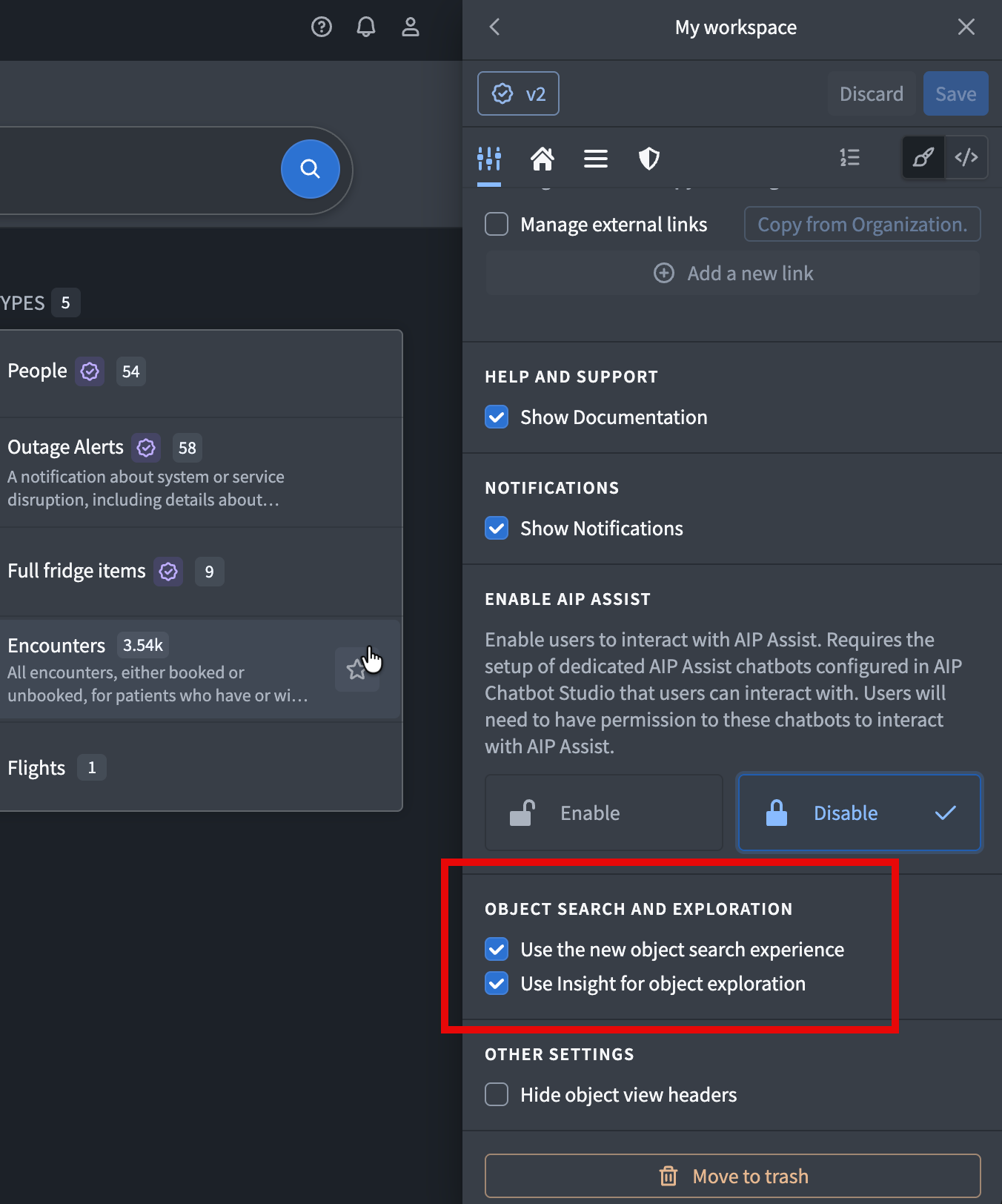
Workspace settings for enabling Insight explorations and modern object search independently.
These settings apply per workspace. Select either setting or both, then save the workspace configuration. Reopen or refresh existing search and exploration tabs for changes to take effect.
The settings above control current opt-in choice. Going forward, Insight is on track to become the default experience for newly created workspaces, with modern object search following the same path. Existing workspaces will remain opt-in, so you keep control over when to make the switch.
We want to hear from you
We want to hear about your experiences using Carbon and Insight and welcome your feedback. Share your thoughts with Palantir Support channels or on our Developer Community ↗ using the carbon ↗ or insight ↗ tags .
Review resource changes in branching proposals using the new Changes tab
Date published: 2026-09-17
The Changes tab on the branching proposal page now provides a centralized view of all resource changes on your proposal.
Previously, reviewers could only view changed resources in the proposal Overview tab and needed to open each resource's application to review changes separately. Reviewing proposals that span multiple resources required moving between applications, making it more difficult to understand how related changes fit together.
The Changes tab lets reviewers view how modified resources changed directly from the proposal page. Select a resource to view its changes, checks, and approval status. From here, you can approve or reject changes when you have the required permissions and access additional actions from the resource menu.
Change viewers are available for all resource types supported by Global Branching excluding Workshop, Pipeline Builder, and AIP Logic.
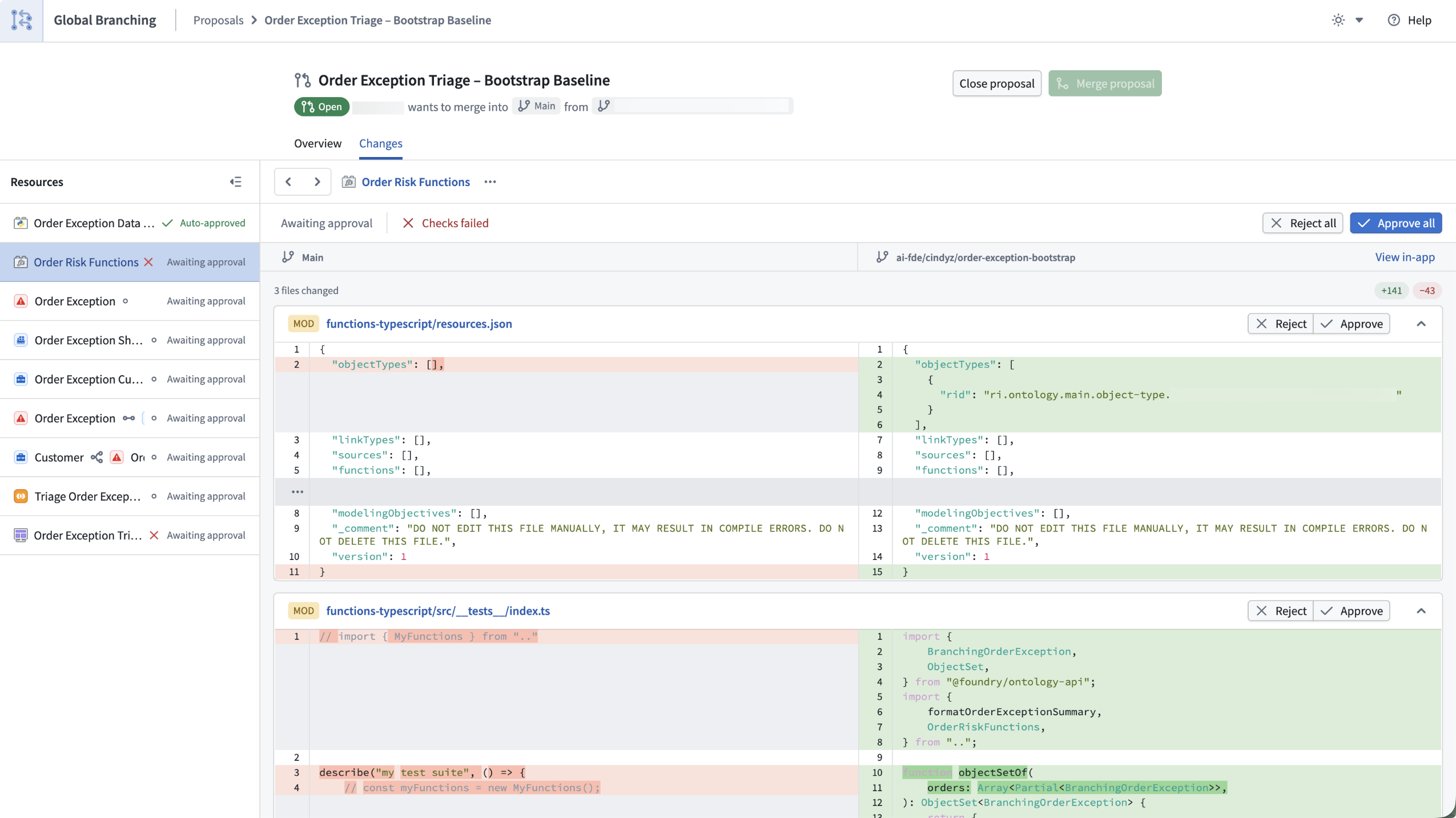
Viewing proposed changes on a branch in Global Branching.
For more information, see the global branching proposal page documentation.
Your feedback matters
We want to hear about your experiences with Foundry Branching in the Palantir platform and welcome your feedback. Share your thoughts with Palantir Support channels or on our Developer Community ↗ using the global-branching ↗ tag.
Opus 5 available via AWS Bedrock in AIP on IL2, IL4 Enrollments
Date published: 2026-09-15
Anthropic's Claude Opus 5 is available on IL2 and IL4 enrollments with Claude via AWS Bedrock enabled. For more model information, review Anthropic's model documentation↗.
Getting started
To use these models:
- Confirm that your enrollment administrator has enabled the relevant model family.
- Review token costs and pricing.
- See the complete list of models available in AIP.
Your feedback matters
We want to hear about your experiences using language models in the Palantir platform and welcome your feedback. Share your thoughts with Palantir Support channels or on our Developer Community ↗ using the language-model-service tag ↗.
Iceberg tables are generally available
Date published: 2026-09-15
Managed Iceberg tables and Palantir’s Iceberg REST catalog are now generally available on standard Foundry enterprise environments hosted on AWS, Azure, and GCP. Palantir’s Iceberg catalog supports Iceberg tables stored in either Palantir-managed storage or a customer-provided bucket. This gives you the benefits of the open Apache Iceberg format ↗ alongside Palantir’s pipeline-building, governance, security, and ontology capabilities.
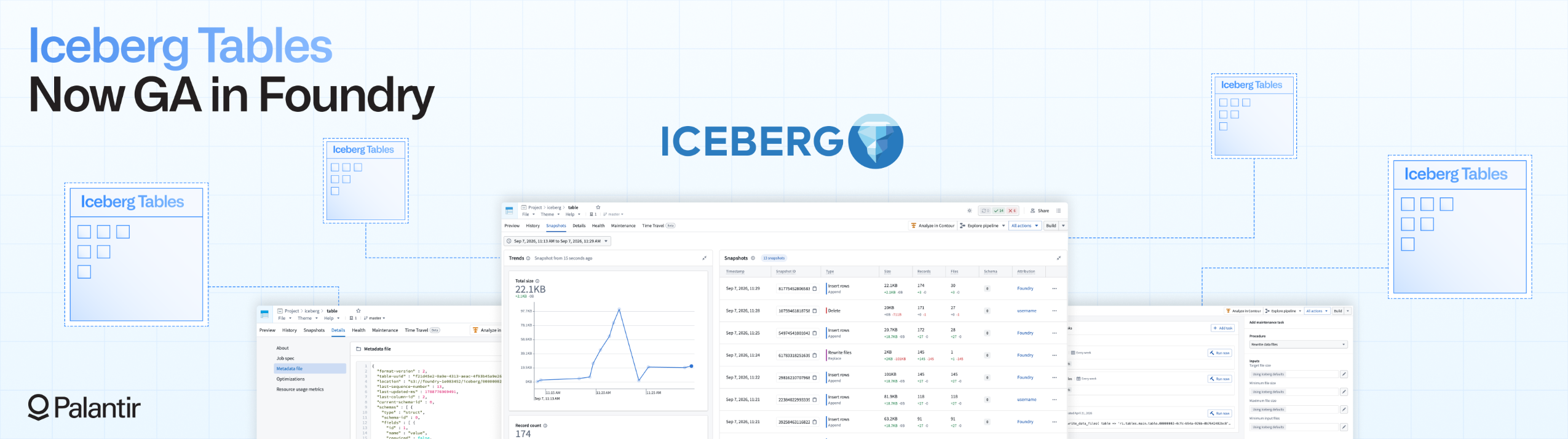
Why use Iceberg tables?
Iceberg tables provide:
- Scalable performance: Iceberg provides a number of performance benefits, particularly for large tables or tables with many small files. These can be optimized for faster reads through table layout and compaction.
- Row-level incremental updates and processing: Iceberg supports incremental row-wise insert, update, and delete operations without needing to reprocess the entire table. You can build change data capture pipelines using Iceberg changelogs to process inserted, updated, and deleted records.
- Open, interoperable table format and catalog: Iceberg provides an open table format and catalog supported by a growing ecosystem of compute engines and data platforms. This enables use of open source engines as well as bi-directional zero-copy workflows, both inside and outside of Foundry.
Learn more about Iceberg tables and how they compare with Foundry datasets.
Build with Iceberg across the Palantir platform
You can use Iceberg tables across most common Palantir workflows:
- Build pipelines with Python transforms or Pipeline Builder.
- Use Data Connection to sync directly into Iceberg tables from supported sources, including Custom JDBC, Microsoft SQL Server, Oracle, PostgreSQL, and Snowflake.
- Create Ontology object types backed by Iceberg tables.
- Analyze Iceberg tables in Contour and SQL.
- Explore lineage and provenance in Data Lineage.
Iceberg unlocks new workflows for the Palantir platform:
- Configure maintenance procedures, such as compaction and snapshot expiration.
- Build pipelines with row level updates and deletes and changelog processing.
- Inspect snapshot history, including file size, schema, operation, and row count changes.
- Connect external tools and clients to the catalog natively to read and write Iceberg tables.
- New filesystem storage controls, with the ability to bring-your-own storage bucket and use different filesystems across different projects and spaces.
What features does Palantir’s Iceberg catalog provide?
Beyond the open-source Iceberg specification, Palantir’s Iceberg catalog provides additional features and guarantees, including:
- All-or-nothing transaction semantics, which guarantee that Foundry jobs with multiple writes succeed or fail atomically to keep tables in a consistent and healthy state.
- Schema branch isolation, where each branch can independently track its own current schema, default partition spec, and default sort order. This improves developer workflows by ensuring schema changes are isolated to the development branch and cannot affect consumers on main.
- Integrated access control and credential vending. Connect compatible Iceberg clients using Foundry authentication. Foundry checks table permissions and applicable markings, including those inherited from pipeline inputs, before granting read access. Foundry handles the underlying storage credentials, simplifying access without requiring you to distribute bucket credentials to individual users or tools.
- Deep integration into Foundry’s build and lineage systems and the broader Foundry ecosystem.
Get started
An Enrollment Administrator or Information Security Officer must first enable and configure Iceberg by using the Iceberg table settings page in Control Panel. Then get started building pipelines. For current compatibility details and differences from Foundry datasets, review Iceberg tables and Foundry datasets.
Share your feedback
The Iceberg team welcomes your feedback and ideas. Share your experience through Palantir Support or in the Palantir Developer Community ↗ using the iceberg tag ↗.
Organize and validate DevOps products with product groups
Date published: 2026-09-15
Product groups are now available in Foundry DevOps across all enrollments. Use them to model products that are deployed together and validate whether selected product versions can be installed as a group. Product groups identify packaging and compatibility issues during development, before deployment.
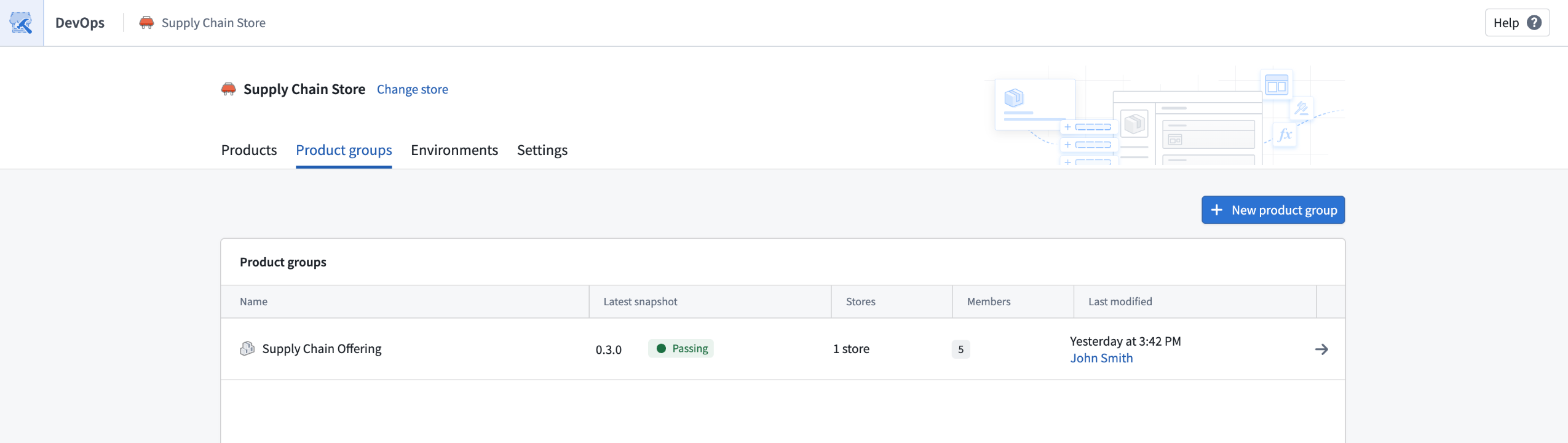
Product groups tab in a Foundry DevOps product store.
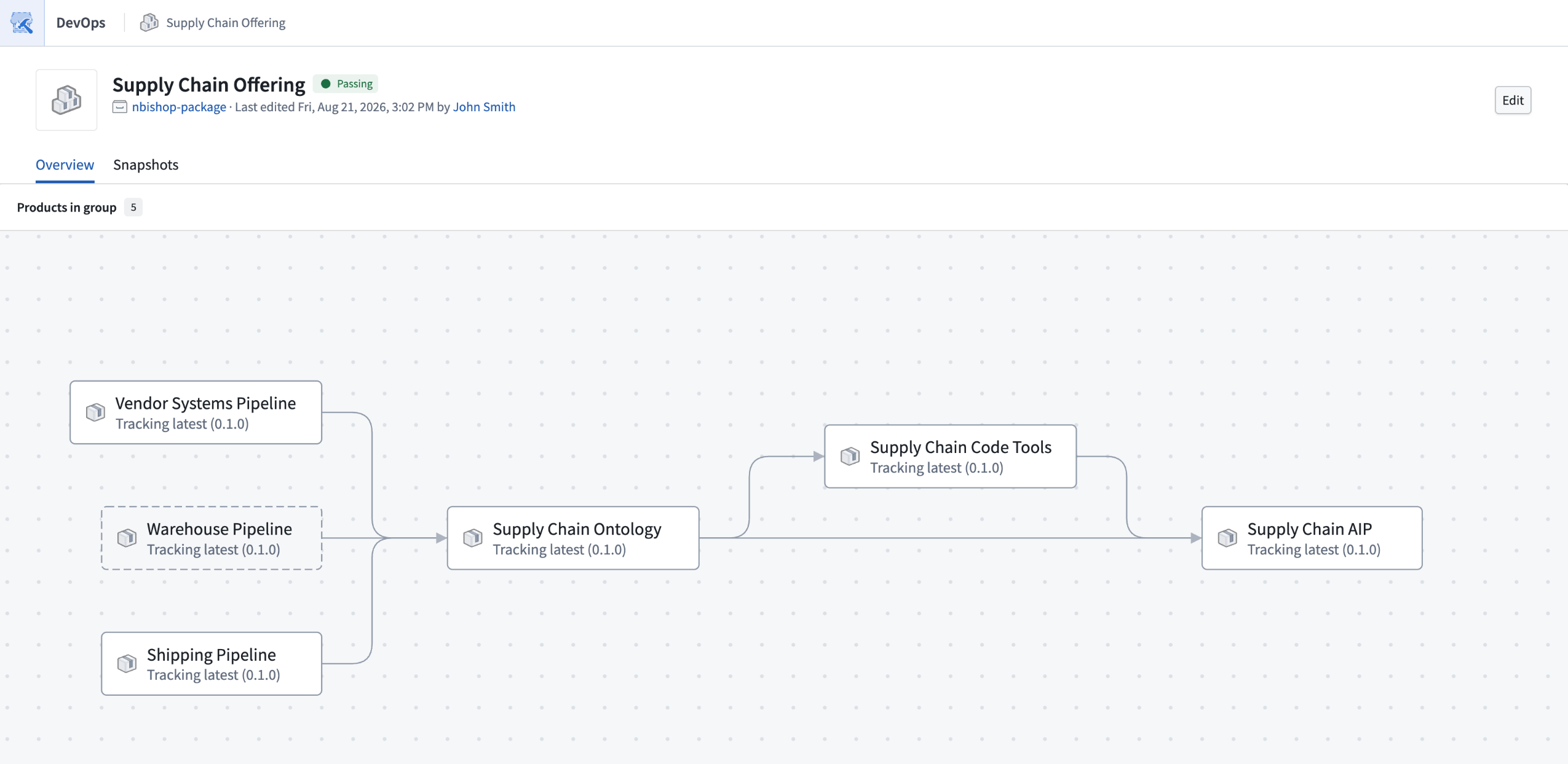
DevOps dependency graph showing products in a product group.
Previously, teams might discover these issues during installation, requiring them to repeat development, packaging, and deployment steps. Early users of this feature have cut the time it takes to validate and install complex offerings from weeks to hours.
Key benefits of using product groups
With product groups, you can:
- Model and visualize an offering: Organize products from multiple stores alongside existing installations, and use the dependency graph to understand how they work together.
- Identify installation blockers early: Find missing inputs, duplicate outputs, dependency cycles, incompatible linked product versions, and other compatibility issues before deployment.
- Validate product versions: Track the latest published version, a selected release channel, or a pinned version for each product. Validate locally built products against dependencies already installed in the same namespace.
- Define deployment boundaries: Identify which products are installed and managed as part of the workflow and which external dependencies are managed separately.
- Preserve known configurations: Create immutable snapshots containing exact member versions and validation results. Use snapshots to compare workflow configurations over time and identify which versions can be installed together successfully.
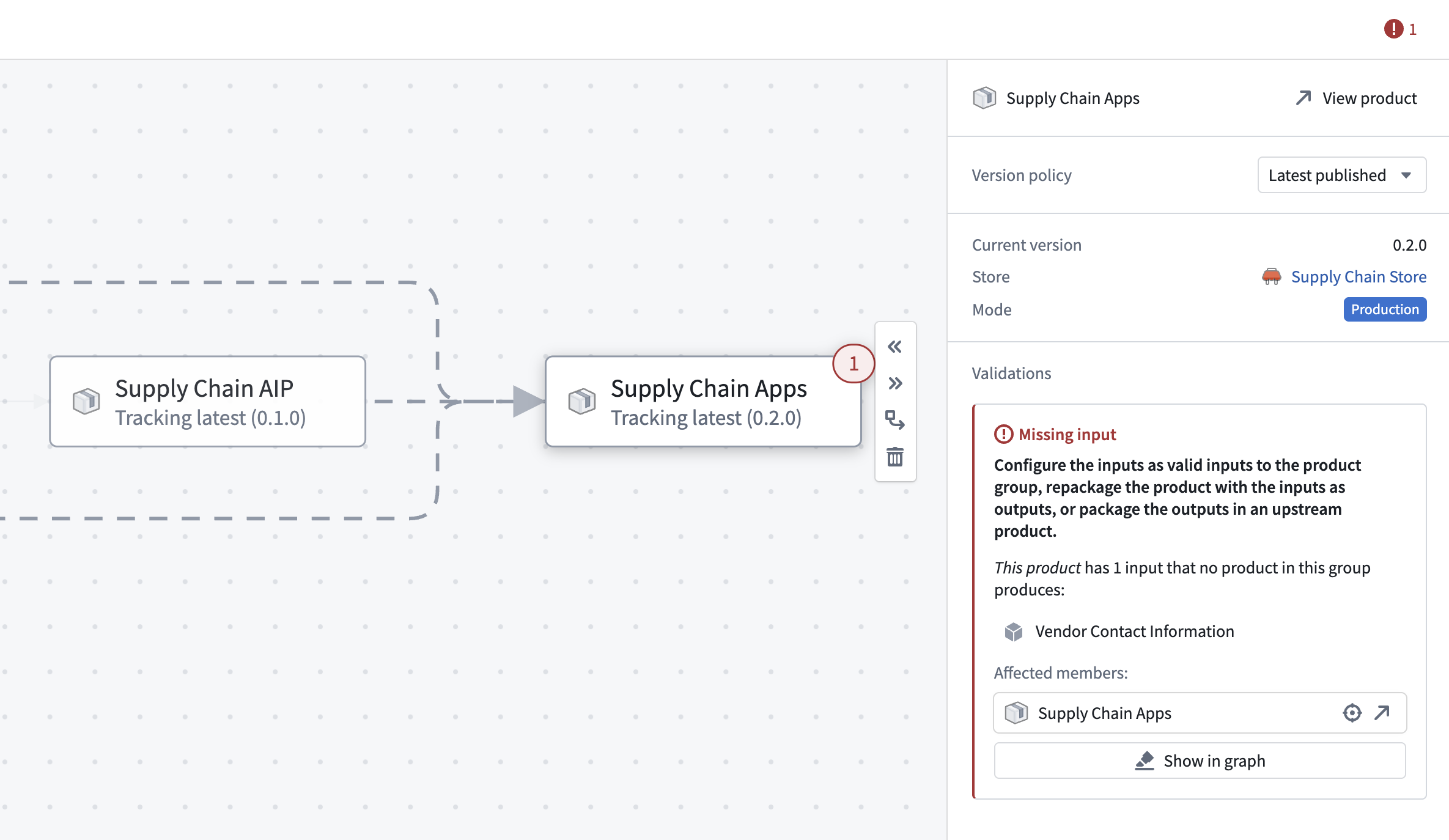
Product group validation panel showing a missing input.
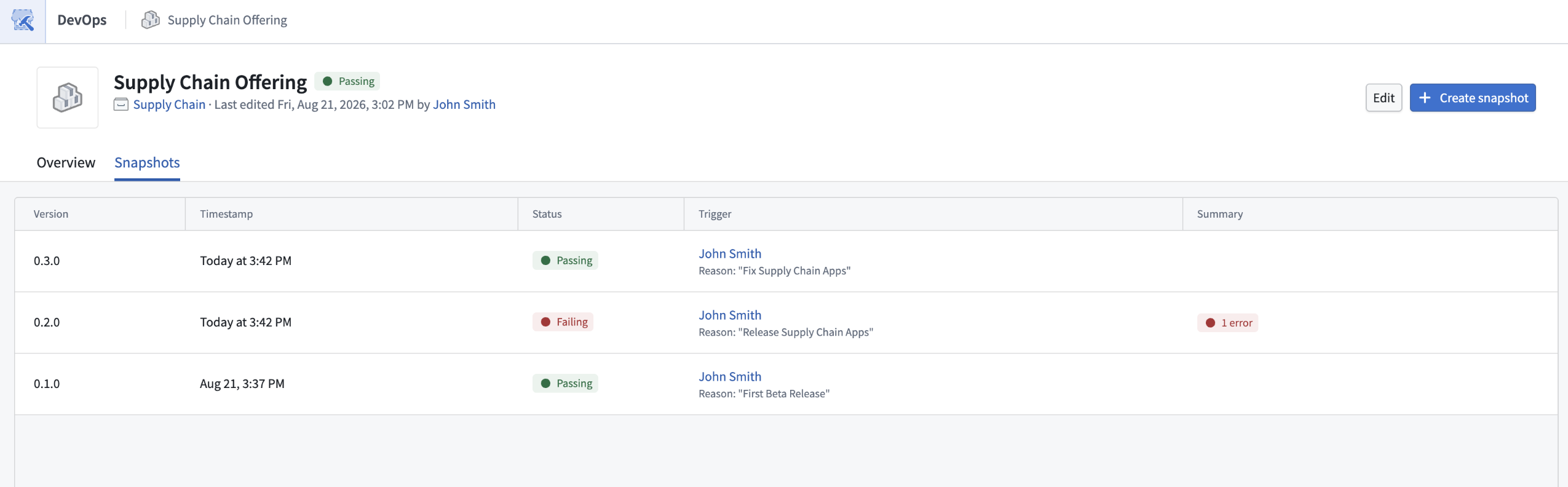
Snapshot history for a product group.
Get started
To get started, open a store in Foundry DevOps and select Product groups.
Review the product groups documentation for guidance on validating product groups and creating snapshots.
Your feedback matters
We want to hear about your experiences using DevOps in the Palantir platform and welcome your feedback. Share your thoughts with Palantir Support channels or on our Developer Community ↗ using the devops ↗ tag.
Additional open-weight models now available in AIP through Fireworks
Date published: 2026-09-10
Select models from Z.ai and Moonshot AI are now available in AIP through Fireworks on non-georestricted enrollments.
Model overviews
GLM-5.3 ↗ is an advanced open-weight frontier reasoning model released by Z.ai that delivers state-of-the-art performance for complex software engineering, long-horizon autonomous agents, and cybersecurity tasks.
GLM-5.3 Flash ↗ is an open-weight, natively multimodal AI model released by Z.ai with strong performance in coding and agent tasks at a reduced cost and higher speed.
Kimi K3 ↗ is an open-weight multimodal AI model released by Moonshot AI. It is designed for complex reasoning, long-horizon coding, and agentic knowledge work.
Getting started
To use these models:
- Confirm that your enrollment administrator has enabled the relevant model family.
- Review token costs and pricing.
- See the complete list of models available in AIP.
Your feedback matters
We want to hear about your experiences using language models in the Palantir platform and welcome your feedback. Share your thoughts with Palantir Support channels or on our Developer Community ↗ using the language-model-service tag ↗.
Gemini 3.8 Flash from Vertex AI is now available in AIP
Date published: 2026-09-10
Gemini 3.8 Flash is now available in AIP for non-georestricted, US georestricted, EU georestricted, IL2, IL4, and IL5 enrollments with Google Vertex AI enabled.
Model overview
Gemini 3.8 Flash is the next iteration in the Gemini 3 model family, with improvements in reasoning and coding. For more information, review Google's Gemini 3.8 Flash model card ↗ and Google's model announcement ↗.
Availability
Gemini 3.8 Flash is available on:
- Non-georestricted commercial enrollments with Google Vertex AI enabled
- US georestricted commercial enrollments with Google Vertex AI enabled
- EU georestricted commercial enrollments with Google Vertex AI enabled
- IL2, IL4, and IL5 enrollments with Gemini through Google Vertex AI enabled
Getting started
To use this model:
- Confirm that your enrollment administrator has enabled the relevant model family.
- Review token costs and pricing.
- See the complete list of models available in AIP.
Your feedback matters
We want to hear about your experiences using language models in the Palantir platform and welcome your feedback. Share your thoughts with Palantir Support channels or on our Developer Community ↗ using the language-model-service tag ↗.
GPT-5.6 series now available in AIP on IL2, IL4, and IL5 enrollments
Date published: 2026-09-10
GPT-5.6 Sol, GPT-5.6 Terra, and GPT-5.6 Luna are now available in AIP on IL2, IL4, and IL5 enrollments with Azure OpenAI enabled.
Model overviews
The GPT-5.6 series is OpenAI’s newest family of models. It includes a frontier model (Sol) for advanced workloads, a balanced model (Terra) for intelligence and cost, and a cost-effective model (Luna) for high-volume use cases.
For more information, review OpenAI’s model documentation ↗ and OpenAI’s GPT-5.6 announcement ↗.
Getting started
To use these models:
- Confirm that your enrollment administrator has enabled the relevant model family.
- Review token costs and pricing.
- See the complete list of models available in AIP.
Your feedback matters
We want to hear about your experiences using language models in the Palantir platform and welcome your feedback. Share your thoughts with Palantir Support channels or on our Developer Community ↗ using the language-model-service tag ↗.
Validate production LLM workflows with Pipeline Builder evaluation suites
Date published: 2026-09-10
Large language model (LLM) evaluation suites are now generally available in Pipeline Builder. Use evaluation suites to test the outputs of Use LLM nodes before deploying changes to your pipeline Each run writes detailed results to a Foundry dataset, helping you identify opportunities to improve your LLM workflows.
Test LLM workflows in an isolated environment
Evaluate changes without affecting your production pipeline. Import an existing Foundry dataset as testing data or enter test data manually, then select a dataset for the evaluation results.
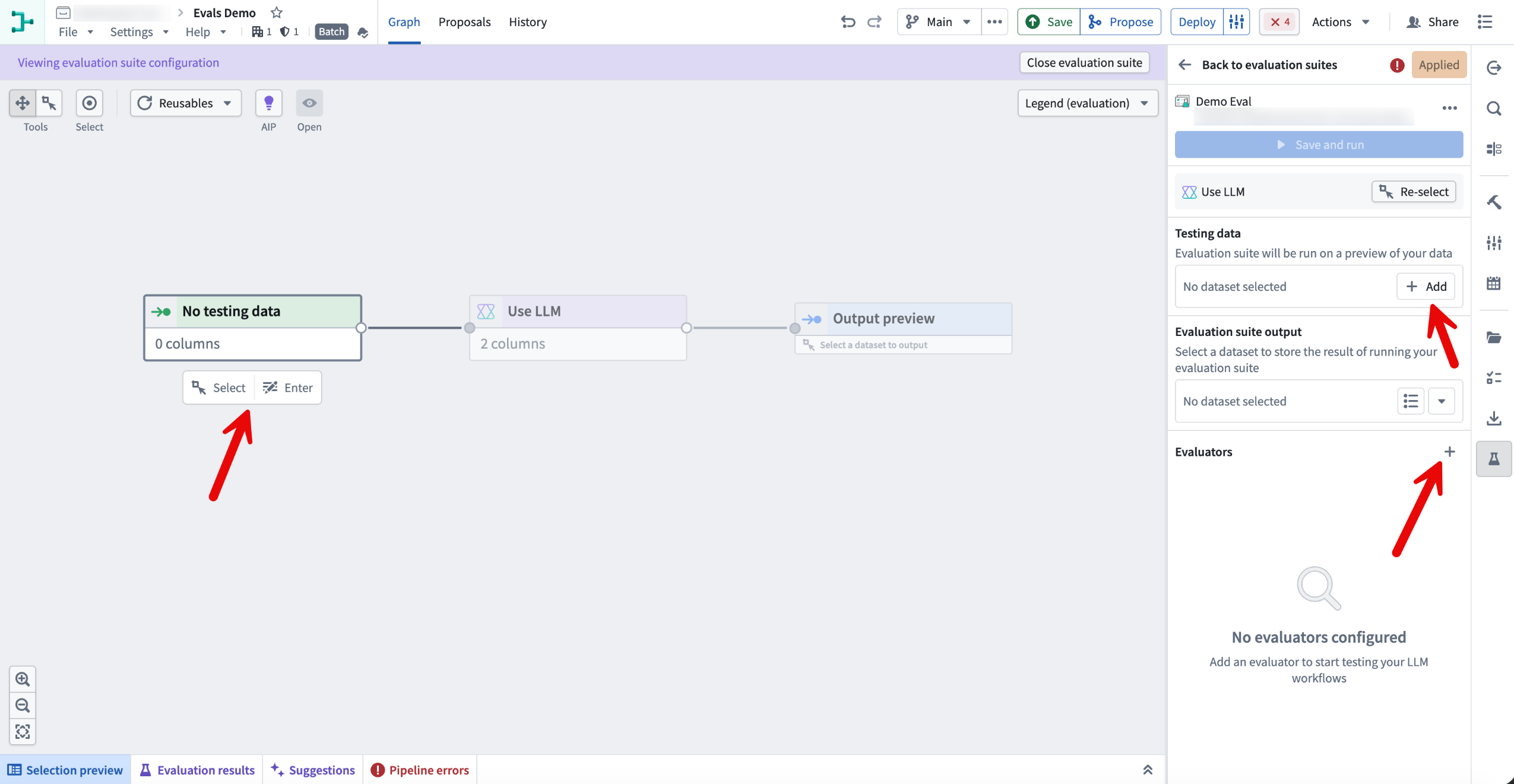
Add testing data, an output dataset, and evaluators for a Use LLM node.
Compare outputs with built-in evaluators
Add one or more evaluators to compare generated outputs with expected results or other passing conditions. For example, use Exact string match for direct comparisons or LLM-as-a-judge to determine whether a user-defined condition is satisfied.
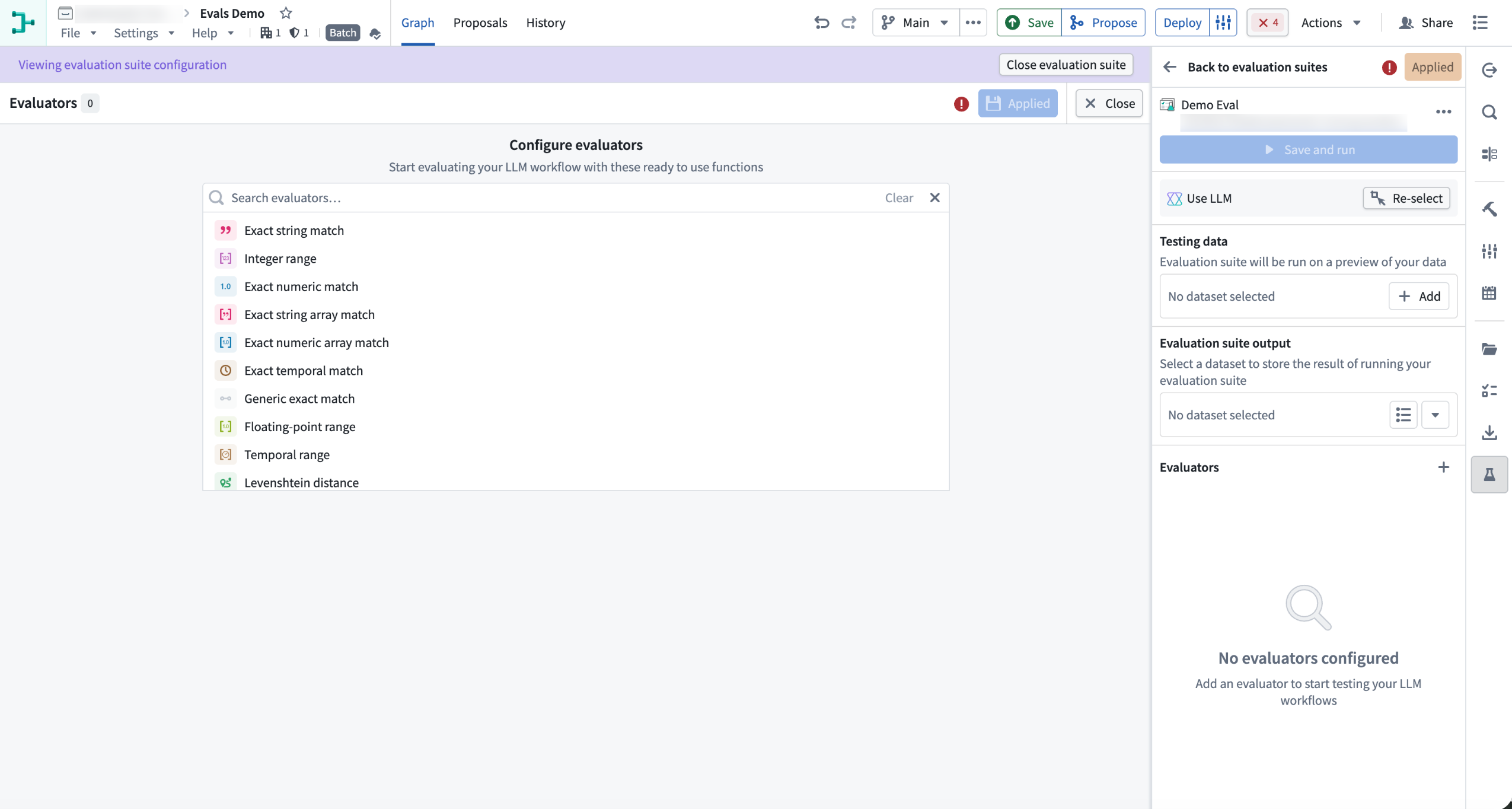
Configure evaluators in evaluation suites.
Analyze results in Foundry
Preview results directly in Pipeline Builder or use the output dataset in other Foundry applications, such as Contour. Analyze performance and trends, investigate individual results, and identify changes that can improve your workflows.
Learn more about LLM evaluation suites in Pipeline Builder.
Share your feedback
As we continue to add features to Pipeline Builder, we want to hear about your experiences and welcome your feedback. Share your thoughts with Palantir Support channels or our Developer Community ↗ using the pipeline-builder ↗ tag.
Browse, compare, and share committed code with the code viewer in Code Workspaces
Date published: 2026-09-10
The new code viewer is now available in Code Workspaces, providing a read-only interface for browsing, comparing, and sharing committed code from repositories stored in Foundry, whether the code was developed in Foundry or locally. You can start browsing code immediately while a VS Code workspace loads in the background.
Browse committed code
Open a repository in Code Workspaces, then select the Code viewer tab in the page header. From the code viewer, you can:
- Browse files on a branch, tag, or commit
- Search by file name or across file contents
- View supported files, including Markdown files and Jupyter® notebooks, as rendered documents or source code
- Preview published functions in function repositories
Editor changes appear in the code viewer after they are committed and synchronized with the repository.
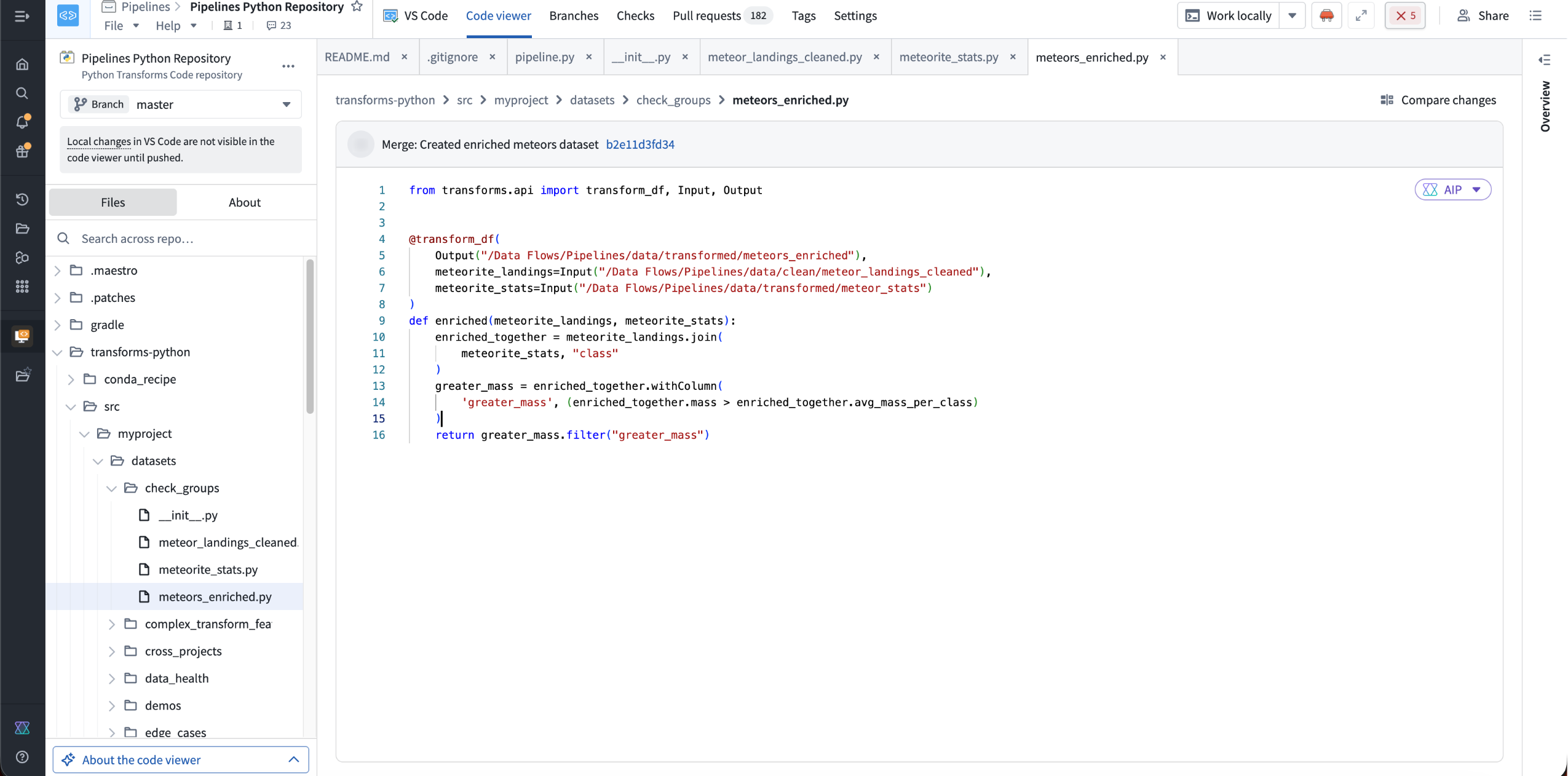
Browse files and view committed code in the code viewer.
Compare repository history
You can also use the code viewer to explore changes between two points in repository history. Select Compare changes, choose the references you want to compare, and select a changed file to view a side-by-side diff.
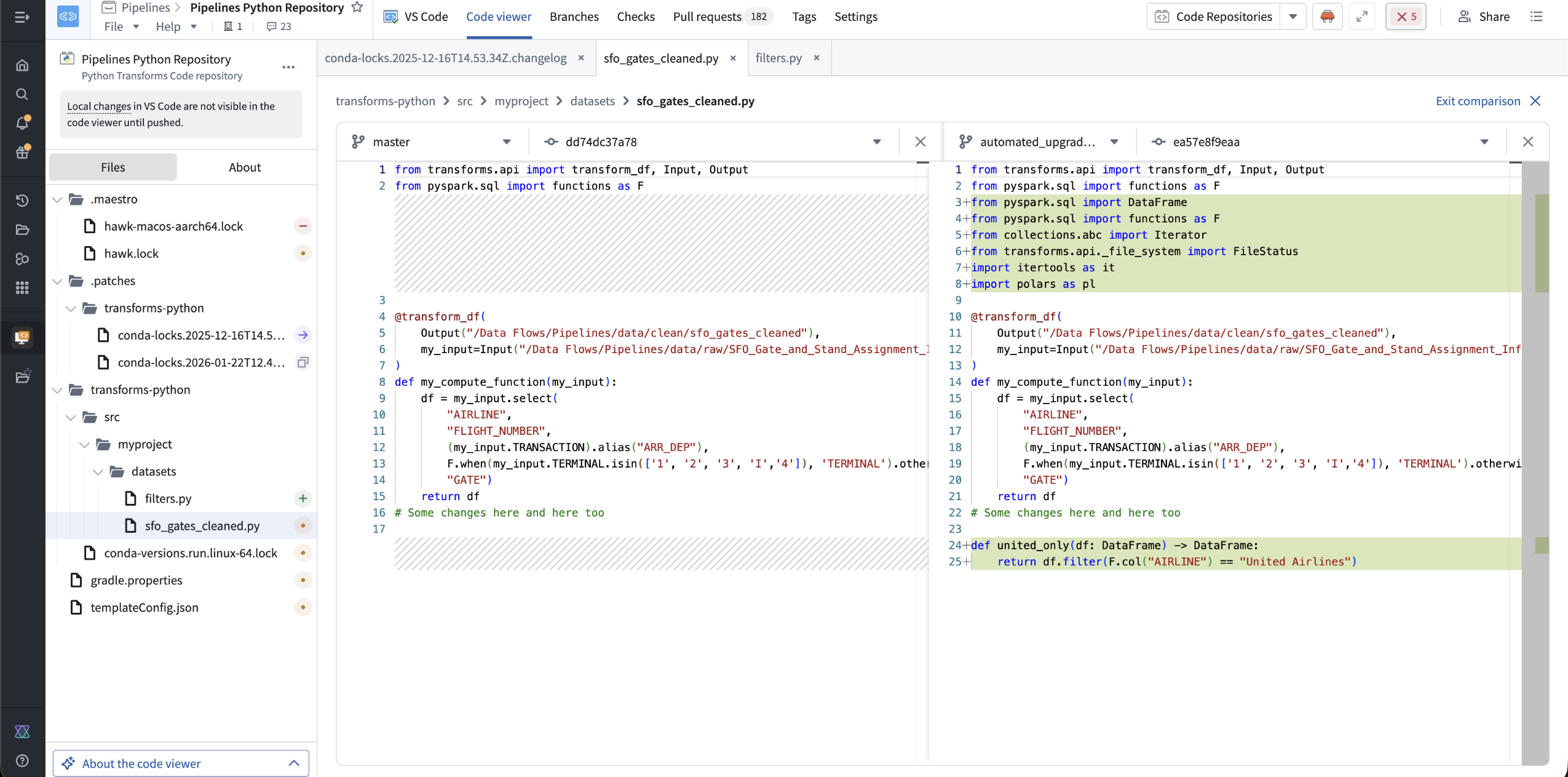
Compare two repository references with a side-by-side diff.
Share stable links to code
Create a permalink to an exact commit and line range so others can reference the same code, even as the branch advances. Select a line number, or hold Shift while selecting another line to choose a range, then select Line actions > Copy permalink.
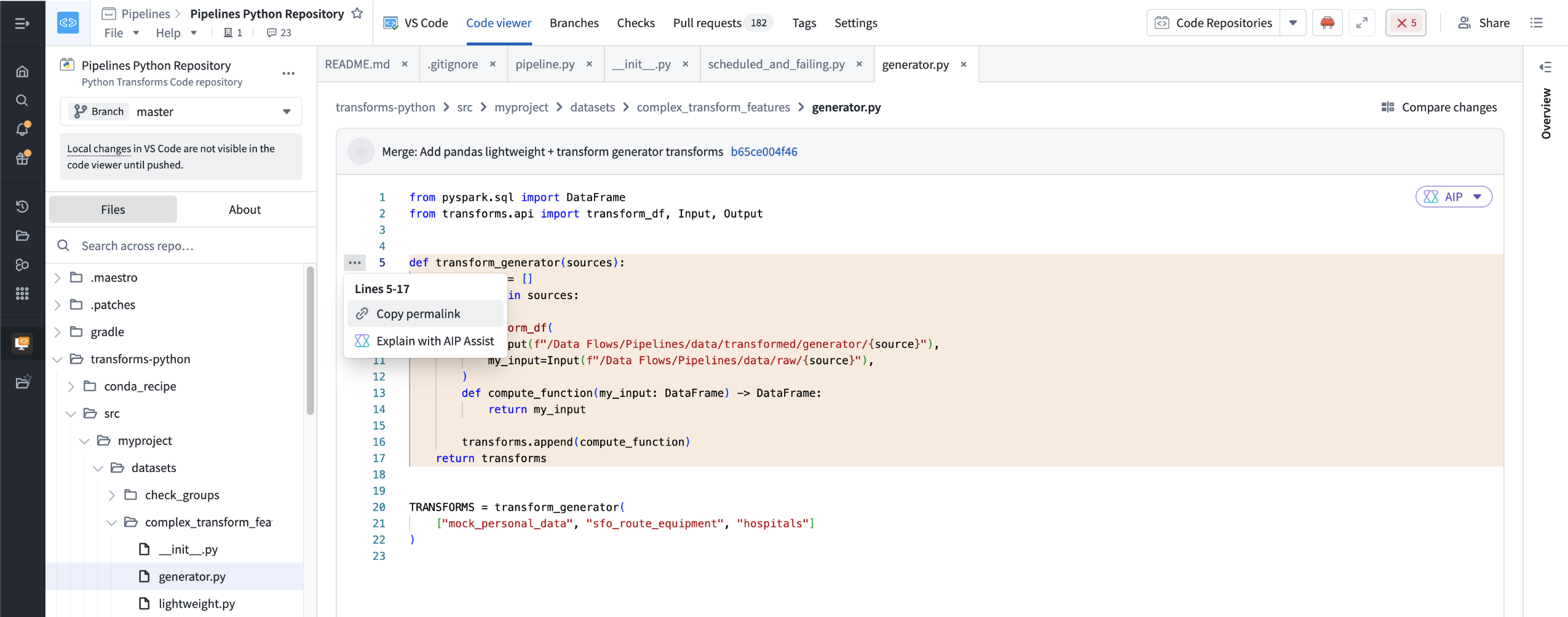
Copy a permalink to selected lines.
Browse while VS Code starts
By default, the code viewer opens when you open a stopped VS Code workspace, allowing you to browse committed code while the workspace session starts in the background. The VS Code tab icon displays the workspace status. When the workspace is ready, select VS Code to begin editing.
To disable this behavior, select Settings > Preferences, then disable the setting to Open code viewer while workspace is loading.
The code viewer is available alongside VS Code, JupyterLab®, and RStudio® Workbench. Automatic background startup applies only to VS Code workspaces.
Learn more about the code viewer in Code Workspaces.
Share your thoughts
We want to hear about your experience using the code viewer in Code Workspaces. Share your feedback with Palantir Support channels or on our Developer Community ↗ using the code-workspaces ↗ tag.
Detect sensitive data using language model match conditions in Sensitive Data Scanner
Date published: 2026-09-10
To detect sensitive data that is difficult to model as a regular expression or fixed list of values, you can now use a natural language prompt and set examples for large language models to evaluate datasets, virtual tables, and media sets using match conditions in Sensitive Data Scanner. Generally available across Foundry enrollments the week of September 7, language model match conditions use a large language model and a natural language prompt to classify whether scanned content, column names, or both contain sensitive data. When scanning media sets, Sensitive Data Scanner supports selecting a vision-capable model to classify image content directly or using a text-only model to classify extracted text from documents.
Get started with language model match conditions
To create a language model match condition, choose Language model as the condition type, select a model, and define the matching logic. You can configure the condition to evaluate:
- Content, meaning the data values within a column
- Column names
- Content and column names, where both must match
- Content or column names, where either can match
Additionally, Sensitive Data Scanner enables you to define examples and counter examples to clarify the information the model should detect.
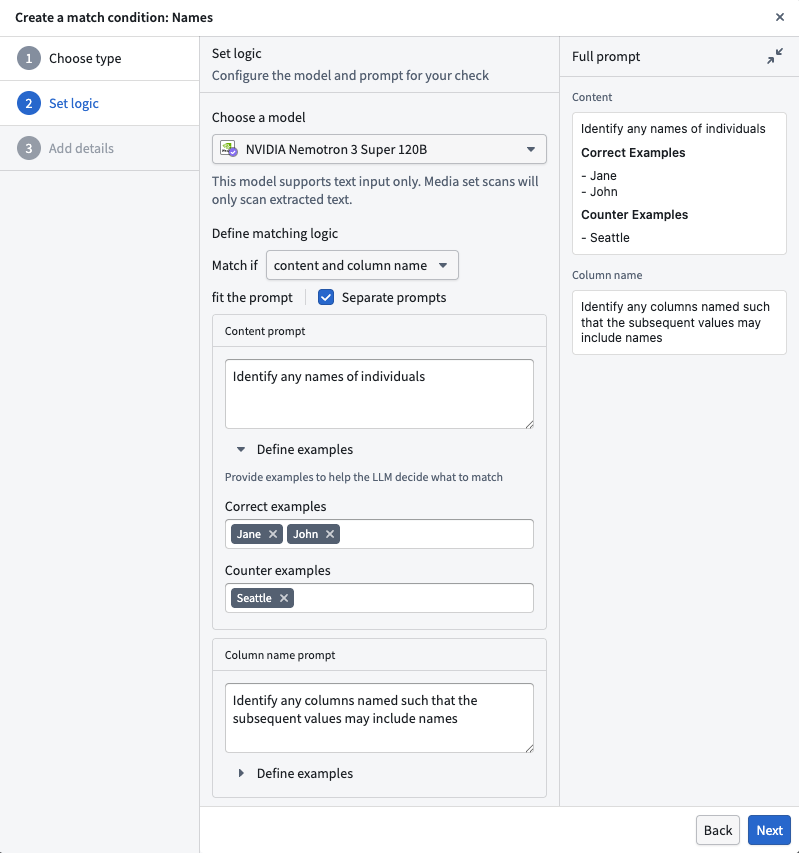
Configure the model and prompt for your language model match condition in Sensitive Data Scanner.
Review the create match conditions documentation to learn more about configuring language model match conditions.
Share your thoughts
As we continue to add features to Sensitive Data Scanner, we want to hear about your experiences and welcome your feedback. Share your thoughts with Palantir Support channels or our Developer Community ↗ using the sensitive-data-scanner ↗ tag.
Introducing AIP Evolve: Coordinate AI FDE agents to improve AI systems in Foundry
Date published: 2026-09-08
AIP Evolve is now generally available for enrollments with AIP enabled and access to AI FDE. AIP Evolve coordinates fleets of AI FDE agents to improve AI systems in AIP. Define a target, optimization goal, validation strategy, and operational constraints, then review the resulting proposal and agent activity before merging changes.
Early adopters have used AIP Evolve to autonomously cut AI costs, improve eval performance, and migrate workloads to open source models. Learn more about AIP Evolve.
Key features
AIP Evolve supports iterative improvement workflows with the following features:
- Guided setup for model migration, cost reduction, latency reduction, evaluation score improvement, and custom goals.
- Flexible validation using selected test cases or existing evaluation suites.
- Configurable scoring criteria and acceptable output divergence.
- Agent constraints that control permitted change types and the maximum number of iterations.
- A proposal view containing proposed changes, validation results, output comparisons, supporting evidence, and confidence assessments.
- An interactive agent graph for monitoring progress and inspecting agent goals, insights, and artifacts.
- Integration with Global Branching for reviewing proposed changes before merging.
- The ability to resume an evolution in AI FDE with additional instructions.
Requirements
To use AIP Evolve:
- Enable AIP and ensure that you can access AI FDE.
- Install the AIP Evolve Marketplace product in an Ontology.
- Ensure that you have access to the target resource and any data or evaluation suites used for validation.
Getting started
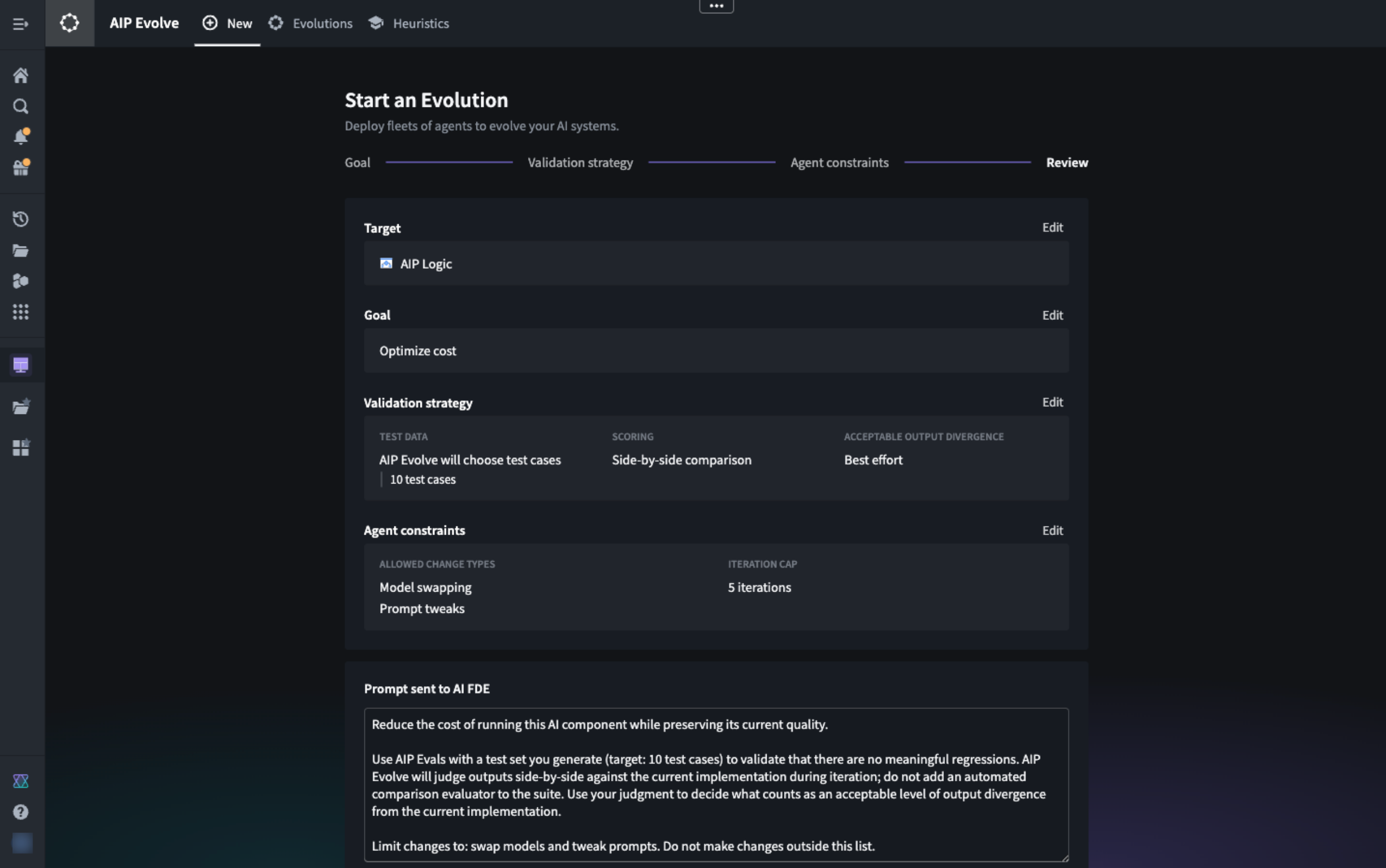
The AIP Evolve setup screen, showing the Review stage with a fully specified evolution.
Open AIP Evolve and select New to create an evolution. Select the Foundry resource you want to evolve, then configure the following:
- Goal: Choose a predefined optimization goal or describe a custom objective.
- Validation strategy: Define the test data, scoring approach, and acceptable output divergence.
- Agent constraints: Select the types of changes agents may propose and set an iteration policy.
Review the generated prompt, then select Evolve. AIP Evolve opens AI FDE in a new tab and starts the evolution. You can also select Write custom prompt to provide your own instructions.
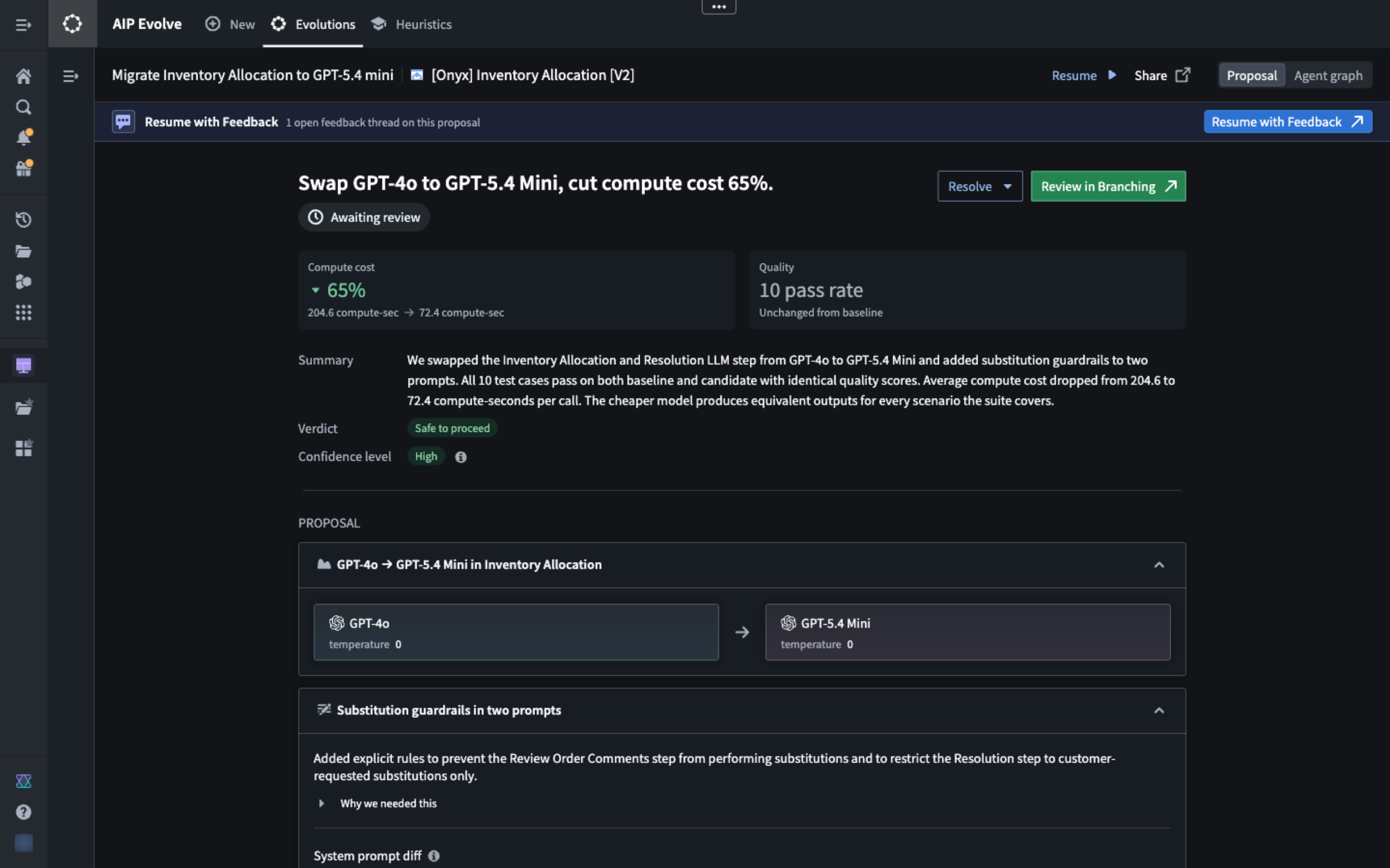
An example AIP Evolve proposal, where the system presents a model swap for cost reduction and the evidence that supports why the change is safe to make.
Open Evolutions to monitor active and completed evolutions. Use Proposal to review results and proposed changes, or Agent graph to inspect the agents involved in the evolution. When a proposal is ready, open it in Global Branching for final review and merging.
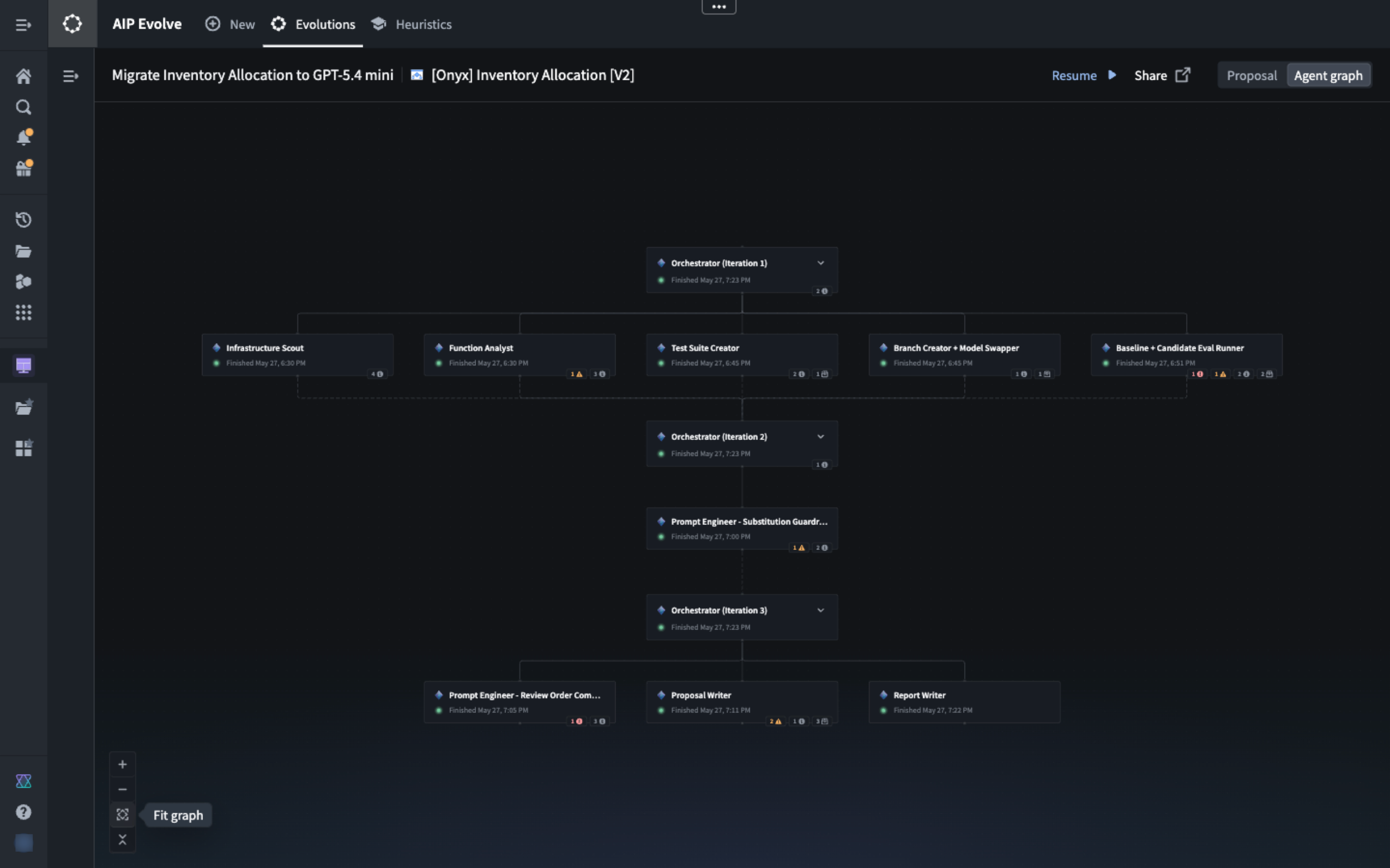
The AIP Evolve agent graph, showing each of the subagents that were spawned along the way to optimize the target AI component.
Your feedback matters
As we continue developing AIP Evolve, we welcome feedback about your experience. Share your thoughts with Palantir Support channels or our Developer Community ↗ using the aip-evolve tag ↗.
Major update to Palantir certifications, including new AI Engineer certification
Date published: 2026-09-08
Palantir's certifications have been refreshed and updated, including the addition of a new AI Engineer certification. There are now three levels of certifications that users can earn to demonstrate their knowledge of the Palantir platform: Foundation, Associate, and Specialist. The Foundation and Associate levels have timed multiple-choice exams, while the Specialist level features a hands-on, live exam in a real Foundry & AIP environment with AI tooling permitted.
Foundation
The Foundation level contains the Foundry Aware exam and is the recommended starting point for new builders before they move into role-specific certification. The Foundation exam tests:
- Your ability to use Foundry across all major platform capabilities to design, implement, and optimize data-driven business solutions.
- Your knowledge of the core Foundry platform components including data management, security governance, application development, system integrations, and workflow optimization.
- Your understanding of when and how to apply different Foundry tools and capabilities to solve real-world business problems is essential knowledge for this test.
Associate
The Associate level contains our refreshed Associate Data Engineer and Application Developer exams, along with our new AI Engineer exam. These Associate certifications require learners to demonstrate foundational, role-specific knowledge. All Associate exams are timed, multiple-choice, and valid for two years.
- The Associate Data Engineering certification tests:
- Your ability to use Foundry to develop, maintain, and validate a data pipeline in Foundry.
- Your knowledge of the different tools in the Foundry suite that can be used to achieve these outcomes and your understanding of the optimal use case for each.
- Your understanding of basic Foundry pipeline best practices, the Ontology, and knowledge of downstream business applications.
- The Associate Application Developer certification tests:
- Your ability to design and create an ontology in Foundry as well as build operational applications on top of your ontology.
- Your knowledge of the different tools in the Foundry suite that can be used to build applications, and your understanding of the optimal use cases for each.
- The Associate AI Engineer certification tests:
- Your ability to build and operate routine AI-powered functions, agents, retrieval systems, and workflows.
- Your ability to recognize when a use case needs deeper specialist review.
Specialist
For learners who want to go further, there are Data Engineer, Application Developer, and AI Engineer Specialist certifications. Specialist certifications assess advanced work through hands-on, live exams in a real Foundry and AIP environment that are delivered by Ontologize, our recognized training partner.
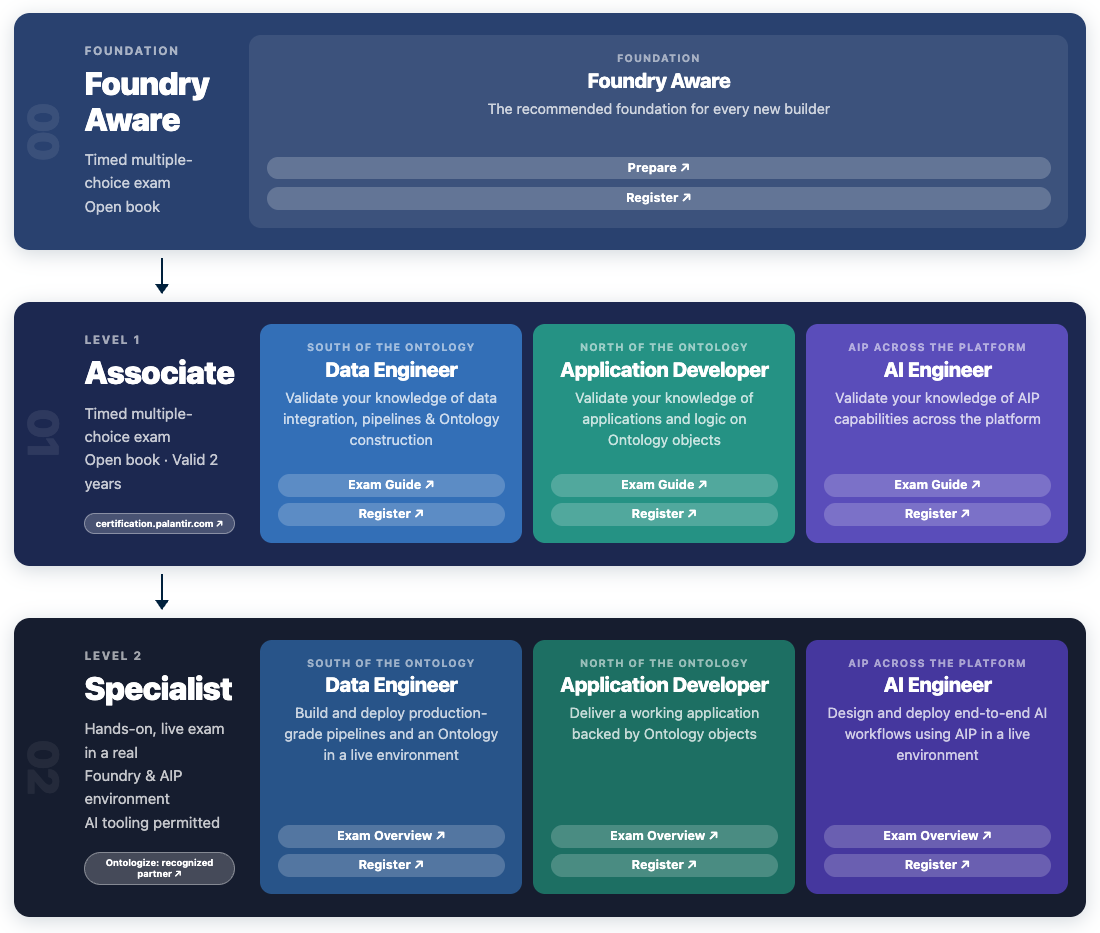
Diagram of the Palantir certification framework
Introducing Vulcan, a CAD review application for the Ontology
Date published: 2026-09-08
Update: As of the week of September 28, 2026, this product is now generally available.
Vulcan is a 3D visualization application that renders engineering geometry directly from Ontology data. Mesh models (GLB, GLTF, STL, OBJ, PLY, and 3MF), 2D engineering drawings (DXF), and point clouds (LAS and LAZ) can be loaded without conversion, and a single scene can contain all the models needed for a workflow. Vulcan is available in beta across all enrollments starting the week of September 7.
When saved, annotations, measurements, and section planes created in Vulcan are written to the Ontology as objects. A flagged defect can be used to trigger an alert, a critical dimension can be tracked in a dashboard over time, and a saved cross-section can be retrieved or shared with another team. Vulcan runs as a standalone application and can also be embedded in Workshop as a widget, where camera position, part selection, and measurement results can be connected bidirectionally to Workshop variables.
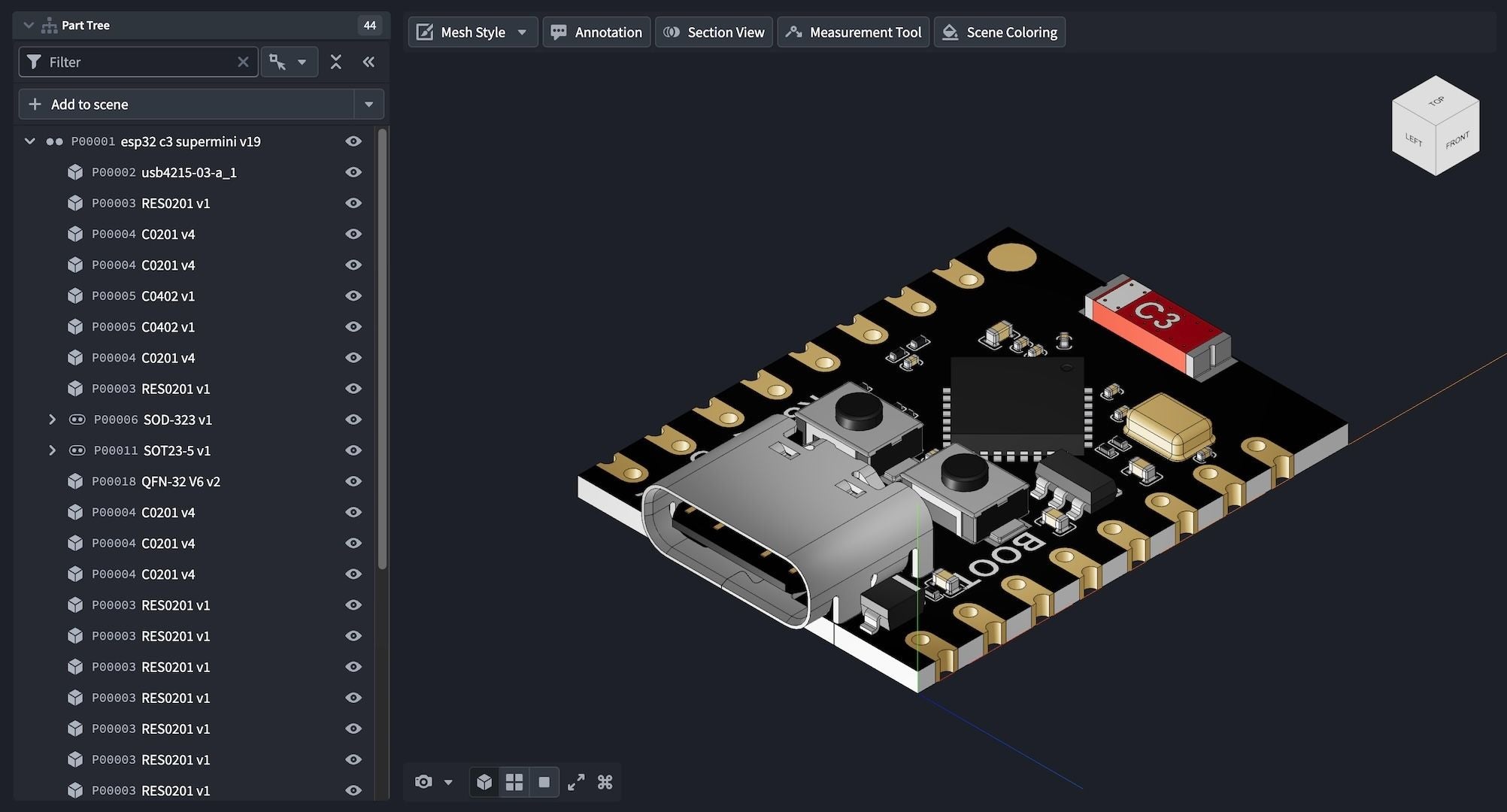
The part tree lists every part instance in the assembly, with each instance corresponding to an object in the Ontology. Model Source: Printables released under CC0 (public domain).
Vulcan has Ontology-backed tools to support cross-team workflows:
- Measure distances on models
- Create annotations
- Slice models with section planes
- Apply colors to parts with Ontology actions
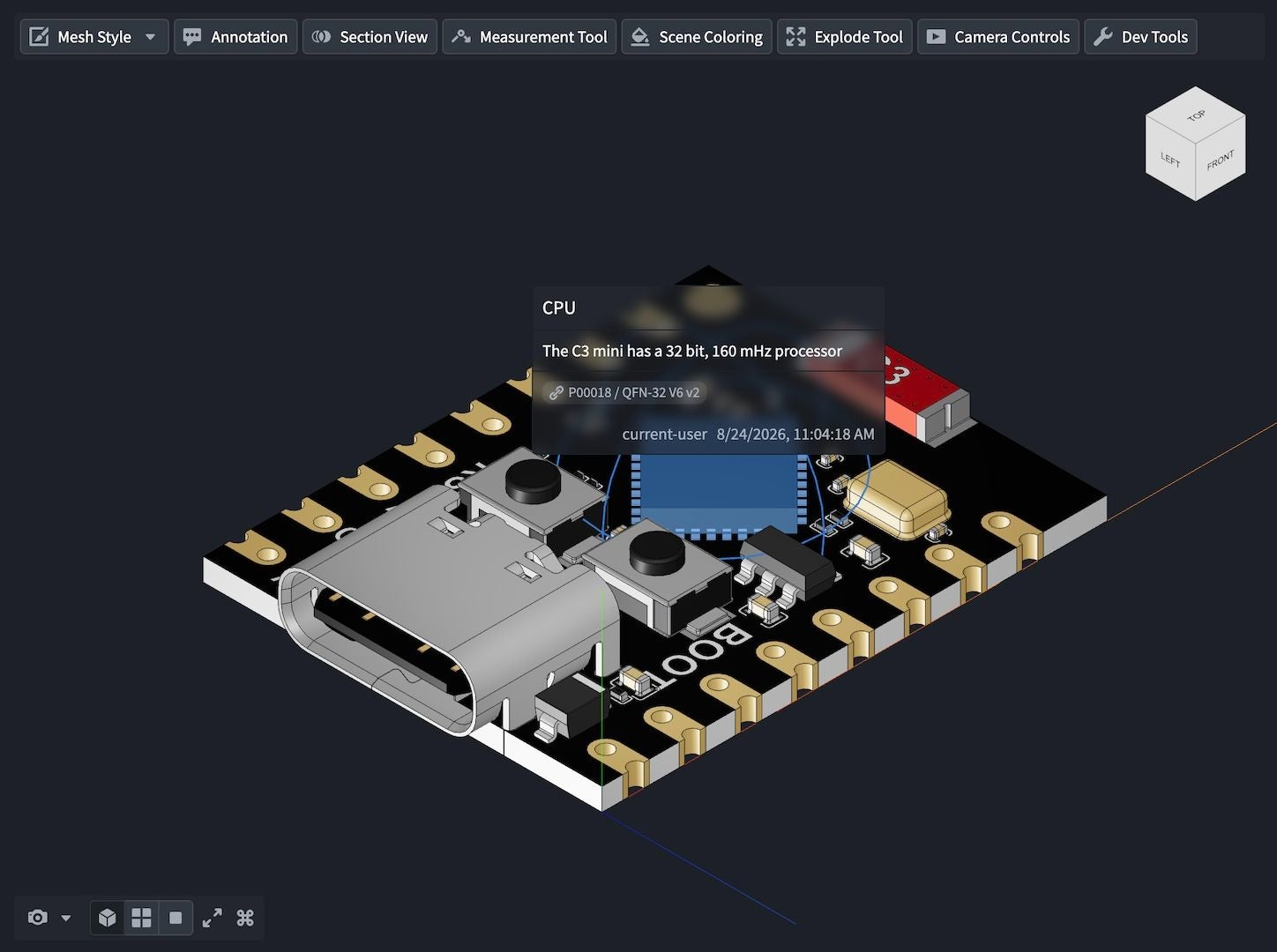
Annotations and measurements on a CAD model in Vulcan. Source: Printables, released under CC0 (public domain).
See how Vulcan can support your production workflows:
- Markup models to provide instructions for assembly or repair procedures
- Share annotations and measurements across design-review teams
- Color models according to inventory levels or failure rates
- Visualize the results of automated design-verification runs in the Palantir platform
- Use components and models imported into Vulcan for further analysis across the Foundry application suite
To get started, load a CAD object into the viewport and select Add to scene. To learn more about the tools, the Workshop widget, and the Ontology object types and actions that Vulcan reads and writes, review the Vulcan documentation.
Your feedback matters
We want to hear about your experiences using Vulcan in the Palantir platform and welcome your feedback. Share your thoughts with Palantir Support channels or on our Developer Community ↗ using the vulcan ↗ tag.
Visual rebasing makes Workshop changes easier to resolve
Date published: 2026-09-03
When multiple builders update the same Workshop module on different branches, rebasing incorporates changes from main into a branch before that branch is merged. Workshop now provides visual rebasing to help reconcile granular changes to widgets, sections, and variables between main and your branch.
Previously, you had to inspect the module’s JSON definition in the Changelog panel to determine what changed. Visual rebasing brings this workflow into the module editor, where you can accept, reject, or combine changes while seeing how they affect your module.
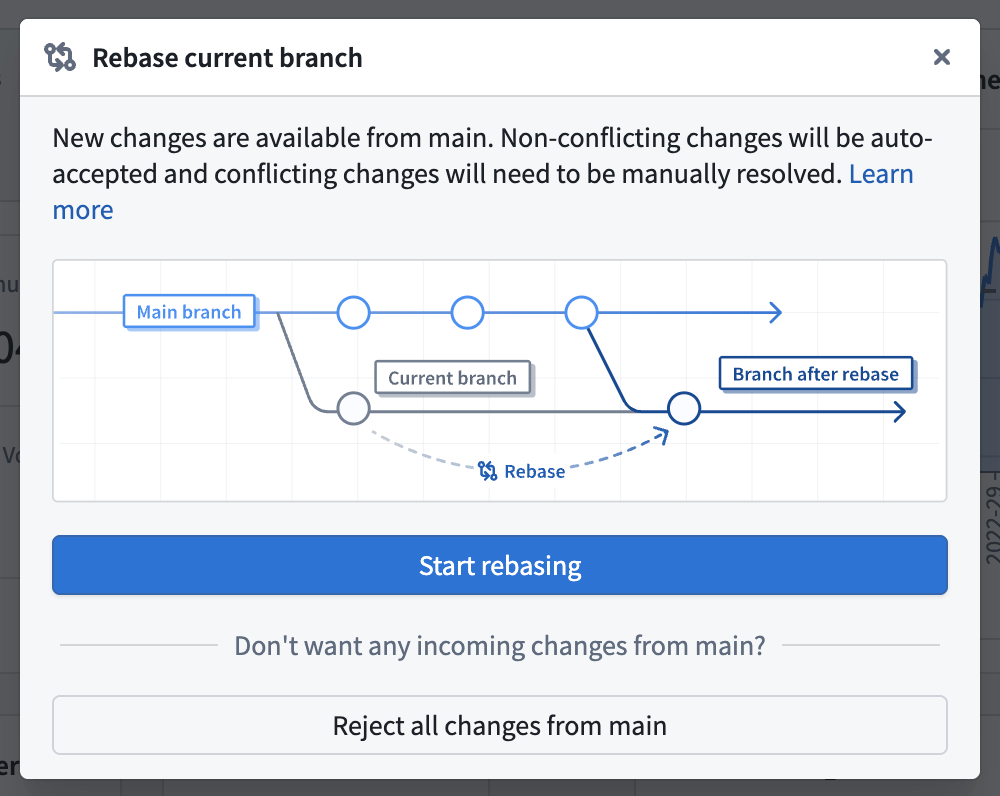
The rebase dialog lets builders start a visual rebase or reject all changes from main.
Understand changes in context
During rebasing, change icons appear beside the affected settings in widget and section configuration panels. The icons distinguish additions, modifications, deletions, shifts, and conflicts, so you can locate changes without leaving the configuration you are reviewing. Select an icon to open a detailed view of main and your branch side by side.
- Conflict: The same property for the same component was edited on
mainand the branch. - Addition: A property or component was added.
- Modification: A property or component was edited.
- Deletion: A property or component was deleted.
- Shift: A section or widget was moved to a different parent.
- Branch: A property or component was resolved using the branch version.
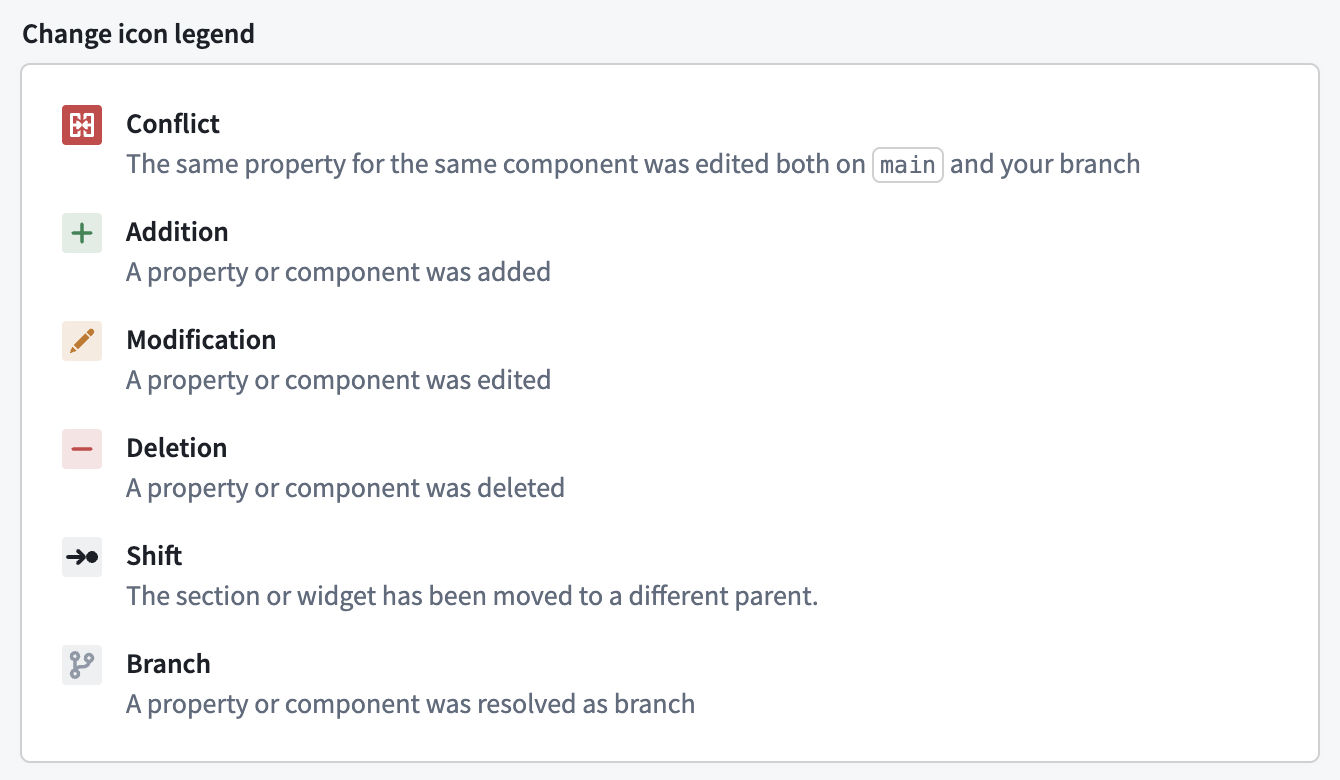
The change icon legend identifies differences between the two versions.
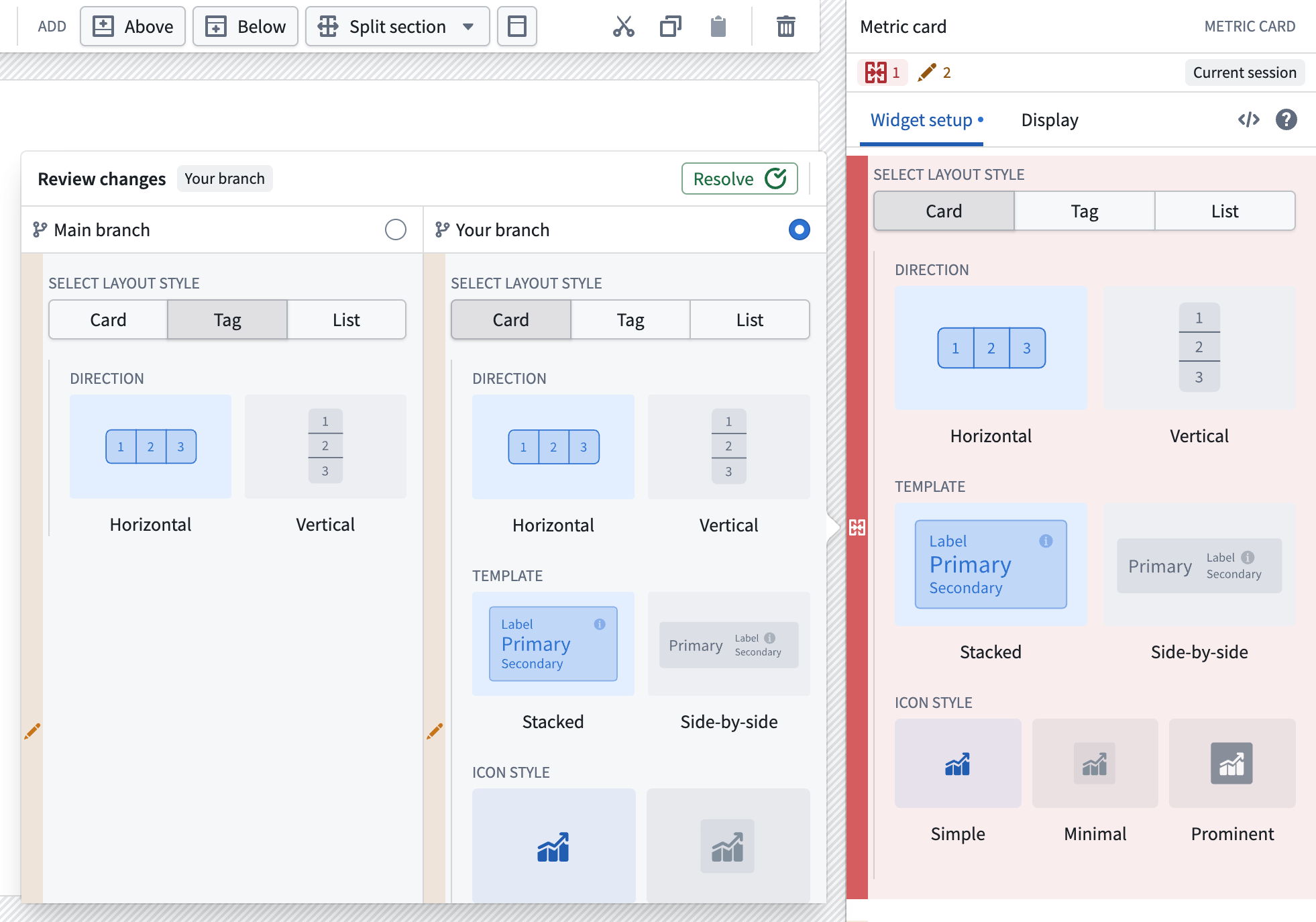
The review changes dialog compares the metric card configuration on main with the configuration on your branch.
Variable conflicts use the same workflow. Select a conflicting variable to open its editor and compare the complete definition and settings for each branch.
How to preview, accept, and combine changes
By default, Workshop automatically accepts non-conflicting changes from main and merges them into your branch. You only need to take action when the same configuration field, variable definition, or layout position was changed on both branches.
Select Main branch or Your branch to preview a configuration temporarily and see its effect on the module. You can accept either version as-is or use one as a starting point for further edits. Those edits create a Current session state that can combine changes from both branches.
To replace the entire module configuration from main with the branch configuration, select Reject all changes from main when you start the rebase. This causes the branch configuration to override changes from main when you merge the branch. Use this option only when you want to discard all incoming changes.
What's next
Future updates to visual rebasing will support layout shifts and changes to module-level settings.