- Capabilities
- Getting started
- Architecture center
- Platform updates
Product groups
Use a product group to organize and validate Marketplace products that you plan to install together as a single end-to-end workflow. Product groups catch packaging and compatibility issues during development and validate whether selected versions can be installed together before deployment. You can fix these problems before they cause installation failures.
Product groups are in the beta phase of development. Functionality may change during active development.
Product groups can contain product or installation members. A group can include up to 100 members from multiple stores. Product groups add workflow-level validation without changing how individual products are packaged, installed, or upgraded.
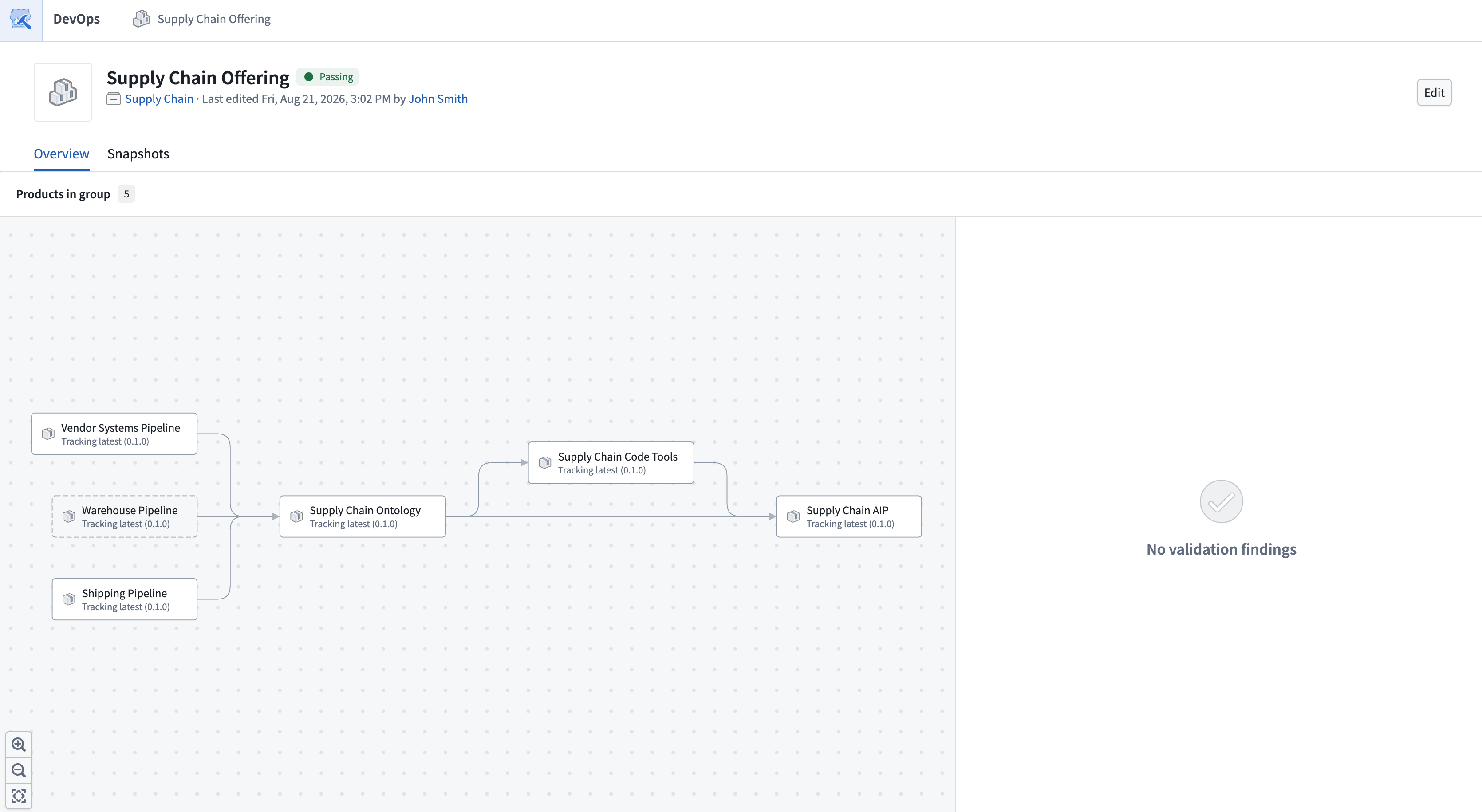
The product group graph shows how products depend on one another and flags problems across the workflow. In this example, a supply chain offering spans Pipeline Builder, Ontology, functions, and AIP products. The passing status confirms that the group has no issues blocking deployment.
Create a product group
Create a separate product group for each complete offering you manage.
To create a product group:
- Open Foundry DevOps and select a store.
- Select the Product groups tab. This page lists product groups that reference products in the selected store.

- Select New product group. Products from the selected store appear first, but you can add products and installations from other stores.
- Add a product to start the workflow. To simplify the creation process, hover over the product in the graph and select Add upstream members to add its upstream linked products to the group.

- Add any remaining products or installations that belong in the workflow. Choose a member type based on how the group should select its version.
- Review the version policy of each product and the role of each member, then save the group.
You can return to the saved group from the store's Product groups tab or from Compass.
Choose a member type
The member type determines where the version comes from:
- Product: Add a product when it is available from a local store. The group selects the version using a version policy.
- Installation: Add an installation when products in the workflow depend on a product already installed in the namespace where they are built. The group validates the workflow products using the installed version.
Member type does not determine how a member relates to the workflow. Use the member role to identify workflow members and external dependencies.
Select product version policies
A version policy controls which version of a product the group validates:
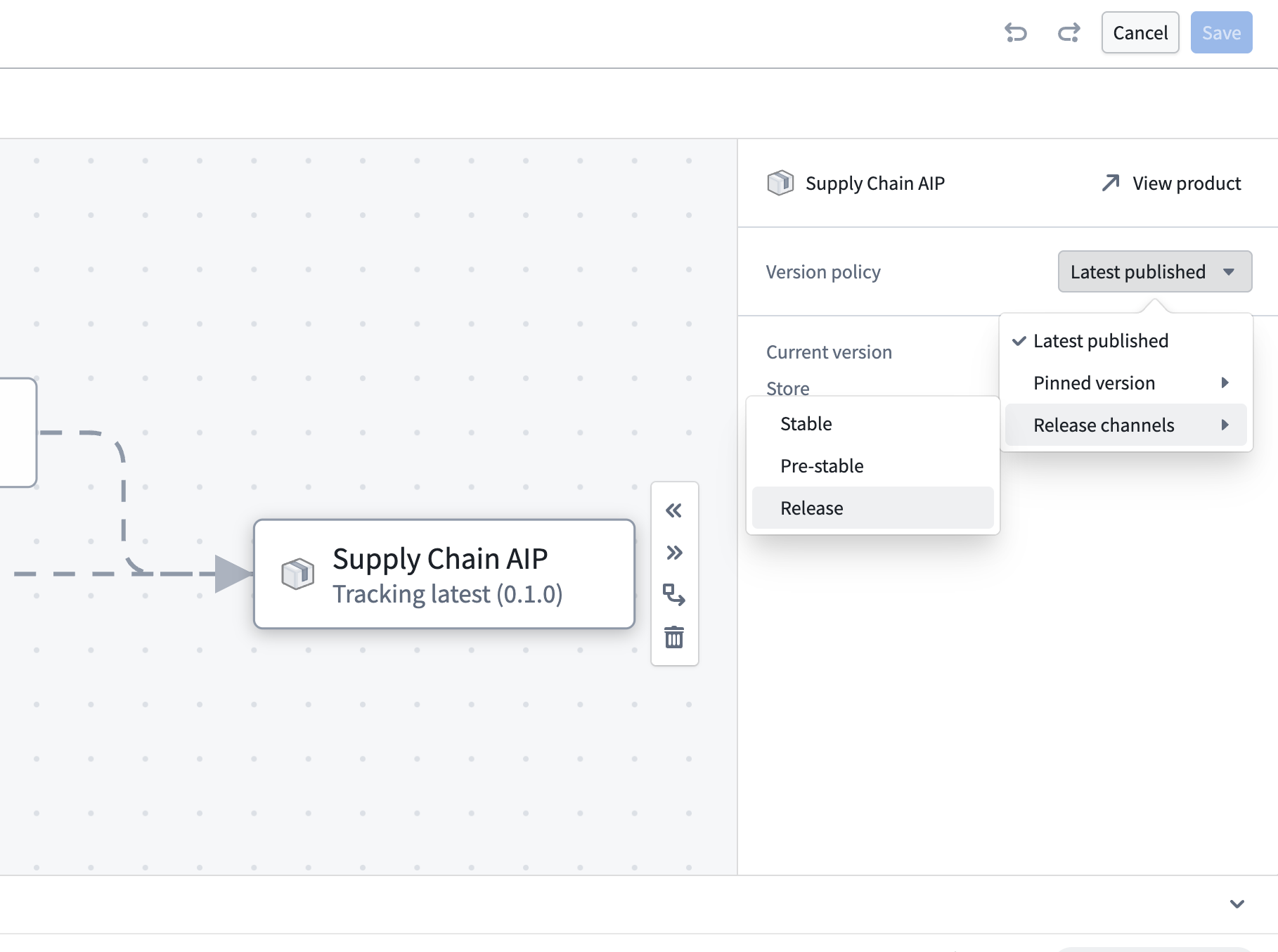
- Latest published: Tracks the newest published version. This default keeps the group aligned with active development so you can catch compatibility issues early.
- Pinned version: Uses a fixed version so that you can reproduce the same product group configuration later.
- Release channels: Uses the newest version available on a selected release channel. Choose this policy when the group should follow versions as they move through your release process.
Only product members have version policies. Installation members always use their installed version. When a policy follows the latest published version or a release channel, the version validated by the group can change as new versions become available.
Choose member roles
A member's role describes how it relates to the offering:
- Workflow member: A member that you plan to install and manage as part of the offering.
- External dependency: A member that the workflow requires but that is owned, released, or installed separately.
Product groups check whether all workflow members can be installed together as a complete offering. Some workflows also rely on linked products that must already be installed. Add these products as external dependencies. The group checks that workflow members are compatible with them, and Marketplace can use their existing installations to fulfill inputs when installing the workflow.
Roles are relative to each product group. For example, a shared Ontology offering owned by another team might be an external dependency for your workflow but a workflow member in its own product group.
Products default to Workflow member, while installations default to External dependency. You can change either role when configuring the group, as long as the group keeps at least one workflow member.
When configuring a member, select Make external dependency or Include in workflow to change its role.
Resolve validation findings
After configuring a product group, review its validation status to confirm that the workflow members can be installed together. Some findings block installation, while others are advisory; resolve the blocking findings before deploying the offering.
Product group validations check for issues such as:
| Finding | What it means | Remediation |
|---|---|---|
| Dependency cycles | Products form a circular dependency: each product needs another product in the cycle to be installed first, leaving no valid installation order. | Change or remove one dependency so that the products can be installed in sequence, then publish new versions. |
| Duplicate outputs | Two or more products package the same resource. | Decide which product should own the resource, then remove it from the other products and publish new versions. |
| Incompatible upstream version | The group uses a linked product version that is not compatible with the product that depends on it. | Repackage the product to support the selected linked product version, or select a linked product version that it already supports. |
| Missing inputs | A product needs a resource that no product in the group provides. | Include the missing resource in the product that needs it, or package it in another product that can provide the input. Then publish a new version. |
| Missing recommendation | Another product provides the required input, but the linked product recommendation is missing. | Repackage the product that needs the input to generate the recommendation. |
| Stale product versions | A selected product version is more than six months old and may not work with newer products. | Publish and select a new version of the stale product. |
| Unused external dependencies | No workflow member uses the external dependency as a linked product. | Remove the external dependency from the group. |
Use the findings list to review every validation issue in the group. Select a product in the graph to see the findings and affected resources for that member.
In this example, Supply Chain Apps requires the Vendor Contact Information object type, but no member provides it. Vendor Contact Information was not included in any product when the workflow was packaged. Add it as an output of Supply Chain Ontology, then package new versions of both products together. Foundry DevOps detects the output, maps it to the required input, and creates the linked product recommendation.
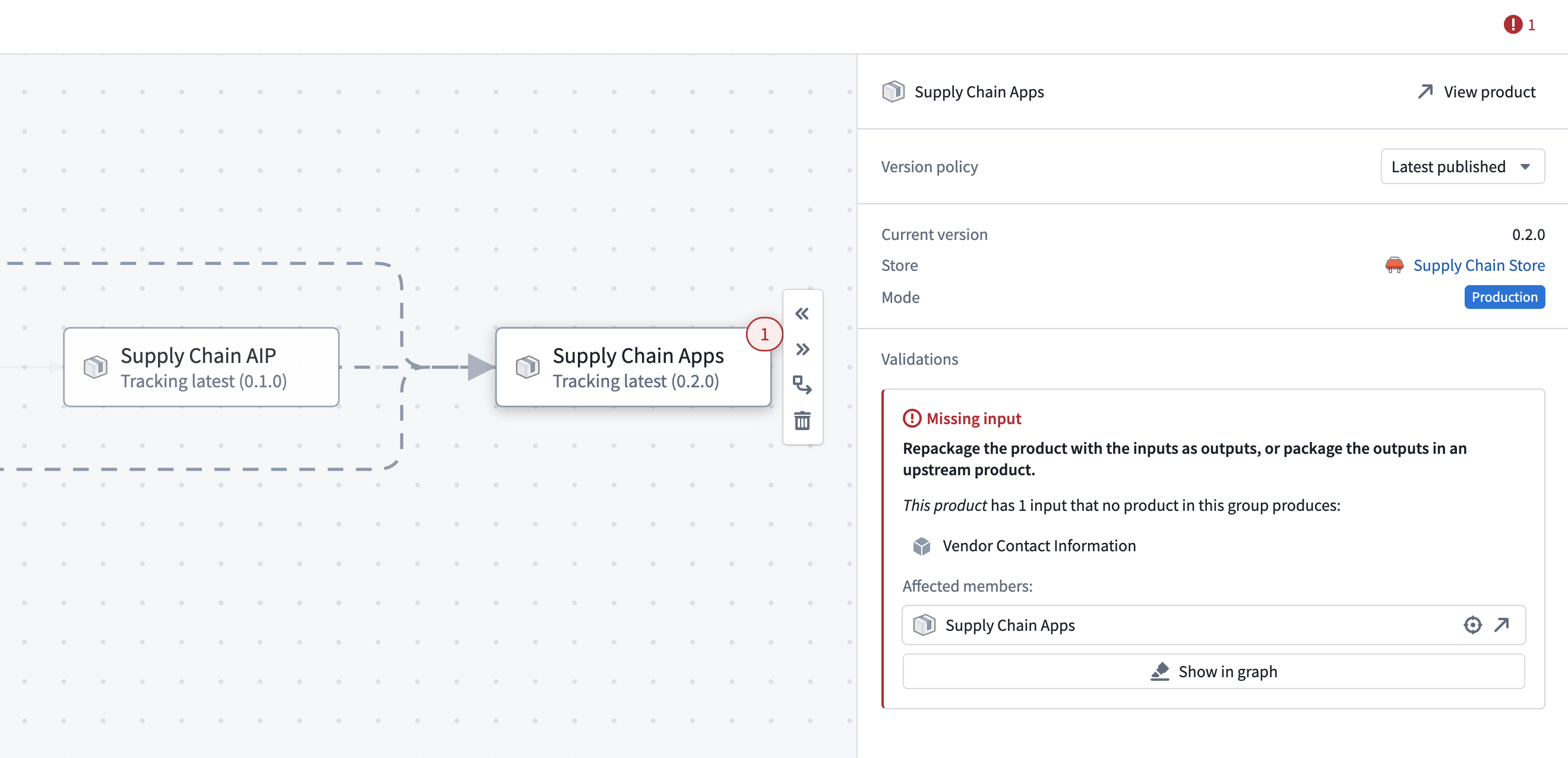
After publishing your fixes, refresh the product group to rerun validation and confirm that the offering can be installed.
Create and review snapshots
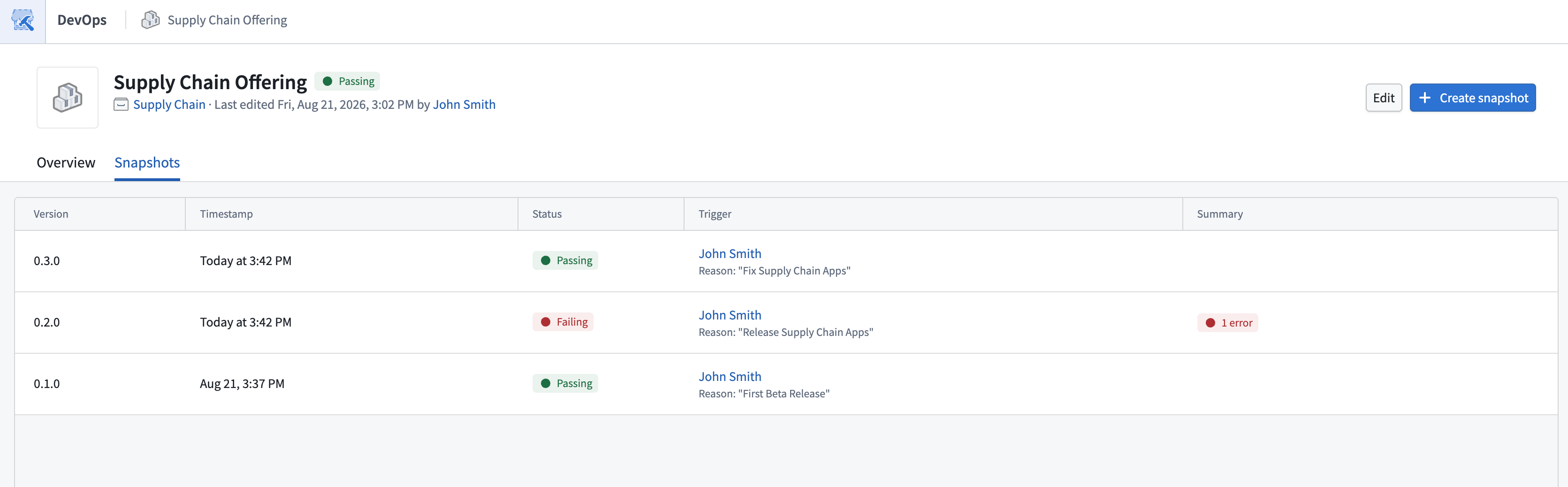
A product group can change as you update its members or as version policies select newly published product versions. To preserve the exact state of the group and its validation results, select the Snapshots tab on the product group page, then select Create snapshot.
Each snapshot is immutable and records:
- Group members
- The exact version of each member
- Validation results
The Snapshots tab lists previously created snapshots and their validation status. Select a snapshot to review its members, product versions, and findings. Use this history to reproduce a known working configuration, find the last product versions that could be installed together, or identify which change introduced a validation failure. Snapshots also preserve failed validation results, giving you a record of the offering before and after a problem appeared.