- Capabilities
- Getting started
- Architecture center
- Platform updates
Create an application using a different Organization
This guide describes the workflow for applications using legacy permissions. If your enrollment has Compass-managed user permissions enabled, applications inherit permissions from their parent project or folder, and sharing workflows may differ.
When you develop a service or application in Developer Console that uses a confidential client, Developer Console creates a service user with your application. You must grant the service user any necessary permissions to read and write to the Ontology.
In environments with classification-based access controls enabled, service users do not automatically inherit the maximum classification set for the application. You must explicitly add the service user to the appropriate groups and classifications for it to have the desired access level.
By default, the service user will be added as a guest of the organization that is selected in the Developer Console, as shown in the image below.
The Developer Console organization dropdown only shows organizations that are marked on the currently selected location. Even if you are an admin of an organization, it will not appear in the dropdown unless that organization has been marked on the location you have selected.
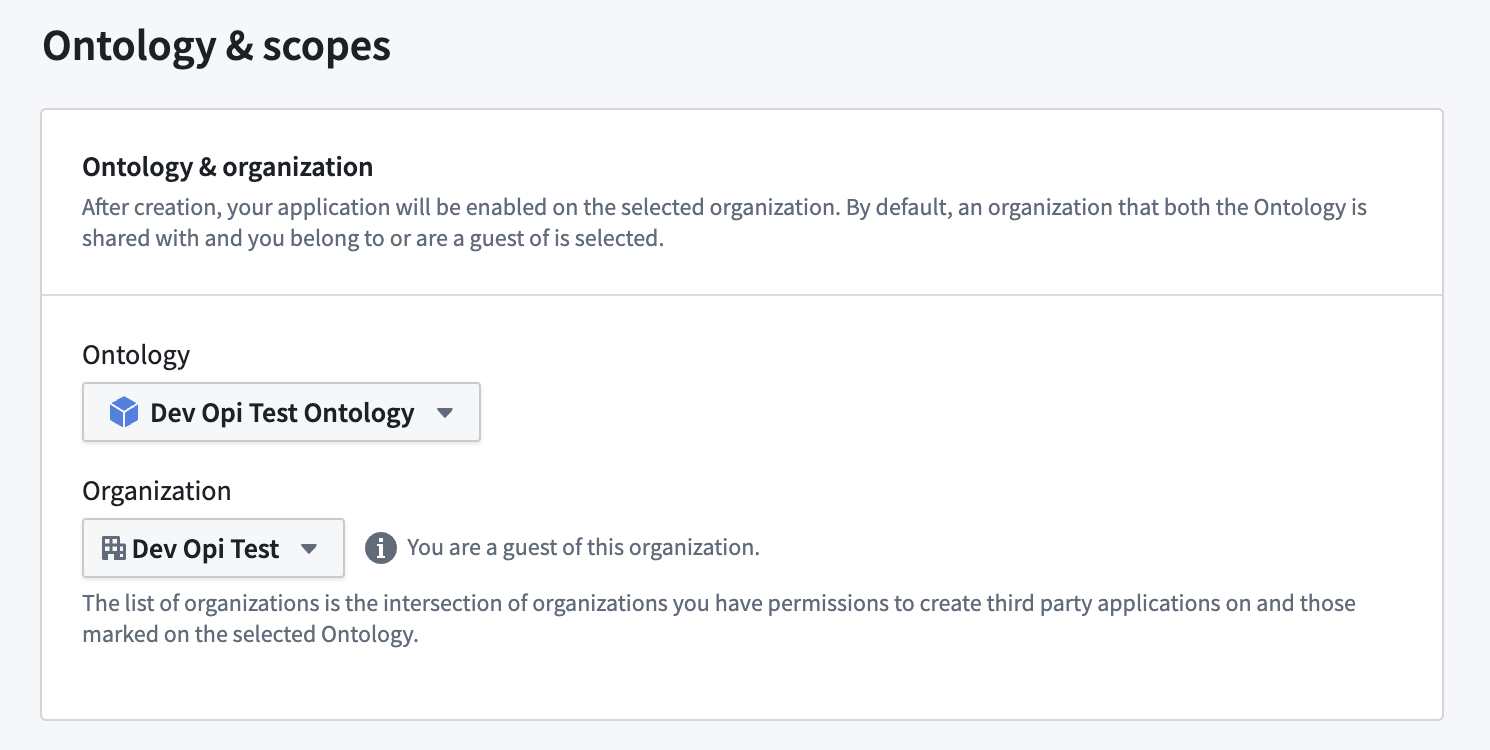
However, if that organization is different from your default organization, you will not be able to see that user or grant permissions to it until you complete the following two steps:
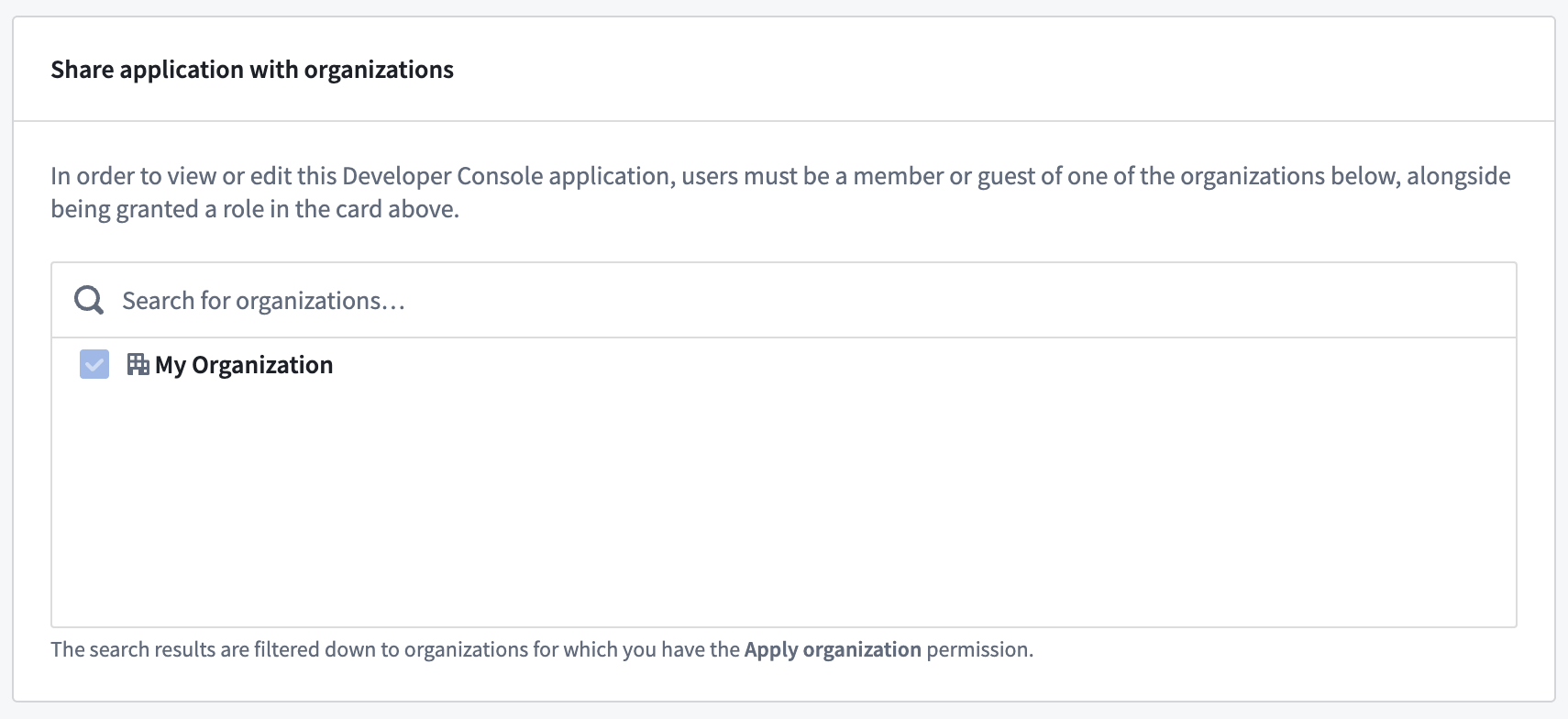
Share the application with your organization
Prepare your application for use in your organization with the following steps:
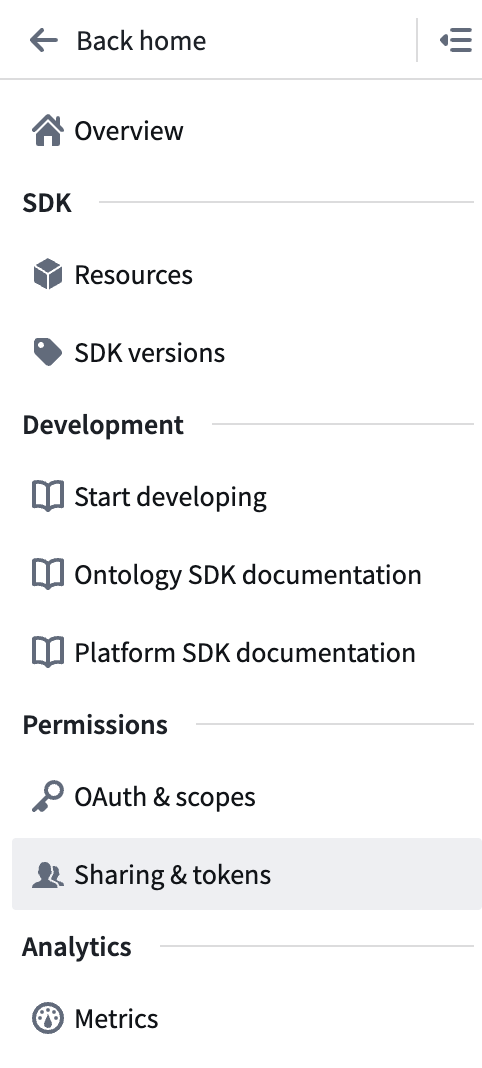
- In Developer Console, navigate to Sharing & tokens on the left sidebar.
- Use the Share application with organizations interface to add your organization to the list and save your changes.
Enable the application on your organization
Once you have shared the application with your default organization, you can switch back to your default organization and find the application again.
- Open the Third party applications page in Control Panel and find your application.
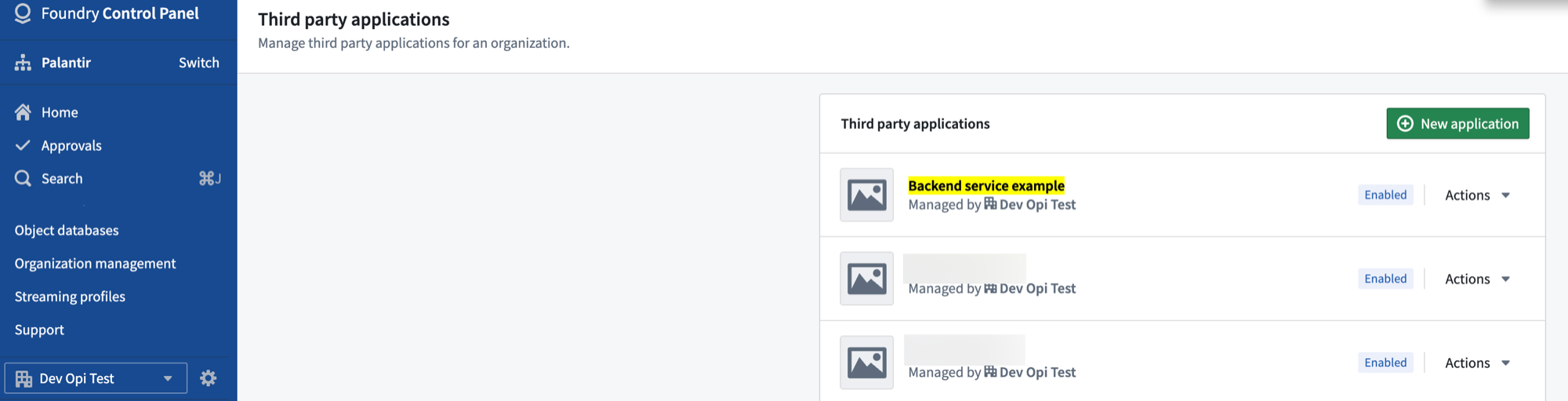
- Select Actions, then Enablement settings.
- At the top of the page, toggle on Enable application.
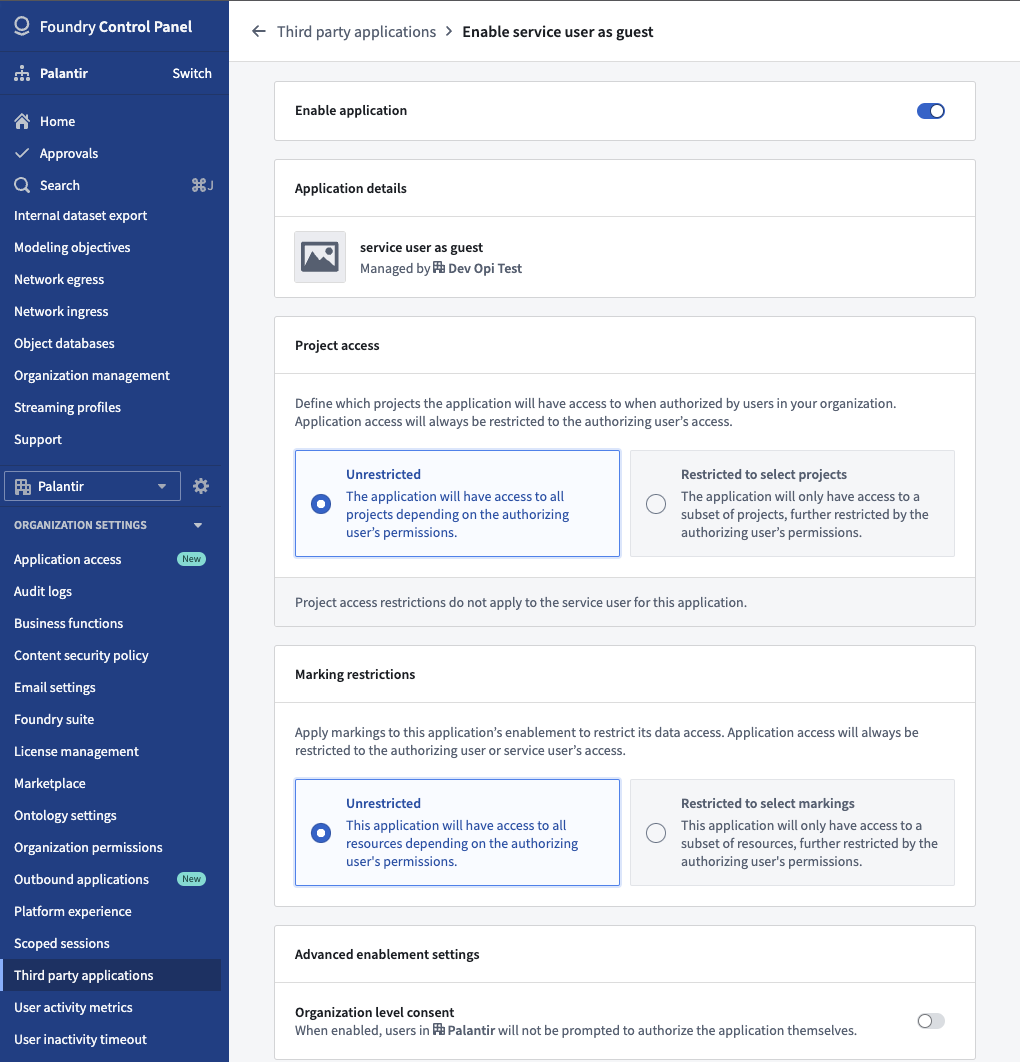
Once you save your changes, the service user will be added as a guest to your organization and you will be able to grant any necessary permissions.
Developer Console automatically detects mismatches between a confidential client's markings and its service user's markings. If markings or organization memberships differ between the client and service user, Developer Console displays a warning indicator. Check for these warnings if you encounter unexpected permission issues after enabling your application.