- Capabilities
- Getting started
- Architecture center
- Platform updates
Run an evaluation suite
An evaluation suite can be run from different locations, including the AIP Logic Evals sidebar and the AIP Evals application. You can choose to run a full evaluation suite or only execute single test cases. The latter is useful for debugging and quick function iteration.
Full evaluation suite runs
In AIP Logic, navigate to the AIP Evals sidebar panel and select Run evaluation suite. If you have unsaved changes, Save and run will be displayed instead, ensuring that changes are saved before running an evaluation suite.
Alternatively, you can run an evaluation suite from the AIP Evals application. To open the application, select the evaluation suite name in the AIP Logic sidebar, or open the evaluation suite from the file system. In the Evals application you can run the evaluation suite by selecting Run evaluation suite in the upper-right corner.
Run configuration
There are multiple configuration options available when running an evaluation suite. To access run configuration options, select the cog icon next to Run evaluation suite. This will open a dialog with the following options:
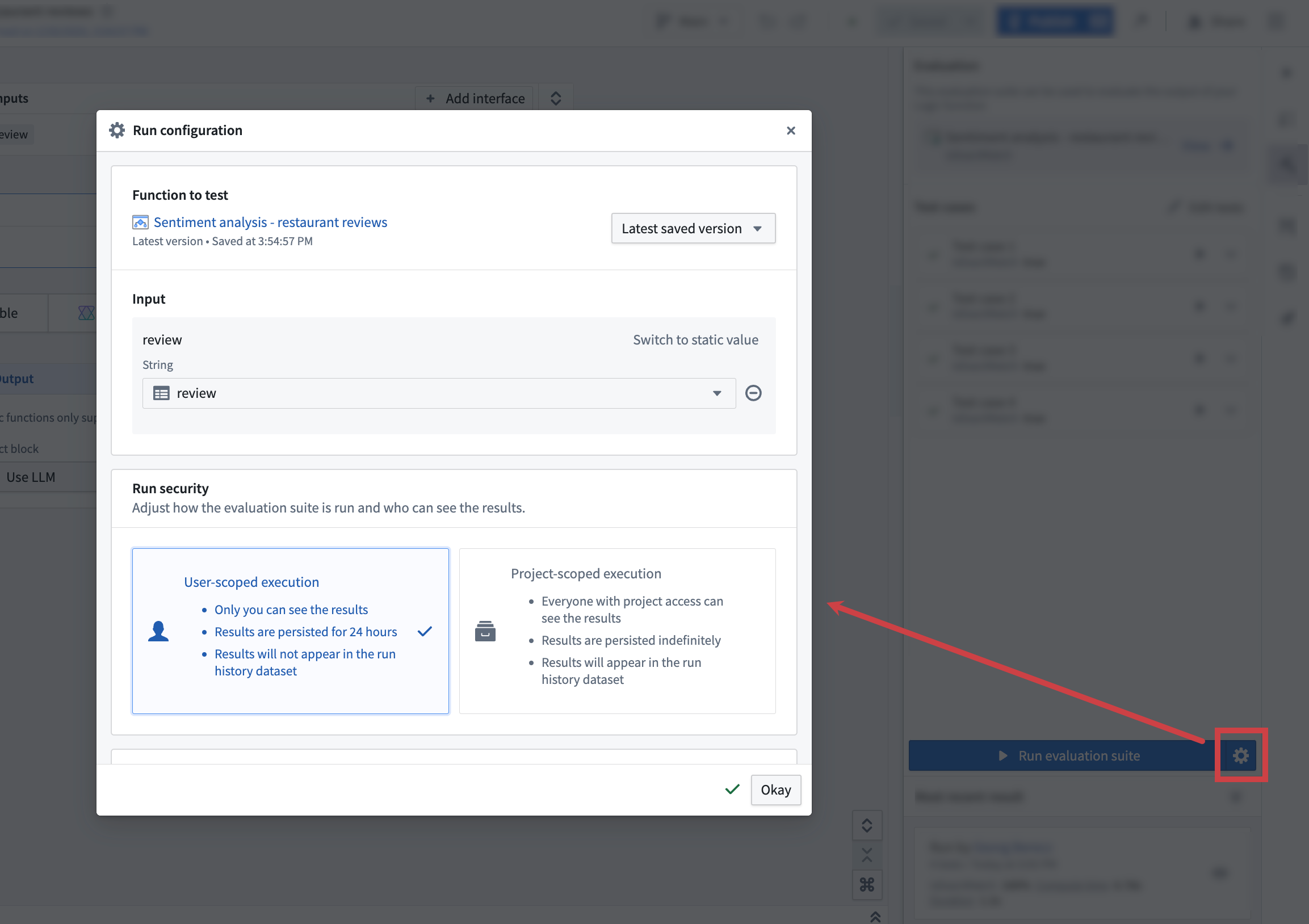
Target to test
Evaluation suites can be run against functions authored in AIP Logic and functions authored in Code repositories. Depending on this function source, you can target different versions of your function:
- AIP Logic function: Latest saved version (default) and published versions.
- Non-AIP Logic function: Published versions.
You can also select a branch to test the function versions on that branch. When you run an evaluation suite from AIP Logic, the branch is derived from AIP Logic.
Testing multiple targets
If your evaluation suite has multiple target functions configured, you can run evaluations against multiple functions simultaneously from AIP Evals. Select Test multiple targets to switch to multi-target mode, then select which targets to include in the run.
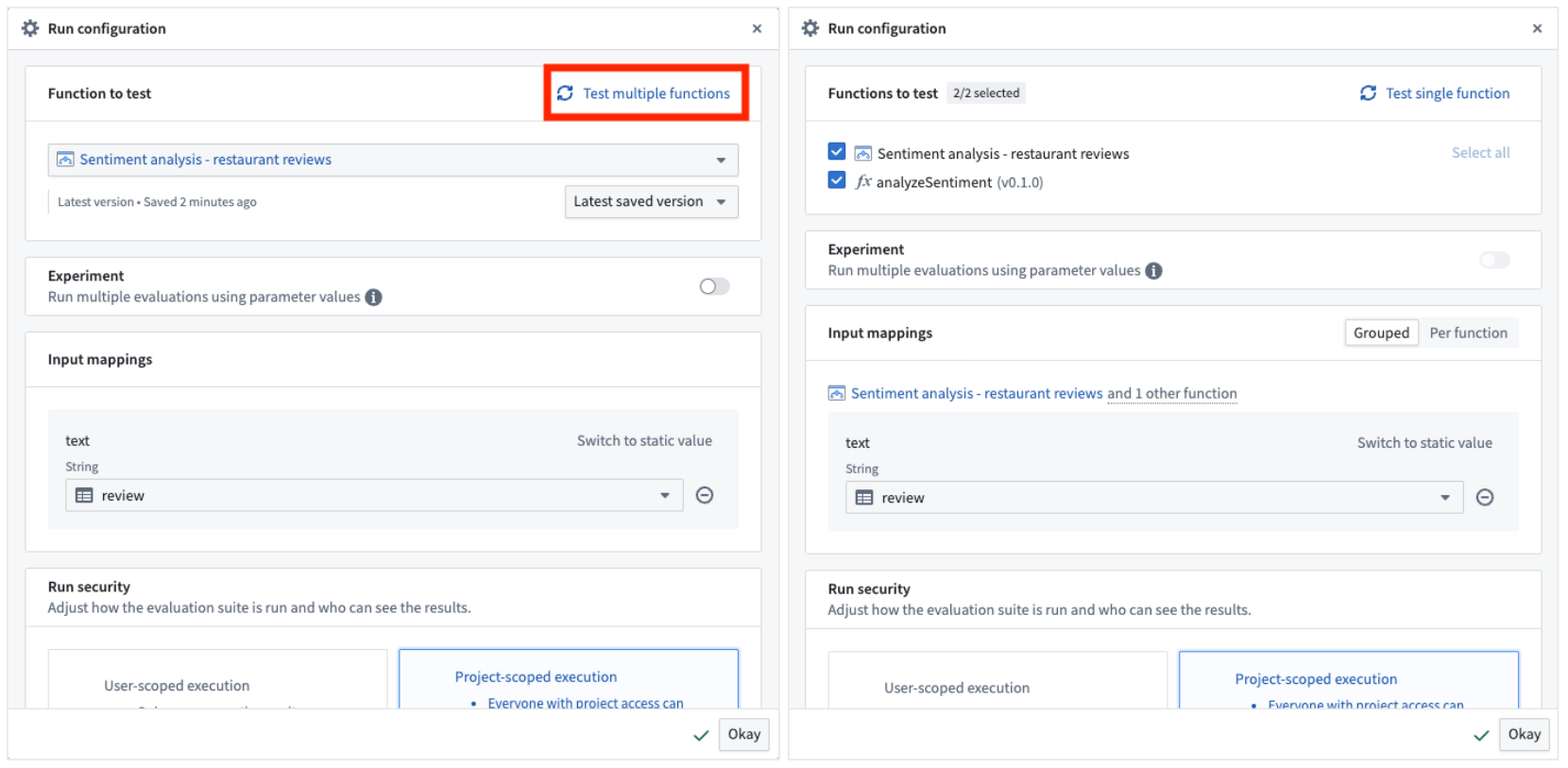
Experiment configuration is not available when running in multi-target mode.
Input mapping
Input mappings need to be provided to map values in evaluation suite columns to the inputs expected by the evaluated function. You will be able to select suite columns with types that match expected function inputs.
Usually, the evaluation suite column name and the function input will match, but this is not required. To use the same value for an input in every test case, select Switch to static value and enter the value.
Execution mode
In the Run security section, you can choose between two execution modes: Project-scoped execution and User-scoped execution. Project-scoped execution is the default mode. If the run uses resources that do not support project-scoped execution, only user-scoped execution is available.
Project-scoped execution:
- The evaluation suite is executed with project scope. All resources that are used during function or evaluator execution must be imported into the same project. The run configuration lists these resources, and you can select Import missing resources to import any that are missing.
- Results of a run are visible to everyone with project access who can also access the markings on the resources that the run uses.
- Results are persisted indefinitely.
- Results are written to the run history dataset if one is configured.
- AIP Chatbot functions and stateful functions, such as functions backed by compute modules or model deployments, do not support project-scoped execution.
User-scoped execution:
- The suite is executed with your permissions.
- Only you can see the results, for 24 hours after the run. After that, only the run's metadata, such as the run name, the target, and who started the run, remains visible.
- Other users who can view the evaluation suite can see the run's metadata, but not its results.
- Results are not written to the run history dataset.
Number of iterations
You can specify the number of times each test case should be run, from 1 to 100. A full evaluation suite run can include up to 15,000 test case executions, where each iteration of a test case counts as one execution. Due to the non-deterministic nature of LLMs, we recommend running test cases at least three times for LLM-backed functions. The results of each iteration are aggregated to provide a comprehensive overview of the function's performance.
A high variance in numeric evaluators like ROUGE score can indicate that the test case and evaluator are not meaningful and require further refinement.
Test parallelization
By default, 10 test cases are executed in parallel, which is also the maximum. Reducing the number of parallel test case executions can help when you run into rate limits.
Run metadata
In addition to automatically captured run metadata like used branch, version, or model, you can add custom metadata to your evaluation suite runs.
This metadata is provided as key-value pairs and can be used to differentiate runs in the evaluation suite run history.
View results
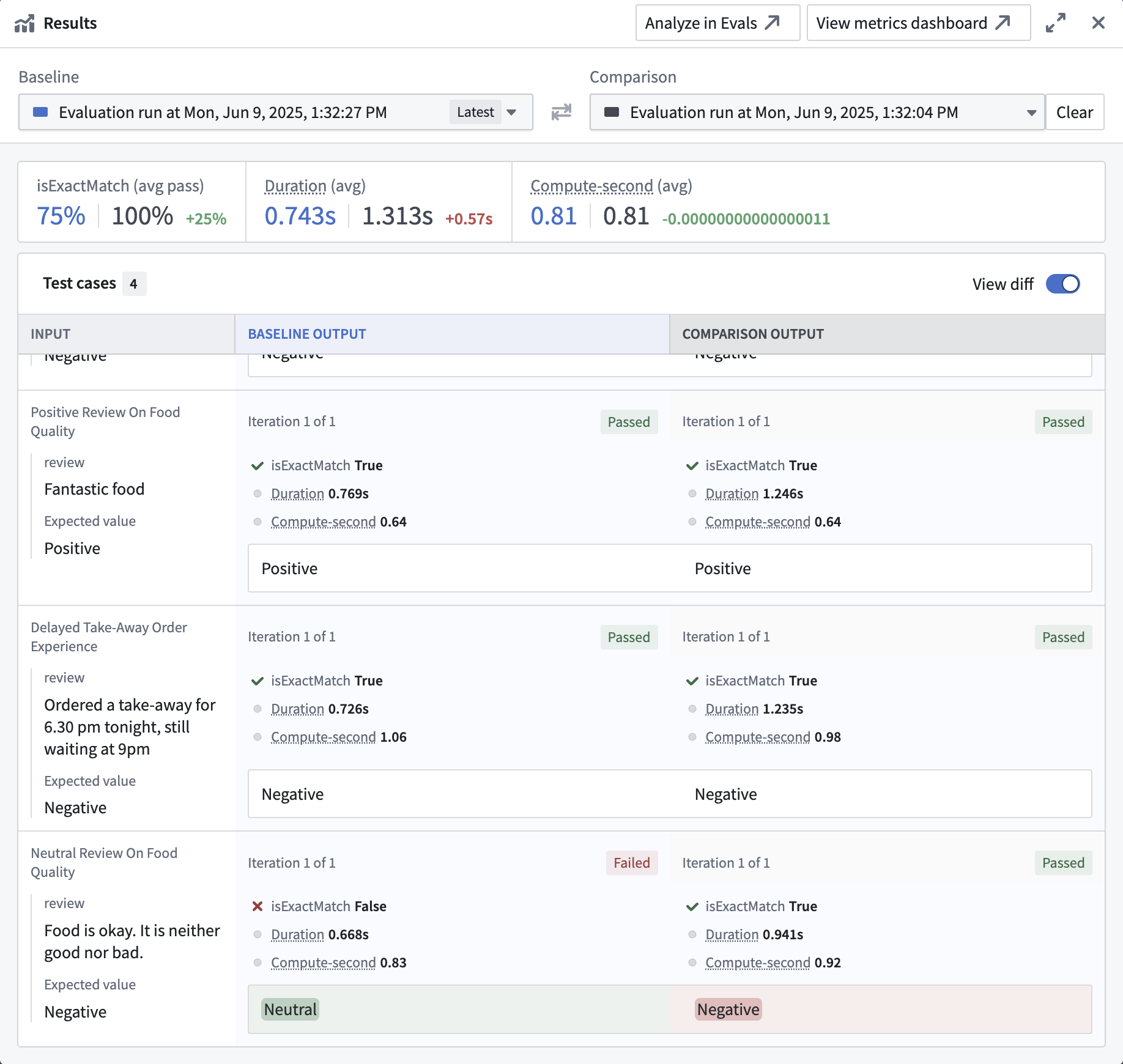
After the evaluation suite run is completed, you can view the results by selecting the card in the Most recent run section. This will open the results view, where you can see aggregated metrics for your evaluation suite run and the results for each individual test case. The passed or failed status for each metric is displayed based on your configured objectives (Boolean or numeric, direction, and threshold). When you hover over a test case, select the bug icon to open the debug view for that test case. The debug view will show the respective steps of the Logic function and evaluators that were executed for the test case.
Moreover, the results view offers the ability to compare runs by selecting Click to compare to another run. This will open another run side-by-side with the current run, allowing you to compare the results of both runs. By default, the View diff toggle will be enabled, resulting in output differences between the two runs being highlighted.
Single test case execution
The passed or failed status for each metric is also shown when running a single test case, according to the objectives you have set (Boolean or numeric, direction, and threshold).
The AIP Evals sidebar in AIP Logic provides a quick way to run single test cases. This is especially useful when building your Logic function or when iterating on failed test cases after a full Evaluation suite run.
To run a single test case, select the play icon next to the test case name in the sidebar. This will immediately execute the test case and open the debugger sidebar panel. Here, you will be able to follow the execution of the Logic function and evaluators that are run on test case results. Additionally, the test case will be marked as executed in the sidebar.
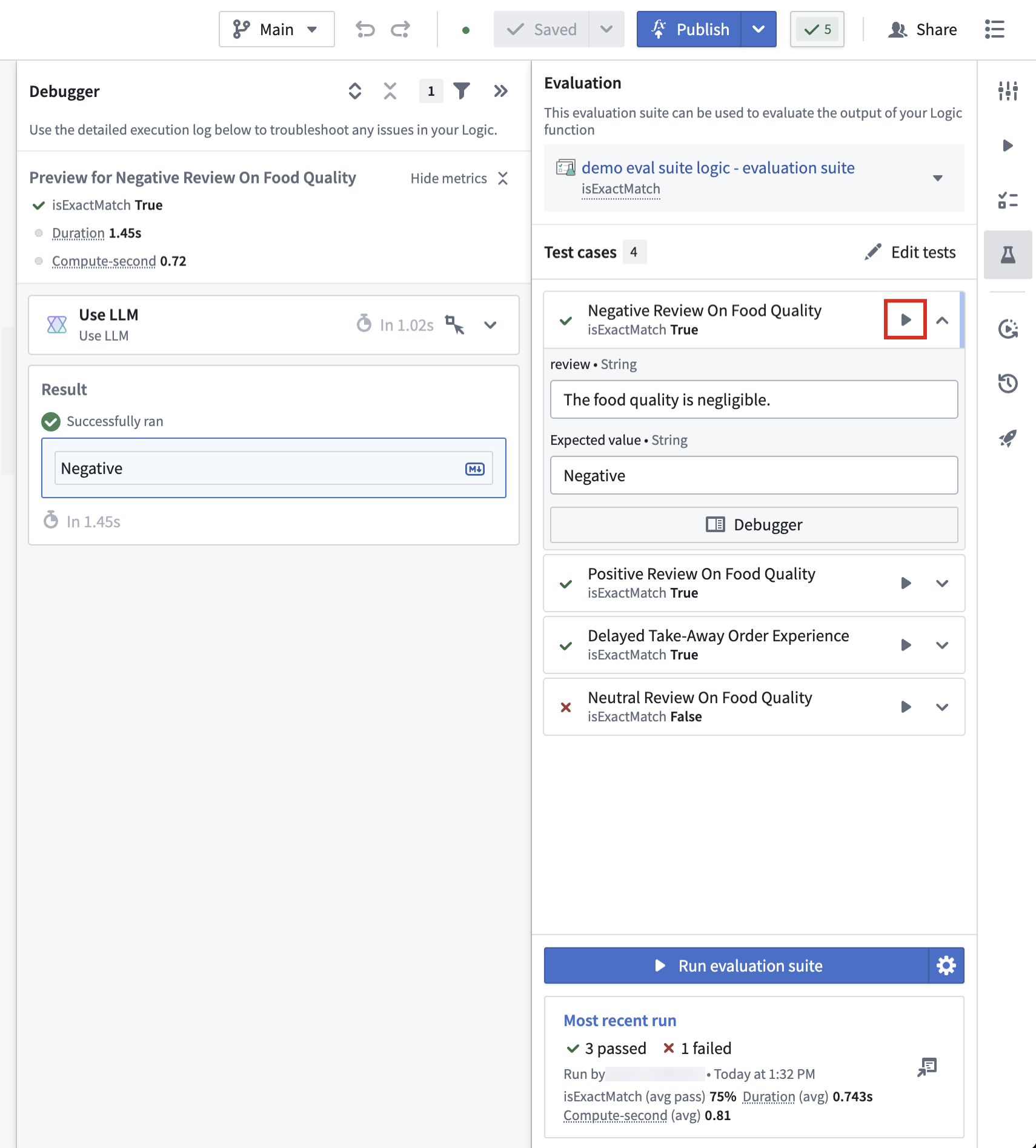
After execution, the sidebar and results panel will indicate whether each metric passed or failed, according to your configured objectives.