- Capabilities
- Getting started
- Architecture center
- Platform updates
Control LLM data access with Markings
Enrollment administrators can configure which mandatory Markings are allowed for requests to AIP language models. Use this policy to prevent a model from receiving requests from Foundry sessions that can access data protected by mandatory Markings outside an approved set. The policy applies to interactive AIP use and automated workflows.
How allowed Markings work
The enrollment policy applies to every Palantir-provided model family. It is also the default for registered models that do not have a model-specific policy.
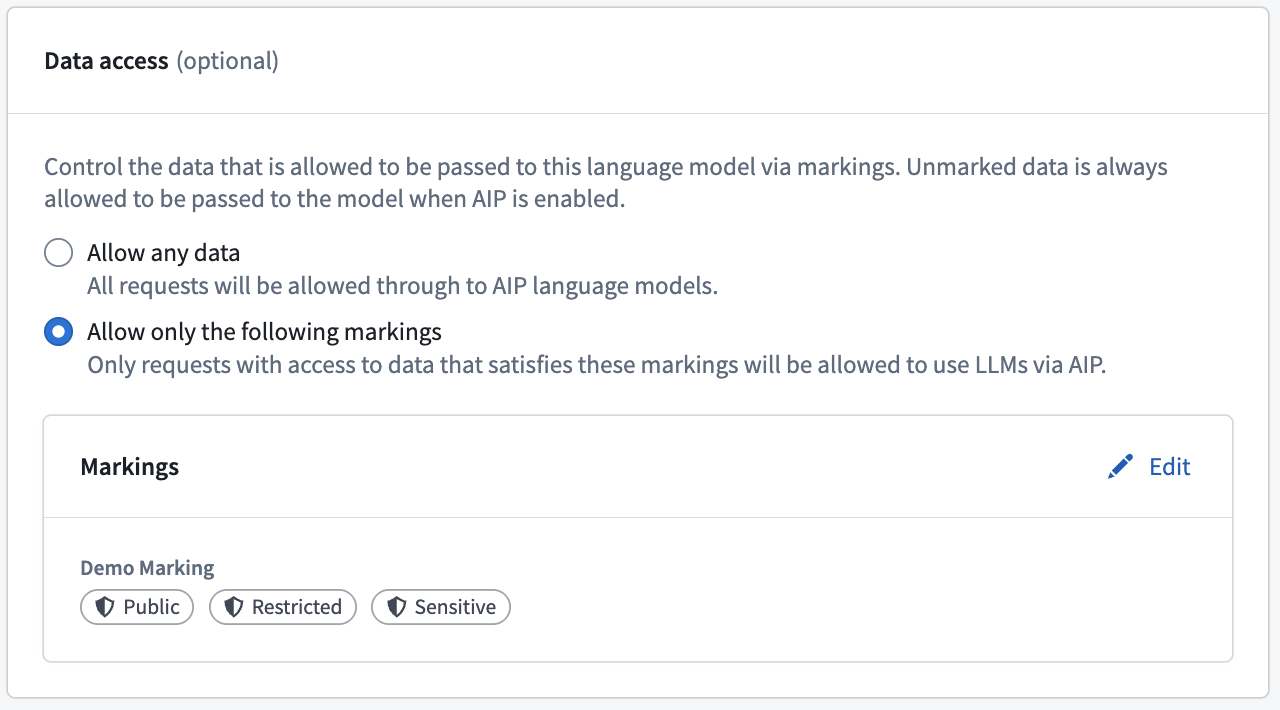
The Data access settings provide the following options:
- Allow any data: Do not restrict requests based on mandatory Marking access.
- Allow only the following markings: Allow a request only when every mandatory Marking available to the request token is included in the configured allowlist.
An allowlist does not require the data in a request to carry one of the selected Markings. A request token with no mandatory Markings passes this check.
When you configure an allowlist, AIP evaluates all mandatory Markings available in the user's current Foundry session, as represented on the request token. The same token-level check applies to automated workflows. AIP rejects the request if the token includes any mandatory Marking outside the allowlist, even when the data included in the request does not have that Marking.
For example, consider a policy that allows Markings A and B:
| Allowed Markings | Mandatory Markings available to the request token | Result | Reason |
|---|---|---|---|
A, B | None | Allowed | The token has no mandatory Markings outside the allowlist. |
A, B | A | Allowed | A is included in the allowlist. |
A, B | B | Allowed | B is included in the allowlist. |
A, B | A, B | Allowed | Every mandatory Marking is included in the allowlist. |
A, B | A, C | Rejected | C is not included in the allowlist. |
If a user's session includes more mandatory Markings than the model policy allows, the user can select a scoped session that limits the Markings available in their session. The request passes this data access check when the scoped session contains no mandatory Markings outside the model's allowlist.
Configure the enrollment policy
To configure the default policy for Palantir-provided models and registered models without a model-specific policy:
- In Control Panel, open the AIP settings extension.
- On the AIP settings tab, find the Data access section.
- Select Allow any data or Allow only the following markings.
- If you selected Allow only the following markings, select Edit, choose at least one mandatory Marking, and select Apply.
- Save your changes.
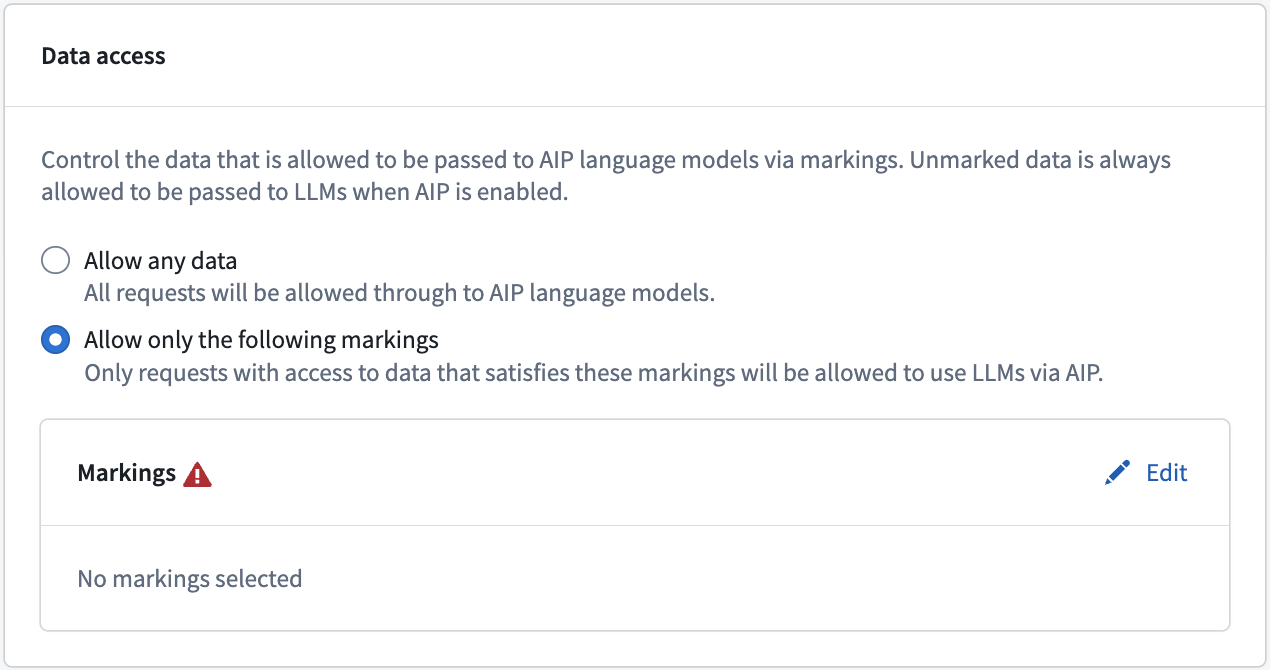
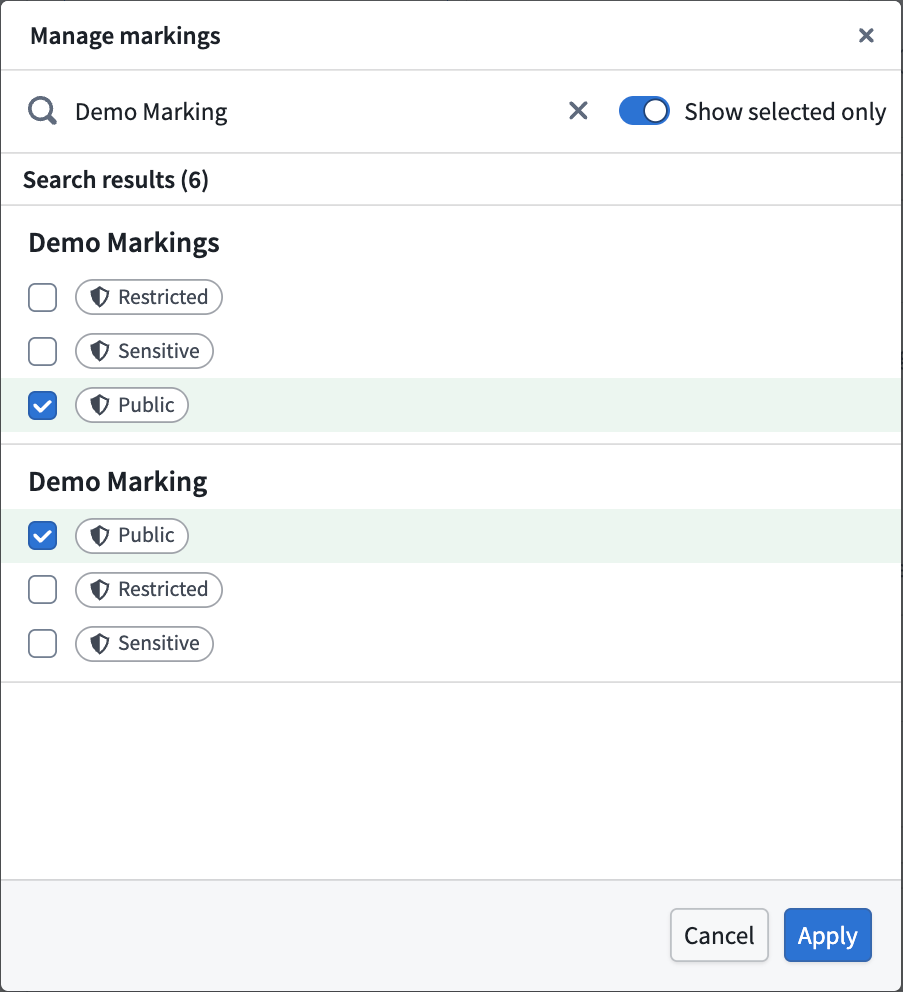
You must select at least one mandatory Marking before you can save an allowlist policy.
Configure a registered-model override
The Data access step is optional when you register or edit a model. A registered model without a model-specific policy uses the enrollment policy. If you configure a model-specific policy, it completely replaces the enrollment policy and can be more or less restrictive.
| Registered-model setting | Effective policy |
|---|---|
| Not configured | Use the enrollment policy. |
| Allow any data | Allow any data, even when the enrollment policy has an allowlist. |
| Allow only the following markings | Allow only the selected mandatory Markings, regardless of the enrollment allowlist. |
To configure an override:
- In Control Panel, open the AIP settings extension and select the Registered models tab.
- Register a model, or select an existing model and select Edit.
- Go to the Data access step.
- Select Allow any data or Allow only the following markings.
- If you selected Allow only the following markings, select Edit, choose at least one mandatory Marking, and select Apply.
- Save your changes.