- Capabilities
- Getting started
- Architecture center
- Platform updates
Chatbots as Functions
AIP Chatbots can be published as Functions, allowing them to be used anywhere in the platform where Functions can be executed. For example, builders can publish AIP Chatbots as Functions to evaluate them in AIP Evals, to automate chatbot workflows with Automate, or to use chatbots in Code Repositories. You can configure function versions to be published every time a chatbot is published, or every time a chatbot is saved.
Function inputs
The following are inputs taken by chatbots published as Functions:
-
userInput: The user input string that the chatbot will respond to. -
sessionRid(Optional): A string identifier for the current session with the following format:ri.aip-agents..session.{uuid}- To start a new session with the chatbot, leave the
sessionRidinput empty. Do not provide an empty string; omit this input entirely. - Provide a value to continue an existing session using that session's RID.
- This RID is returned on all Function executions.
- To start a new session with the chatbot, leave the
-
All application variables used for application state are added as optional inputs. These variables can be used to override default application state values.
- For object set variables, the default value is the base object set of the object type, meaning that all objects in the object type will be included by default.
- For string variables, the default value is displayed and configured in Chatbot Studio.
Function outputs
The following are outputs of chatbots published as Functions:
-
markdownResponse: The final text response generated by the chatbot, formatted using markdown. -
sessionRid: A string identifier for the current session with the following format:ri.aip-agents..session.{uuid}- This RID is returned on all Function executions.
- Provide this value to the next Function execution to continue the session.
-
All application variables used for application state are added as optional outputs.
- Values will only be output for these variables if the value was updated. Variables that were not updated will be empty.
Publish a chatbot as a Function
- To publish a chatbot as a Function in Chatbot Studio, select the publish settings icon to the right of the Publish button in the top-right. This will open a Publish settings dialog.
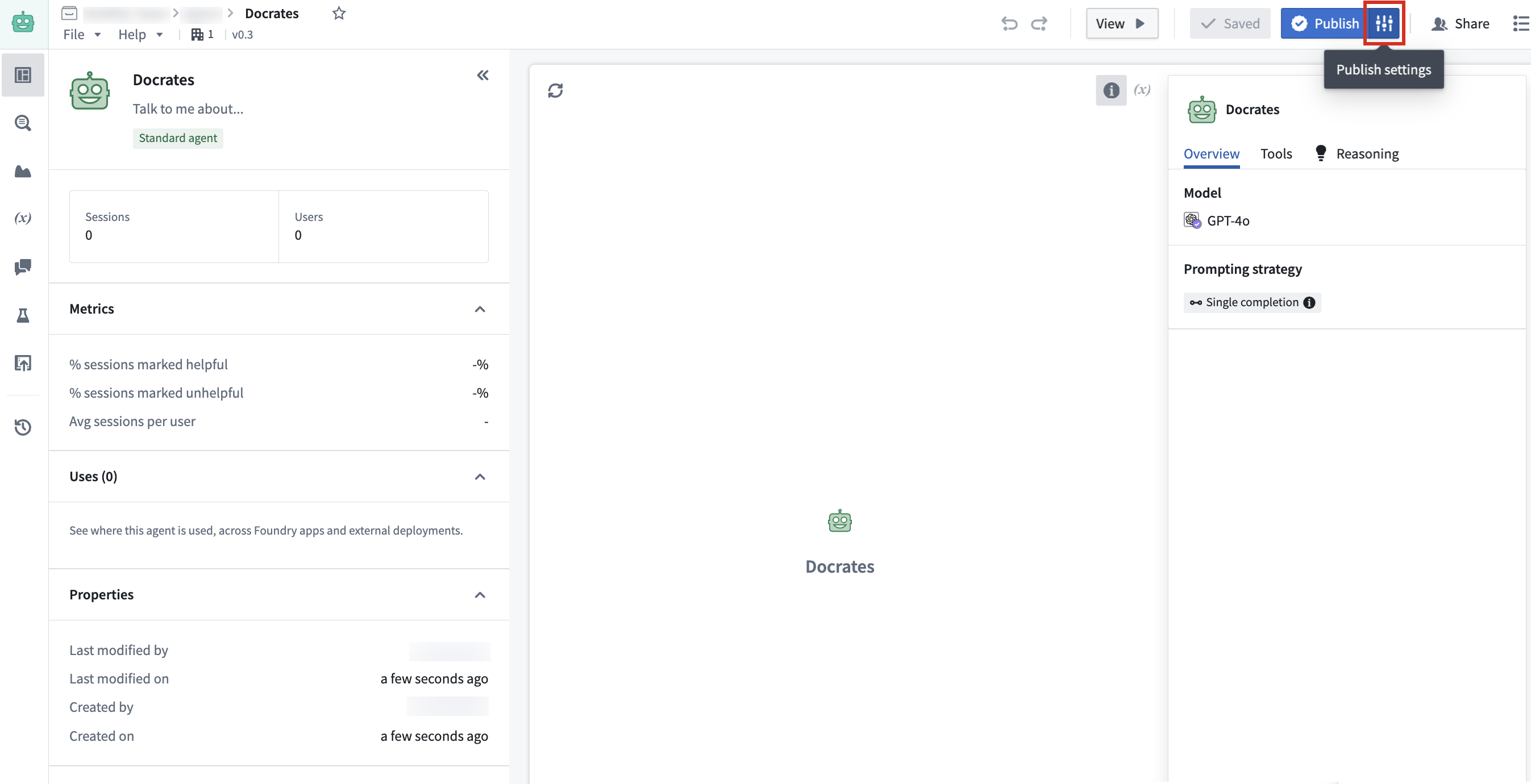
- Toggle the Publish function from chatbot option on, which will display additional configuration options for the published Function.

- In the extended Publish settings dialog, select an Ontology and fill in Function details such as the Function name, API name, and description. Optionally, you can choose to release minor Function versions when the chatbot is saved by selecting the checkbox under Version configuration.

- Select Publish chatbot and function at the bottom of the dialog.
After publishing, a toast notification will inform you that the chatbot and Function have been published, with a link to view the published Function in Ontology Manager. You can also view the Function by opening Publish settings and selecting it under Published function.
Disable chatbot Function publishing
To disable Function publishing, open Publish settings and toggle the option to Publish function from chatbot off. If you disable this option, future published versions of your chatbot will not register your chatbot as a Function until the option is re-enabled. You can re-enable this option at any time. To publish a Function after re-enabling, publish the chatbot.
Evaluate chatbots with AIP Evals
Publishing chatbots as Functions allows them to be evaluated with AIP Evals evaluation suites. To create an evaluation suite from Chatbot Studio, ensure that your chatbot has been published as a Function, then open the Evaluation tab on the left toolbar. Here, you can select Create evaluation suite, which will prompt you to name your suite and choose the same Project as the chatbot.
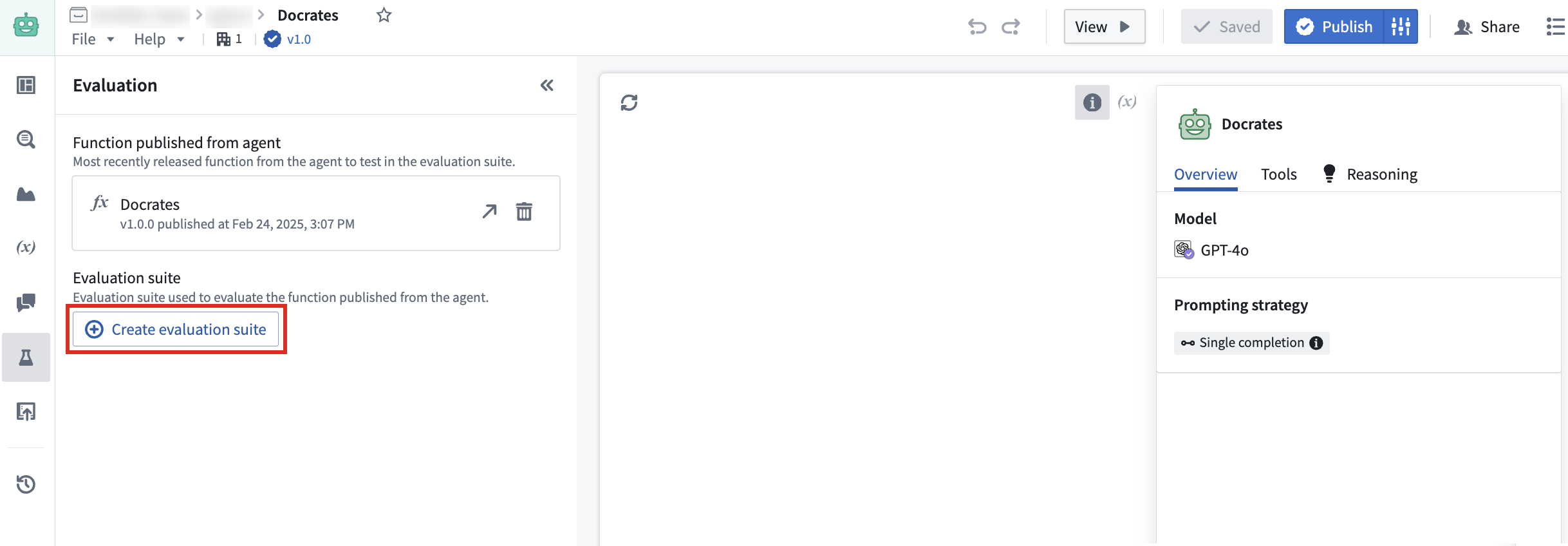
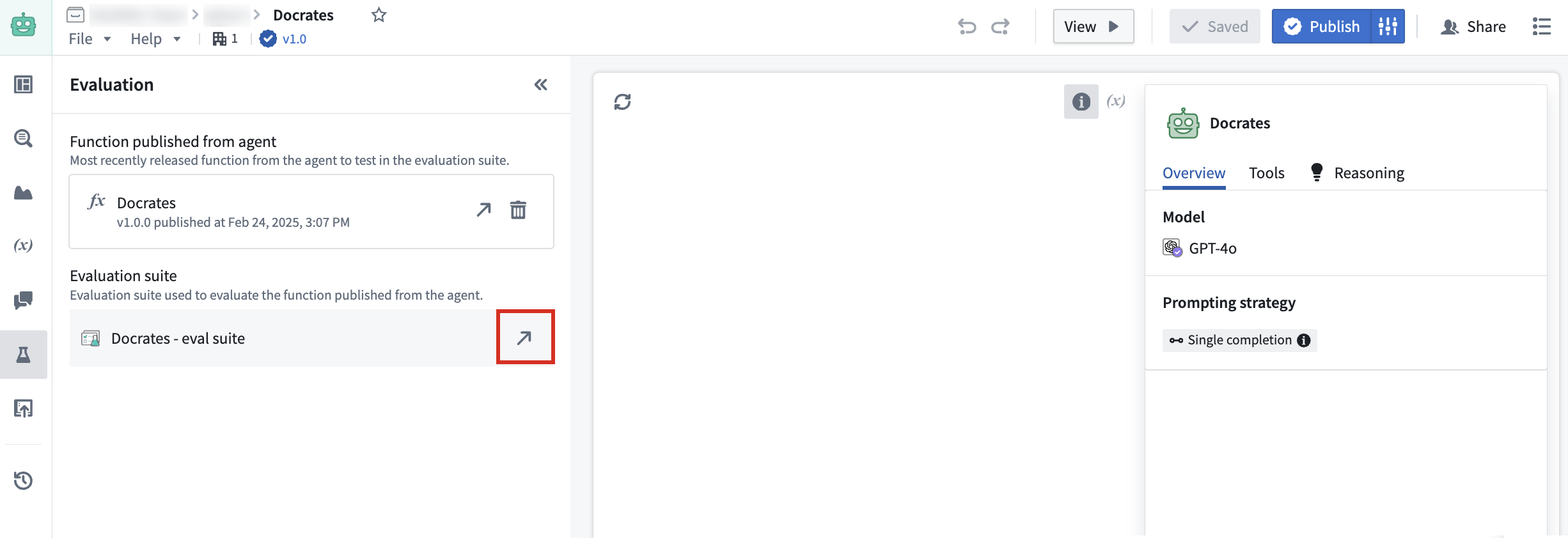
The evaluation suite must be in the same Project as the chatbot. To open the evaluation suite in AIP Evals after creation, select the arrow icon to the right of the created suite.
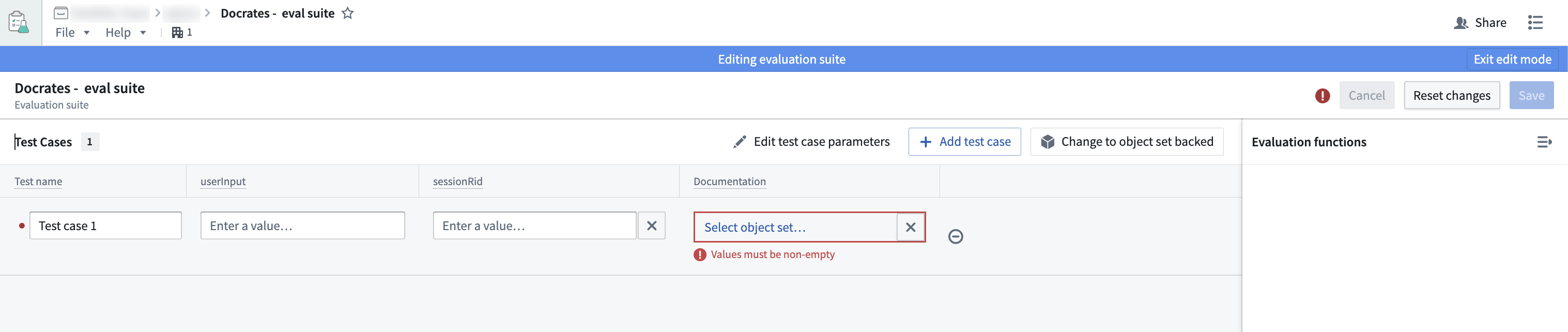
Keep the following in mind when setting up your test cases in AIP Evals:
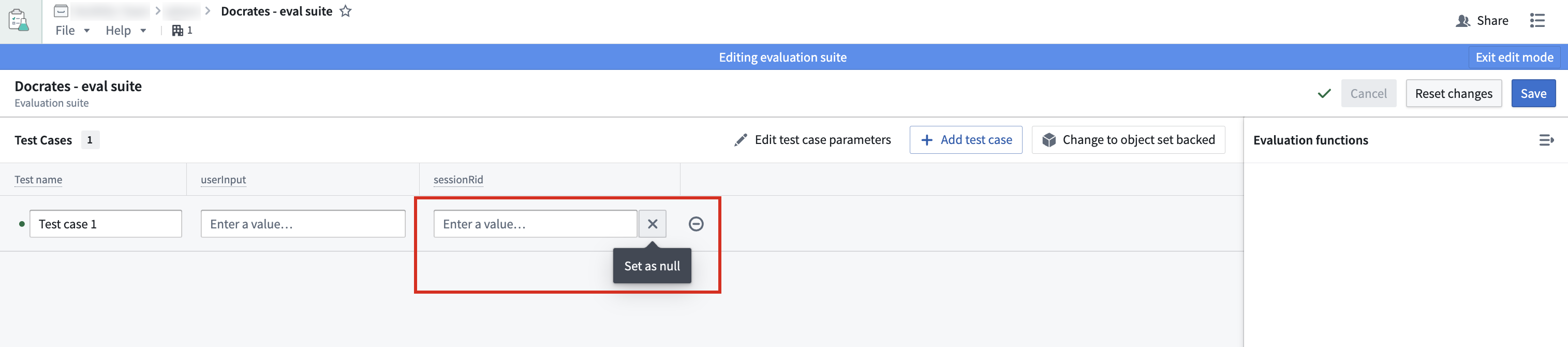
- To start a new session with your chatbot, make sure that the
sessionRidis set tonull. If a session RID is provided, the chatbot will continue an existing session, which is likely not the intent during testing.
- Object set variables must be set to
nullor contain a real value. Object set variables cannot be empty.
For more information on evaluation suites, refer to the AIP Evals documentation.