- Capabilities
- Getting started
- Architecture center
- Platform updates
Customize agents with Agent SDK
An Agent SDK definition combines a model, a system prompt, and tools. The SDK uses these to respond to messages in a durable session. Follow the getting started guide to create and publish an agent before adding the features to your agent:
System prompt
The systemPrompt option tells the agent how it should respond. Provide a function that returns text parts with SystemPromptRenderResult.ready.
Copied!1 2 3 4 5 6 7import { SystemPromptRenderResult } from "@palantir/agents"; // Inside defineAgent({ ... }) systemPrompt: () => SystemPromptRenderResult.ready([ { type: "text", text: "You are a helpful agent..." }, ]),
For more system prompt customization options, see the advanced customization guide.
Model
The model option determines which language model answers each request. Depending on what model was chosen at bootstrapping time, your template will have the corresponding model pre-filled.
Copied!1 2 3 4 5 6 7 8import { Aliases } from "@osdk/functions"; import { anthropic } from "@palantir/agents"; // Inside defineAgent({ ... }): model: anthropic({ modelRid: Aliases.model("model").rid, modelSettings: { max_tokens: 4096 }, }),
The package also provides openAi, openAiChat, google, and xAi constructors. To update the model, import the desired model from the Resource imports sidebar and use the corresponding constructor.
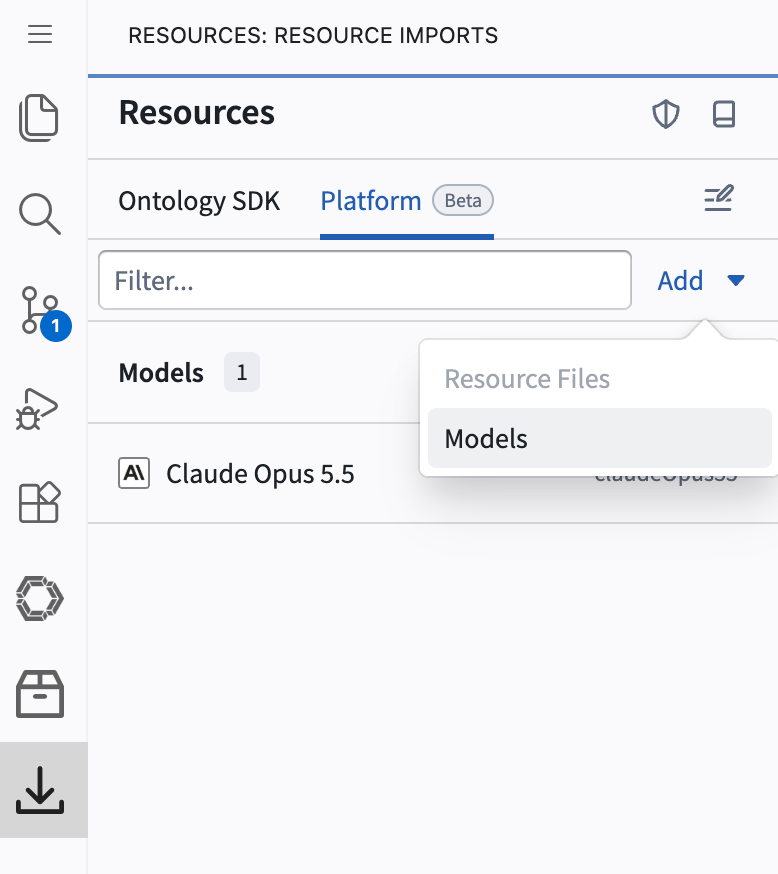
After importing the model, you can use it in code through the alias it was imported with.
For custom model implementations, state-based model selection, and provider settings, see the guide to advanced model customization.
Tools
Tools let the model request information or actions during a session. Each tool has a name, description, and argument schema that the SDK presents to the model. When the model calls a tool, the SDK runs its execute function.
Tools in the Agent SDK return context items. The context items will be rendered as that tool call's result for the next model request.
For example, a weather tool can return a string context item. The item renders its text field for the model:
Copied!1 2 3 4 5 6 7 8 9 10 11 12 13 14 15 16 17 18 19 20 21 22 23 24 25 26 27 28import { Message, RenderResult, UserMessagePart, zodContextItem, zodTool } from "@palantir/agents"; import { z } from "zod"; const StringContextItem = zodContextItem({ type: "string-result", dataSchema: z.object({ text: z.string() }), createArgsSchema: z.object({ text: z.string() }), create: args => ({ data: args }), render: ({ text }) => RenderResult.ready([ Message.user(UserMessagePart.text(text)) ]), }); const WeatherTool = zodTool({ name: "get_weather", description: "Get the weather for a city", argumentSchema: z.object({ city: z.string() }), execute: async ({ city }) => ({ contextItems: [{ contextItemType: StringContextItem.type, createArgs: { text: `Weather in ${city} is sunny.` }, }] }), }); // Inside defineAgent({ ... }): contextItemDefinitions: [StringContextItem], tools: () => [WeatherTool],
If an error is thrown during the execution of a tool, the failure will be rendered to the model on the next turn.
See advanced concepts for examples of tool results, long-running lookups, dynamic tool lists, and user interaction.
Ontology interaction
Use the TypeScript OSDK to read objects, apply actions, and execute functions from an agent.
To use Ontology resources in your agent, you must import them from the Resource imports sidebar. Failure to do so will result in permissioning errors.
Apply an action
An action lets the agent make an Ontology edit. To enable calling actions, scoped mode must be enabled for your agent. Navigate to the Resource imports sidebar and select Scope settings.
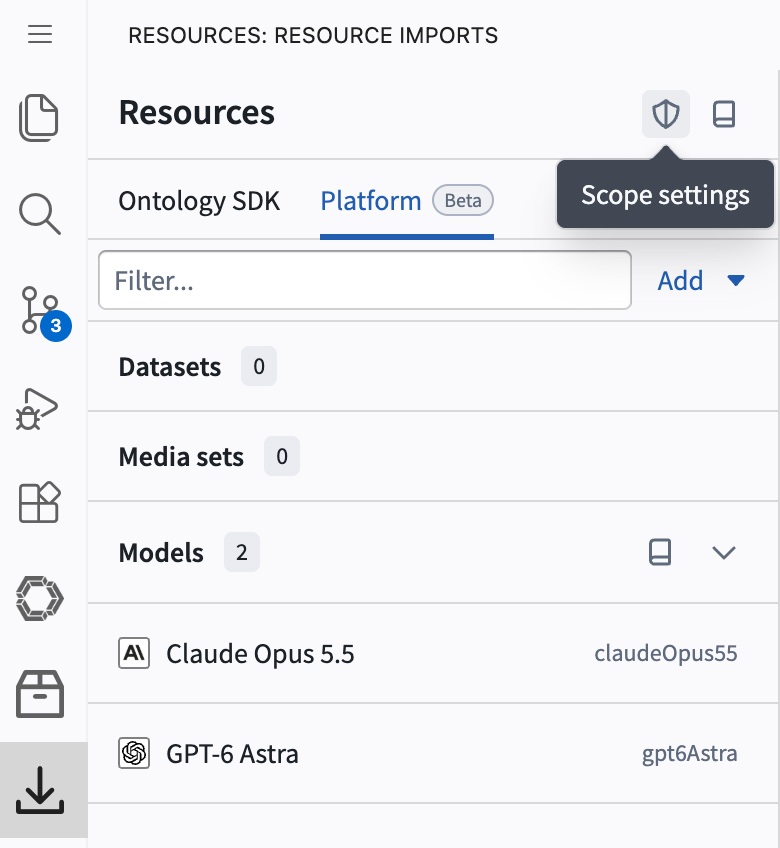
Once there, turn on Enable scoped mode.
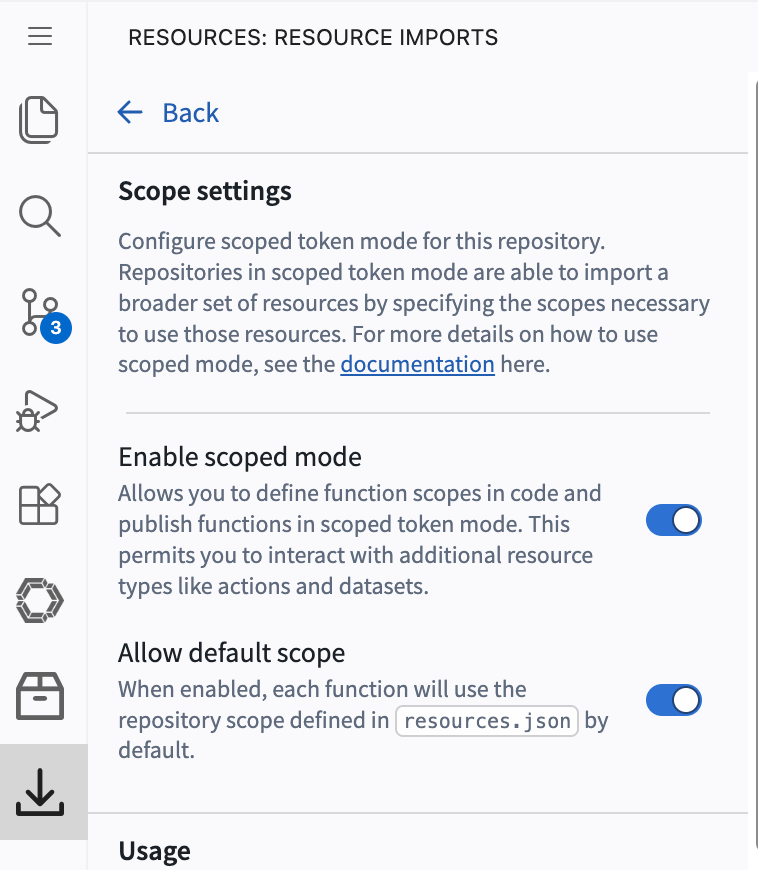
Now, write a tool that calls an action when it executes:
Copied!1 2 3 4 5 6 7 8 9 10 11 12 13 14 15 16 17 18 19 20 21import { assignTicket } from "@ontology/sdk"; import { getClient } from "@palantir/agents-core"; const AssignTicket = zodTool({ name: "assign_ticket", description: "Assign a support ticket to a user", argumentSchema: z.object({ ticketId: z.string(), assigneeId: z.string() }), execute: async ({ ticketId, assigneeId }) => { const client = getClient(); await client(assignTicket).applyAction({ ticketId, assigneeId }); return { contextItems: [ { contextItemType: StringContextItem.type, createArgs: { text: "Ticket assigned." }, }, ], events: [], }; }, });
Call a function
A function can compute a result without editing the Ontology. Return the result as a context item so that the model can see it:
Copied!1 2 3 4 5 6 7 8 9 10 11 12 13 14 15 16 17 18 19 20 21 22 23import { getTicketSummary } from "@ontology/sdk"; import { getClient } from "@palantir/agents-core"; const SummarizeTicket = zodTool({ name: "summarize_ticket", description: "Summarize a support ticket", argumentSchema: z.object({ ticketId: z.string() }), execute: async ({ ticketId }) => { const client = getClient(); const summary = await client(getTicketSummary).executeFunction({ ticketId, }); return { contextItems: [ { contextItemType: StringContextItem.type, createArgs: { text: summary }, }, ], events: [], }; }, });
Load object data into context
Fetch an object through the OSDK and return its relevant properties in a context item. The SDK renders the item in the tool result for the next model request:
Copied!1 2 3 4 5 6 7 8 9 10 11 12 13 14 15 16 17 18 19 20 21 22import { SupportTicket } from "@ontology/sdk"; import { getClient } from "@palantir/agents-core"; const GetTicket = zodTool({ name: "get_ticket", description: "Load a support ticket", argumentSchema: z.object({ ticketId: z.string() }), execute: async ({ ticketId }) => { const ticket = await getClient()(SupportTicket).fetchOne(ticketId); return { contextItems: [ { contextItemType: StringContextItem.type, createArgs: { text: `Ticket ${ticket.$primaryKey}: ${ticket.title} (${ticket.status})`, }, }, ], events: [], }; }, });
For long-running object loads, use a custom context item to show progress while the tool waits. Replace these illustrative resource names and parameters with those generated for your Ontology.
Agent state and creation arguments
Each agent has its own agent state. Agent state is strongly typed and can be used to:
- Render something about your agent and its current state in a UI
- Hold values that are used in your tool calls
- Dynamically derive the model, system prompt, or tools
- Track agent progress and status
Agents additionally can take in arguments when they are created. Set createSessionArgsSchema to declare your argument types. Arguments can be stored in agent state, which can then expose them to tools or your system prompt later on.
Copied!1 2 3 4 5 6import { z } from "zod"; // Inside defineAgent({ ... }): agentStateSchema: z.object({ audience: z.string() }), createSessionArgsSchema: z.object({ audience: z.string() }), createSession: args => ({ agentState: { audience: args.audience } }),
To modify your agent state as your agent runs, see the guide to custom events.