- Capabilities
- Getting started
- Architecture center
- Platform updates
AIP skills
AIP skills turn your team's knowledge and workflows into reusable context and instructions for AI FDE. Capture project-specific guidance, team conventions, and use case context in a skill, then share it so others can apply the same expertise in their own sessions.
Each skill has a name, a description of when to use it, and a Markdown body containing the instructions. AI FDE uses the description to decide when an enabled skill is relevant and loads its instructions as needed.
Create a skill
To create a skill from AI FDE:
-
Open AIP Skills in the ribbon above the input field, then select Add skills.
-
Select Create new skill.
-
Configure the following fields:
Field Purpose Name How AI FDE identifies the skill. For example, build-standard-pipeline.Description Tells AI FDE when to load the skill. For example, Always use this skill before creating or modifying a pipeline to apply the team's naming and validation conventions.Skill body The instructions to follow, written in Markdown. -
Select Save as, choose a name and folder for the resource, then select Save.
To share a skill with your team, save it in a project or folder they can access. Like other Foundry resources, skills inherit permissions from the project or folder where they are saved.
Configure and use skills
Add and enable skills to make them available to AI FDE in your current session:
- Open AIP Skills above the input field, select Add skills, and choose a skill to add to your session.
- Ensure the skill is enabled in the AIP Skills menu.
- Enable the Load skills capability so AI FDE can load its instructions.
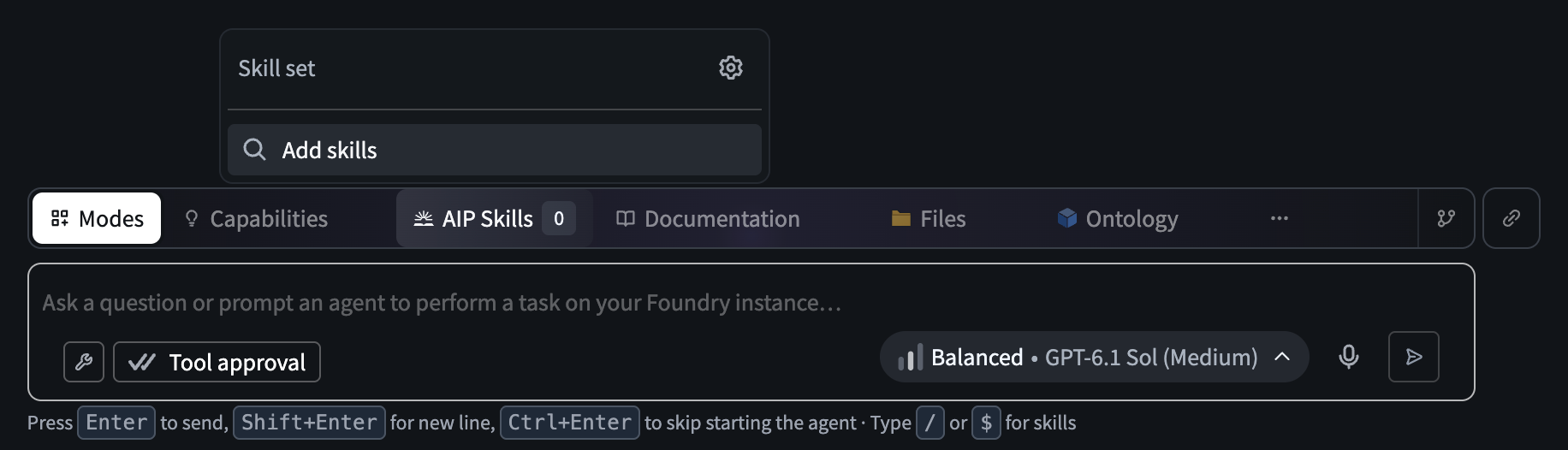
Skills added through this menu appear under This session and apply only to the current session. Add them to your skill set to make them available in future sessions.
AI FDE can only automatically load skills that are enabled in the current session. Disabling a skill prevents automatic loading, but instructions already loaded remain in the conversation. For each enabled skill, AI FDE uses its description to decide when it applies to your request.
Manage your skill set
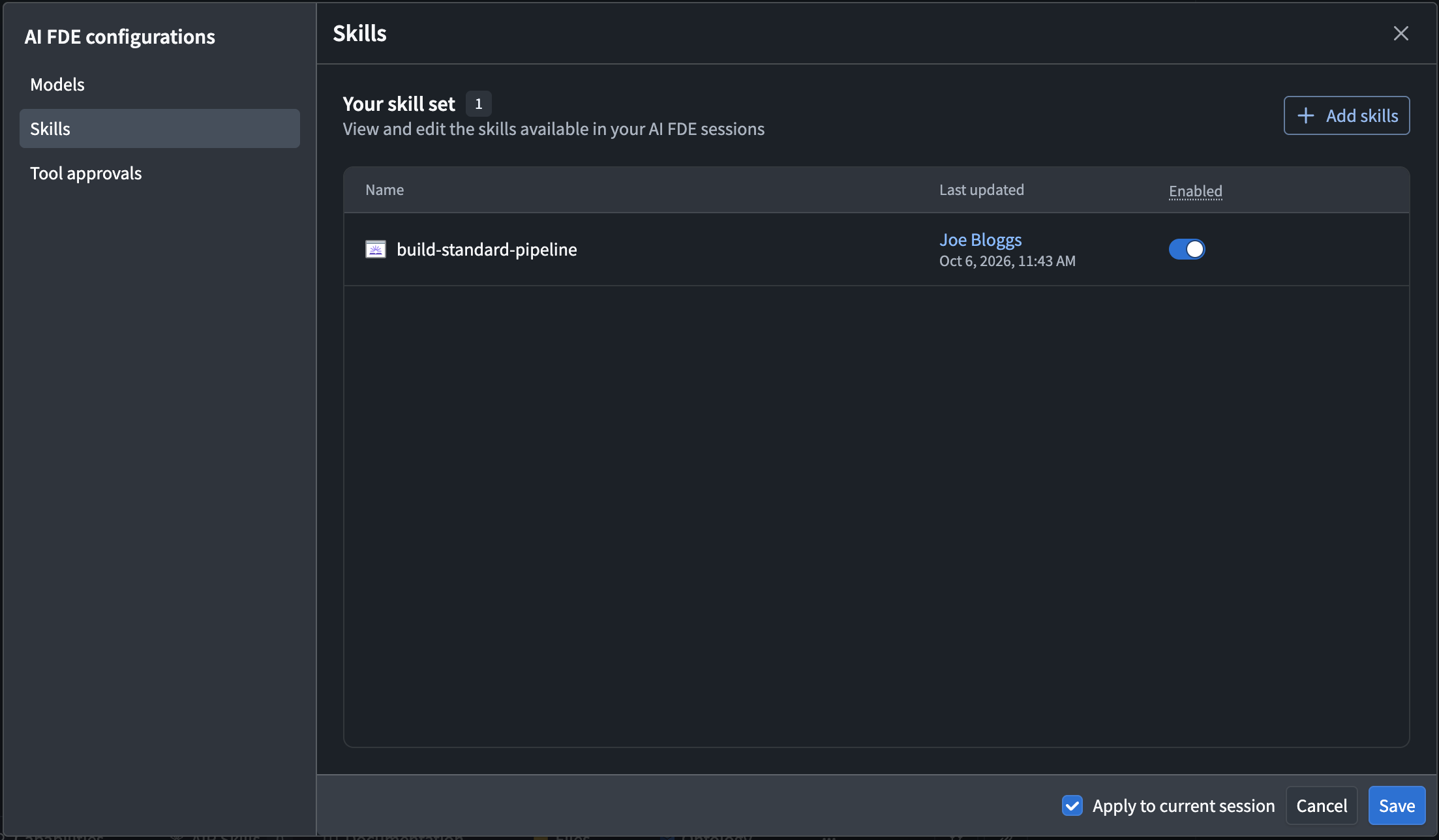
Your skill set is a personal collection of skills saved for reuse across sessions. Every new AI FDE session you start includes these skills, enabled or disabled according to your saved settings.
To manage your collection, open the AIP Skills menu and select the settings icon (Manage skill set) beside Skill set. Add the skills you want available by default and turn each one on or off.
Before selecting Save, review Apply to current session, which is selected by default. Leave it selected to replace the current session's skill configuration with your updated skill set, including which skills are enabled. This removes session-only skills from the configuration unless you have added them to your skill set. Clear the checkbox to save your defaults for future sessions without changing the current session.
FAQ
Use the following checks if skills do not behave as expected.
Why is my skill not being loaded?
Check that the Load skills capability is enabled and the skill is enabled in the current session. Then review the skill's Description field, which AI FDE uses to decide whether the skill applies to your request. Describe the specific tasks and situations where AI FDE should use it. For example, use Always use this skill before creating or modifying a pipeline to apply the team's naming and validation conventions. instead of Pipeline helper.
Why is my skill missing from a new session?
Skills added under This session apply only to that session. Add the skill to your skill set to make it available in all future sessions.