- Capabilities
- Getting started
- Architecture center
- Platform updates
Set up Audit Explorer
Audit Explorer reads audit.3 audit logs from an audit table: an Iceberg table that an audit.3 audit export writes to. You can create the export from Audit Explorer. If you already have an audit table, skip to select an audit table.
All screenshots use notional data.
Prerequisites
To set up Audit Explorer, you need the following:
- Application access: Audit Explorer is in beta and may not be available on your enrollment. Review how to access Audit Explorer.
- Foundry Iceberg: Your enrollment must have Iceberg enabled. Review how to verify that Iceberg is enabled. The folder for the audit table must be in a project that uses Foundry-managed Iceberg storage. If Allow writing Iceberg tables by default to all projects is off, the project may need an Iceberg override.
Permissions
Audit Explorer uses your existing Foundry permissions. Each task requires its own permission:
- Create audit exports permission: You need the
audit-export:orchestrate-v3operation on the organization whose logs you export. By default, the Organization administrator role grants this operation. For details, review export permissions. - Create Iceberg table permission: You need permission to create resources in the folder for the audit table.
- Read Iceberg table permission: You need the
table:readoperation on the audit table, and you must satisfy all markings on the table. For details, review Iceberg table permissions. - Export settings permission: To open export settings, you must be an organization administrator of the export's organization. Each setting also requires its own operation on the audit table:
- Pause or resume the export:
audit-export:update-export-state - Change the build cooldown:
audit-export:update-minimum-build-cooldown - Change retention:
iceberg:write-maintenance-tasksandiceberg:write-sql-maintenance-tasks
- Pause or resume the export:
Acknowledge the usage guidance
The first time you open Audit Explorer, the Welcome to Audit Explorer dialog appears. Audit Explorer does not show any audit data until you select I understand. The dialog covers the following guidance:
- For oversight and compliance: Use Audit Explorer for authorized system oversight and compliance uses only.
- Treat audit logs as sensitive: Audit logs may contain personally identifiable information, including names, email addresses, and other sensitive usage data. Only users with the necessary security qualifications should view them.
- Your searches are logged: All searches in Audit Explorer become audit logs.
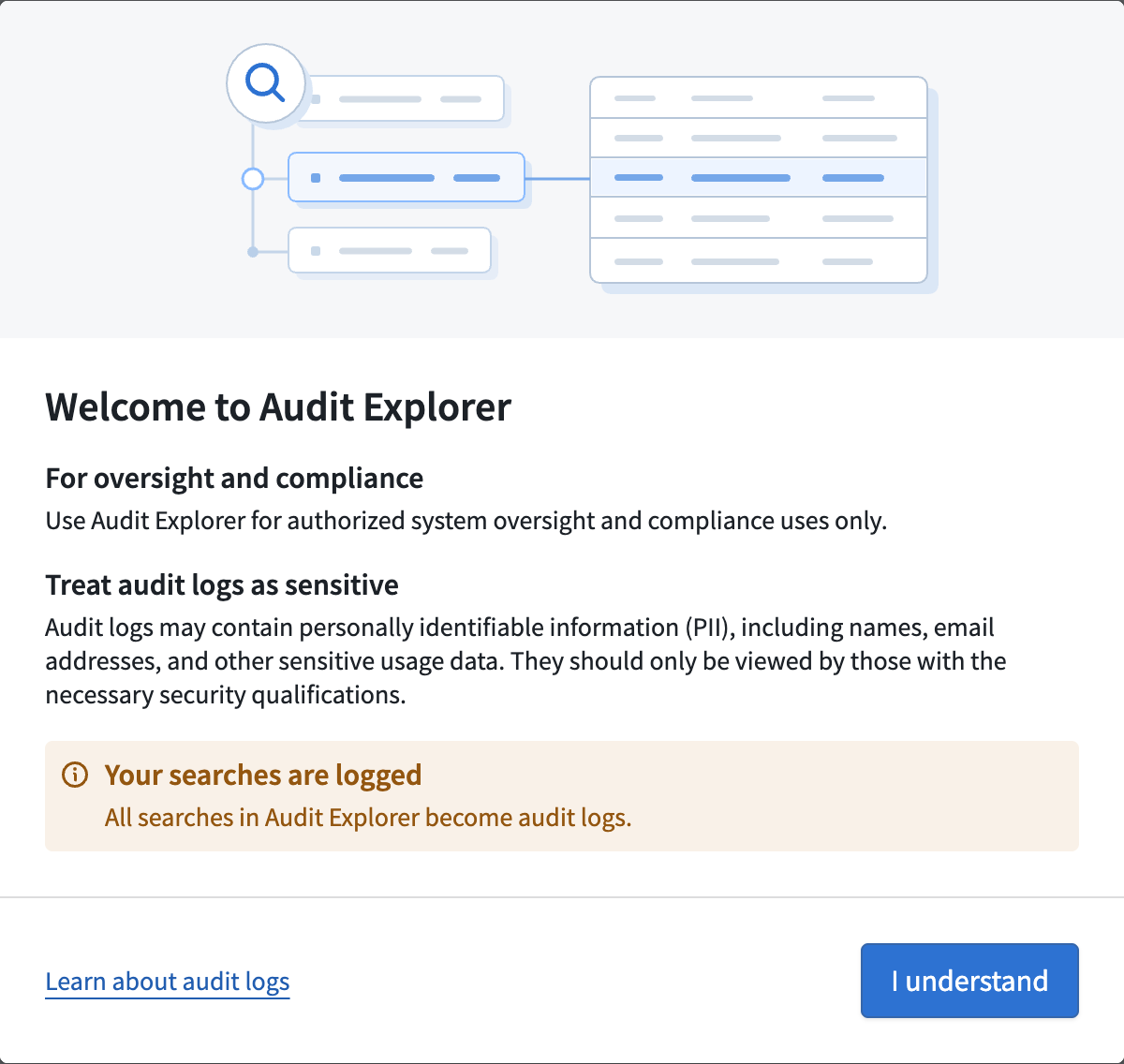
Select I understand to continue. To read more first, select Learn about audit logs to open the audit logs documentation.
To reread the guidance, select Usage guidance in the application header.
Create an Iceberg audit export
The Getting started dialog creates an audit.3 audit export that writes directly to a new Iceberg table, which becomes your audit table. The export uses the same settings as export setup in Control Panel. It adds new logs continuously, with no wait between builds.
To create the export, follow the steps below:
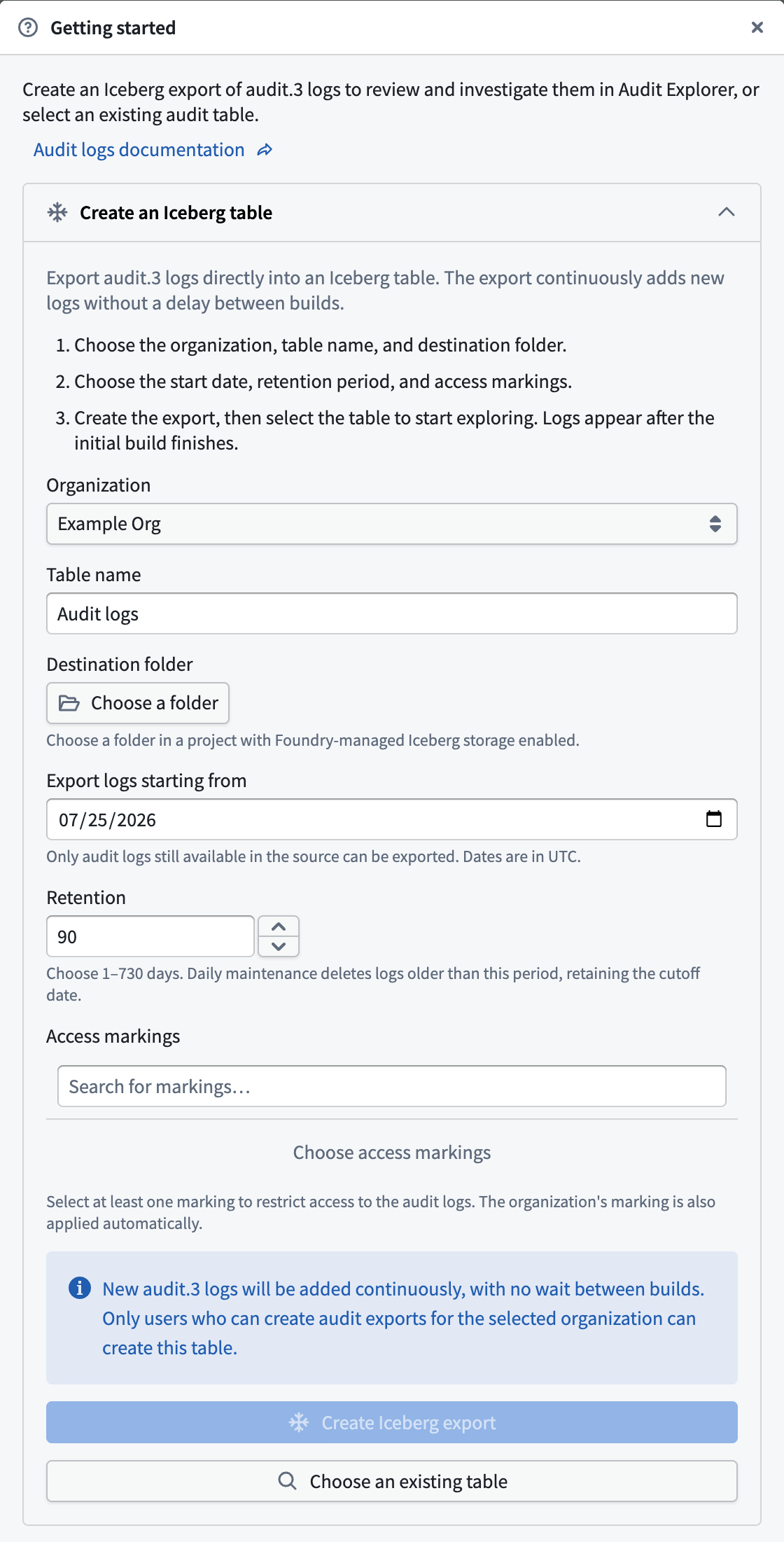
- Open Audit Explorer. On the No audit table selected page, select Getting started. If Getting started does not appear, you cannot create audit exports on your enrollment. Select an existing audit table instead, or contact your platform administrator.
- Under Create an Iceberg table, choose the Organization whose logs you want to export. The list shows only organizations where you can create audit exports. If you can create audit exports for your own organization, it is selected by default.
- Enter a Table name, or keep the default name,
Audit logs. Then choose a Destination folder. - Under Export logs starting from, choose the earliest date to export, in UTC. The default is 90 days ago. You can export only logs that are still available.
- Under Retention (days), enter how long to keep logs, from 1 to 730 days. The default is 90 days. Each day, table maintenance deletes logs whose
dateis older than the retention period. If the start date is further back than the retention period, the first daily maintenance deletes the logs older than that period. - Under Access markings, choose at least one marking to restrict the table to qualified reviewers who need access. Audit logs can contain personally identifiable information and search queries. Audit Explorer also applies the organization's marking.
- Select Create Iceberg export. You cannot close the dialog while Audit Explorer creates the export.
- When
Iceberg table createdappears, select Explore logs in this table. Logs appear after the first build finishes, which can take several minutes.
Change export settings
Organization administrators can change the settings of an Iceberg audit export from Audit Explorer. Select Export settings (the gear icon) next to the table name at the top of the sidebar, or next to the table name on a session explorer tab. Export settings appears only for tables that an audit export writes to.
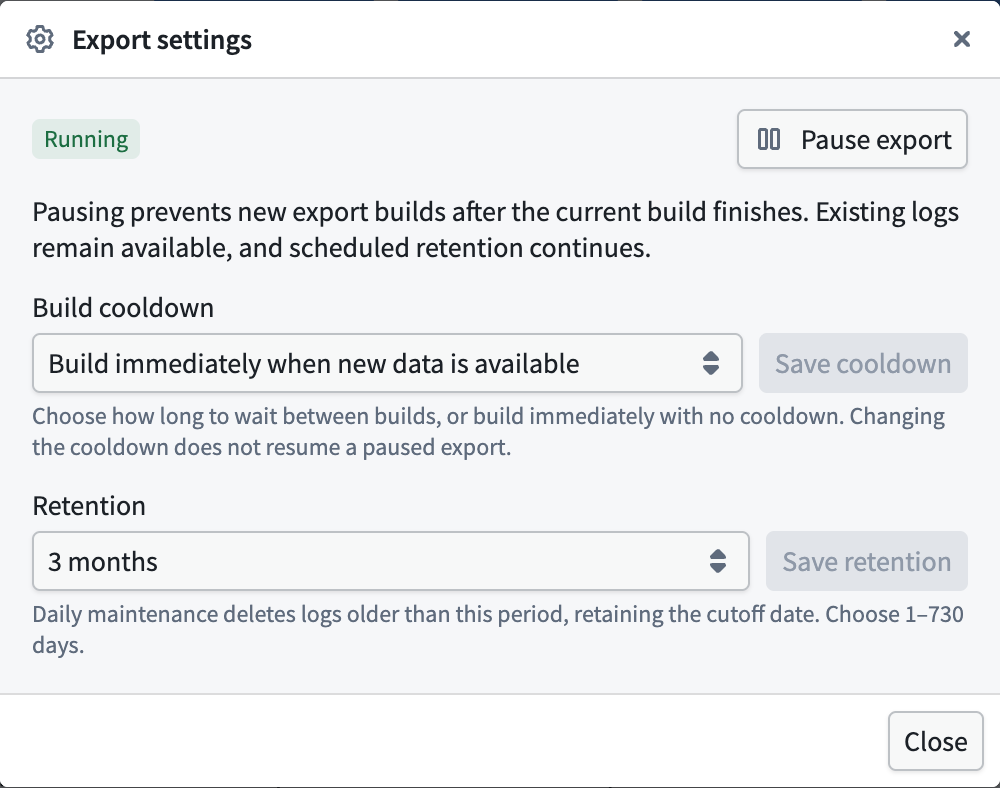
The Export settings dialog includes the following settings:
- Export status: Shows whether the export is
Running,Paused, orStopped. Select Pause export to stop new builds after the current build finishes. Existing logs stay available, and retention continues. Select Resume export to start building again. You cannot resume a stopped export; create a new export to collect more logs. - Build cooldown: How long the export waits between builds, from Build immediately when new data is available to 1 day. Choose a preset, or choose Custom… to enter up to 1,440 minutes, then select Save cooldown. Exports created in Audit Explorer start with no cooldown. Changing the cooldown does not resume a paused export.
- Retention: How long to keep logs, from 1 week to 2 years. Choose a preset, or choose Custom… to enter 1 to 730 days, then select Save retention and confirm. The change applies at the next scheduled maintenance. If the table's retention task was changed outside Audit Explorer, manage retention on the table's Maintenance page instead.
When you shorten the retention period, the next scheduled maintenance permanently deletes logs older than the new period.
If you lack permission to change a setting, the dialog shows You do not have permission to change this setting. You can also pause and resume exports in Control Panel. Learn more about how to update or disable export datasets.
Select an audit table
To open an audit table, follow the steps below:
- On the No audit table selected page, choose Select audit table. Alternatively, select Choose an existing table in the Getting started dialog.
- In the Select an audit table dialog, find your audit table and select it. You can select only Iceberg tables.
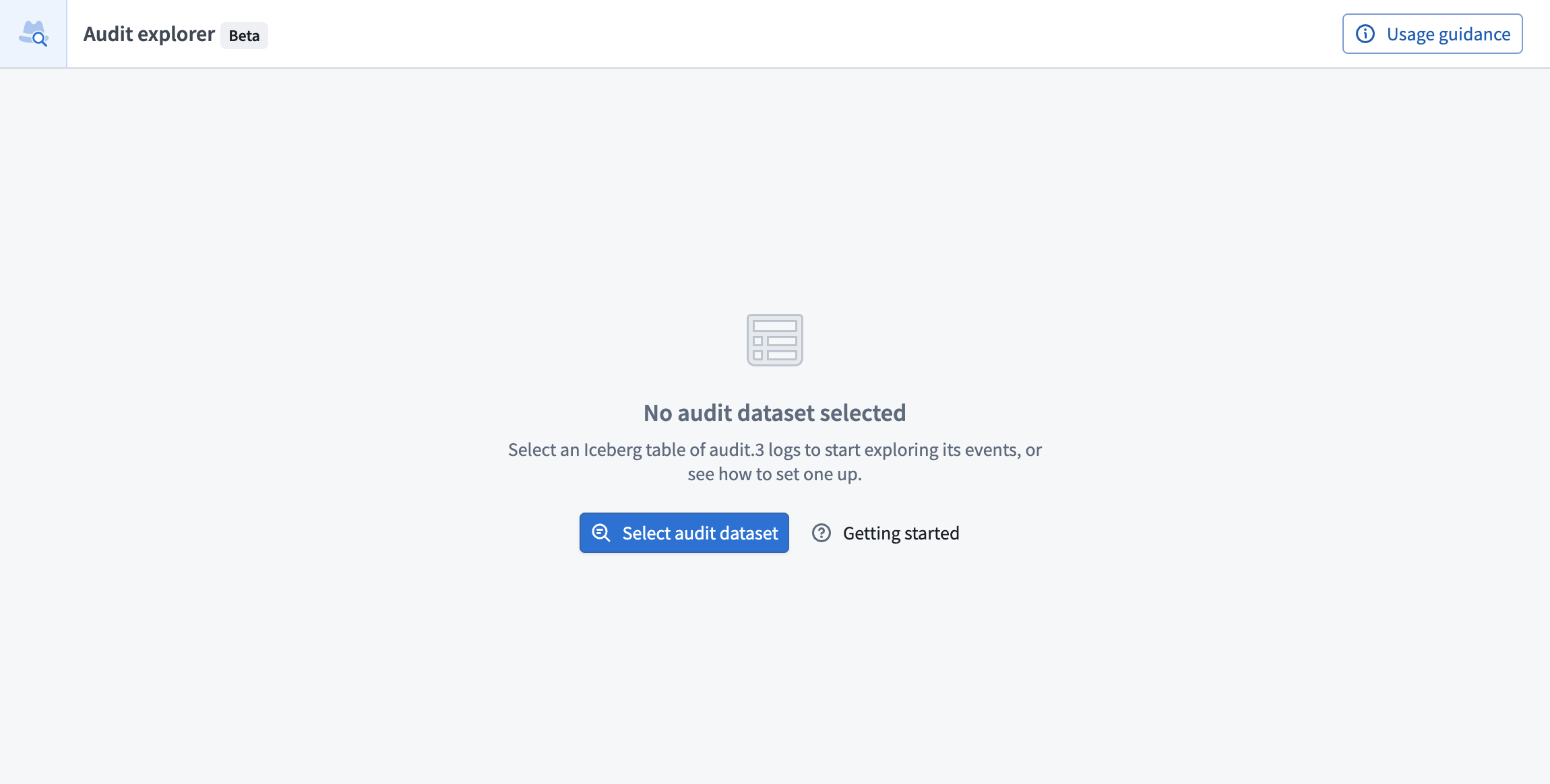
If the table does not have the required columns, an error appears instead of the logs.
Audit Explorer opens the last selected table on your next visit, even if it failed the column check. To switch tables, select Change table (the pencil icon) next to the table name at the top of the sidebar on a search tab.
To share a table, copy the URL from your browser's address bar. The link opens the table but not your search filters, and it does not give recipients access to the table.
Check data freshness
On a search tab, the card at the top of the sidebar shows the selected table's name. Next to Refresh, it shows the age of the table's newest audit log, such as 5m ago. The age ignores your search filters. It updates automatically and each time you select Refresh. Hover over the age to see the exact time. The age does not appear if the table is empty, if Audit Explorer cannot look up the newest log, when the sidebar is collapsed, or on session explorer tabs.
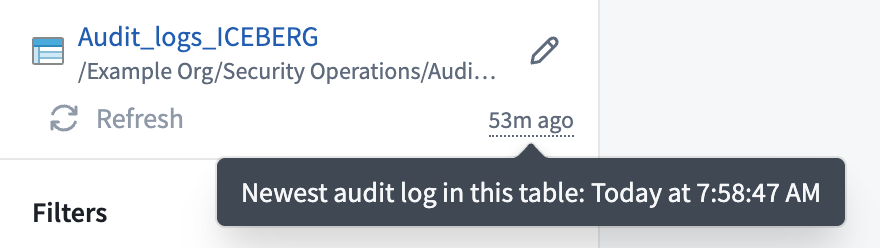
Logs take time to reach the audit table. Review audit.3 logs for delivery latency. If the export is paused or has a long build cooldown, new logs arrive later. Review the table's export settings.
Troubleshooting
| Message or issue | Resolution |
|---|---|
| Getting started does not appear | Audit export is not available on your enrollment. Select an existing audit table, or contact your platform administrator. |
| Organization list is unavailable | You cannot create audit exports for any organization. Ask an organization administrator for the create audit exports permission, or select an existing audit table. |
Could not load organizations, permissions, and markings. | Select Retry. |
Could not create the audit export | Audit Explorer could not create the export. Before you try again, check the destination folder for a table that the request might have created. If the issue continues, include the Error instance ID when you contact Palantir Support. |
Table created, but setup is incomplete | Audit Explorer created the table but could not turn off its build cooldown. Select Finish setting up this table to try again. Retrying does not create another table. |
| Export settings does not appear | No audit export writes to the table, or you are not an organization administrator of the export's organization. |
Table does not match the expected schema
Audit Explorer shows The selected table does not match the expected audit log table schema. when the table lacks the required columns or when Audit Explorer cannot read it. For example, you might not have permission to view the table, might not satisfy its markings, or someone might have deleted it.
When you open a table, Audit Explorer checks that it has the following six columns:
time, with atimestampordatetypelogEntryId, with a scalar type such asstringorlong(notmap,array, orstruct)uidnamecategoriesservice
To find the cause, read Error details. It lists the missing columns or wrong types, or shows the error that Foundry returned when reading the table. You can copy it to share with your administrator or Palantir Support. To open a different table, choose Select another table.