- Capabilities
- Getting started
- Architecture center
- Platform updates
Audit Explorer [Beta]
Audit Explorer is in the beta phase of development and may not be available on your enrollment. Functionality may change during active development.
Audit Explorer is a data governance application for searching and reviewing audit.3 audit logs in Foundry. You can filter audit logs by user, event, resource, and time, and review activity over time in charts. Audit Explorer supports security investigations, compliance reviews, and oversight of how data is used in Foundry.
A privacy best practice is to search audit logs only for a defined oversight or compliance purpose, with access limited to the people who need it for that purpose. Audit logs can contain personally identifiable information, such as names and email addresses, so keep each search proportionate to the question you need to answer. Audit Explorer records every search, which keeps reviewers accountable for how they use audit data. Review privacy and civil liberties in practice for guidance on purpose limitation, access governance, and accountability. All uses of Audit Explorer must adhere to Palantir's Acceptable Use Policy ↗.
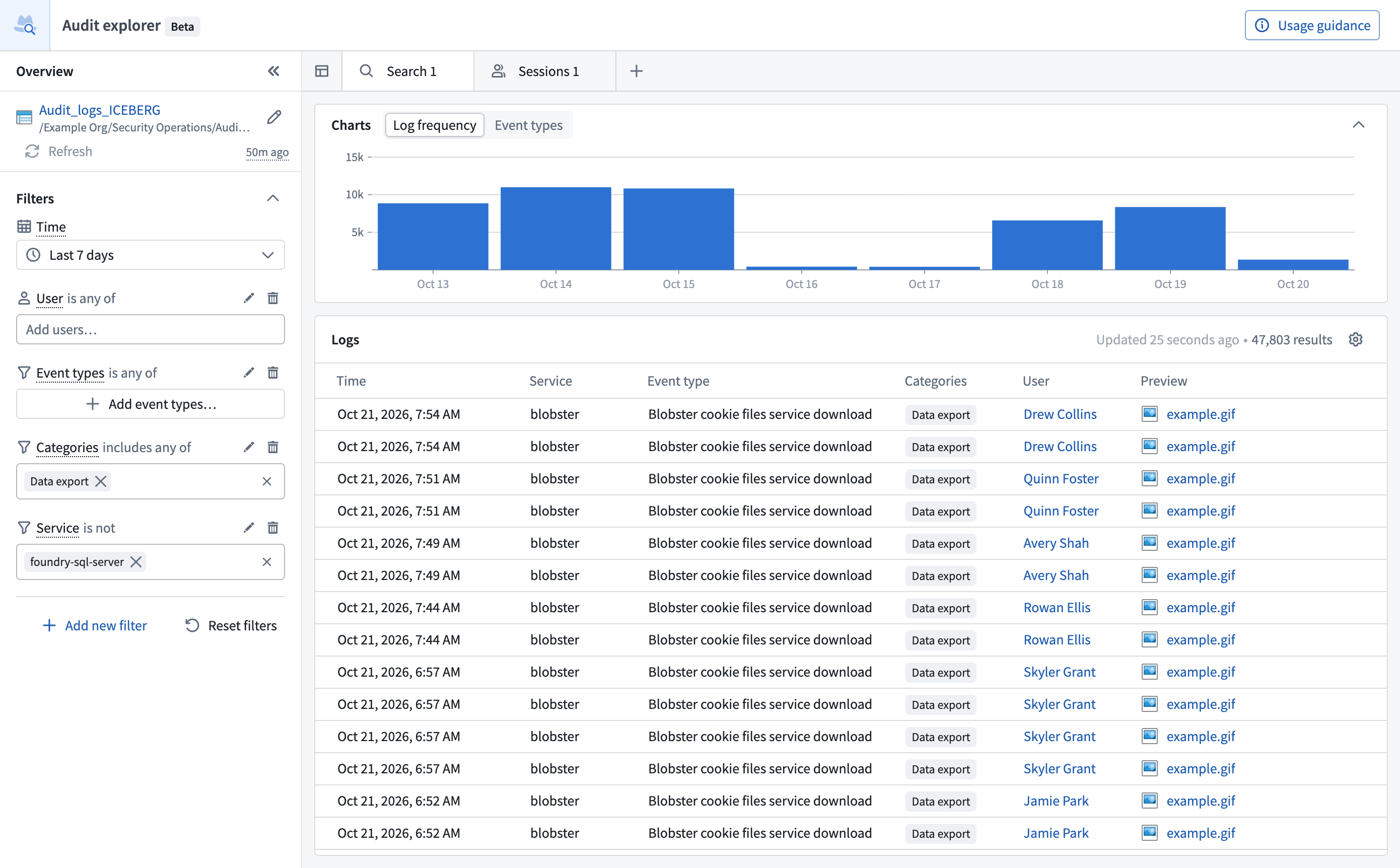
All screenshots use notional data.
How Audit Explorer works
Audit Explorer reads logs from an audit table: an Iceberg table that an audit.3 audit export writes to. To create the export, you need permission to create audit exports for the organization. The Organization administrator role grants this permission by default. Learn more about how to create an audit table.
Keep the following in mind when you use Audit Explorer:
- Supported tables: Audit Explorer opens only tables with the
audit.3schema. - Your own permissions: Audit Explorer runs queries with your own permissions and does not grant additional access. You need permission to read the table and must satisfy its markings. If you do not have permission to read a table, Audit Explorer shows the same error as for a table with the wrong schema. To find out whether permissions or the schema caused the error, read the error details.
- Only logs in the audit table: Audit Explorer shows only the logs that have reached the audit table, so recent activity might not appear yet. An empty result for a recent period does not necessarily mean that no activity occurred. Learn more about how to check data freshness.
Key features
- Search and filter: Build a search in the sidebar. Filter by time, user, event type, category, resource, or Ontology resource, and add free-text terms. Choose event types from a curated list of recommended events. Learn more about how to search and filter audit logs.
- Charts: See when matching events occurred and which event types are most frequent. Learn more about charts.
- Logs table: Show or hide columns, and right-click most values to include only that value, exclude it, or pivot to a new search. Right-click a Time value to zoom the time range around that log. Learn more about the Logs table.
- Log details: See who did what, when, and from where, with readable summaries for events such as Ontology actions and function executions. Learn more about how to view audit log details.
- Sessions: List sessions to follow the sequence of a user's activity, and review Checkpoints justifications. Learn more about how to explore user sessions.
Access Audit Explorer
Open Audit Explorer from the Applications portal in the workspace navigation sidebar. Search for it by name, or find it under Security & governance.
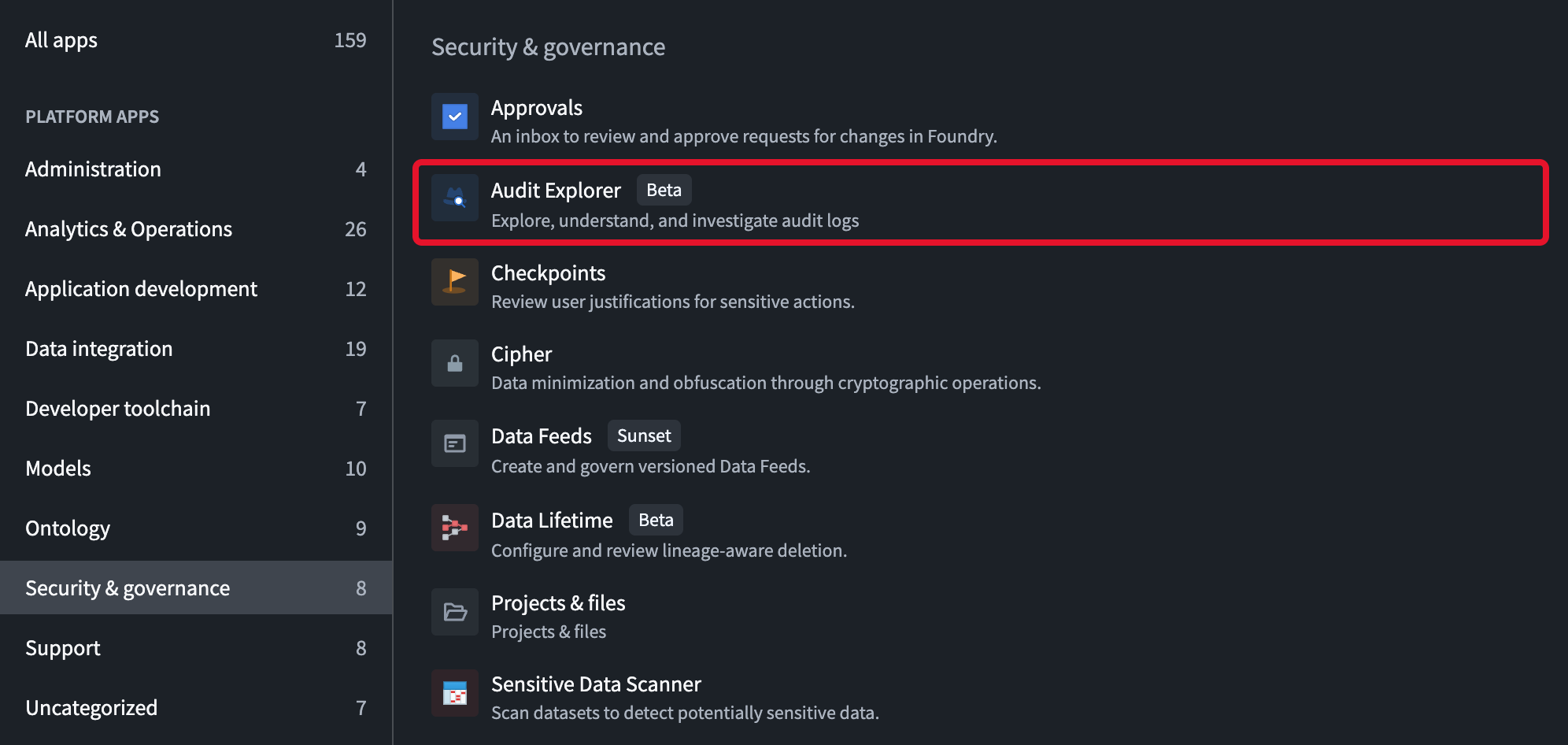
If you do not see Audit Explorer, contact your platform administrator to modify application access in Control Panel. Platform administrators can also use application access to restrict Audit Explorer to the groups that need it. Application access controls only who can open Audit Explorer. In other applications, the audit table's own permissions and markings control access to it.
The first time you open Audit Explorer, you must acknowledge the usage guidance.
Searches are logged
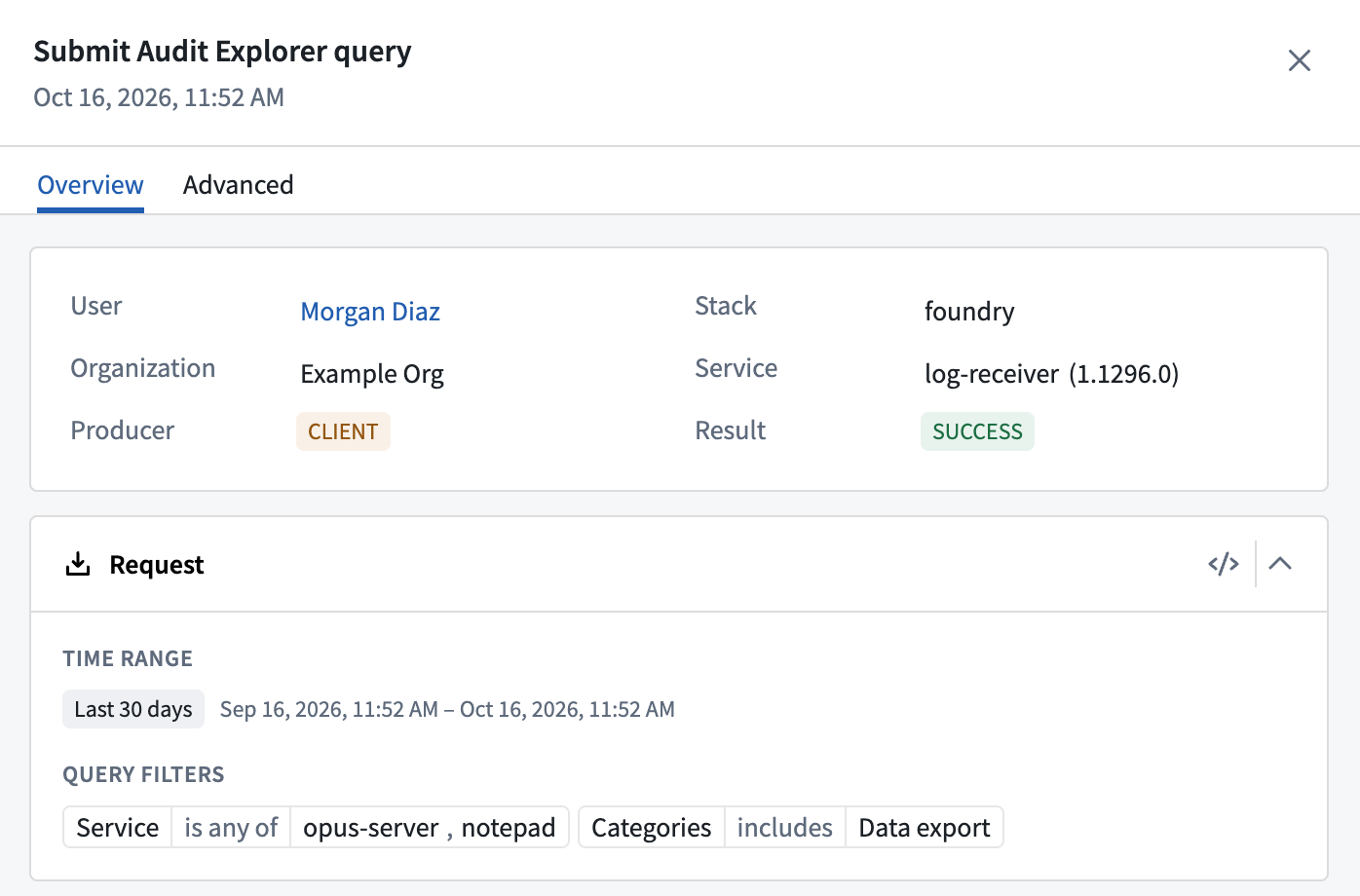
Audit Explorer writes an audit log each time you run a search, so that your use of audit data is itself auditable. Each log uses the dataSearch category and records the following:
- The audit table you searched
- Your filters and free-text terms
- The time range you chose and the time window it covered when Audit Explorer logged the search
The log does not record the SQL query, the results, which logs you viewed or opened, or whether the search completed. Each log's result is SUCCESS, which means that the search was logged, not that it returned results.
Audit Explorer logs a search when you do any of the following:
- Open a table
- Open or switch to a tab
- Apply a filter change
- Reset filters
- Apply a recent search
- Change the time range
- Select Refresh
While you edit a filter, Audit Explorer does not log anything until you select Apply. The exception is Free text search in the Add new filter menu, which runs and logs the search as soon as you select it. Audit Explorer does not log scrolling, sorting, changing columns, loading filter value suggestions, browsing the Select event types dialog, reordering filters, or opening log details as separate searches.
Reviewers can find these logs by selecting Submit Audit Explorer query under Access and administration in the Select event types dialog, which filters on the event name AUDIT_EXPLORER.QUERY_SUBMIT. Filtering on the dataSearch category alone also matches searches in other applications. To review searches of a single audit table, also add a Resources filter with that table's resource identifier (RID). Learn more about audit log searches.
Search logs reach your organization's audit export like other audit.3 logs. In exported logs, the filters are a JSON value in the requestFields.dataSearchContext entry whose description is auditExplorerQueryFilters, and the searched table is in resultFields.dataSearchResults. The format of the JSON value may change.
Best practices and limitations
Searches consume Foundry compute, and some results require careful interpretation.
Keep searches narrow
To limit compute use, follow these practices:
- Use the shortest time range that answers your question.
- On large tables, avoid an empty time range, which appears as All time. Audit Explorer scopes filter value suggestions by the time range only, not by your other filters. With All time, opening the value suggestions of a filter such as Service reads that column across the whole table. Selecting All event types in the Select event types dialog does the same. The Log frequency chart also shows no bars, and the result count shows only the rows loaded so far.
- Keep the default sort, with the newest Time first. Other sorts read every row in the time range that matches your filters.
- Close Audit Explorer when you finish. While a search tab is open, Audit Explorer checks the table for its newest log every 60 seconds and each time you return to the browser window. It does this even when you are not searching.
Time zones
Audit Explorer has no time zone setting. It handles times as follows:
- The Logs table, log detail panel, charts, and time range control show formatted times in your browser's local time zone, without a time zone abbreviation. You also enter times in local time. If you select Show raw values on the Time column, it shows the stored value in Coordinated Universal Time (UTC).
- Log frequency bars start on UTC boundaries, such as midnight UTC. If your browser's time zone is not UTC, bar labels might show a local time other than midnight, or the previous or next calendar day.
- Copy timestamp in the Time cell menu copies the time in UTC, for example
2026-10-12T14:03:00.000Z.
Counts include duplicate rows
Audit log delivery to Foundry can create duplicate rows, and counts include them. Result counts, charts, and session Events counts can therefore be slightly higher than the number of unique events. Rows with the same Log entry ID are duplicates. For exact counts, deduplicate on logEntryId.
Limits
| Limit | Value |
|---|---|
| Logs per page in the Logs table | 100 rows |
| Filter value suggestions | 1,000 most frequent values in the time range |
| Log frequency chart | 2,000 bars |
| Event types chart | 10 most frequent event names |
| Matches in the User and Resources filters | 20 matches |
| All event types in the Select event types dialog | 1,000 most frequent event names in the time range |
| Recent searches | 8 per table |
| Sessions in a session explorer tab | 1,000 most recent sessions |
| Query time limit | 5 minutes, after which Audit Explorer cancels the query |
Next steps
- Set up Audit Explorer to select or create an audit table.
- Learn more about audit logs, audit log categories, and how to monitor audit logs.