- Capabilities
- Getting started
- Architecture center
- Platform updates
Foundry usage and limits
Use the Foundry usage & limits page in Resource Management to identify when usage approaches or exceeds an enrollment-level limit and determine which organizations contribute to the enrollment's usage.
This page is for observing usage. You cannot configure or change limits from this page. To request a higher enrollment-level limit, use the Request limit increase option or contact Palantir Support.
Before you begin
To view Foundry usage and limits, you need access to Resource Management and permission to read usage metrics. At the enrollment level, users with the Resource management viewer role have this permission by default. At the organization level, users with the Organization administrator role have this permission by default.
Foundry reports usage metrics for services including:
- Ontology Reads
- Platform APIs
- Function Compute
A service only appears on the page when an enrollment-level limit is configured for it in your environment.
View enrollment utilization
- Open Resource Management.
- Select Foundry usage & limits in the sidebar.
- Select a service. The list contains services with configured enrollment-level limits for your environment.
- Select a preset time range or define a custom range. The available range depends on metric retention for the enrollment.
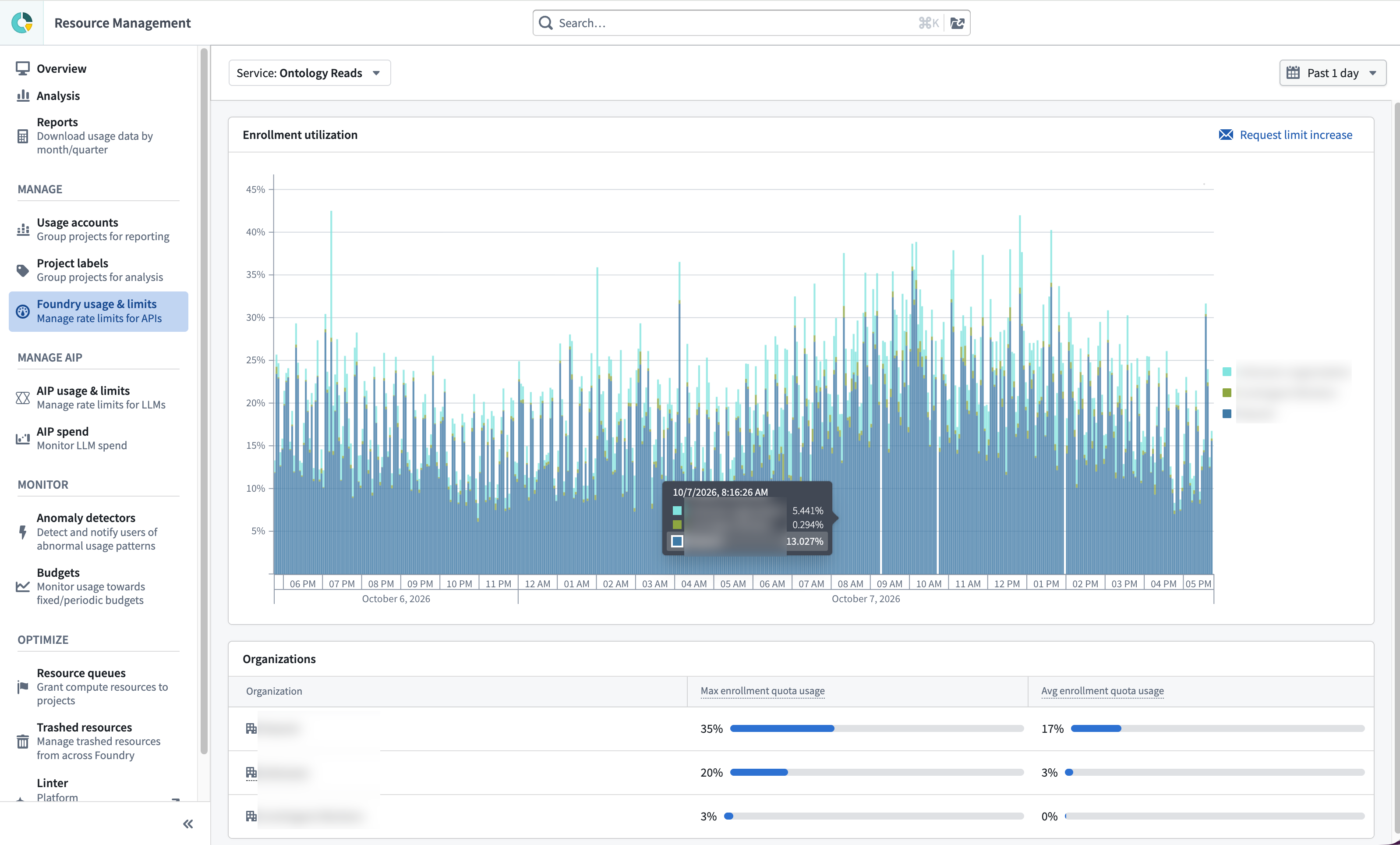
The Enrollment utilization chart compares request usage with the selected service's enrollment-level limit over time. A value of 100% means that usage reached the enrollment limit during the displayed interval. Values greater than 100% mean that reported usage exceeded the limit.
The chart shows each organization's contribution to enrollment utilization. If the enrollment has one organization, the chart displays a single series. For enrollments with multiple organizations, use the legend or hover over the chart to identify each series. Select a range within the chart to inspect a shorter time range.
Compare usage by organization
The Organizations table summarizes request usage for the selected service and time range. If the enrollment has one organization, the table displays a single entry. For enrollments with multiple organizations, the table lists each organization separately. Use the table with the Enrollment utilization chart to identify the organizations contributing the most usage.
The UI refers to the shared enrollment-level limit as an "enrollment quota" in the table. Max enrollment quota usage is the organization's highest percentage of the enrollment-level limit during the selected time range. Avg enrollment quota usage is the organization's average percentage of the limit during the selected time range.
An organization's contribution to enrollment utilization is not an organization-specific limit. The percentage compares that organization's request usage with the shared enrollment-level limit.
View usage by user
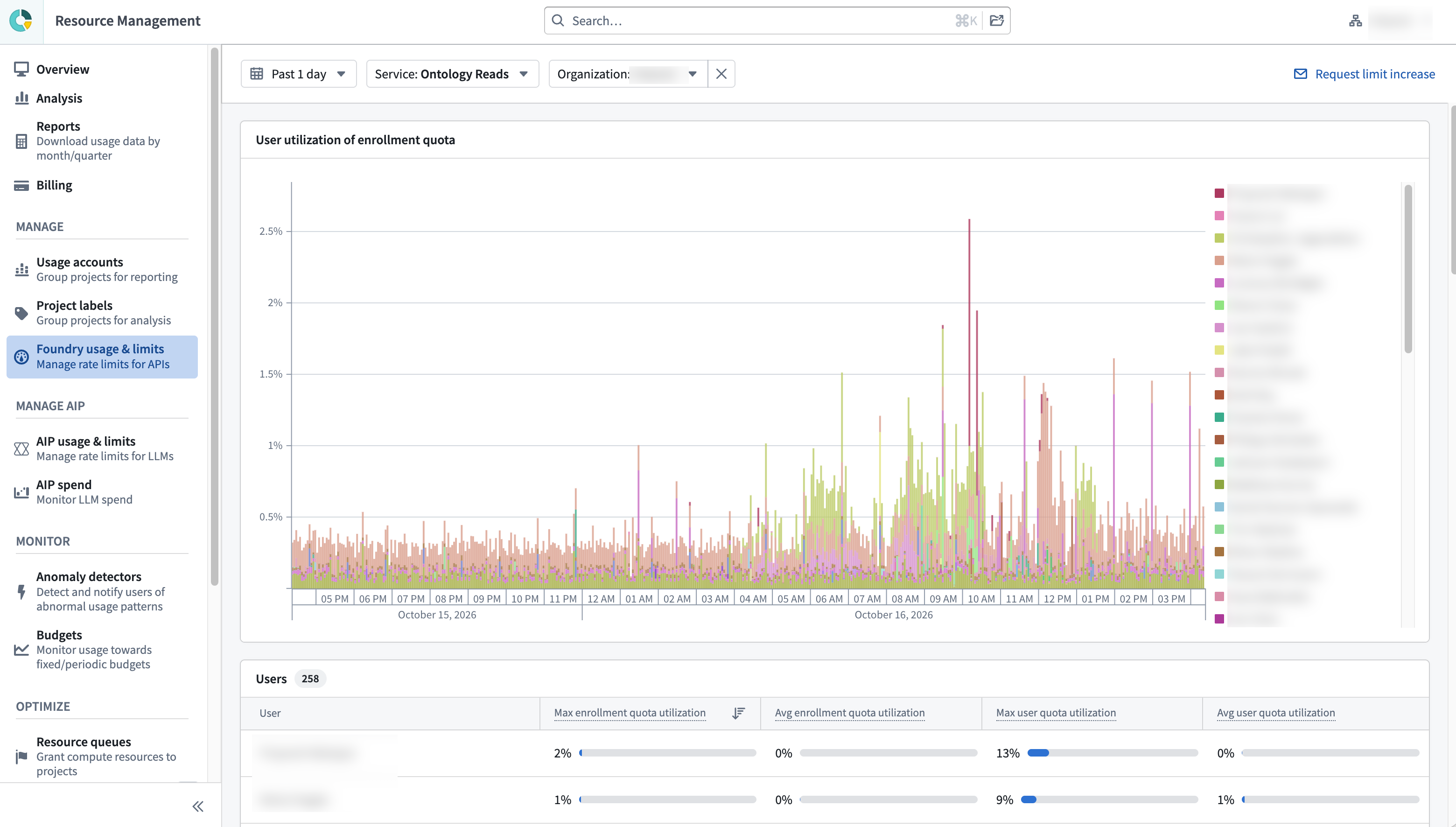
Select an organization in the Organizations table to view its usage broken down by user. The user breakdown retains the selected service and time range, allowing you to identify the users contributing the most usage within that organization.
Request a limit increase
To request a higher enrollment-level limit for the selected service, select Request limit increase above the Enrollment utilization chart to contact Palantir Support. Include the requested increase, why it is needed, and any additional context.
Interpret the data
Usage metrics are aggregated into time intervals, so recent requests may take a short time to appear in the chart and table while usage reports are collected and processed.
The page only includes requests that count toward the enrollment-level limits shown on the page. It does not represent all compute, storage, or billable usage. To analyze those resources, use the Overview and Analysis pages in Resource Management.