- Capabilities
- Getting started
- Architecture center
- Platform updates
Organize and filter
For large analyses with many nodes, graph mode provides several ways to control which nodes are visible so you can focus on a specific area of your analysis.
Hide nodes
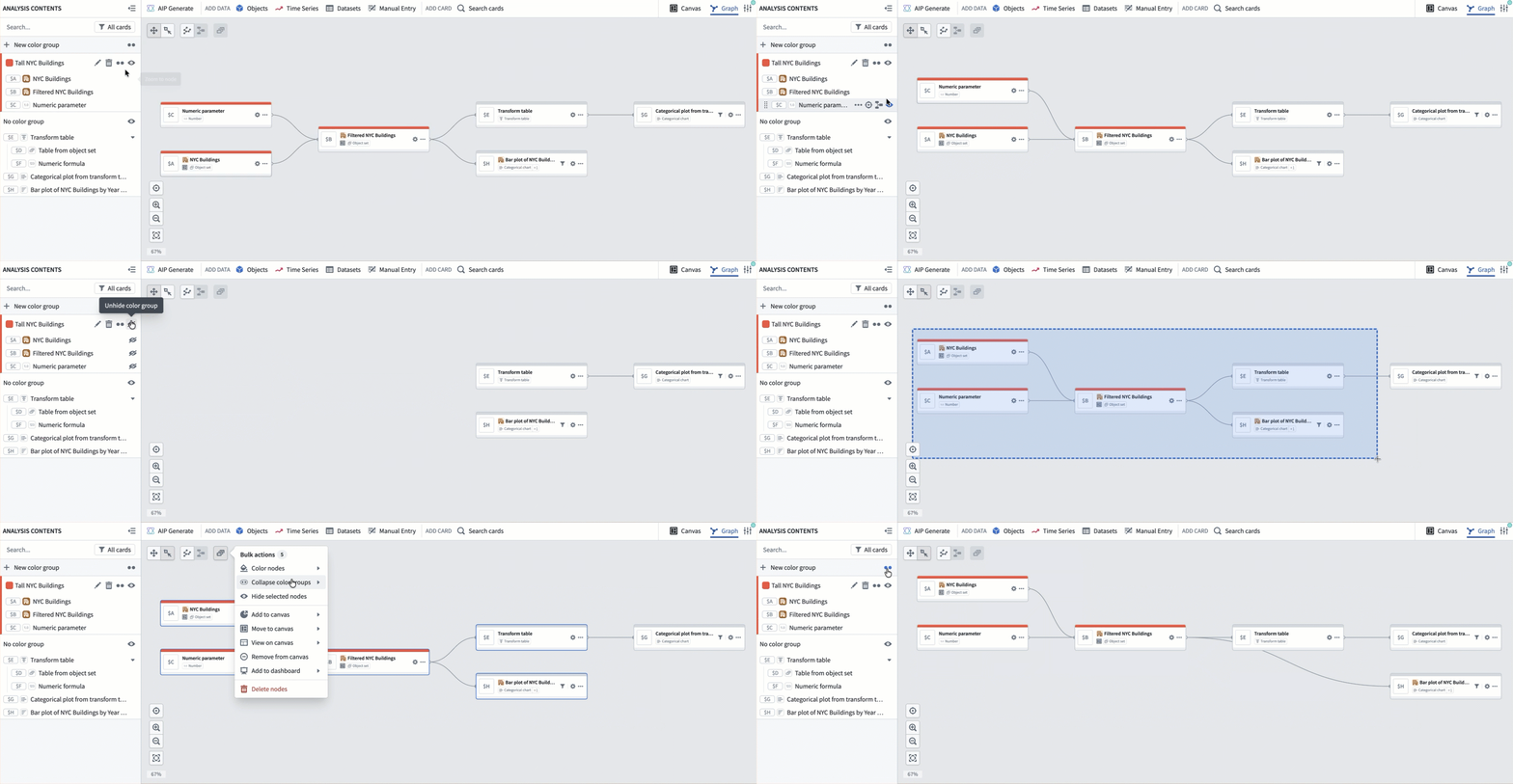
You can hide individual nodes or groups of nodes to reduce visual clutter in the graph. Hidden nodes are not deleted from the analysis and can be made visible again at any time.
To hide a node, select the eye icon that shows when hovering on the card in the Analysis Contents panel and select Hide. To hide multiple nodes, drag to select them on the graph and then select Hide selected nodes from the bulk actions menu.
You can also hide entire color groups from the color legend in the Analysis Contents panel using the eye icon.
To show hidden nodes, use the Analysis Contents panel to find and reveal them.
Filter nodes
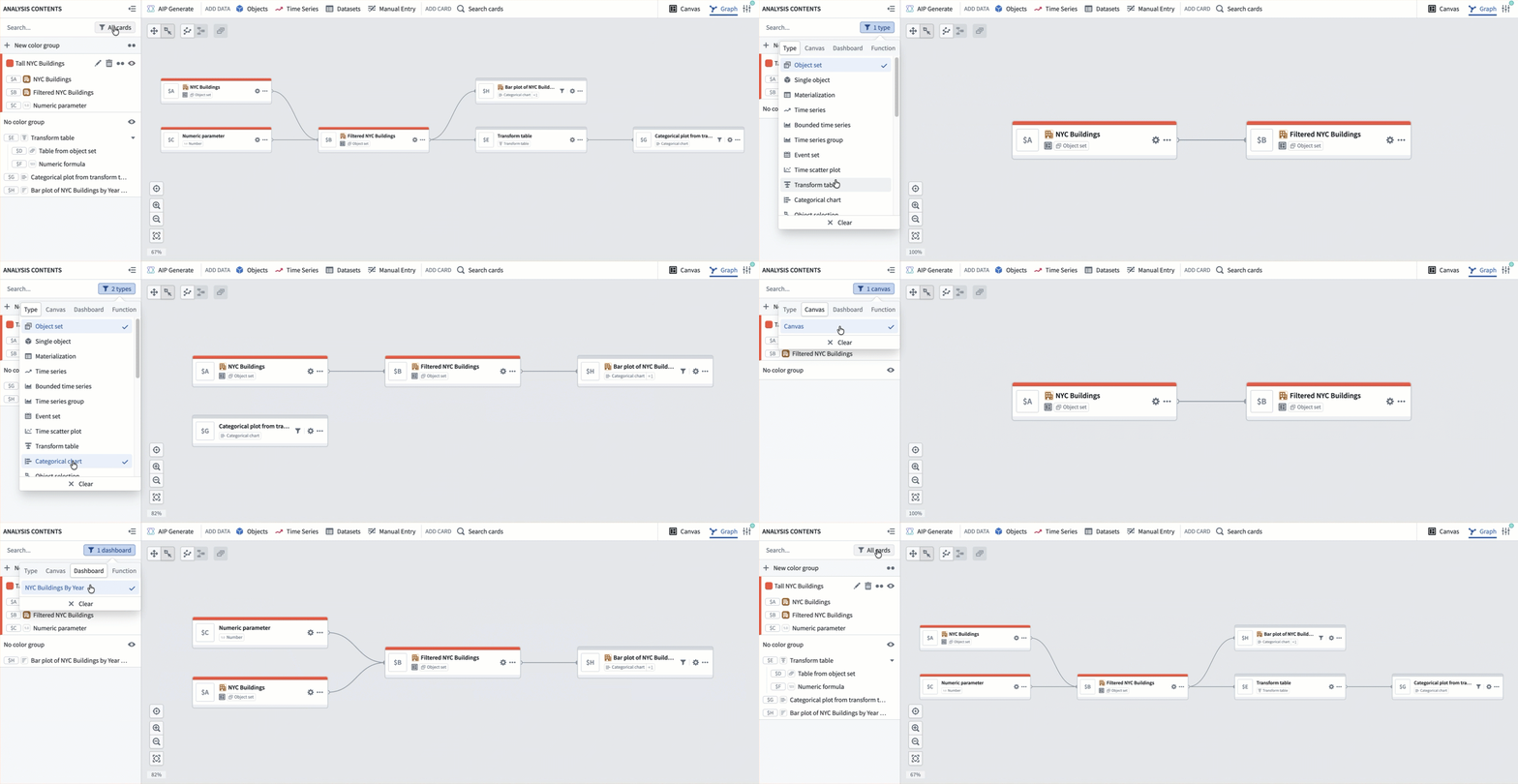
The Analysis Contents panel includes filters to control which nodes are visible in the graph. You can filter by:
- Node type: Show only specific types of cards, such as object sets, charts, or transform tables.
- Canvas: Show only nodes that are present on a specific canvas.
- Dashboard: Show only nodes associated with a particular dashboard.
- Function: Show only nodes related to a specific visual function.
Nodes that do not match the active filter are hidden from the graph but remain part of the analysis.
Dependency view
When you need to trace a single card's lineage, you can narrow the graph to show only that card and its upstream and downstream dependencies.
To enter a dependency view, right-click a node and select View dependencies, or select View dependencies in graph from the card's More actions menu in the Analysis Contents panel.
To return to the full graph, select the Exit dependency view button.
For more details, review the dependency view section in the graph mode documentation.