- Capabilities
- Getting started
- Architecture center
- Platform updates
Color groups
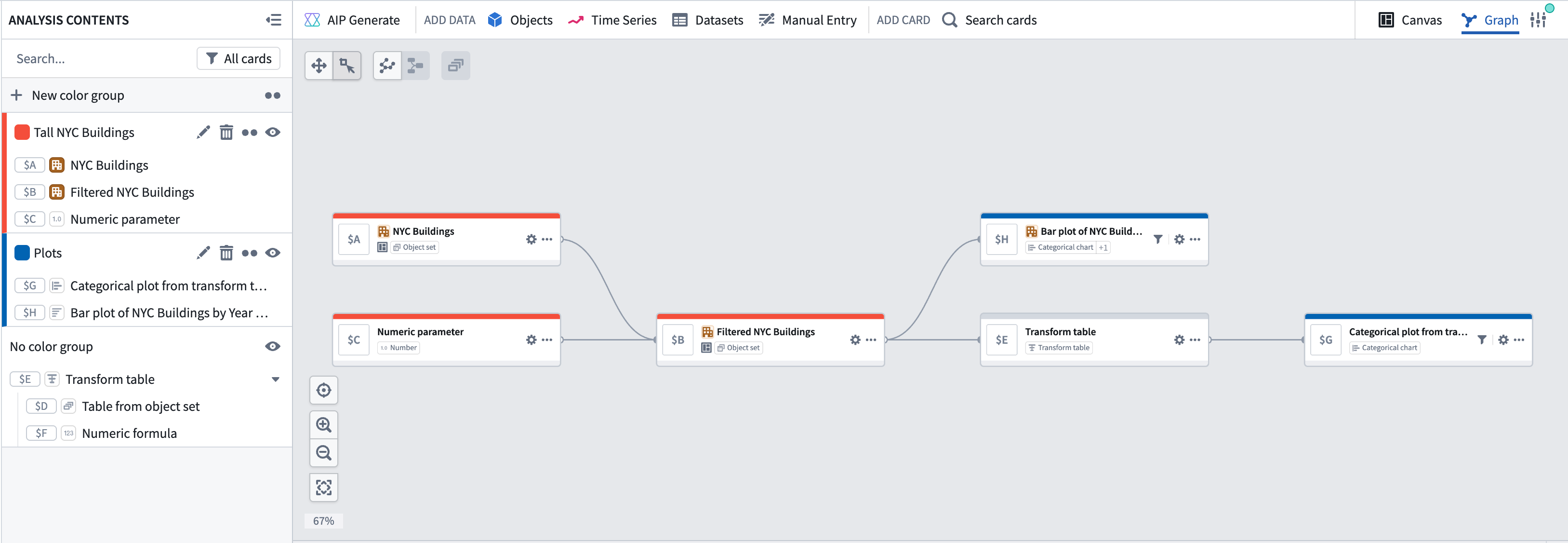
You can use color groups in graph mode to visually organize your analysis. Assign colors to related nodes to distinguish different sections of your graph at a glance. For example, you could color all nodes downstream of one object blue and those downstream of another red.
Color groups can also be collapsed or hidden to simplify the graph and reduce visual clutter.
Create and assign color groups
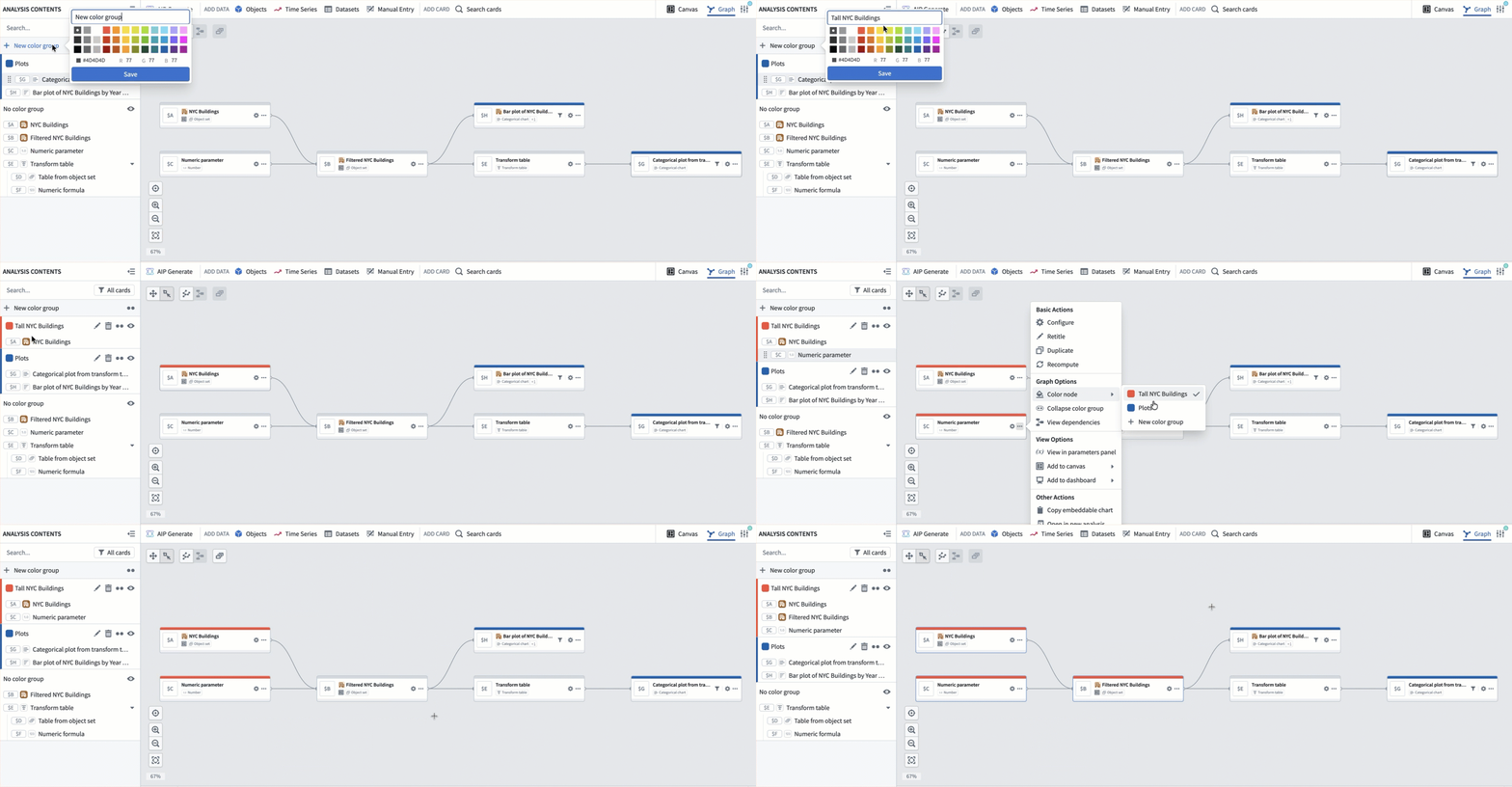
To create a new color group, select + New color group in the Analysis Contents panel. Then, set the name and color of the group.
To add nodes to the group, right-click on a node and select Color node. Then, choose the group you want to assign the node to. You can also drag cards within the Analysis Contents to move them between color groups or add them to a color group.
You can also create new color groups directly on the graph. Select the nodes you want to group, then right-click and select Color node > New color group (or use the bulk actions menu).
Collapse and expand color groups
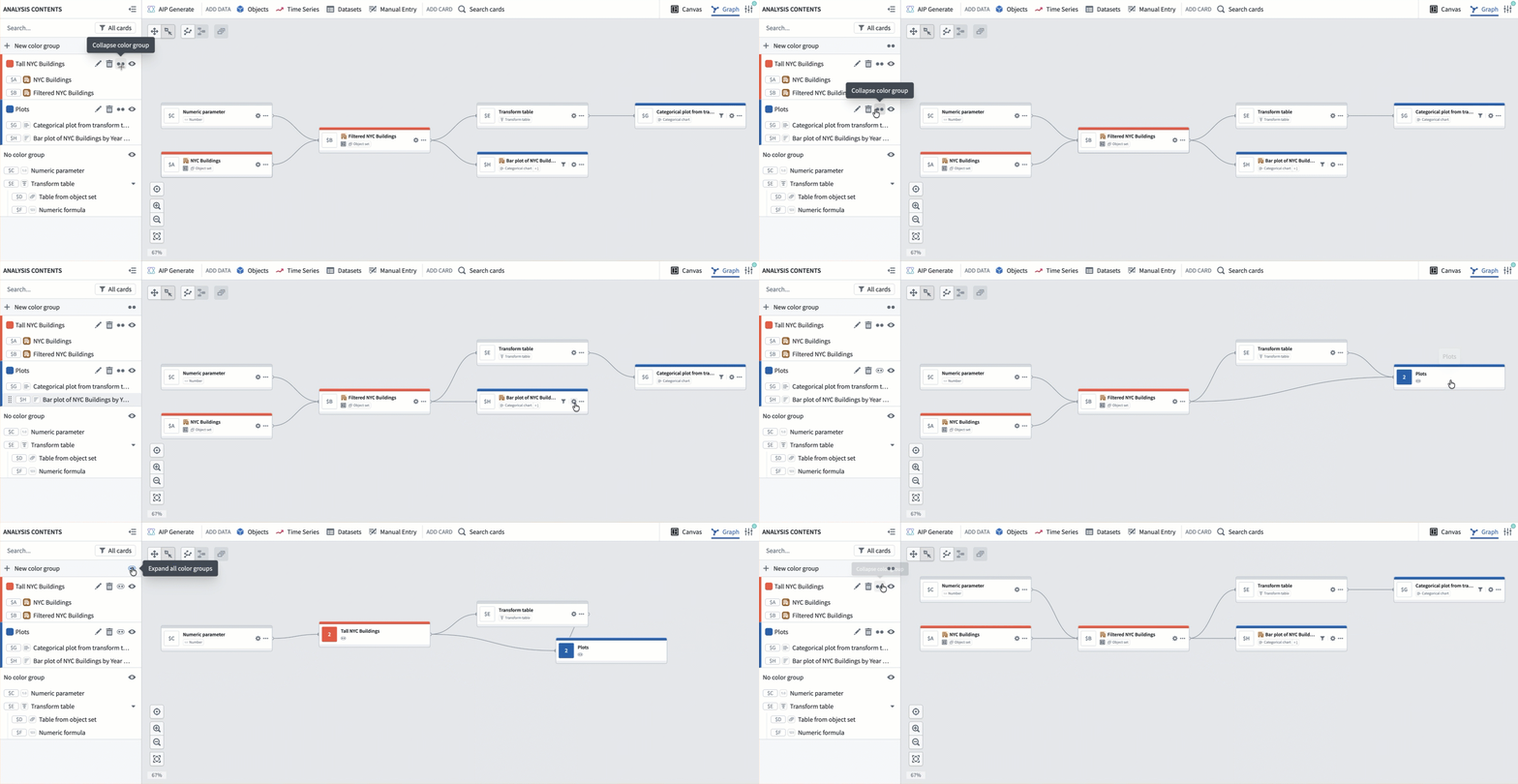
You can collapse a color group into a single node to simplify your graph, particularly when you are not actively working with nodes in a given group.
To collapse a color group, right-click on any node in the group and select Collapse color group or select the Collapse color group button in the Analysis Contents panel next to the group name. To expand the group, select Expand color group in the Analysis Contents panel next to the group name.
Hide color groups
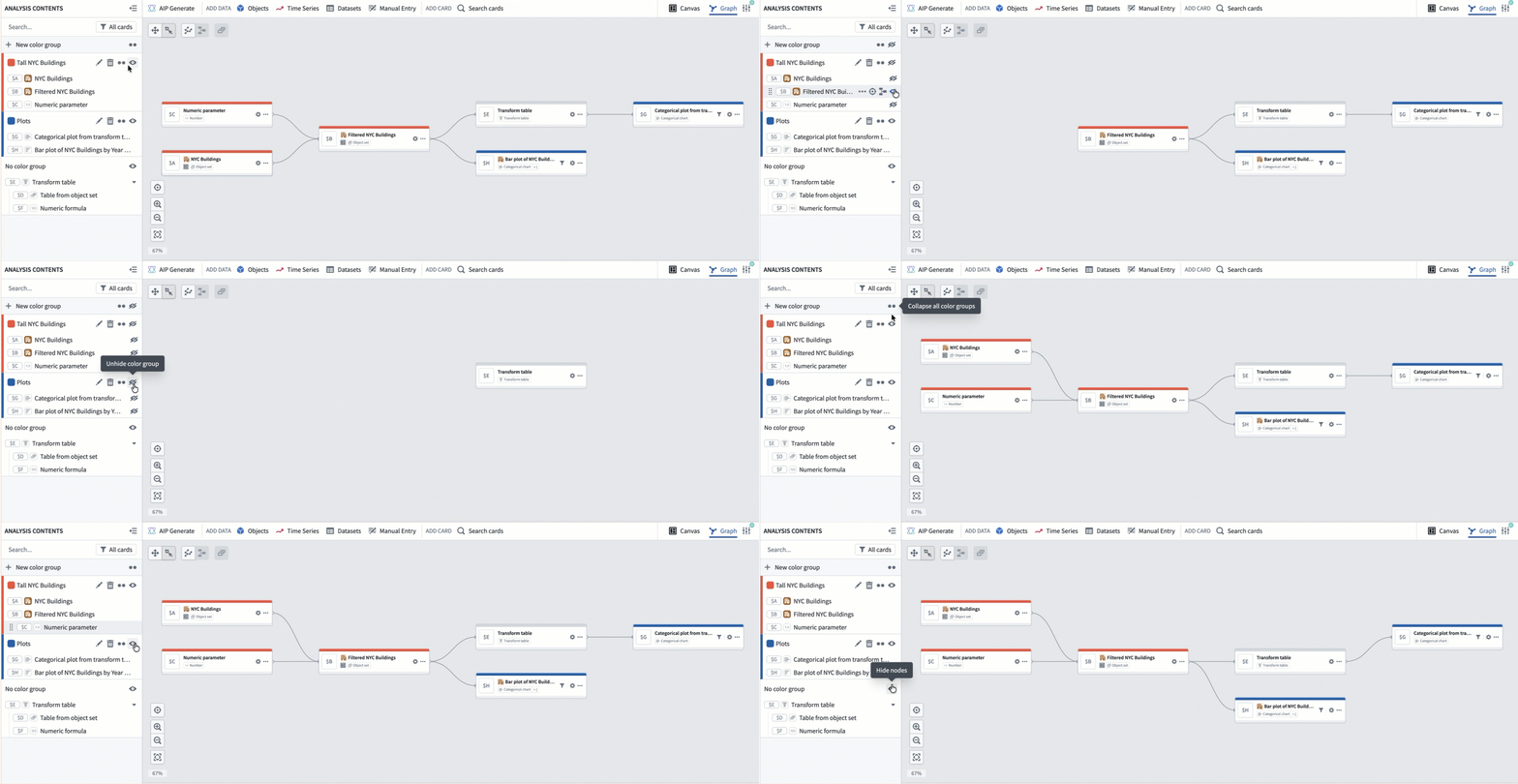
You can hide a color group or hide all other color groups to focus on a specific part of your analysis. To hide a color group, go to the Analysis Contents panel and select the eye icon next to the group you want to hide.
Modify color groups
Remove a node from a color group
To remove a node from a color group, right-click the node, select Color node, then choose the group name to remove it. You can also drag it from the Analysis Contents into either another color groups section or the No color group section.
Edit or delete color groups
To edit a color group, select the pencil icon near the group name in the legend. You can rename, change the color, or delete the group.