Exporting Environments
You can use Export Pipelines to export Apollo Environments. In some configurations, you may want to define Environments in a different Apollo Hub than where the Environment is connected. This is useful when an Environment is connected to a Hub that is not accessible to all users, but these users still need to manage the Environment's configuration. In this guide, an Environment refers to the Environment and all its contents, including Entities, configurations, and settings.
Export an Environment
Create an Environment
First, you will need to create an Environment. From your Source Hub, navigate to the Environment creation dialog, and set your Environment's connection settings to No Connection Expected.
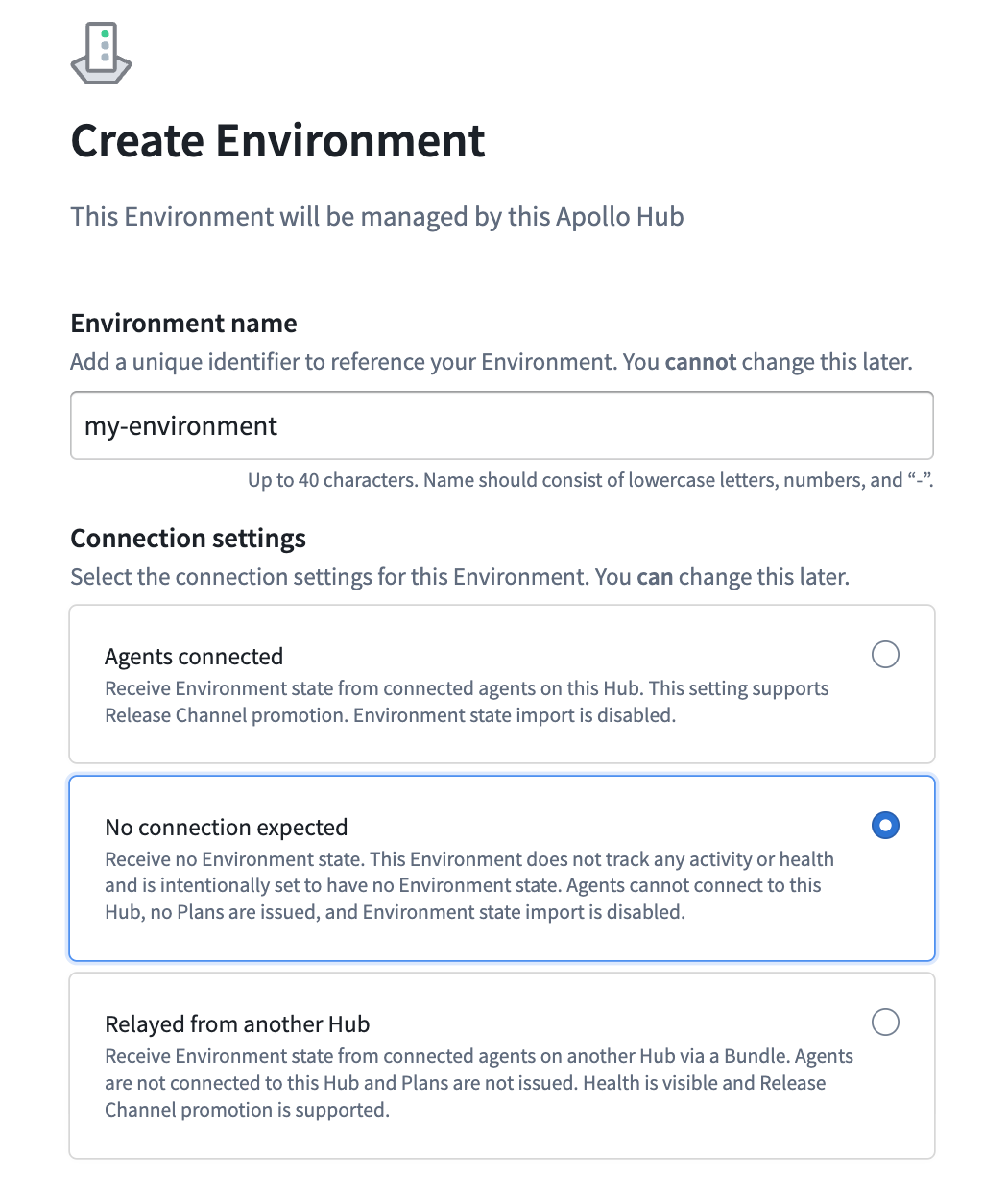
From the Source Hub, you can edit the Environment's config the same way as for Connected Environments. However, you will not be able to view the information that Agents in the Environment report to Apollo, such as Plans and health. You can only view this information on the Hub that the Environment is connected to.
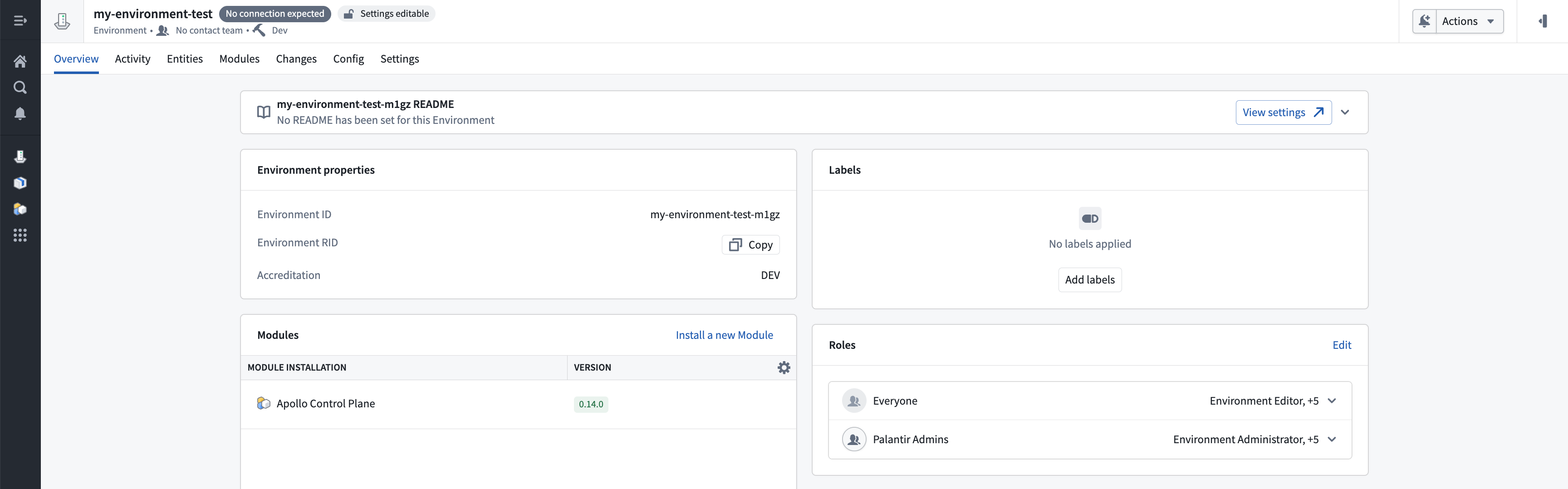
You can install Products in this Environment the same way you would do it for a Connected Environment, either by installing a Module or installing a single Entity. After adding the relevant Entities and config you want for your Environment, you can now export it.
Create an Export Pipeline
Next, you can create a new Export Pipeline with the Select Environments data selection rule to export the Environment.
Managing the imported Environment
Change requests on Environment import
When a Bundle contains Environment changes, Apollo creates a change request to review the changes before they are applied. Some changes, such as modifications to network security rules, require manual approval. You can view the approval status of each Bundle from the import history.
Learn more about change requests on Environment import.
Configuring permissions
When importing an Environment, no Teams are initially granted any permissions for it. Global Environment administrators can grant teams permissions for the Environment from the Target Hub. See Roles for Environments and Entities for more information.
Editing config for the Environment in the Target Hub
From the Target Hub, configs are read-only for imported Environments. By default, config changes (editing the Environment settings or config, or an Entity's config overrides) must be made on the Source Hub and be imported in a Bundle. If the Environment config or an Entity config is too sensitive to be visible in the Source Hub, you can change the config editability to be able to edit it on the Target Hub.
Connecting and operating the Environment
Other than some configuration being read-only, an imported Environment behaves like any Connected Environment. You can generate a manifest to connect and operate it.
Advanced: Managing config for an imported Environment
This section will walk through workflows for editing and managing Environments Config and Entity config overrides for imported Environments and Entities. You can use these workflows to ensure that sensitive properties are not transferred from a Source Hub to a Target Hub. Instead, these config values will remain in the Target Hub's private network.
Initial state
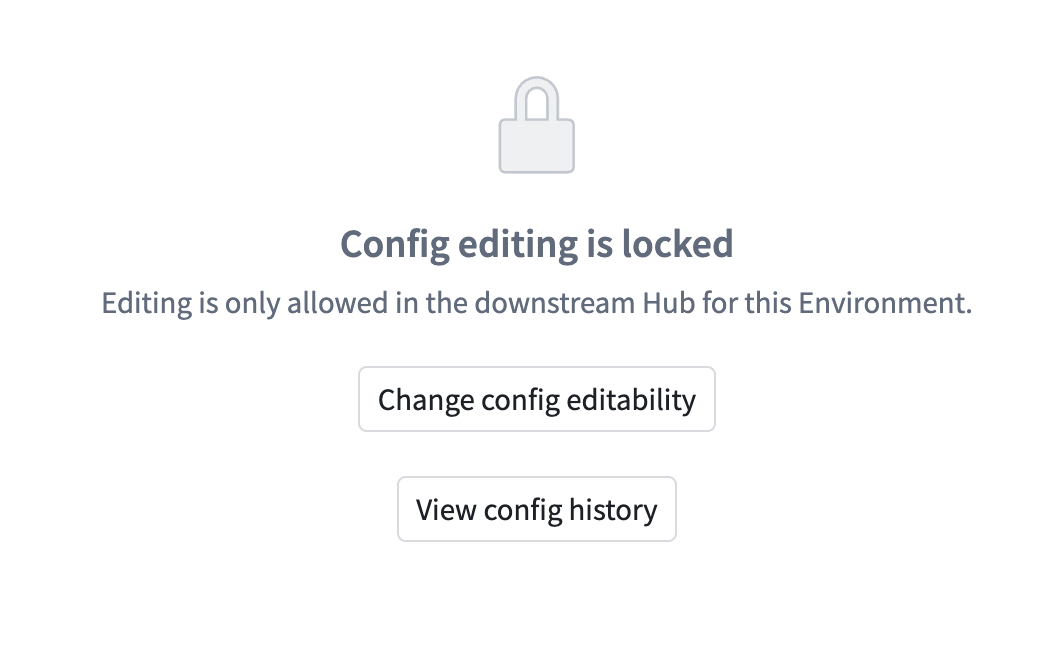
After importing an Environment, you can edit and manage the configs for the Environment and its Entities only from the Source Hub. Config changes will be transferred to the Target Hub through exporting and importing a Bundle. On the Target Hub, the Config tab will display a message that config editing is locked and read-only.
Change config editability from Source to Target Hub
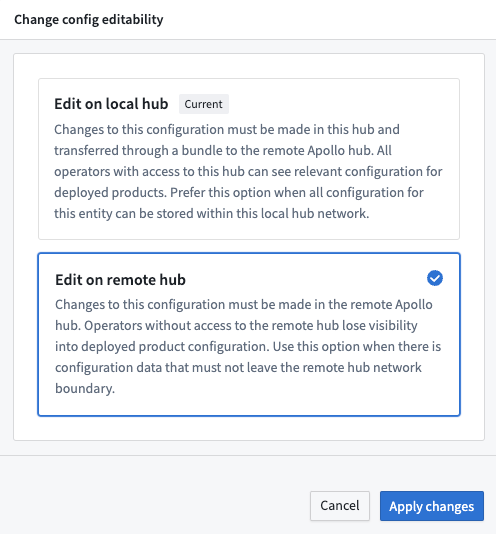
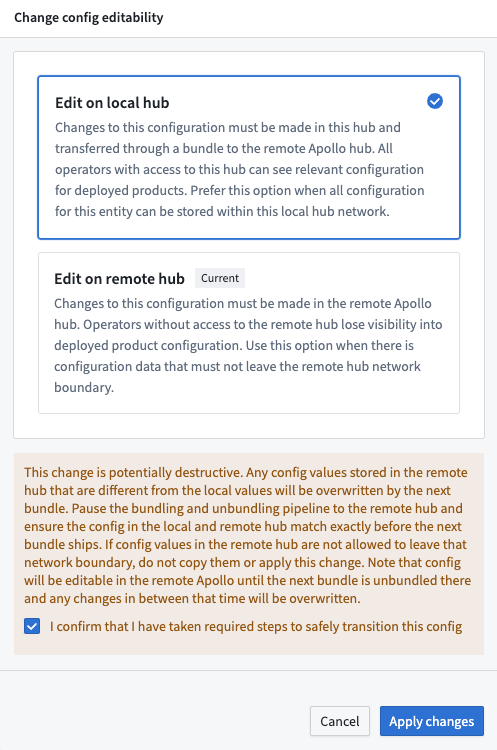
The Source Hub controls the editability of a config, meaning which Hub can apply edits to a config. To switch config editing from the Source Hub to the Target Hub for a specific Environment config or Entity config overrides, navigate to the Environment or Entity's Config tab in the Source Hub. Then select Change config editability. Choose the Edit on downstream Hub option and select Apply changes.

Build and transfer a Bundle for config editability
Once you enable config editability for a config on the Target Hub, Apollo will immediately disable editing the config from the Source Hub. You will not be able to edit the config in either the Source or Target Apollo Hubs until a Bundle has been built and imported to communicate this change to the Target Hub.
Editing config in the Target Hub
Once the Bundle has been imported in the Target Hub, Apollo will enable config editing in the Target Hub and lock the file in the Source Hub.
Changing config editability from Target to Source Hub
We do not recommend changing the editability of a config back to the Source Hub from the Target Hub. Changes made to a config file from the Target Hub will be lost once a Bundle is built and transferred from the Source Hub.
To safely change the config editability from the Target Hub back to the Source Hub you can:
- Ensure there will be no Bundles being built for the duration of this process. This may require you to pause any automated Bundle builds.
- Change config editability from the Target to the Source Hub in the Change config editability dialog.
- Update the Source Hub's representation of this config to match the Target Hub's representation.
- Resume Bundle creation and transfer the next Bundle containing the change to config editability metadata to the Target Hub.
Advanced: Linking multiple Hubs
Some complex Hub setups may require an environment to be created in Hub A, go through Hub B and be connected to a third Hub C. This setup might be needed if the Bundles produced by Hub A are not allowed to be imported in Hub C, and always need to go through Hub B first. To achieve this, create a new Export Pipeline in Hub B that exports the Environment and import it into Hub C.