- Capabilities
- Getting started
- Architecture center
- Platform updates
Branch security
Access to a branch in Foundry Branching is primarily governed by two mechanisms: roles and organizations.
Roles
Roles control what actions a user can perform on a branch.
Owner
Each branch must have at least one Owner. The user who creates a branch is automatically assigned the Owner role, but the role may also be assigned. Owners have full control over the branch and can:
- Edit branch and proposal metadata (the branch name, proposal name, and description)
- Assign and manage roles on the branch
- Create proposals and merge proposals
- Manage the branch's organizations
- Remove the inactive label from the branch
Administrators of the space that a branch belongs to have the same permissions as the Owner role.
Branch roles control access to branch management actions only and do not grant permissions to edit resources on the branch. To modify resources, a user must have the appropriate permissions at the project or resource level. To see resources on a branch or a proposal, you must be able to view that resource.
Managing roles
Roles can be managed by navigating to the Security tab on the branch page in the Foundry Branching application. Only owners and space administrators can modify role assignments.
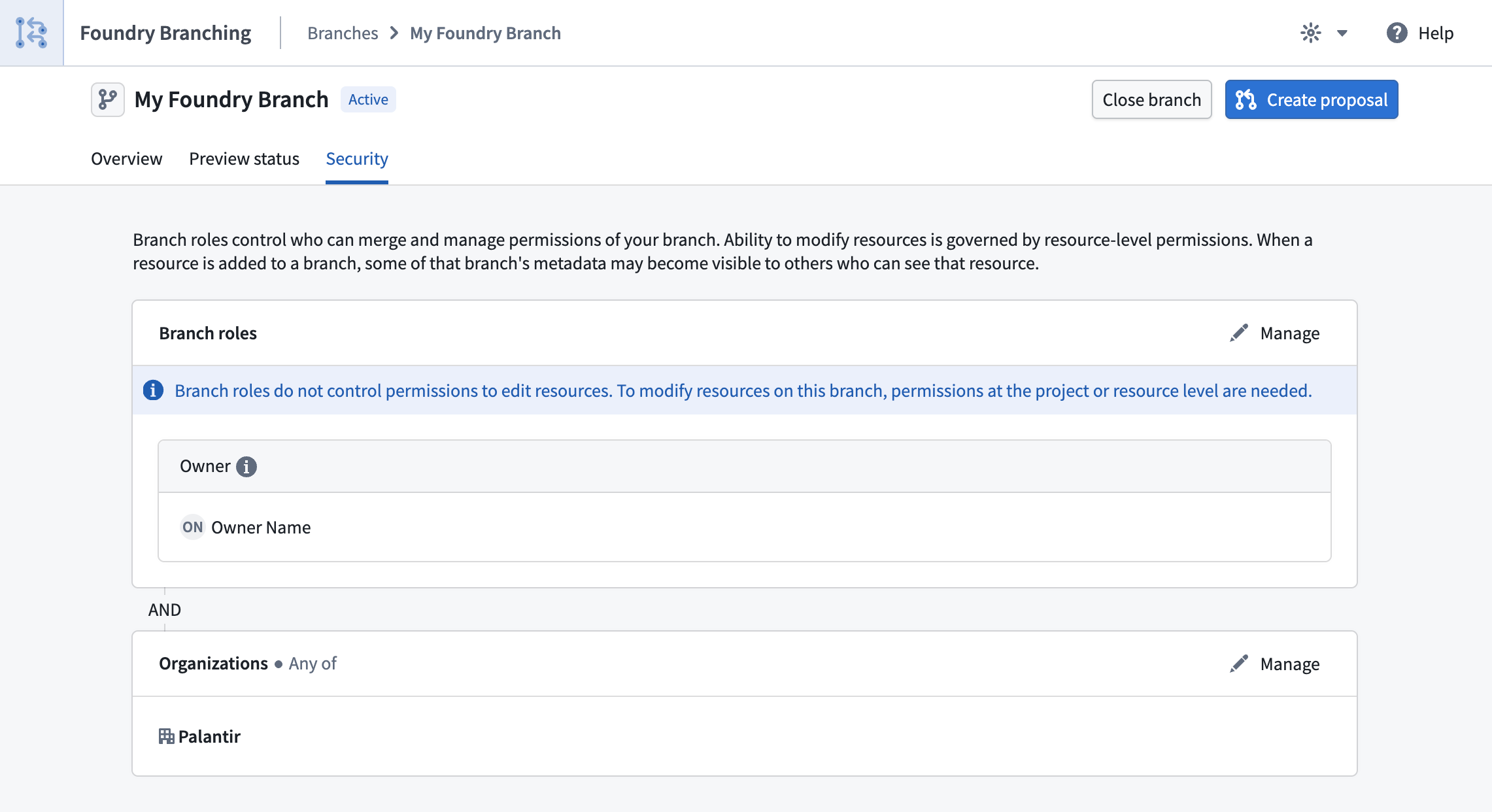
Organizations
In addition to role requirements, a user must be a member of at least one of the organizations listed on a branch in order to access it. Organizations act as an access gate to the branch itself. The organizations for a branch must be a subset of those associated with the space that the branch belongs to.
Avoid including sensitive information in branch names or other branch metadata as they may be visible on resources that have been added to the branch even if those resources are not protected by the same organization markings. For example, metadata such as the branch name may be visible on resources that have been added to the branch.
Creating a branch
When creating a branch, choose a name that does not include sensitive information, as branch names may be visible outside the branch's organization restrictions.

Ontology
The ontology selected at creation determines where you can make modifications on the branch. You cannot make changes outside the selected ontology, and the ontology cannot be changed after the branch has been created.
Space
In most cases, no additional configuration is required — the branch will automatically be assigned to the space associated with the selected ontology. However, if you select the default ontology, you will need to manually select a space.
The space affects the branch in several ways:
- It determines which organizations can be granted access to the branch.
- Administrators of the space have permissions equivalent to the owner role on the branch.
- It is used for retention purposes as outlined in the branch retention documentation.
Organizations
Organizations determine which users can access the branch. You can select from the organizations associated with the chosen space. The default selection is determined as follows:
- If the space has no organizations, or if your own organization is among those associated with the space, your organization will be pre-selected.
- Otherwise, all organizations associated with the space will be pre-selected.
You can adjust the selection before completing branch creation.