- Capabilities
- Getting started
- Architecture center
- Platform updates
Analysis panel
You can find the various Insight analysis tools from the analysis panel to the left of your workbook. From this panel, you can construct your analysis, step by step. Here, you can also find the filters you may have applied to your tables, charts, or maps. The cards shown in the panel represent the analysis results and the steps taken to reach them.
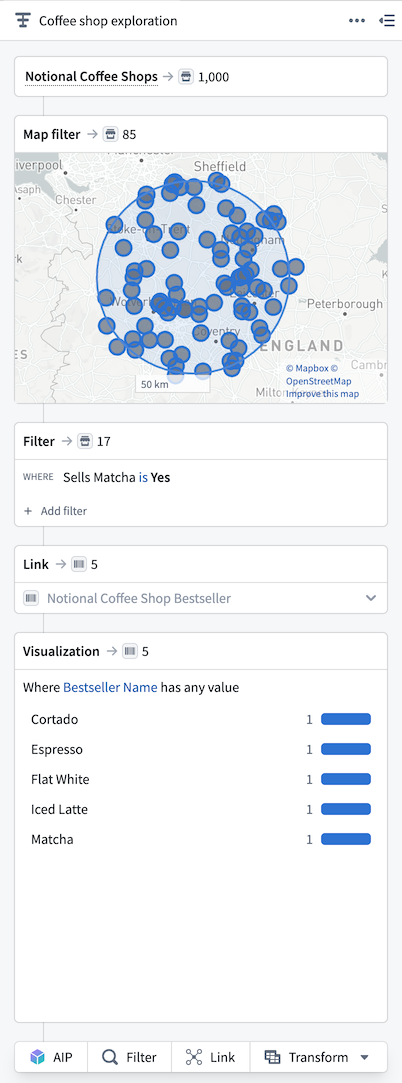
The header of the analysis panel contains the path name, which you can edit. To the right of the header is the collapsible path menu.
Path menu
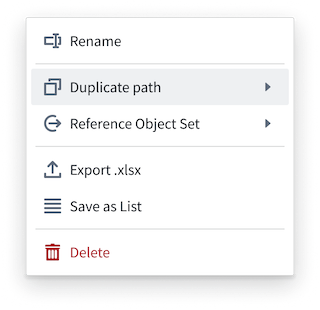
You can view the following options in the path menu, found in the analysis panel:
Duplicate path: Copy the path to another path within the current workbook, a new workbook, or an existing workbook of your choice. This action will copy the path details, including the starting set of data and the cards representing each step in the path.
Reference object set: If a path backs a published object set, the menu displays the option to reference it. Referencing a published object set will place the object set as the starting block of data in another path within the workbook, a new workbook, or an existing workbook. The referenced object set is read-only, meaning you cannot edit it. However, this reference allows you to interact with the object set data or add additional steps to an analysis path. The results of a path that contains an object set reference can also be published as an object set.
Export xlsx: Export the tabular results as an Excel file. Export is limited to a maximum of 200,000 objects.
Save as list: You can save a path as a list to create a resource file that contains only the object IDs found in the analysis path results. This means that the analysis steps themselves are not retained in a list resource. Saving a list is useful when you want to retain exact analysis results for future reference. If the underlying data in the source object type changes (for example, if data updates over time), the list will not change; it is a static copy of the results at the moment it was saved. Lists can be edited by adding or removing objects, and you can add object IDs to a list by right-clicking on individual objects in the table.
Delete: You can choose to delete the analysis path, and this is a permanent action. If the path backs an object set, an additional dialog will appear asking you to confirm if you also want to delete the object set. Published object sets can continue to exist if you delete the backing path.
Step cards
In the path, you can construct step-by-step analysis using tools from the tool ribbon. Every time you use a tool to build the analysis, a configuration card will appear and display the count of objects used at that step.
Select a step card in the panel to navigate to that part of the analysis and view results in the table, charts, and maps sections. You can also inspect the data results of that specific step.
Tools
You can access all of Insight's analysis tools from the ribbon in the analysis panel:

Most cards display the same values and options:
- The number of objects by object type, if multiple object types exist in the path.
- The ability to rename the card from its default naming (for example, updating
FiltertoShow positive reviews). - By hovering over the card, you can view additional options:
- Delete: Remove the card from the analysis.
- Collapse/expand: Expand the card to view details of the tool configuration, or collapse it to display a minimized result summary.
- Toggle: When toggled on, the tool is active in the analysis path. When toggled off, the tool is disabled from the path. This option allows you to test steps in your analysis without needing to remove a card from the path.
Cards cannot be reordered, but you can add new cards between existing steps in your path. Hover between the step cards to view the + Add option, which will open the tool ribbon between those cards.
Select any card to view the resulting data from that step and inspect details of the data at any point in the analysis path.