Terminal
Apollo allows you to launch an interactive debug terminal in your Environments directly from your Apollo Hub.
You can use the terminal to debug your applications in Kubernetes by running kubectl commands to inspect the configs, health, and logs of containers running in Kubernetes.
To launch a debug terminal, you must have the Environment Operator role in the Environment.
Each debug terminal session is time-bound (four hours) and is isolated from other users' terminal sessions.
Open a Terminal session
To start using debug terminals:
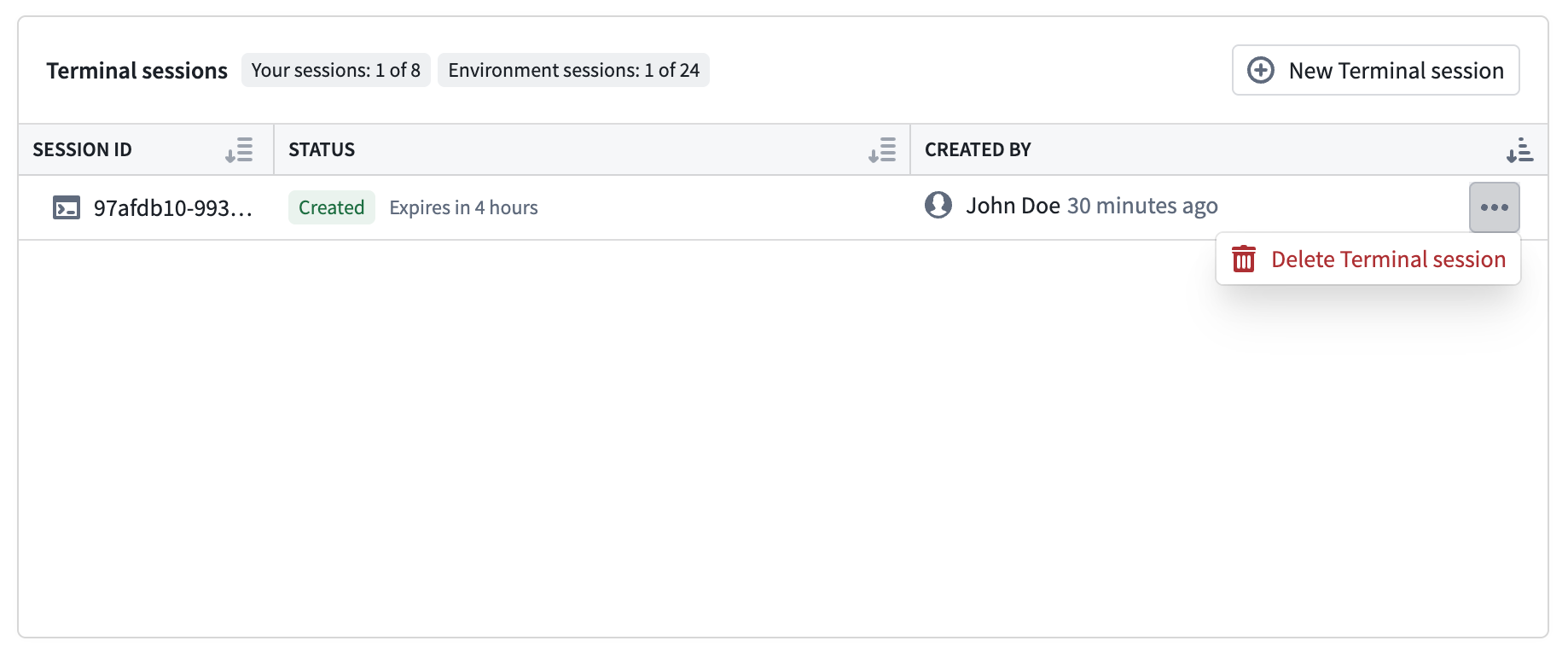
- Navigate to the Apollo Environment you want to debug and select the Terminals tab.

- Select New Terminal session and confirm the action.

- Wait for Apollo to create the terminal session, which may take up to one minute if there is no cached container images in your Environment.

- Interact with the terminal session in the new window. You will have scoped down Kubernetes RBAC based on your Apollo roles.
Check steps for troubleshooting in Kubernetes clusters for more details.

- Sessions have a time-to-live of four hours, and will delete automatically when you close the session window. You can clean up any sessions that are stuck by selecting Delete Terminal session in the menu next to each session on the Terminals page.
Kubernetes RBAC
In an active debug terminal session, you will have read-only access to a limited set of Kubernetes resources, such as Pods, Services, and ConfigMaps.
The exact set of permissions granted will depend on what you have deployed in the Environment, but the base permissions include:
Copied!1 2 3 4 5 6 7 8 9 10- apiGroups: [""] resources: - "endpoints" - "events" - "persistentvolumeclaims" - "services" - "pods" # Pod logs access depends on environment type - "pods/log" verbs: ["get", "list", "watch"]