Set Product and Environment maintenance windows
Environment and Product editors can each set maintenance windows as a constraint that Apollo must satisfy before it can perform an action. A Product contact team may not want their team woken up in the middle of the night for failing software and consequently declare a business hours only window in which their Product can be upgraded. Likewise, Environment contact teams may not want services to update during operational hours.
In this task you will set up Product and Environment maintenance windows to produce a resolved Entity maintenance window.
Environment maintenance windows
We will configure the following maintenance window for one of your Environments:
- No changes happening between 6 AM and 10 PM, Monday through Friday.
To set Environment maintenance windows:
-
Choose one of your Environments where you have your Helm chart or Nginx installed and open the Environment’s Overview tab.
-
Note that the Maintenance window block is set to
All time. We will set a maintenance window for non-business hours only. -
Select Edit settings manually from the Actions dropdown.
-
Select Edit in the upper right of the Environment settings.
-
Create a new maintenance window definition on line 5:
Copied!1 2 3 4 5 6 7 8 9maintenance-windows: my-env-window: time-intervals: - MONDAY/22:00-TUESDAY/06:00 - TUESDAY/22:00-WEDNESDAY/06:00 - WEDNESDAY/22:00-THURSDAY/06:00 - THURSDAY/22:00-FRIDAY/06:00 - FRIDAY/22:00-MONDAY/06:00 time-zone-name: America/New_York -
Replace both the
downtimeandno-downtimevalues on lines 3 and 4 (currently set toall-time) withmy-env-window. Apollo can make changes to Helm charts during either of these windows, so both keys must reference the same maintenance window. The start of your Environment settings should now look like this:Copied!1 2 3 4 5 6 7 8 9 10 11 12global-maintenance-windows: downtime: my-env-window no-downtime: my-env-window maintenance-windows: my-env-window: time-intervals: - MONDAY/22:00-TUESDAY/06:00 - TUESDAY/22:00-WEDNESDAY/06:00 - WEDNESDAY/22:00-THURSDAY/06:00 - THURSDAY/22:00-FRIDAY/06:00 - FRIDAY/22:00-MONDAY/06:00 time-zone-name: America/New_York
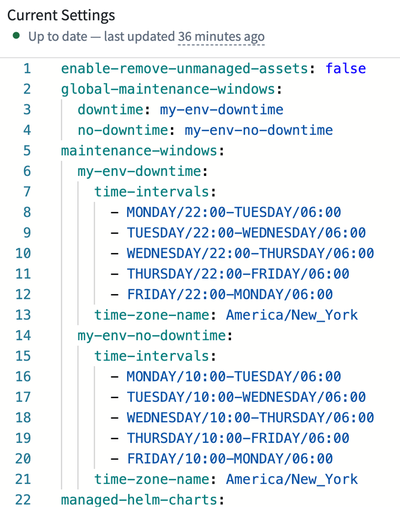
Next you will give your Product (or Nginx) its own maintenance window, so that Apollo only makes changes to it on weekends:
-
Add a second maintenance window definition under the
maintenance-windowssection, belowmy-env-window:Copied!1 2 3 4nginx-weekends: time-intervals: - SATURDAY/00:00-SUNDAY/23:59 time-zone-name: America/New_York -
Find your Product (or Nginx)
- entity-locatorblock under themanaged-helm-chartssection of the Environment config. -
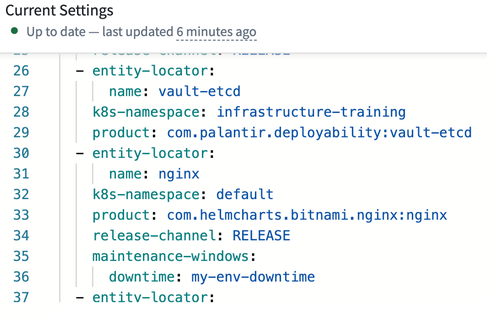
Add the following lines under the
release-channelentry. As with the Environment maintenance window, set both keys to the same maintenance window:Copied!1 2 3maintenance-windows: downtime: nginx-weekends no-downtime: nginx-weekends -
You are done editing your file, so select Review in the upper right to view a side-by-side comparison of your changes.
-
Once you are satisfied with the file changes, select Submit.
-
Enter a change request title, such as “Update maintenance window to non-business hours”, and a rationale like “Completing Apollo introduction guide”. Select Submit.
-
Return to your Environment's Overview tab and note the Maintenance window block has updated to match your configuration change.
-
Select your Product (or Nginx) in your Environment’s Entities tab. The maintenance window in the right-hand panel (which may need to be opened if it is collapsed) now shows an updated window for this Entity.
Product maintenance windows
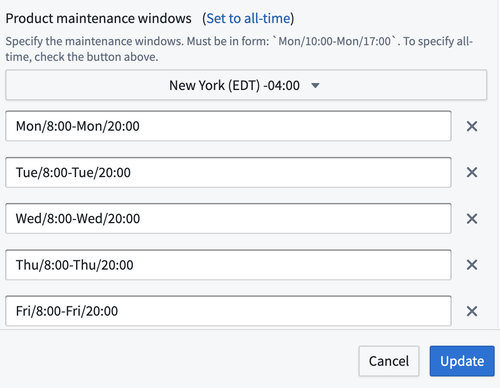
I want to prevent Apollo from taking any actions involving my Product between 8PM and 8AM US Eastern Time.
- Use a hotkey search to bring up your Product (or Nginx) by hitting
Ctrl+K(Windows) orCmd+K(macOS), entering the Product name, and choosing the correct Product from the list. - From the Actions dropdown, choose Edit product settings....
- Select the Upgrades tab in the Product settings window.
- In the Product maintenance windows section, choose
New Yorkas the timezone. - Set an entry for each day of the week as shown in the image below.
- Select Update to create a change request. Ask someone from your team to approve it.
- View your changes in the Maintenance window section of the Product details panel on the right side of the screen.
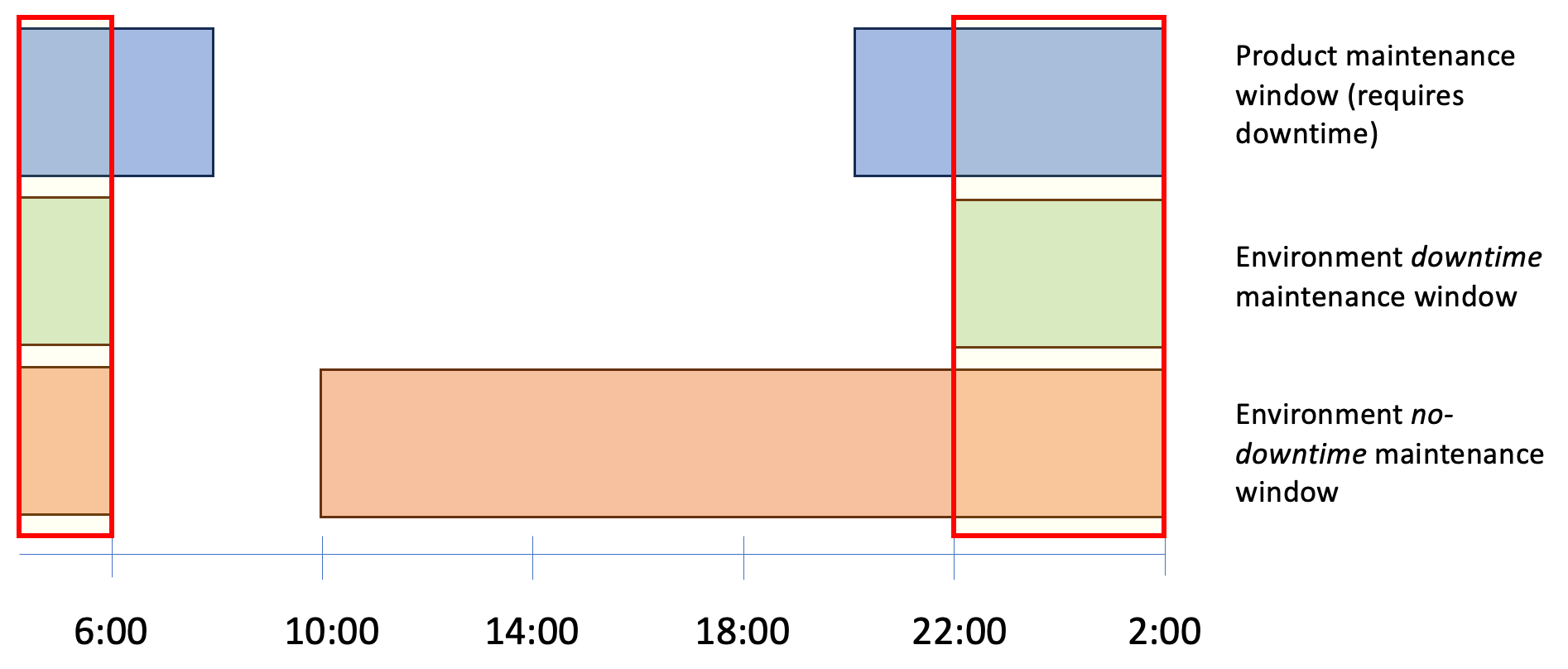
When evaluating whether to execute any actions on the Nginx Entity in your Environment, Apollo will calculate the resolved maintenance window for each Entity in an Environment based on the declared maintenance windows for the Product and the Environment. The graphic illustrates the resolved maintenance window for Nginx in your Environment.
Next → Next steps