- Capabilities
- Getting started
- Architecture center
- Platform updates
Monitoring views
Monitoring at scale reduces the time required to monitor Foundry resources by introducing enhanced capabilities. Monitoring views are a collection of monitoring rules and health checks.
Monitoring views offer expanded functionality beyond what is available in check groups and we recommend upgrading all existing check groups to monitoring views.
With monitoring views, you can monitor the following resource types:
| Resource type | Supported scope |
|---|---|
| Agent | Single, Project |
| Object type | Single, Project |
| Link type | Single, Project |
| Schedule | Single, Project |
| Streaming dataset | Single, Folder, Project |
| Live deployment | Project |
| Time series sync | Single |
| Geotemporal observation | Single |
| Automation | Single, Project |
| Dataset | Single, Folder, Project |
| Function | Single, Project, Workflow Lineage, Workshop, OSDK application |
| Action type | Single, Project, Workflow Lineage, Workshop, OSDK application |
If you need detailed content and schema validation, consider using health checks.
To use project scope with ontology resources, you will need to first migrate your ontology to project-based permissions.
Create a new monitoring view
To create a new monitoring view, navigate to the Monitoring View tab in the top right corner of the Data Health application and select New monitoring view.
Add a monitoring rule
In your new monitoring view, you can Add monitoring rules on the Manage monitors tab. First, select the resource type you are looking to monitor and then select a scope.
With a static scope, you select a specific resource to monitor. With a dynamic scope, the monitor automatically updates as resources are added or removed, without requiring manual changes. Dynamic scopes include Folder, Project, Workflow Lineage, Workshop, and OSDK application, though availability varies by resource type. See the supported scope table for details.
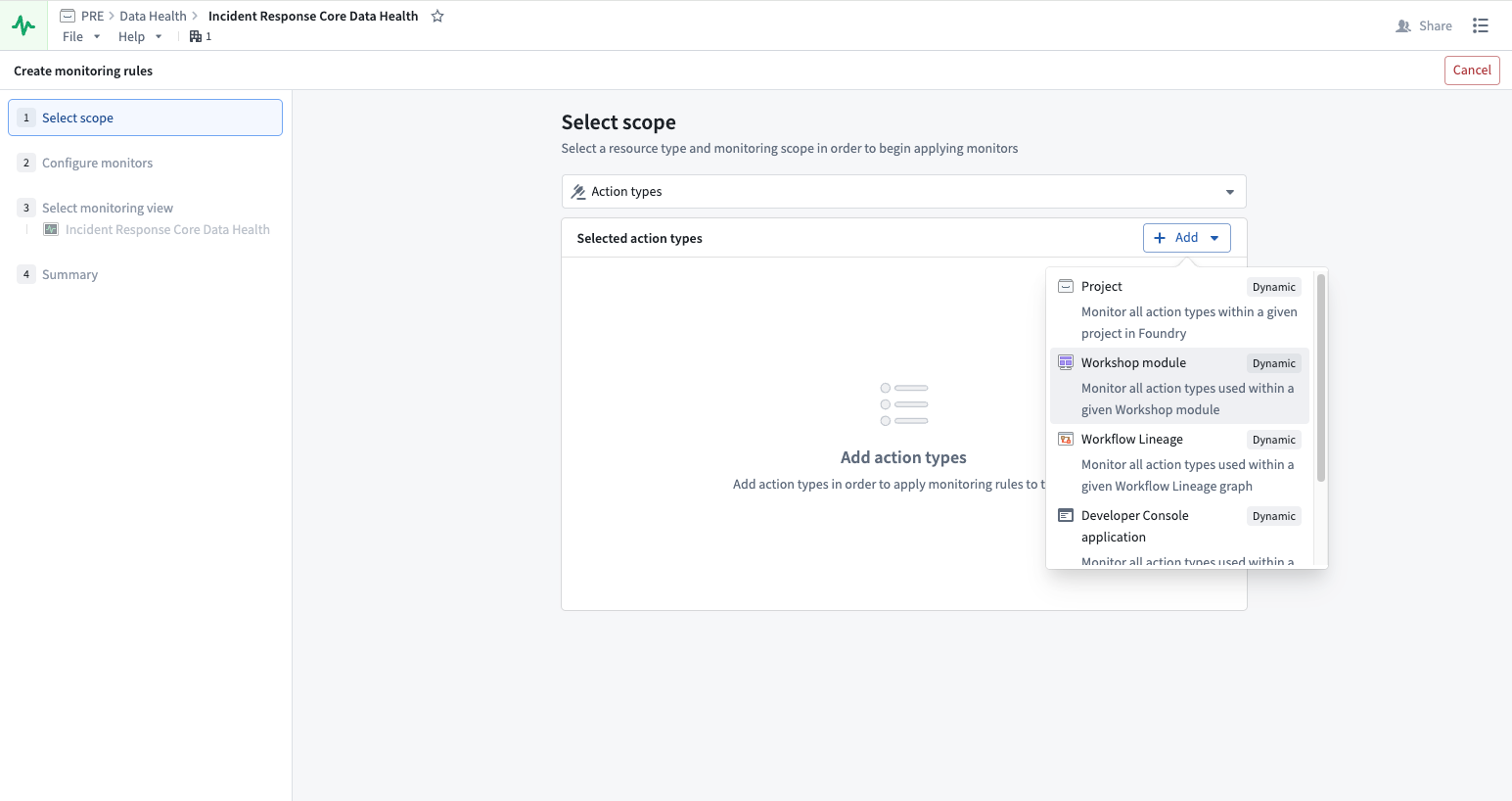
You must have Viewer permission on the resources to monitor them. To receive alerts triggered by monitoring rules, you must have Viewer permission on the resources and the monitoring view.
Additionally, you can review the Monitoring rules resource reference.
Configure monitors
Monitors are set on the metrics emitted by a resource. As you set up your monitors, we suggest certain configurations based on Foundry’s standards for health. However, you can change the values or choose to only monitor certain metrics. You can also determine the level of severity for the alert: low, medium, and high.
Edit monitors
You can edit your monitors by selecting from the list of monitors and choosing Edit on the side panel that appears.
Add a health check
You can add existing health checks to a monitoring view from the Data Health application:
- Select Add health check in the top-right corner of the Data Health application.
- In the resource selection dialog, select multiple datasets and choose the existing health checks you want to add to the monitoring view.
- The selected health checks are grouped in the monitoring view.
This dialog adds existing health checks to a monitoring view. To bulk-create new health checks across multiple datasets, refer to bulk adding health checks.
Set up and manage alert notifications
Once you have configured your monitoring rules, you will need to set up how and where alerts are delivered when issues are detected.
Subscribe to alerts
To subscribe to alerts, navigate to the Manage subscriptions tab where all the subscribed users are listed. You can add users and user groups, and configure their alerts based on severity. When a monitor rule triggers an alert, the user subscribed to the monitoring view containing that alert will be notified via email and Foundry notifications. Note that you must have Viewer permission on the resources and the monitoring view to be able to receive alerts.
Integrate with external systems
You can send alerts to external systems such as PagerDuty or Slack with built-in integrations or by using a webhook to hit arbitrary REST endpoints. Learn more about sending alerts to external systems.
Troubleshoot alerts
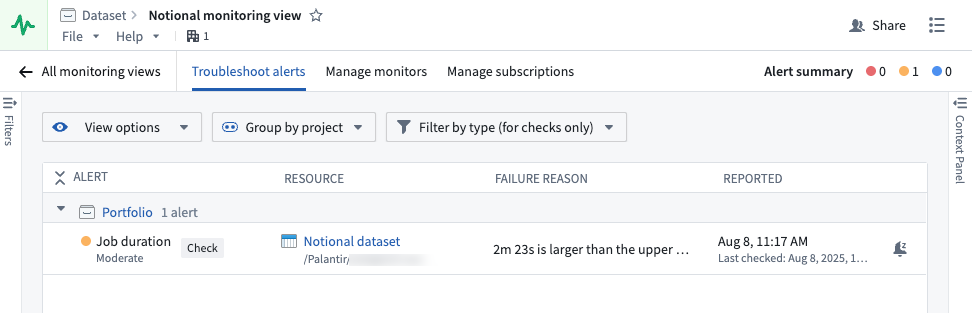
On the Troubleshoot alerts tab, you can review your alerts by alert name, resource, failure reason, and the time of reported alert. Additionally, you can view options, group by project, or filter by type (for checks only).
Navigate to resource lineage from an alert
From an alert on the Troubleshoot alerts tab or the alert debug page, you can navigate directly to the resource's lineage view.
- Datasets, schedules, and object types will open in Data Lineage.
- Functions, action types, and automations will open in Workflow Lineage with the Run history tab selected.
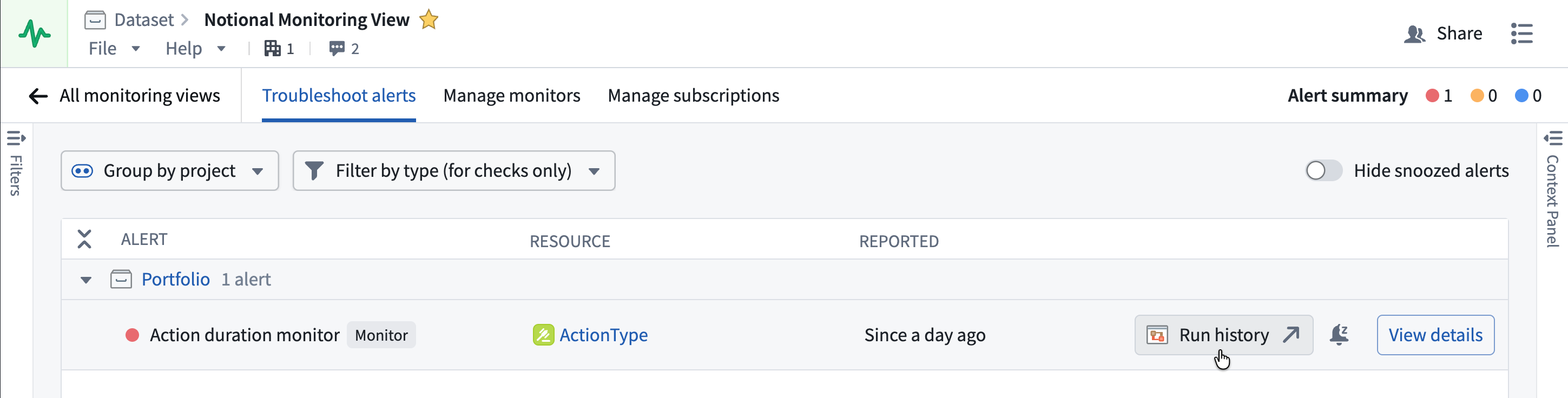
For function and action type monitoring rules, pre-filters are automatically applied to the run history based on the monitor rule type to surface the most relevant executions.
| Rule type | Run time range | Status | Timestamp range | Failure reason |
|---|---|---|---|---|
| Duration p95 | Set to the monitor's threshold value, showing only executions that exceeded the threshold. | — | — | — |
| Number of failures in window | — | Set to Failed | Start of the monitor's time window at the time the alert fired. | — |
| Number of user-facing failures in window | — | Set to Failed | Start of the monitor's time window at the time the alert fired. | Set to User facing error |
Pre-filtered run history navigation is currently available for function and action type resources only.
Upgrade an existing check group to a monitoring view
To upgrade an existing check group, open your check group in the Data Health application. In the top banner, select Upgrade to monitoring view.
You can create a new monitoring view or move all the checks to an existing monitoring view.
- Monitoring views are filesystem resources. If you are creating a new monitoring view, be sure to store it in a project accessible to potential subscribers.
- After upgrading your check group, checks will continue to be supported exactly as they are now. There are no changes to email digest, alerting, subscriptions, or any other workflow related to health checks.
- Each check group can be linked to a single monitoring view and vice versa; therefore, you can only upgrade one check group to a single existing monitoring view, or create a new monitoring view if a suitable one does not exist.