- Capabilities
- Getting started
- Architecture center
- Platform updates
Log search [Beta]
Log search is in the beta phase of development. Functionality may change during active development.
The Search logs tab in Workflow Lineage allows you to search across all service logs produced by a selected source executor over the past 30 days. Unlike the per-execution service logs view, log search aggregates logs from every execution originating from a given source executor, making it useful for investigating recurring errors or finding specific log messages across multiple runs.
A source executor is the first executable resource in the call chain and can be a function, action, automation, AIP logic, or AIP agent.
Accessing log search
To access log search:
- Open Workflow Lineage and navigate to the workflow containing your resource.
- Select an executable resource node.
- Select the Search logs tab in the bottom panel.
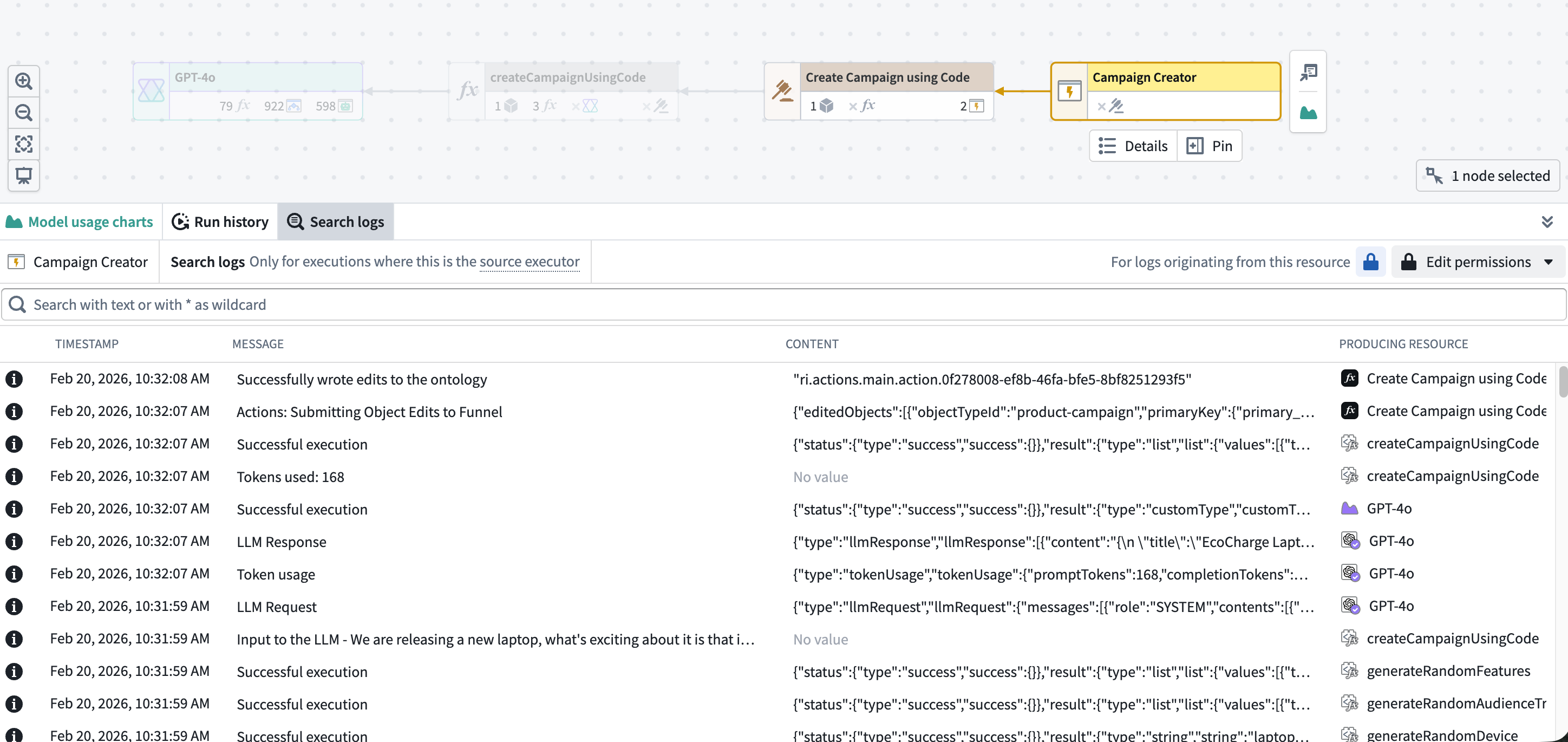
Searching logs
The search bar at the top of the panel accepts text queries. Type a search term and the results will populate the results table. The search is case-sensitive and matches against the full log line, including both the Message and Content fields.
You can use * as a wildcard character to match any sequence of characters. For example:
connection failedmatches log lines containing the exact phrase "connection failed"timeout*retrymatches log lines containing "timeout" followed by "retry" with any characters in betweenErrormatches "Error" but not "error" or "ERROR"
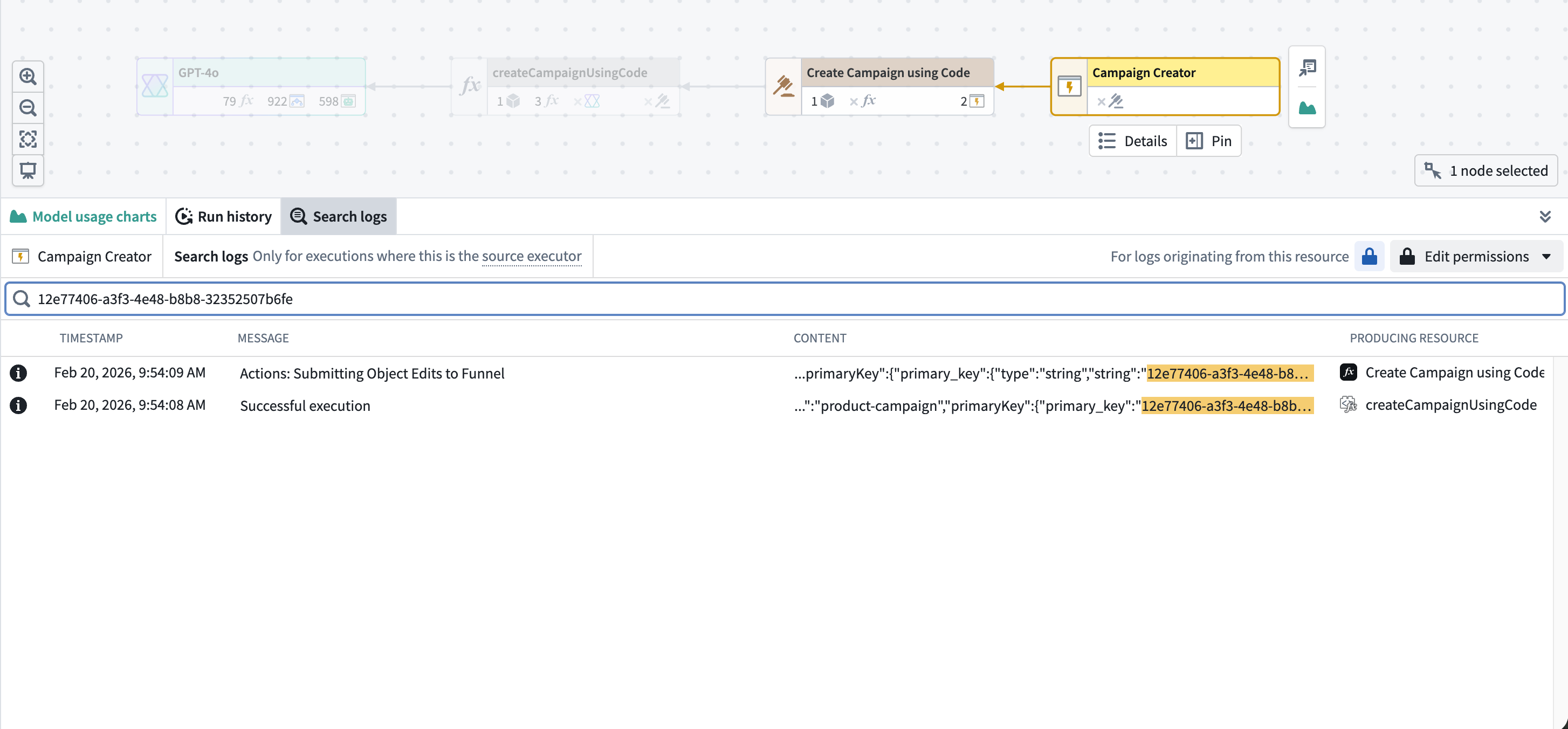
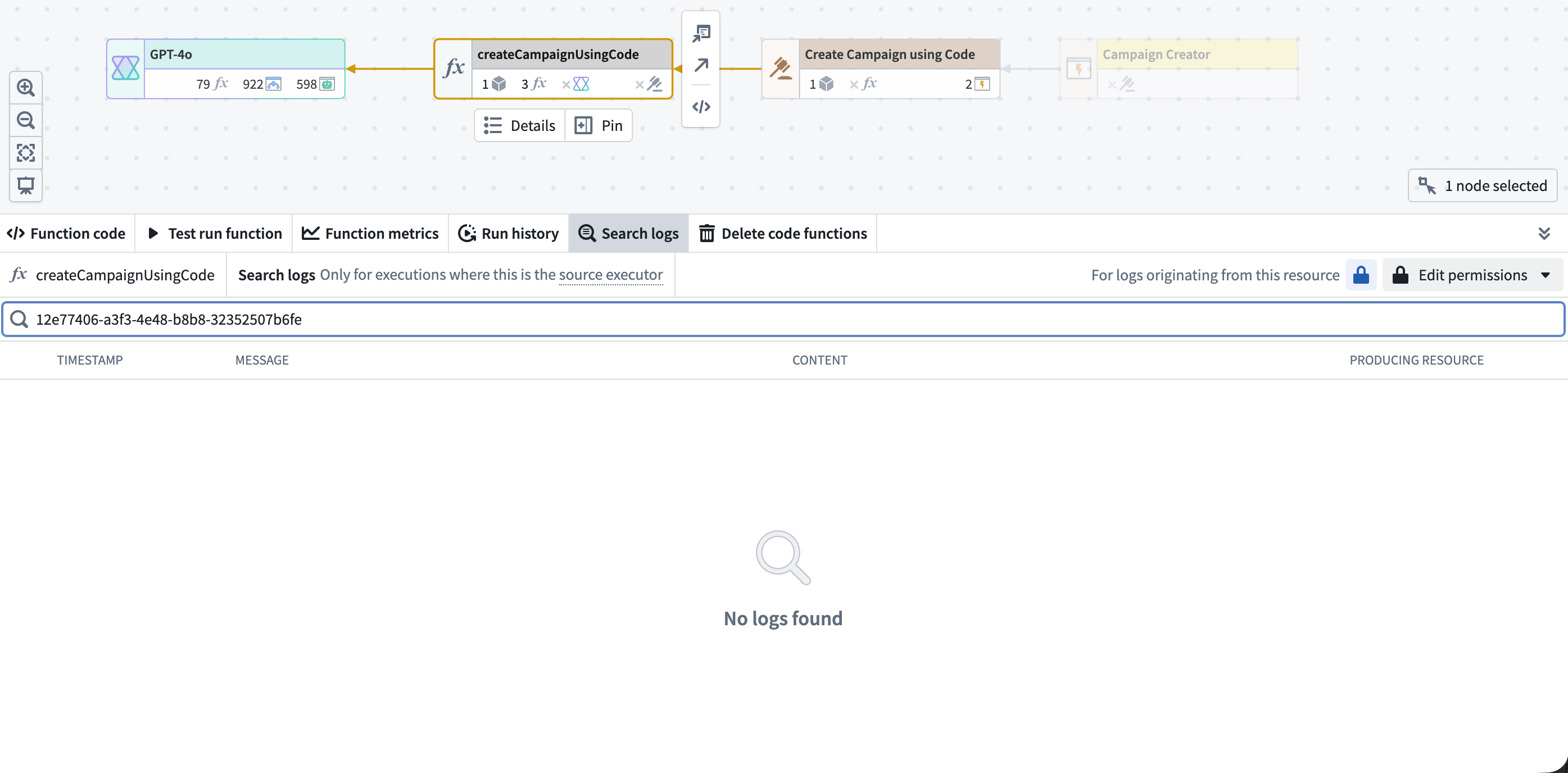
The Search logs tab displays logs for executions where the selected resource is the source executor. Logs from executions where the resource was called by another resource are not included. In the example below, the function produced logs during execution but is not the source executor — it was called by an automation. Searching from the function returns no results; to find these logs, search from the automation node instead.
A resource may be invoked as a source executor in some executions and as a downstream dependency in others. For example, if an action can be triggered directly or by an automation, selecting the action only shows logs where the action is the source executor (for example, triggered on demand from Workshop). To view logs for the entire chain, always search from the outermost node (in this case, the automation).
Filtering results
You can narrow your search results using the filters above the results table:
- Log level: Filter by severity level to show only entries matching the selected levels, such as
ERROR,WARN, orINFO. - Timestamp range: Restrict results to a specific time window within the seven-day retention period. Set a start and end time to focus on a particular incident or time frame.
- Producing resource: Filter by the resource that emitted the log entry. This is useful when a source executor calls multiple downstream resources and you want to isolate logs from a specific one.
Filters can be combined with text search queries. For example, you can search for timeout while filtering to ERROR level logs within a specific timestamp range to quickly identify critical failures.
Understanding the results table
Search results are displayed in a table sorted by timestamp, with the most recent logs appearing first. The table includes the following columns:
| Column | Description |
|---|---|
| Log level | A color-coded icon indicating the severity: red for ERROR and FATAL, orange for WARN, and neutral for INFO, DEBUG, and TRACE |
| Timestamp | The date and time the log entry was recorded |
| Message | The primary log message. Select the field to open a detail dialog |
| Content | Additional structured content, often in JSON format. Select the field to open a detail dialog |
| Producing resource | The resource that emitted the log entry |
Matching text from your search query is highlighted in the Message and Content columns.
Viewing log details
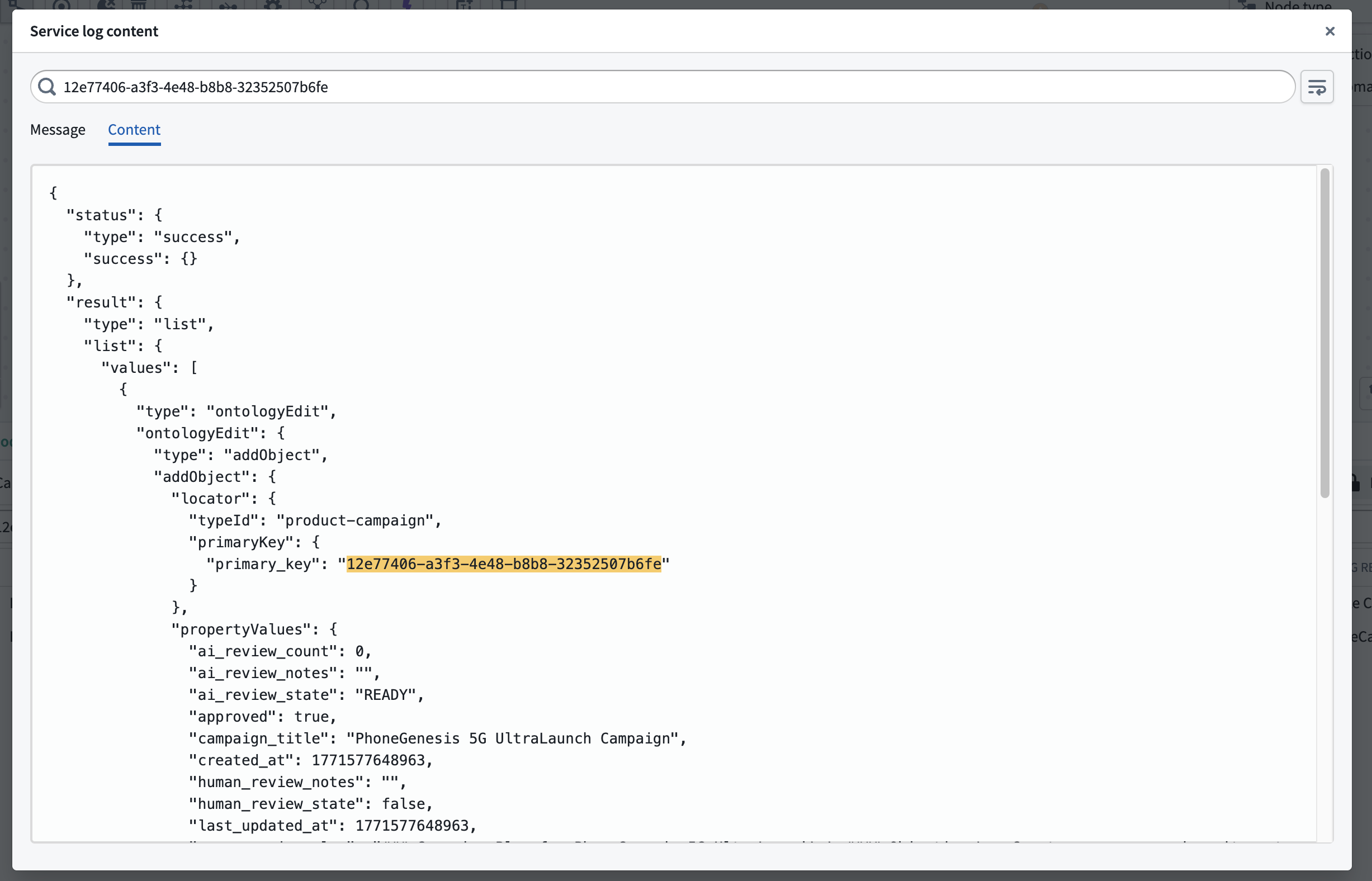
Select any Message or Content cell to open a detail dialog with the full log entry. The dialog provides:
- Message and Content tabs to switch between the two fields
- A text search bar to find specific content within the log entry
- A Wrap lines toggle for easier reading of long log lines
- Automatic JSON formatting for structured content
Log retention and pagination
Log search covers the most recent 30 days of logs. Logs older than 30 days are automatically deleted and cannot be recovered. Results are loaded in pages of 100 entries. Scroll to the bottom of the table to load additional results. Logs are not streamed live; to view additional logs produced after the initial search, refresh the page.
Permissions
Log search uses the same permission model as execution history. To search logs for a resource, you must have edit permission on the resource. If log access has been enabled for the source executor's project, and you have access to all the necessary markings, you can search logs across all executions. If log access has not been enabled, you can only search logs for your own executions from the past 24 hours, but edit permission on the resource is still required.
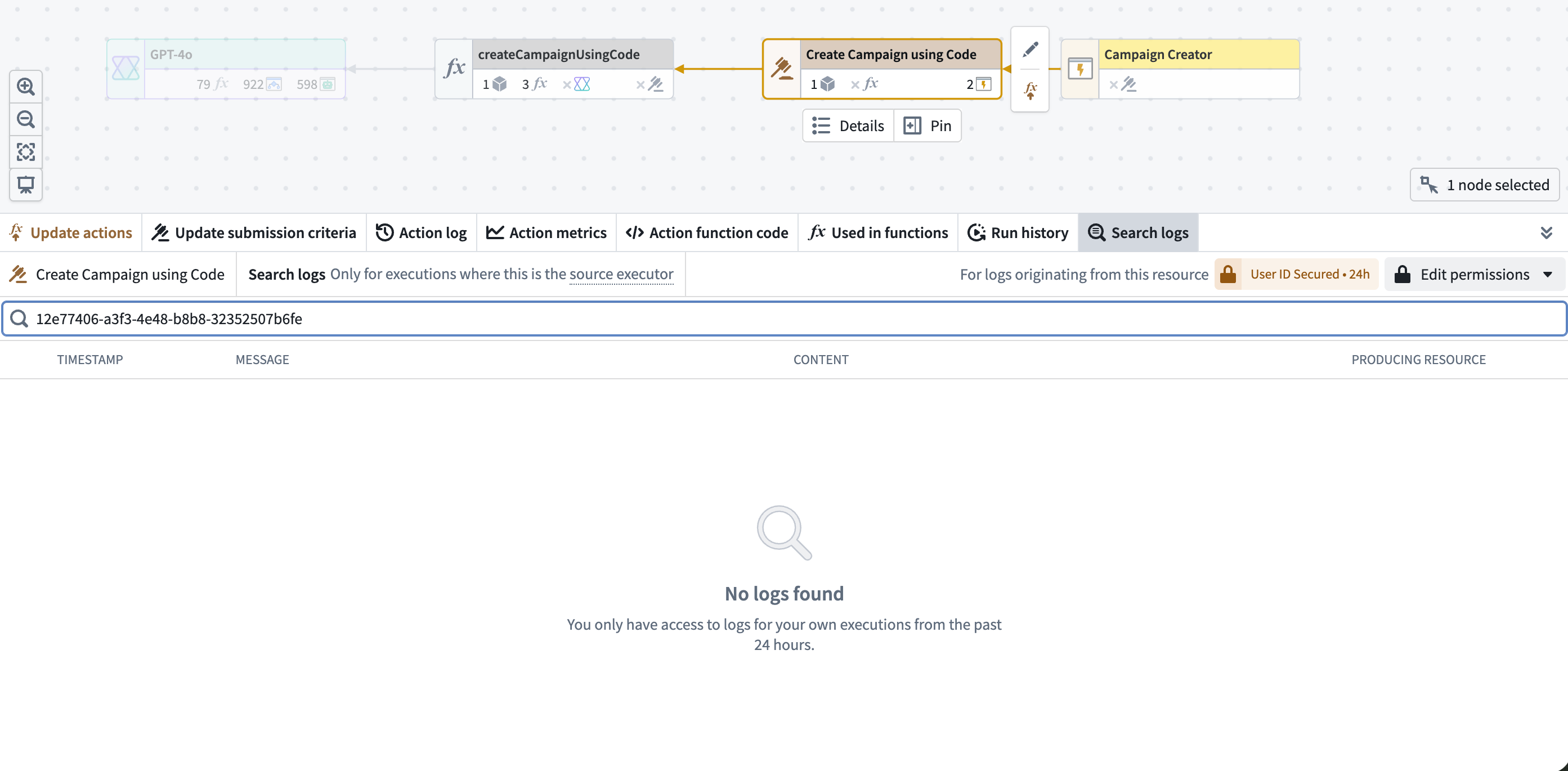
For full details on log access configuration, see log permissions.
Related features
- Service logs: View logs for a specific execution
- Execution history: Browse all recent executions for a resource
- Trace views: Visualize the execution timeline and correlate with log data
- Log permissions: Configure who can access logs